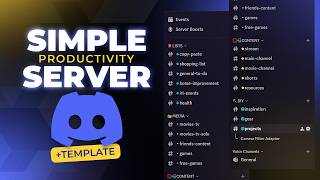

I Transformed My Life with a Discord Server
45sThe opening claim that a Discord server changed the creator's life is a strong hook that challenges common perceptions and piques curiosity.
▶ Play Clip"Delivers a solid, actionable tutorial with real setup steps, though some fluff and self-promotion."
The video is a tutorial on setting up a personal Discord server for productivity, demonstrating how to organize channels and categories for notes, media, content, DIY, and other hobbies. The creator emphasizes customization to fit individual needs and warns against storing sensitive personal information. They also showcase features like threads, forums, events, and bots to enhance productivity.
Creating a personal Discord server has changed the creator's life, leading to more notes and productivity.
A one-size-fits-all server is difficult; adapt it to your hobbies and activities.
Never treat the server as safe for personal information; avoid putting addresses or sensitive data.
Use categories to organize channels; edit existing categories or create new ones.
Create a media category for movies, music, etc.
Create a content category for work or creative projects; can be split into long-form and short-form.
Create categories for DIY and other hobbies.
Duplicate channels to quickly create similar ones, e.g., for shopping lists or to-do lists.
Create a channel for next-day tasks to plan before bed.
Channels for real-life events and home improvement ideas.
Channel for workout videos, meal plans, recipes.
Channels for music recommendations and movies/TV lists, including solo and group watch lists.
Channels for games and free games, with bots for notifications.
Channel for writing down content ideas.
Channels for short-form content inspiration and tutorials.
Channels for gear wishlists and cool projects.
Use threads to organize project details; threads disappear from list after 3 days of inactivity but remain searchable.
Forum channels allow visual display of projects as threads, with a big view and sorting options.
Create events for studying, movie releases, conventions; events show on the server with cover images.
Use reaction emojis to mark projects as done or in progress; custom emojis can be uploaded.
Bots like Google Calendar sync and Lion bot (Pomodoro) can enhance productivity.
Bot that notifies about free games on Steam and other platforms.
Bot that transcribes voice memos into text notes.
The server must be customized to fit your life; using Discord is easier if you're already on it daily.
Discord works because it's already open and used; other apps are forgotten.
Link in description to create a server based on the template; customize with bots and channels.
A personal Discord server can be a powerful productivity tool if customized to your life, leveraging features like threads, forums, events, and bots. The key is to make it your own and use it consistently.
What is the main benefit of using a personal Discord server for productivity?
It's already open and used daily, so you're more likely to take notes and stay organized.
17:57
What security warning does the creator give about personal Discord servers?
Never put sensitive personal information like your address; it's okay for shopping lists but not for private data.
00:46
How can you create multiple similar channels quickly?
Right-click a channel and select 'Duplicate Channel'.
03:39
What happens to a thread after 3 days of inactivity?
It disappears from the recent list but still exists and can be found by searching.
10:11
What is a forum channel in Discord?
A channel that displays threads visually, allowing multiple project threads to be seen at once.
10:55
How can you use reaction emojis for project status?
Set reactions like a checkmark for done or an hourglass for in-progress.
13:24
What does the Lion bot do?
It provides productivity features like timers and Pomodoro technique, and has a virtual pet system.
14:49
What is the purpose of the Voice scraper bot?
It transcribes voice memos into text notes.
16:09
Personal Discord server changed my life
Sets the premise that a simple tool can drastically improve productivity.
Security warning
Important reminder to avoid storing sensitive info on a personal server.
00:46Threads for projects
Explains a key feature for organizing ongoing projects.
09:05Forums for visual projects
Introduces a visual way to manage multiple projects.
10:55Why Discord works over other apps
Explains the psychological advantage of using an app you already use daily.
17:57[00:00] creating a personal discord server for productivity as honestly changed my life. I didn't really expect it, And I've never taken more notes or been more productive.
[00:14] one that you can adapt to your hobbies and your activities and all of discord features, integrated features that can be useful.
[00:26] mind is difficult to make a one size fits all because we live different lives and we have different interests, so make sure you adapt it to your life. is Never treat this as if it was safe in the sense of personal information.
[00:46] Do not copy paste like make information or anything like that. It's okay if you put your shopping list in your personal server. It's not okay if you put your address.
[01:02] We're going to go at the bottom of our server list. Honestly I've never used those. In this case it's not for a club or community.
[01:16] Because yes, you can eventually invite people, that's up to you. You might mean folder is such a mess. You have a fresh server with pretty much
[01:32] you don't have to worry about permissions and roles and all that stuff. So I don't know if you know, but you can create categories to put channels in.
[01:44] For example we have text channels category and voice channels category. Since this category is already made we're going to edit Right click edit category. This is where we're going to basically take basic notes.
[01:58] If you press windows plus period you can get your emoji list. And then from there you can choose a couple of ones I like to click on a I like the red one just because it's more striking.
[02:14] All right let's keep going And for the name we're going to go with media. I watch out of movies listen to music and all that.
[02:28] That's where I go. Put a space in between. Let's create a new category.
[02:40] Whatever you do, it doesn't have to be work. Content is what it's going to be about. You can drag and And keep making categories.
[02:55] I have long form and short form, but I'm going to keep in one place here And if you do make content, it's actually a better way That's create a category.
[03:09] I'm going to put DIY. In any other category, you can just other hobbies that you practice. For example, You'll be able to use some bots to help you like work on task.
[03:26] those productivity calls and things like But in our case, we're keeping it solo. I like to have my copy paste if I need to take on the I want to be fast with it.
[03:39] So when I take that general channel, we're going to edit If you want to be fancy, you can also put some emojis in there. And for the rest we can just duplicate right click duplicate channel.
[03:56] I don't use a shopping list anymore because I ordered my groceries Actually there's a bunch of so this is unnecessary, but I'll put it in
[04:08] but please keep watching the video and learn how to do it yourself, because I cannot guarantee that the template will be up forever. All right, once again, duplicate channel.
[04:23] Or as I like to call it, a next day to do list. before you go to bed and you're like, I want to be productive tomorrow. This is where I would put And of course, you can name all of that.
[04:39] I have home improvement. And then there are usually put inspiration for things that I want to change in my that I currently have going if I need to remove and replace anything.
[04:54] Next one I have is RL events. I got a lot of ads on Instagram for things to do around my place. That way I can just copy paste the links in here and visit them later,
[05:06] And finally into this category we had home improvement. You can put health or fitness or whatever.
[05:18] And this one I usually put workout videos that I find, meal plans, recipes, anything that has to do with health. There you go.
[05:30] Of course, if there's anything you feel that is necessary Feel free to do so. I'm going to click on the plus right here.
[05:42] and if you're someone who gets recommended music and people send you links and things like that, or just type the name of a band that you heard of,
[05:54] I don't really use that So I'll skip this one input and go to movies. two channels for the movie part, So when I keep this one as movies TV.
[06:10] And if you're like me and you love to have a list different for yourself and things that you want to watch with friends, You can have a movies TV solo. So if they post something that I cannot watch on the spot,
[06:25] But for yourself, if it's just like some different I used to have a podcast channel my personal server, but I never used it
[06:37] because again, I'm using an app that basically does all the organizing for games in its own separate category, but I ended up So we're gonna put games in here.
[06:51] we can always create threads. Another channel here will be free games. that tells us when games are free on steam and on the Epic Store.
[07:07] It will be a text channel. where I write down all the ideas that I get for content. I have multiple channels, so I'll just write ideas for each
[07:22] That's great. That's the one you're watching right now. And this is the perfect segue into a plug, because I also have a movie channel
[07:36] shows and movies and all Of course, this is going to be the template. Feel free to just modify it and whatever you do. We're going to create a short channel.
[07:49] And honestly for this one I, I, I put both inspiration. And when I come across a tutorial or a quick tip video that is pretty important or that can help in making content,
[08:05] Sometimes it's a free asset pack on Twitter or anything. Last one is for your little special interest, your hobby. If you want to have a list
[08:20] of all the gear that you could buy or your wish list pretty For me today. cool projects, whether it's just a picture of something or a video.
[08:33] And for me, I would need a projects channel. So if we go over it, you'll see your list. We have all of your media stuff and then the contents for whatever you do.
[08:49] this is where you'll put all your channels and then you have your DIY. And it might be intimidating when you're looking at everything like that. Only four categories.
[09:05] So let's talk about a couple of tools that you can use to your advantage. The option to create a thread.
[09:18] What it does is that it opens this side window with a name for the thread. Let's let's put a real project that I'm working on actually. And here you need to put something.
[09:32] Just click here and just control V and image on Google Center. The thread will be open on this window okay.
[09:45] So this is our thread that you can just click on. And in the list it's actually going to show up at the bottom here for a couple of days.
[09:59] And you can see it tells you that basically it's not going to show up in the list after three days. So if you're working on multiple projects, it's like an easy way to just see it
[10:11] But if you haven't touched it in three days or more, Then it's still going to exist. It's still going to be there. you know, actual it's not recent.
[10:24] So inside of here I can put everything that has to do with my camera filter adapter project. if I want it to be full screen, I can just click on it.
[10:39] It is as if it was its own channel pretty much. and scroll up until you find this message. all the threads So it's just like if it was pinned,
[10:55] Awesome. When you click Create Channel there's something called forum. It's created so that multiple people can share different threads pretty much.
[11:13] But the thing is it has a particular way of being displayed. It gives you this thing.
[11:46] But you get like a big view of it. So if you want to sort it and make it a little bit better. Just like that and post it. So there you go.
[11:59] So if your goal is to have all of your projects be visible visually like this, and then you can click on them and then within them you can, you know, actually type all the steps to your project.
[12:12] like a pretty cool visual way of making it happen. Now, as you can see on the left here, just like the threads, it shows up here. And then you have the same options as a thread.
[12:25] in a specific channel to visually represent that. Now events are absolutely great in this world.
[12:37] Where is it? Somewhere else. Click next. When is it taking place? And at the bottom you even have a cover image option.
[12:51] You have an event that is studying in 41 minutes. So. when a movie is coming out and things like that. like conventions and all that, you can also set that up.
[13:09] and most importantly, your discord will have. Let me see if I have an example the discord will have just like this one When an event is happening is currently happening.
[13:24] threads for each project, being able to put a reaction emoji means that you can set your projects to done, for example. If you're currently working on them, you can put, you know, hourglass.
[13:41] You can put whatever you If you're using it for YouTube videos, for example, and your video happened to pop off, And of course you can download
[13:53] and upload your own emotion to discord, which makes even better. Now, what else makes discord very valuable is the ability to use bots, if you want to synchronize this with Google Calendar, for example.
[14:09] All you have to do is invited to your server. you just create your events in Google Calendar and they will be sent to discord.
[14:21] It will be reminded. if you want someone else's calendar to be sent to your discord. because if I'm creating an event in Google Calendar, I don't need to be reminded.
[14:35] but if I'm synchronized with a friend or with a coworker on some projects. Another you could be using is a lion bot, and this one is really, really helpful,
[14:49] especially if you're studying and doing things like It's super productivity driven with timers and the whole Pomodoro technique on what you accomplish, which can be pretty nice.
[15:03] like the discord event thing. And they have a whole virtual pet system, which is pretty funny. It is more focused on having productivity discord with other people.
[15:15] But yeah, overall pretty well rounded. If you went to a website like Top Dog and you productivity as a keyword, you will find a ton of bots that will help you out depending on what you want.
[15:29] The options are pretty cool. What did I really love using is. Free stuff. It tells you games that are currently free to play or just free on steam.
[15:42] And also was the other one called let me show So right now there's a bunch of free to play games, including Salted on Steam.
[15:54] There are games that are completely free on the App Store, and I get a notification So inviting this bar to your server is super useful in my opinion. Of course, GOG.com is what I was looking for, so that too.
[16:09] But I actually use is a voice scraper since I'm always taking notes. Sometimes I have an idea that needs more than three words to write down the notes, so I'll just turn on microphone and just speak into my phone to take the
[16:22] is that it listens to your voice memo, and then it transcribes it for you. you can delete the voice note after It's just a cool way to have it.
[16:36] why would I want the text version? You can't add a glance, know what it's about. So you want the But also on top of that, when it comes to discord, the idea
[16:49] of being able to search for stuff with text, it's very important. Like there's so much that you can do with discord with or without bots.
[17:01] You can see me using voice grabber here. As soon as you're done recording, it puts like a little ear emoji. then push the text right there.
[17:15] is that you need to really, really customize it and really make it your own. to make a tutorial miraculously adapts to your life. So knowing the tools and and especially like being on discord
[17:30] It got super late. I turn off the lights. or planner or anything like that, more than something
[17:43] like notion that was built and conceived for it, it's not. The only thing is that if you are like me and you're already on discord and you get notification from your friends that make you open the app
[17:57] then you're more likely to take notes in discord because it'll be on all your devices and it will be open at all that are way better designed to get you to organize your life.
[18:13] I personally tried a bunch of apps, a bunch of different settings, and even paid for some and Nothing stuck for me. It's not that those apps are bad or anything like that,
[18:28] it's just that I just stopped opening them after a while. I don't know in my brain, it's like a hassle to go and open this thing, because that's the only thing I use it for.
[18:40] It'll be there. It'll be very simple to use. There's no learning curve because I already use It's not intimidating.
[18:54] I can just send them an invite. And if I want to kick him out, I already know how to do all of that.
[19:06] So yes, if you're good with notion, with with Google Keep one note. And whatever other app that's good, that's great for you if you're struggling with those and you never opened But you're on discord every day, all day.
[19:19] Check out the link in the description and on the top comment. and it will create a new server based on the categories, the channels. You have to go seek out the bots for you and in order to customize it, just right
[19:36] That's Anyways, I appreciate you for watching. Subscribe. when it comes to discord or anything else.


⚡ Saved you 0h 19m reading this? Transcribe any YouTube video for free — no signup needed.