
Find Trending Music for Shorts
50sReveals a specific tool (YouTube Chart) to find trending music, a key factor for viral shorts.
▶ Play Clip"Delivers a thorough step-by-step guide as promised, though the '2026' title is unnecessary hype."
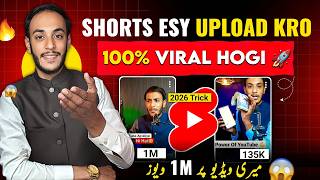
This video presents a comprehensive guide to uploading YouTube Shorts for maximum viral reach. The creator shares a tested method involving trending music, strategic text placement, and specific settings to push shorts to millions of views.
Many creators face stuck views (200–1000) and seek a proper method to make shorts go viral.
The creator shows millions of views on his own shorts and others' to validate the method.
Using trending music is essential for virality; it pushes videos with impressions.
Go to youtubechart.com, select country (e.g., India), click 'Short Songs' to see trending music.
Recommend using the main YouTube app. Click + icon, select shot, add trending sound.
Keep original audio full, reduce added trending music to 4–5 (minimal).
Add text to create a professional thumbnail. Position it where it appears only on a specific clip using swipe-up editing.
Write a relevant title and add 3 hashtags (e.g., #shorts, #hardwork, #YouTuber) from suggested popular ones.
Set visibility to unlisted, audience to 'No, it's not made for kids', enable comments and remixing.
Add a related long video below the short. Use collaboration feature to link another channel.
After uploading, use Chrome or YT Studio to add description, keywords, and tags (paste from ChatGPT or Rapid Tags).
Keep short unlisted for that time, then make public to boost virality.
Good, suspenseful content is crucial; text, title, and music only help push it.
By following this method—using trending music, optimizing text and settings, and leveraging collaboration—you can significantly increase the chances of your YouTube Short going viral.
What website is recommended to find trending YouTube Shorts music?
youtubechart.com
02:40
When using trending music, how should you adjust the volume of the added sound?
Reduce the added sound to minimum (4–5 on the scale), keep original audio full.
05:53
Why should you add text to a short video?
To create a professional thumbnail that gets more clicks.
06:18
What visibility setting should you use initially after uploading a short?
Unlisted, then make public after 1–1.5 hours.
09:58
What audience setting should you select to allow comments and remixing?
Select 'No' (not made for kids).
09:58
How can you link another channel when uploading a short?
Use the 'Invite a Collaborator' feature, generate a link, and send it to the other channel.
10:49
What tool is suggested to generate tags for the video description?
ChatGPT or Rapid Tags.
11:52
After uploading, where can you add tags if the main app doesn't allow it?
In Chrome or YT Studio, under the video's 'Tags' section.
12:17
Proof of Viral Method
The creator shows real million-view examples to build credibility.
01:35Trending Music as Growth Engine
Using trending music is a key driver for impressions and reach.
02:13Text Placement Creates Thumbnail
Adding text strategically acts as a custom thumbnail, increasing click-through rate.
06:18Collaboration Feature for Cross-Promotion
The collaboration feature allows linking two channels, boosting both via shared audience.
10:49Unlisted Hold for Algorithm Boost
Keeping the short unlisted for 1–1.5 hours may help initial indexing.
14:19[00:02] Look, if you want to grow your YouTube channel fast, then more impressions, more reach , more views and your subscribers start increasing rapidly. But many people are
[00:14] asking questions that Yasir Bhai, we are uploading shots on our YouTube channel but we are not getting views. Views can be 200, 400, 500 or maximum 1000. stuck and after that no shot goes viral. So let me tell you here
[00:28] that if the views are getting stuck, the shot is not going viral, then there are some big reasons for this. The most common reason is the method of uploading the SMS. If you post the shot correctly, it will definitely go viral. Now I will give you the proof of this.
[00:43] from someone else's channel. I will give proof from my own channel that if you take the shot correctly, manage it correctly, make it, then what result do you get from it. Ok? So here you have to see it with your own eyes.
[00:57] If here you feel that Yasir Bhai is really guiding the right thing then you have to follow it and benefit yourself. Because I am going to tell you a proper method of uploading shots and here let me tell you that
[01:09] I have already made a video on this topic but that is an old method. Now many new things have come while uploading, so you have to use them and make your shots viral. Here I open YouTube and
[01:22] you are watching the video. So here I click on the short section. So look here, you can see millions of views on my short video. This is my channel. It is my video and it has millions of views.
[01:35] So this means that I have some knowledge that I can make my short video viral. I can get millions of views on top of that. Now here is a guy from someone else's channel who is telling you that look here, he
[01:47] posted the shot in this manner and it got millions of views. His method and the method of that guy who is giving you proof from his own channel that look here, I uploaded the shot on my channel and I got millions of views. There is a huge difference. So I am going to give you a
[02:00] watch the video carefully. If you see brother's hard work in the video then so that you keep getting such videos on Next.
[02:13] today onwards it is my responsibility. Ok? Now one thing you have to keep in mind is that whatever trending music comes, hundreds of thousands of people make their videos viral by using it. Trending music also comes on Facebook and
[02:26] Instagram reels. After that, you also come to YouTube and if you make a short video by catching the trending music, then it definitely goes viral. how to use that music and how to upload the shot. Now,
[02:40] how is this trending music known that this music is trending these days. So if you make a shot on this then it will go viral. Earlier you used to get the option here on YouTube. By clicking on it you could find out
[02:52] what is trending these days. But now you do not see any such option on YouTube. So there is a great way to do this. What do you have to do? Simply you have to open any browser. After opening it, you have to write YouTube
[03:04] Chart here. I will write this. The website you will see on the first number. Simply you have to click on it. Click on it. This type of interface will open in front of you. If you look above, you will see Global written here. You have to
[03:16] click on the drop down here and after clicking on it, you have to select your country from here or you have to select Asia. For example, the only relevant country we see here is India, from where
[03:30] most of our audience comes. So here we select India. After doing this, if you look here at the end, you will see short music. I'll try to zoom in and show it. Look here you can see short songs.
[03:42] Simply you have to click on it. Click on it. You are seeing all those music which are trending in SSH. Meaning that by using these music you can make your message viral. Now you can check each one if you want.
[03:54] Otherwise, from here you we are seeing, simply what do you have to do ? You will see a dropdown here.
[04:06] You have to click on it and here you will see View All Shot. You have to click on it. Click on it. All the shots made on this music will be opened in front of you. For example, if you look here, its
[04:18] top video has 412 million views. Then 99 million, then 199 million, then 64 million. Meaning, all the shots made on this music have millions of views and you are seeing only viral videos.
[04:33] So you have to use this music. Now how to use it? Read this heading. What is its title? After reading this title, you have to come inside the main application of YouTube. There are three ways you can upload a shot.
[04:45] YouTube's main application, YT Studio and Google Chrome. So I would recommend you to upload the shorts from the main application only. Nothing happens anyway. You can do it from anywhere. How to upload? Simply you have to click on the plus icon. From here you have to
[04:59] select the shot. The add button is visible here. You have to select this. going to upload. You simply have to select that shot. After clicking on this, you have to click on the Done button. There will be a little
[05:16] as soon as the processing is complete, this type of interface will open in front of you. What do you have to do now? Above you can see the add sound button. Simply you have to click on it. You have to search the sound that we just checked from here.
[05:29] Like our sound was. I will search here. And this has already come before us. Let's click on it. You can see that sound at number one. And 20 million shots have been made on this sound.
[05:41] select this sound like this and click on the arrow button. What do you have to do now? You will see a volume button at the top. This one. Simply
[05:53] you have to click on this volume button. You have to keep your audio full. And this sound that you have added, you have to reduce it to a minimum. You have to keep about four to five of these. And there is no need to keep more than this. You have to click on the Done button.
[06:05] is no need to keep more than this. You have to click on the Done button. also have to add some text here. Why add text? This will allow you to create a professional thumbnail. And if your thumbnail looks good then it will get
[06:18] more clicks and this means that you will get more views also. So how to see and add any text here and if you want to change the color, you can do so.
[06:30] and if you want to change the color, you can do so. Here we make it smaller. After making it smaller like this, you have to place it on top here.
[06:45] written that YouTube is not that easy because in this short we have made a video that look we have recorded a YouTube video. There was no
[06:57] making videos. So this means you have to work hard on YouTube. So this is our type of video and we wrote a text. YouTube is not that easy. So, all the YouTubers who will watch this video will definitely
[07:11] you also have to use this thing. This is a kind of trick. So you must follow this. We have added this text here. But this text has been placed on the entire video. We do n't want to put this text on the entire video, but we want to
[07:24] add this text on a small clip so that we can set it on the thumbnail. So how to set this up? You have to swipe up like this. So you will see this editing part. You have to select your text like this and make it
[07:37] smaller like this. So you have to place it where your position is visible as much as possible. YouTube is not easy, so we will take this sentence to the place where our condition is worse. Meaning that you are
[07:49] sweating a lot. It looks like this guy has really put in some effort. So we will write this text there. So let's adjust this text here and from here we'll reduce it a little bit because we want to add it a little bit here. I do
[08:01] n't want to add to the entire video. We have done this work. After that, if you want, you can make it a little bigger here and we will adjust it here. After adjusting this, you have to simply click on the send arrow.
[08:14] So this kind of interface will open in front of you. Look here, you can see a pencil button. Simply you have to click on it. So here you have to you have written the text. Whether it is in the middle of the video, at the end or at the start.
[08:28] As you can see here, ours is in Start, so it has been automatically selected. But suppose it comes in the center of your video. So you have to select it like this. Or wherever your text is shown, you have to select that portion from here.
[08:40] selected this portion. Simply, we are going to set this frame here. Look at this. Ok. So we set this frame. After that you have to click on the Simply Done button. After that you have to click on the Simply Done button.
[08:54] Shot means that you have to give a title to your short. You have to give the title according to the video. You have to give the title according to the video. So,
[09:06] you know from what reference our video is. So we wrote the title here, the real situation of making a video. Meaning that a hype is being created about what happens while making the video. After writing this line, now you have to write two-three types of hashtags here.
[09:19] How to write hashtags? Here we will write hash and write shorts. We have written this, shh. Now there are 85 million channels and 1.6 billion videos created on this hashtag. So we will definitely use this hashtag. After that we will put the second hashtag
[09:33] here. So that will be hard work. Because we have mentioned hard working here. So it has 4.3 million videos on it. So we selected this. After that, thirdly, here we will add another hashtag. That is YouTuber so that
[09:46] our video reaches the people who are doing YouTube. So simply we write Uber here. 44 million videos have been made on this. So we have added three types of hashtags here. After doing this, you can
[09:58] see the visibility below. You should always keep it unlisted. After that you have to click on the Show More button. You will see the audience section. By clicking here you have to select no. If you select yes, then no comments will be available, no
[10:10] one will be able to do mixing on your video, nor will any special ads be able to run. So simply you have to select no. After this, if you come down, you will see a section of related videos. This means that you have to add another video inside this short. You have to
[10:22] add a long video. Whenever someone watches your short video, they will jump from there to your long video. So the views on the short will definitely come. Along with this, get views. So simply you have to click on the related video.
[10:35] All the videos of your channel will open. So by going here you have to select the video which you want to add. you have to select the video which you want to add. After clicking on it, you have to come down and here you will see an option of collaboration. Simply
[10:49] you have to click on it. You have to click on Invite a Collaborator. Now what is this collaborator? You must know how to
[11:01] YouTube channels. I am uploading videos from this channel and I want my other channel to get promoted along with this channel. So simply here I will write the name of the second channel. Like my other channel is called Best Tuck. So
[11:13] What do you have to do here ? You have to click on the create link. You have to copy this link and send it to the person you want to connect with. As soon as he clicks on this link, the accept
[11:26] option will appear there. As soon as he clicks on Accept, both these channels will get linked. So here it is called collaboration. You have to do this work. you have to keep comments etc. on. After that you have to keep this remixing aside.
[11:39] You are the one who will benefit from this. After that, if you look below, you can see alter content. You have to click on it. If your video is made using AI then real video then you have to say no. It is a simple flower. After that, if you look below,
[11:52] you will see the option of ad tags. Tags are added here. Now where do you get the tags? You can also take the chat from GPT. After that, you go to Google and write Rapid Tags there. So you will get tags from there also.
[12:05] But it is best to use Chat GPT. From there you will get the tags. Whatever your title is, you have to send it to Chat GPT and ask them to remove the tags from it. So he will give you tags. Ad tags are visible here.
[12:17] Here, when you add all the tags, the tags will not be added. Tags cannot be added from here. So you have to cut it from here. You should not touch this. I have to come back. You should not touch this. I have to come back.
[12:29] Your short is being uploaded here. And what do you have to do? You have to come back from here. What do you want to do now after coming back ? You have to open Google Chrome and write study youube.com there and after writing this you have to search.
[12:42] As soon as you search, your channel will open inside Chrome. As you can see here, our channel has opened. If you If any other channel opens here, you will see the logo on the top right corner.
[12:57] account. You have to select your channel. Ok? After doing this, you simply have to click on the second number which is on the content. Look at this. Click on it. All the videos of our channel will open. Above you have to
[13:11] click on the short button. So look at this, you can see the video that we just uploaded. You simply have to click on this video. So look here, on the second number you can see a description box. Here you have to paste your title As It Is
[13:24] which you have written. Along with this, you also have to enter five to seven keywords. You will get the chat from GPD and along with it you have to add five or six hashtags also. Apart from this, if you want, you
[13:38] copied, so I have pasted them here. Everything has been added here. After doing this work you have to come down a little. The Show More button will appear. Simply After clicking on it, you have to come down a little further. So look here you can see a box of tags.
[13:52] Here you have to paste all these tags. So let me show you how pastes are made. We have copied this and after coming here, we have to long press and paste it. So look here,
[14:04] all our tags have been pasted in one go. Whereas this is not possible from the main application of YouTube. So you have pasted these tags here. get all this from Chat GBT. What do you want to do now that you've done this? Look above, you will
[14:19] you have to click on it. Let us open YT Studio. After opening it, click on View All in front of Shortcut. So see here, our short video has been uploaded. Now we will keep it unlisted for one to one and a half hours.
[14:35] After that you will come to settings here. We will click on the pencil button and click on it and make it public. We have to keep it unlisted for one to one and a half hours. With this method, when you upload your video,
[14:48] your video will definitely go viral. It will get the best views. Now do you know what are the special things inside it? The most important thing is your video. You must make the video suspenseful. Such useless videos will not work. When the video is good,
[15:01] then the text that we write on top does all the magic. After this, the title you write is the whole magic. The music we add is meant to push the video. Bring maximum reach of videos and
[15:14] send impressions. And when the music pushes your video as much as possible and you have added these things along with it, then definitely your shot will go viral and we have worked with the same method on our shot which has 1 million views. So I
[15:27] If you liked it and saw your brother's hard work, then please give it a like. This is also want to watch such videos next time, then brother, subscribe to this channel and select the bell notification on all. Now if you want
[15:41] us to create a new YouTube channel for you or you already have a channel that is not working and you want us to check your channel, that too in the PDF result, then you can contact us on our Instagram account. Take great care of yourself. Allah
[15:53] Take great care of yourself. Allah Hafiz.

⚡ Saved you 0h 15m reading this? Transcribe any YouTube video for free — no signup needed.