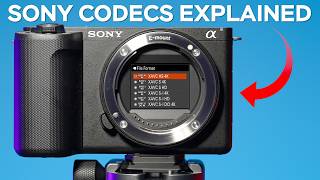

What is a Codec? Sony Camera Basics
45sExplains a fundamental concept in an accessible way, hooking beginners.
▶ Play Clip"The title accurately promises an explanation of Sony codecs and settings, which the video delivers thoroughly."
This video explains the various codecs available in Sony cameras, including XAVC HS (H.265), XAVC S (H.264), XAVC HD, and XAVC SI (All-Intra). It covers key concepts like bit rate, color subsampling, and bit depth, and provides practical recommendations for choosing the best settings based on your needs.
A codec compresses video footage to reduce file size. Sony cameras offer several codecs, accessible via the shooting menu under image quality and recording.
XAVC HS uses HEVC (H.265) for efficient compression, producing files about half the size of H.264 with similar quality. However, it requires more processing power to decode.
In XAVC HS, only 24, 60, and 120 fps (or 50 and 100 fps in PAL) are available; 25 or 30 fps are not supported.
Bit rate (in megabits per second) determines data per second. Higher bit rates (e.g., 200 Mbps) yield better quality but larger files. 100 Mbps equals 12.5 MB/s.
4:2:2 retains more color information than 4:2:0, which is beneficial for green screen work. Choose 4:2:2 when possible.
10-bit offers 1 billion colors, while 8-bit has 16 million. 10-bit is superior for color grading.
XAVC HD records in 1080p at various frame rates with different bit rates, color subsampling, and bit depth options.
XAVC SI compresses each frame individually, reducing artifacts in dynamic scenes. Requires V90 SD or CFexpress Type A cards. High bit rates (e.g., 500 Mbps at 50 fps) result in large files.
Available on FX30 and FX3, this mode records in DCI 4K (17:9 aspect ratio) at true 24 fps for cinema use.
For 50/100 fps, use XAVC HS (H.265) at 100 Mbps for manageable files. For 25 fps, use XAVC S 4K (H.264) at 140 Mbps 4:2:2 10-bit. Avoid HD and SI codecs unless necessary.
V60 SD cards are a sweet spot for most codecs. V90 cards are overpriced for minimal gain. CFexpress Type A is needed for XAVC SI. Freewell Pro Card Reader Plus and Pro SSD Link are recommended for fast offloading.
Understanding Sony's codecs helps you balance quality, file size, and workflow. For most users, XAVC HS at 100 Mbps or XAVC S at 140 Mbps 4:2:2 10-bit offers the best compromise, while V60 cards provide sufficient speed without breaking the bank.
What does XAVC HS stand for and which codec does it use?
XAVC HS uses HEVC (H.265) for efficient compression.
00:47
How much smaller are H.265 files compared to H.264?
About two times smaller.
01:08
What is the main downside of H.265?
It is more demanding for computers to decode.
01:16
What frame rates are available in XAVC HS?
24, 60, 120 fps (or 50, 100 fps in PAL).
01:48
How do you convert megabits per second to megabytes per second?
Divide by 8.
02:41
What is the difference between 4:2:2 and 4:2:0 color subsampling?
4:2:2 has more color information, better for green screen.
03:08
How many colors does 10-bit video have?
About 1 billion colors.
03:32
What does 'All-Intra' compression mean?
Each frame is compressed individually, reducing artifacts in dynamic scenes.
04:42
What memory card speed is required for XAVC SI?
V90 SD or CFexpress Type A.
05:31
What is the aspect ratio of DCI 4K?
17:9.
06:48
What bit rate does the creator recommend for 50 fps in XAVC HS?
100 Mbps.
07:30
How many hours of recording does 100 Mbps XAVC HS give on a 256 GB card?
About 8.5 hours.
07:35
What is the creator's recommended SD card speed?
V60.
09:30
H.265 Efficiency
Key fact: H.265 halves file size vs H.264 with similar quality.
01:08Color Subsampling Importance
Practical tip: 4:2:2 is better for green screen work.
03:0810-bit vs 8-bit
10-bit offers 1 billion colors, crucial for color grading.
03:29All-Intra vs Long GOP
All-Intra compresses each frame individually, reducing artifacts in dynamic scenes.
04:42Practical Recommendations
Creator shares personal settings for different scenarios, balancing quality and file size.
07:10[00:00] In today's video, we're going to break
[00:01] down the codecs of Sony cameras so you
[00:03] don't have any misconceptions about
[00:05] those. But first of all, you need to
[00:06] understand what a codec is. A [music]
[00:08] codec is basically a container, a way of
[00:11] pressing down, compressing the footage,
[00:13] uncompressed, pretty big files to more
[00:15] compressed and more manageable file
[00:17] sizes. And as you can tell guys, in Sony
[00:19] cameras, we have several different
[00:21] codecs. Here is the Sony FX30 as an
[00:23] example, but most of the Sony cameras
[00:25] have more or less similar codecs. And to
[00:27] change the codec, you need to go to the
[00:28] shooting menu, image quality and
[00:30] recording and file format. Then hit like
[00:32] this and you'll see different codecs. Or
[00:34] there is another option. If you go to
[00:36] the home menu, you'll have the codecs
[00:38] right here. And the first thing you'll
[00:40] see is the XAVC. XAVC is basically a
[00:43] naming for Sony codecs and it doesn't
[00:45] mean anything specific. And the first
[00:47] one we have here is the XAVC HS4K. It
[00:50] means that you'll have a 4K image, but
[00:52] also we have the letters HS and it means
[00:54] that it will be an HEVC or the high
[00:57] efficiency video codec, also known as
[00:59] the H.265. We have the older H.264,
[01:03] which is not as efficient, and we have
[01:04] an H.265, which is more efficient. It
[01:08] means that the H.265 can compress the
[01:10] file sizes more. For example, you'll
[01:12] have two times smaller file sizes while
[01:14] still retaining the image quality. But
[01:16] guys, there is a catch because the H.265
[01:18] 265 is more heavy for your computer to
[01:20] uncompress. So, we have more compression
[01:23] in camera, but the computer has to
[01:25] uncompress this footage and some
[01:26] computers may struggle with this. But if
[01:29] you have the M1, M2, M2 Max, etc.,
[01:32] you'll be more than fine because Apple
[01:34] is including the decoders and encoders
[01:36] for the HEVC or H.265 and a lot of
[01:39] Windows computers as well. Then, if you
[01:41] go to movie settings, you'll see
[01:43] different formats. For example, in
[01:45] XAVCHS, we only have 50 frames per
[01:48] second and 100 frames per second.
[01:50] [music] And that's a bug of Sony cameras
[01:52] because in XAVCHs, H.265, we're not able
[01:55] to record in 25 frames per second or in
[01:59] 30 frames per second as well, only 24,
[02:01] 60, and 120. Or if you are in the PAL
[02:04] region, only 50 and 100 frames per
[02:06] second. But then we have another option,
[02:08] which is the record setting. And in
[02:09] here, we have different numbers. And
[02:11] what do they mean? Basically, we have
[02:13] here the megabits per second. 45, 75,
[02:17] 100, 150, and 200 megabits per second.
[02:20] Don't mess those with megabytes.
[02:22] Megabytes are actually eight times more.
[02:24] As you can tell here, it's written 100 m
[02:27] capital, but the B is a small one. We
[02:29] have the megabits. If it was megabytes,
[02:31] we would have the B as a capital letter
[02:33] as well. It means that the bit rate of
[02:35] 100 megabits per second is actually
[02:38] [music] 12.5 megabytes per second. we
[02:41] have to divide 100 megabits to eight to
[02:44] get the megabytes. So this is called the
[02:46] bit rate and the higher the bit rate the
[02:48] more data we have and also the heavier
[02:50] will be the file sizes. Sometimes it is
[02:53] crucial to have smaller file sizes and
[02:55] for this I'd suggest getting something
[02:56] like 45 megabits per second but
[02:58] sometimes for heavy color grading and
[03:00] color correction it is crucial to have
[03:02] higher bit rates and for this I would
[03:04] suggest picking something like 200
[03:06] megabits per second. Up next we have the
[03:08] color subsampling. We have the 422 and
[03:10] 420. And it means that we have several
[03:13] amounts of color information for each
[03:15] pixel. And as you can tell from the
[03:17] charts, the 422 has more color
[03:19] information than the 420, which is more
[03:22] important for green screen work. For
[03:23] example, if you have an option of
[03:25] picking the 4:22 instead of 420, just do
[03:28] this. And finally, we have the bit
[03:29] depth. 8 bit or 10 bit. 10 bit has about
[03:32] 1 billion colors, whereas 8bit only has
[03:35] about 16 million colors. So always if
[03:38] you have an option to pick the 10 bit,
[03:40] pick the 10 bit because it's much better
[03:42] for color grading in post. [music] And
[03:43] for each codec, you'll have different
[03:45] movie settings. For example, right now
[03:47] we were in HS codec, but now let's go to
[03:49] XAVCs, which is the H.264. It has less
[03:52] compression, but it has bigger file
[03:54] sizes. So if we pick the H.264, XAVC
[03:58] S4K, and go into the movie settings,
[04:00] right now we have the 25, the 50, and
[04:02] 100 frames per second. And as you can
[04:04] tell, we have different record settings,
[04:06] different bit rate, different color
[04:08] subsampling, 420 or 420, and different
[04:11] bit depth, 8 bit or 10 bit. And also, if
[04:13] you go from 25 frames per second to 100
[04:16] frames per second, you'll also see the
[04:18] different record settings and different
[04:19] bit rates. The next codec we have here
[04:21] is the XAVC HD. It means that you'll
[04:25] only be able to record in HD, 1080p,
[04:28] basically at 25, 50, or 100 frames per
[04:31] second. [music] And here you have
[04:33] different bit rate values, color
[04:35] subsampling and bit depth [music] values
[04:37] as well. The next codec is called the
[04:39] XAVC SI and it means that this codec has
[04:42] an all intra compression. All intra
[04:44] means that each frame is being
[04:46] compressed individually but also the
[04:48] previous codecs such as the S and the HS
[04:51] they had the long GOP compression. It
[04:53] means that you only compress the first
[04:55] shot then after about eight shots you
[04:57] get another compression and then it goes
[04:59] like so from the first to the eighth.
[05:01] then from the eighth to the 16th,
[05:03] [music] etc. It means that the all intra
[05:05] codec such as the XAVC SI is slightly
[05:08] better for really dynamic scenes. For
[05:10] example, if you shoot in Fountain,
[05:12] you'll have less compression artifacts
[05:13] with the drops that are coming from the
[05:16] fountain basically. And also, right now
[05:17] guys, I'm using the SD card which has a
[05:19] V60 label and through all the codecs
[05:22] that I've mentioned above, it was plenty
[05:24] of speed with the SD card. But if I want
[05:26] to use the SI, so all intra compression
[05:29] with higher bit rates, it will show me
[05:31] this sign. You have to use a V90 SD card
[05:34] or the CF express type A card. And right
[05:37] now I have inserted the CF Express Type
[05:39] A card with really high bit rate speeds
[05:42] for recording and also for offloading
[05:44] the footage. And as you can tell guys,
[05:46] in the movie settings we have 25 frames
[05:48] per second and 250 megabits per second.
[05:51] It's a super high bit rate. And if we go
[05:53] to 50 frames per second, we'll have 500
[05:56] megabits per second. So the file sizes
[05:58] will be pretty dramatic. And also guys,
[06:00] I have to mention that you don't have
[06:02] 100 frames per second in all intra mode.
[06:04] So with this codec XAVCI, but you can
[06:07] actually enable it with a slow and quick
[06:09] motion if you set the FPS for the
[06:12] recording and for the frame rate. The
[06:14] next codec we have here is the XAVC SI.
[06:16] So once again, an all intra codec with
[06:18] higher bit rates, but for the 1080p HD.
[06:21] And as you can tell from here, we have
[06:23] the 93 mgabits per second speed for 25
[06:26] fps and also for 50 fps, we get 185
[06:29] megabits per second bit rate at 4210
[06:32] bit. And the final codec that is
[06:34] available only on Sony FX30 and Sony FX3
[06:37] for the cinema cameras is the XAVC SI.
[06:40] Once again, all intra but in DCI 4K
[06:43] format. This format is usually used in
[06:46] cinema in movies and it has the aspect
[06:48] ratio of 17x9 not a 16x9. And in this
[06:52] mode I'm able to record at 24 frames per
[06:54] second. So a true 24 like cinema 24p as
[06:58] you can tell from here and also in 25
[07:00] and 50 frames per second. And you only
[07:02] need this mode if you plan on using it
[07:04] for the film and if your client requires
[07:07] you to shoot in this 17x9 aspect ratio.
[07:10] Now you know about the codecs
[07:11] themselves, about the bit rate, bit
[07:13] depth, color subsampling, and
[07:15] differences between those, but which
[07:17] ones are my favorite, and which ones do
[07:18] I recommend? Usually, if I need to shoot
[07:20] at 50 or 100 frames per second, I'll
[07:23] just go to XAVC HS because it still has
[07:26] really nice image quality, but really
[07:28] manageable file sizes. As you can tell,
[07:30] for 50 frames per second, I can easily
[07:32] use 100 megabits per second and I'll
[07:35] have about 8 and 1/2 hours of recording
[07:37] to my 256 gigs card. But if I were to
[07:41] go, for example, to the XAVC S4K, which
[07:44] is H.264 codec, I'll have the bit rate
[07:48] to about 280 megabits per second. And
[07:50] here I have only 3 hours and 15 minutes
[07:53] of record time, which is more than two
[07:55] times less. But the image quality
[07:57] difference isn't that noticeable at all.
[07:59] But if I need to record in 25 fps, I'll
[08:02] go to xavc 4K H.264 codec and I'll go to
[08:06] 25 frames per second and I would pick
[08:09] 140 megabits per second 42 10 bit just
[08:12] to be in 10 bit codec and in 4:2 color
[08:15] subsampling. And with this mode, I'll
[08:17] have about 6 hours and 40 minutes to my
[08:19] 256 SD card. And I almost never shoot in
[08:23] HD because the 4K quality is really nice
[08:25] on Sony cameras and I simply don't need
[08:27] to shoot in HD. I would have the bigger
[08:30] resolution with the 4K definitely. And
[08:32] with the SI codec, I also don't use it
[08:35] often because if I pick this codec and
[08:37] shoot in 50 frames per second, I only
[08:39] have 57 minutes of record time to my 256
[08:43] CF Express Type A card, which is really
[08:45] not a lot. It's eight times less than
[08:48] shooting in uh XDC HS.265. And the
[08:51] difference in image quality is literally
[08:53] indistinguishable. At least in my
[08:55] opinion, especially when you upload your
[08:57] video to YouTube or Instagram, for
[08:59] example, you won't notice any difference
[09:01] because YouTube or Instagram will apply
[09:03] their compression and you'll see no
[09:05] difference whatsoever. And since I don't
[09:07] shoot movies and don't shoot for cinema,
[09:09] I don't use the DCI 4K mode as well. And
[09:11] for the codecs I've shown you, I do use
[09:13] the V60 card. This one is 256 gigs and
[09:17] it's for 25 megabytes per second speeds.
[09:20] And as you can tell right here, I have
[09:22] 50 frames per second in XAVCs codec and
[09:25] the bit rate is 200 megabits per second.
[09:28] So it's plenty of headroom for me. So
[09:30] the V60 would be a sweet spot between
[09:32] the price of the SD card and the
[09:34] recording capabilities. And the transfer
[09:36] speeds with the V60 cards are still
[09:38] pretty much manageable and it's not that
[09:40] much slower than for example a V90 card
[09:43] which is much more expensive. But still
[09:44] guys, occasionally I do want to shoot in
[09:46] XAVC SI mode for my clients
[09:49] specifically. And you can purchase one
[09:51] CF Express Type A card for this type of
[09:53] shot in XAVC SI codec or for the DCI 4K
[09:56] and then you'll have a second slot with
[09:58] the V6 DSD card as a backup. In my
[10:01] opinion, there is absolutely zero need
[10:02] to buy a V90 cards because they are much
[10:05] more expensive and you don't get major
[10:07] differences in those codecs that I
[10:09] regularly use and you won't see a big
[10:11] difference in the transfer speeds as
[10:13] well. There is also a V30 type of card
[10:15] for the SD cards and you'll be still
[10:17] able to record a lot of different
[10:18] formats. [music]
[10:19] For example, XABC HS 10 bit 100 megabits
[10:23] per [music] second easily and they're
[10:25] even cheaper than the V60. But in my
[10:27] opinion, the V60 is a sweet spot. But no
[10:29] matter which cards you're using, micro
[10:31] SD, SD, CF Express Type A, or CF Express
[10:34] Type B, I would always recommend using
[10:37] our Freewell Pro Card Reader Plus to
[10:39] offload the footage in a fast and
[10:41] convenient way. Not only does it support
[10:43] all the memory cards that I've mentioned
[10:44] above, it also has a USBC port with 10
[10:47] Gbits per second speeds. And the file
[10:49] transfer speeds are crazy fast, but also
[10:51] you can use it with our Pro SSD link
[10:53] little hub which can be connected like
[10:55] so. And you can actually offload the
[10:57] footage straight in the field just by
[10:59] simply using your iPhone and connecting
[11:01] it together. And what's even cooler is
[11:03] that the Pro SSD link hub can be used
[11:05] with your SSDs M.2s at up to 8 TB of
[11:09] footage. You can use it as an SSD disc
[11:11] or as a hub for your iPhone, for
[11:13] example, like here. And you have a
[11:14] magnetic connection like so. And a
[11:16] little adjustable cable in the kit. And
[11:18] then you can use it also to store your
[11:21] footage from the camera by using the
[11:23] card reader. With our Freewell Pro card
[11:25] reader plus and also with the Pro SSD
[11:27] link, the possibilities are literally
[11:29] endless. I hope you did enjoy this
[11:31] video, guys, and now you know everything
[11:32] about the Sony cameras and codecs in
[11:34] those. And we'll see you in the next
[11:35] video. Take care.
⚡ Saved you 0h 11m reading this? Transcribe any YouTube video for free — no signup needed.