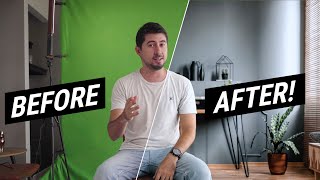

The Background is NOT Real!
40sThe surprising reveal at the beginning hooks viewers and showcases the tutorial's value.
▶ Play Clip"The title promises a Hollywood green screen tutorial and the video delivers a detailed, professional guide covering planning, setup, and editing."
This tutorial teaches how to create a professional Hollywood-style chroma key production. It covers planning the lighting setup based on the background image, setting up the studio with camera, lighting, and green screen, and editing the footage in Premiere Pro and After Effects.
The video will teach planning, setup, and editing for a professional chroma key.
Analyze the background image to determine key light, fill light, and bounce light positions.
Camera positioned low to match background perspective; two lights for subject, one light on green screen to reduce shadows; a bounce reflector.
Match camera height to an object in the background (e.g., a desk) to ensure natural composition.
Keep ISO low, shutter speed above 1/150, use a flat color profile, and balance exposure.
Use waveform and vectorscope to spread exposure, adjust curves, contrast, saturation, temperature, and shadows.
Export using Apple ProRes 422 with maximum render quality to preserve information for After Effects.
Proper planning of lighting and camera perspective, combined with careful color correction and high-quality export, ensures a seamless chroma key composite.
What are the three main lights used in a chroma key setup?
Key light, fill light, and bounce light.
0:42
Why should the camera height match an object in the background?
To ensure the perspective matches between the footage and the background image.
4:19
What camera settings are recommended for green screen shooting?
Low ISO, shutter speed above 1/150, flat color profile, balanced exposure.
5:18
What two scopes are used in Premiere Pro for color correction?
Waveform (for light) and vectorscope (for color).
7:02
What export format is recommended for chroma key footage?
Apple ProRes 422 with maximum render quality.
11:00
Lighting Plan Based on Background
Teaches how to reverse-engineer lighting from a reference image, a crucial skill for realistic compositing.
0:42Matching Camera Perspective
Explains a simple method to align camera height with background objects for natural perspective.
4:19Camera Settings for Green Screen
Provides specific settings (ISO, shutter, color profile) that directly improve chroma key quality.
5:18Using Waveform and Vectorscope
Demonstrates professional color correction tools to match footage to background.
7:02[00:01] today we'll teach you how to create a
[00:03] beautiful professional and Hollywood
[00:05] looking chroma key on what you see
[00:07] around me is not real hello everybody
[00:14] welcome back to this tutorial on how to
[00:16] create a beautiful looking chroma key
[00:18] production I am hi me from EMC and today
[00:20] we are going to learn three important
[00:22] things first how to plan out everything
[00:24] before the shooting session second how
[00:27] to set up everything on studio camera
[00:29] lighting green-screen everything and
[00:31] last but not least we're going to learn
[00:32] how to edit the footage and put it
[00:34] together with the background how to
[00:35] composite everything and I will teach
[00:37] you some tricks to make it totally right
[00:39] if you are still interested let's get
[00:41] into this
[00:42] alright guys I put together a
[00:44] presentation for you I promise it's
[00:46] gonna be really quick before we take
[00:48] action into the production so this is
[00:51] actually our action plan so let me talk
[00:55] about this real quick so we have here
[00:59] this image that actually you probably
[01:01] recognize is the one that I've used in
[01:05] the intro video and analyzing how the
[01:08] light works here we have this window
[01:10] that is gonna work as a key light
[01:12] because the brightest part of these
[01:15] elements over here that every object is
[01:18] on this side and the darkest side is in
[01:22] the opposite way so to the right side so
[01:24] our main light is probably this one then
[01:27] we have the field light which is
[01:30] probably a light bulb or some other
[01:34] artificial light behind the camera and
[01:37] over here we have this wall that is
[01:40] probably bouncing of some light that
[01:43] fill out some shadows over here so it's
[01:47] important to have this into our plans
[01:49] talking about our plans I put together
[01:52] this drawing so it represents the light
[01:57] on the image here and the subject that
[01:59] we are going to record which is gonna be
[02:01] myself and the key light so you can have
[02:05] either
[02:05] artificial source of light or if you
[02:08] find a window that
[02:10] can provide this enough light for your
[02:14] shooting it would be enough also we have
[02:17] this feel light which is like 45 degrees
[02:20] to the left of the subject and the
[02:24] camera is going to be here we're going
[02:25] to talk about that in a second and also
[02:29] the bounce light if you have an element
[02:31] that can bounce off this light coming
[02:34] from the left it would be a good idea to
[02:37] have an element that can do that so
[02:39] let's see how it works in real life this
[02:41] is a camera it is a little bit low
[02:46] because the reference or the background
[02:49] image makes us understand that it was
[02:53] the position of the camera that I that
[02:55] this image was taken and I have here two
[03:01] lights pointing towards where I was
[03:05] seated so that sugar over there also a
[03:08] bounce or so the light reflects a little
[03:10] bit to my face and to my body so it
[03:14] won't be that dark and yet the chromakey
[03:17] fabric on one light that is actually
[03:22] making look more even the colors or the
[03:26] shadows is removing that much of shadows
[03:28] of the wrinkles and so on
[03:30] so yeah that's the microphone for better
[03:33] sound that's it this is the setup for
[03:36] the chroma key project so I found this
[03:41] place in my apartment which is the
[03:43] living room with a nice source of
[03:45] natural light which is this window over
[03:47] here and also it has these curtains that
[03:50] acts as diffusers then we have this feel
[03:54] light situated in the same position as
[03:57] we have in the plan the camera is right
[04:00] here we will talk about in a second and
[04:02] finally we have a bouncer an element
[04:06] actually that bounds the light of the
[04:09] window from the right right side to the
[04:12] left so this is the bouncer over here
[04:16] and that complete the light setup now
[04:19] let's talk about the camera and you
[04:20] might wonder why the camera is
[04:22] No so to answer that let's get back to
[04:25] the background image but this time with
[04:27] some elements that will help us out
[04:28] understanding the perspective of the
[04:31] image and why understanding that is
[04:33] important it's very important because
[04:36] you need to compound the background with
[04:39] the footage you are gonna take so if any
[04:42] of those have a different perspective
[04:43] your composition would look weird on not
[04:47] natural so that's why it's important to
[04:50] understand that so one quick tip is to
[04:53] find an object that you cannot see
[04:55] either the top or the bottom
[04:57] for example this desk over here and that
[05:00] would be the height where the you should
[05:03] place the camera so that's why I place
[05:06] the camera at the level of this table on
[05:09] the left side like that you will
[05:12] recreate the angle of the camera that
[05:14] took this picture over here and finally
[05:18] before editing our footage let's talk
[05:19] about some camera settings to keep in
[05:21] mind when shooting a green screen
[05:24] production
[05:25] first of all let's keep your ISO as low
[05:27] as possible this will avoid grainy and
[05:29] noisy footage usually speed should be
[05:31] above a hundred and fifty this will
[05:34] avoid motion blur and use a flat color
[05:36] profile so it would be easy for you to
[05:39] color grade and as always keep your
[05:41] exposure balanced that's it let's go to
[05:45] edit our footage all right guys we are
[05:48] now in Premiere Pro and we have our
[05:50] footage ready to be color corrected and
[05:53] let's talk a little bit about the
[05:55] footage right here so you may wonder why
[05:58] I am using his footage that looks so bad
[06:02] it looks like undersaturated
[06:04] underexposed and why it looks like that
[06:07] and I'm not using another thing so the
[06:10] quick answer for that is that I am using
[06:11] a color profile on my camera that is s
[06:15] lock to use on a Sony camera so I am
[06:18] using that color profile which is
[06:19] actually a flat color profile its
[06:21] collide that and but this step is not
[06:25] necessarily a step that you need to
[06:28] follow however I will highly recommend
[06:30] to create your footage on any flat color
[06:35] profile
[06:35] so you will have more information to
[06:37] play with so why is that important
[06:40] because it is much your footage with an
[06:43] image that you found on the internet or
[06:45] some from someone else
[06:47] I'm the idea is to just match the colors
[06:49] and with more information on the colors
[06:51] of the colors in your footage you will
[06:54] be more able to match everything up in
[06:58] the final stage so let's continue with
[07:02] the color correction part let's click on
[07:05] this tab now we will see that I have
[07:09] here two scopes the waveform and the
[07:13] vector scope I find very important you
[07:16] have the waveform here because it's very
[07:20] important to keep track of what you are
[07:23] doing in terms of light so right here it
[07:27] gives us some useful information that is
[07:30] clearly underexposed is under the 60
[07:33] mark and it is to spread all the
[07:35] information from the zero level till the
[07:38] 100 mark so spreading that out will give
[07:44] us a better result in colors and in
[07:47] light so and also we have the vector
[07:51] scope and this is just to keep track of
[07:53] what I am doing with the color so wait
[07:55] for is more about light and vectorscope
[07:57] is more about colors so let's continue
[08:01] and let's start with moving some curves
[08:04] so we will just like spread that
[08:07] information all over the scope let's
[08:13] bring that up let's make sure that we
[08:17] are not clipping anything over here so
[08:19] if you overpass the hundred mark you
[08:23] will start noticing that over here you
[08:25] will start like clipping out some whites
[08:28] and also the same happens with with the
[08:32] zero level because if you go under that
[08:34] you will start like crossing very badly
[08:38] your blacks let's just see how it works
[08:42] so if you just like go under it you will
[08:44] see just like started losing a lot of
[08:47] information
[08:48] so the every shadow is just I just
[08:50] losing and you cannot recover that
[08:53] afterwards
[08:54] now let's uh get back to where we were
[08:57] and let's just add a little bit more of
[09:01] contrast that's just lift a little bit
[09:05] these mid-tones let's go back to you
[09:10] basic correction it's out a little bit
[09:12] of saturation so we'll have more
[09:15] vibrance in colors also let's add a
[09:19] little bit more of temperature it looks
[09:21] a little bit like cold but my skin is
[09:26] not as cold as that as it is in the
[09:29] image also let's add a little bit of
[09:32] cretinous or magenta to the image so
[09:36] we'll have more natural skin tones and
[09:40] also let's play with the shadows will
[09:44] recover more information of my hair that
[09:48] is very dark and some shadows that are
[09:50] these are disappeared also let's bring
[09:55] those highlights a little bit down
[09:57] because to recover more information on
[10:00] the on the skin and that is looking
[10:05] pretty good to me what do you think also
[10:08] let's add a little bit of sharpen let's
[10:15] add it's at 50 points should sharpen it
[10:21] out and a little bit of vibrance just to
[10:24] bring more even more the colors of my
[10:27] skin and also and this is very important
[10:30] just to make a very conscious see the
[10:34] green with their other colors in front
[10:37] of the fabric now let's play a little
[10:42] bit with the color wheels let's bring
[10:44] those mittens a little bit hop it's a
[10:48] little bit up so it won't be that Doric
[10:51] on the shadows and it looks great for me
[10:56] so it's a pretty ready to go and play
[11:00] with it in after-effects but before of
[11:03] that let's talk about how to export a
[11:04] video ready for chroma key first let's
[11:08] click on file then click on export media
[11:11] and this is very important so we need to
[11:15] format find a format that will keep the
[11:19] most of our information so something
[11:23] that is not compressing that much our
[11:25] footage so the one I normally use it's
[11:28] quittin is a little bit heavy but it's
[11:31] always good so in this case we are using
[11:34] Apple ProRes 42 and we will keep the
[11:39] other settings as they are and also
[11:43] let's just use this option over here
[11:47] which is use maximum render quality it
[11:51] is just like nice to have and now you
[11:55] decide if you want to export it over
[11:57] here or you want to queue it on Adobe
[12:00] encoder but for the sake of this let's
[12:03] rename our footage that we're going to
[12:06] export French color corrected now let's
[12:10] hit them save let's play export all
[12:13] right so our video is now render it out
[12:16] and we can continue our process in Adobe
[12:19] After Effects
[12:20] [Music]
⚡ Saved you 0h 12m reading this? Transcribe any YouTube video for free — no signup needed.