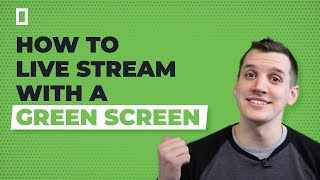

Green Screen Transformation
45sVisual transformation from plain background to green screen effect grabs attention immediately.
▶ Play Clip"Title accurately describes the tutorial; it delivers on the promise of showing how to live stream with a green screen using OBS."
This tutorial explains how to live stream with a green screen using OBS, covering setup, lighting, chroma keying, and background integration.
You need a solid colored background (preferably bright and distinct from clothing), a camera, and video switcher/software with chroma key capability.
OBS is free software for Mac/PC; alternatives include Roland V1-HD, Wirecast, or Blackmagic ATEM switchers.
Use a portable green screen like Elgato's; proper lighting is crucial for consistent chroma keying.
Connect camera via capture card (e.g., Blackmagic Ultra Studio Mini Recorder), add 'Video Capture Device' in OBS.
Use static image, PowerPoint feed, or looping video; ensure background is layered below the camera feed.
Right-click camera feed, select 'Filters', add 'Chroma Key' effect; adjust sliders for clean keying.
Match lighting and white balance between subject and background; add blur for depth and realism.
With proper lighting and OBS settings, you can achieve a convincing green screen effect for live streaming. Experiment with adjustments to refine the look.
What is the technical term for removing a color background and replacing it with another image?
Chroma key
00:40
What free software can be used for live chroma keying?
OBS (Open Broadcaster Software)
00:52
What is the purpose of lighting the green screen evenly?
To ensure the chroma keyer can properly remove the green color.
01:35
What device is used to connect a camera to a laptop for live streaming in this tutorial?
Blackmagic Design's Ultra Studio Mini Recorder (capture card)
02:00
How do you add a chroma key filter to a camera feed in OBS?
Right-click the camera feed, select 'Filters', go to 'Effect Filters', and select 'Chroma Key'.
03:10
What two things are recommended for a looping video background to look realistic?
Matching lighting and white balance conditions, and adding a little blur for depth.
03:54
Green Screen Requirements
Clarifies that any solid bright color works, not just green.
00:21OBS as Free Solution
Highlights accessibility of free software for chroma keying.
00:52Importance of Lighting
Emphasizes that consistent lighting is critical for effective chroma key.
01:35Background Realism Tips
Provides practical advice for matching lighting and adding blur.
03:54[00:00] Today we're going to show you how to go
[00:05] live streaming.... just just look at them
[00:21] So, in order to livestream with a green
[00:25] well, a green screen background, the
[00:29] green, it just needs to be a solid
[00:33] from anything you'll be wearing so you
[00:36] blue background you also need a camera
[00:40] software that can "chroma key" your
[00:45] removing the color in the background and
[00:49] there's a few different switcher options
[00:52] in today's setup we'll be showing you
[00:56] software that anyone can download for
[01:00] don't worry because you can still do the
[01:05] or any of the Blackmagic ATEM switchers
[01:10] what we'll be doing today so let's get
[01:13] and lighting our scene. Today we're using
[01:18] because it's super portable and it takes
[01:23] is set up you also need to light your
[01:27] screen and putting someone in front of
[01:30] out the background trust me I tried that
[01:35] green screen has to be consistent in
[01:39] remove the green color in the background
[01:43] depending on your setup but we found B&H's tutorial to be super helpful
[01:47] while we were learning ourselves you can
[01:50] Ok, so once your lighting is right and
[01:55] into OBS and add your live feed. In order
[02:00] we're using Blackmagic Design's ultra
[02:05] card that converts your HDMI or SDI
[02:09] computer to ingest the live feed, now
[02:13] laptop we can add our live feed in OBS
[02:18] capture device you'll see the Ultra
[02:24] if you just wanted to use your laptop's
[02:28] here now we can add a background in, here you have a few options depending on what
[02:33] you're looking to do
[02:38] a PowerPoint feed if you're streaming
[02:41] or a simple looping video if you just
[02:45] else, today we'll just be using a simple
[02:50] office which we can do by adding a media
[02:57] computer, and checking loop
[03:06] make sure it's layered below your live
[03:10] chroma key itself, simply right-click
[03:16] down to effect filters and select chroma
[03:20] should see your subject appear without
[03:24] do a pretty good job if everything is
[03:27] have to go in and make adjustments using
[03:32] gonna take a bit of refining to get it
[03:35] which settings you adjust
[03:37] lighting and background setup now we
[03:42] perfect but with some tweaking it looked
[03:47] everything looks you can adjust the size
[03:50] wherever it makes the most sense for
[03:54] video in the background I would highly
[03:58] the background you're adding has the
[04:01] conditions as your subject otherwise the
[04:05] and 2- that you add a little blur to
[04:09] image which will help make it look a
[04:13] works! You can check out all the gear we
[04:17] if you have any questions about green
[04:20] live-streaming related you can let me
[04:23] anytime at [email protected]
⚡ Saved you 0h 04m reading this? Transcribe any YouTube video for free — no signup needed.