
Green screen setup essentials
45sPractical tips on lighting and positioning for a clean key.
▶ Play Clip"Title accurately describes the tutorial content; delivers on promise."
This video tutorial demonstrates how to set up and use a green screen with Streamlabs OBS for live streaming. It covers the necessary supplies, physical setup, and software configuration to achieve a clean chroma key effect.
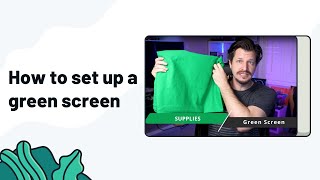
You need a green screen (pop-up, backdrop, or green cloth) and proper lighting to evenly light the screen.
Place the green screen as far from you as possible to reduce green spill. Evenly light the screen for easier keying.
In Streamlabs OBS, right-click your camera source, select 'Filters', then add a 'Chroma Key' filter.
Similarity controls how similar pixels must be to green to be removed. Higher values broaden the range but may remove parts of you.
Smoothness controls edge softness. More smoothness can cause loss of detail; adjust carefully.
Spill reduction minimizes green bounce on your skin/hair. Opacity controls transparency of the keyed area.
These sliders adjust overall image appearance for fine-tuning.
After keying, crop out unwanted areas and resize your video source within the display.
With proper setup and a few clicks in Streamlabs OBS, you can achieve a clean green screen effect. Experiment with settings to match your lighting and background.
What is the purpose of the Similarity slider in chroma key?
It controls how similar pixels must be to green to be removed; higher values broaden the range.
2:29
Why should you place the green screen as far from you as possible?
To reduce green spill on your clothing.
1:08
What does the Smoothness slider affect?
It controls how smooth the edges of the keyed area are; too much can cause loss of detail.
2:59
What is the function of Spill Reduction?
It reduces the amount of green light bouncing off the screen onto your hair, skin, and chair.
3:15
How do you add a chroma key filter in Streamlabs OBS?
Right-click your camera source, select Filters, then add a Chroma Key filter.
1:42
Supplies Needed
Lists essential items for green screen setup.
0:17Physical Setup Tip
Explains why distance from screen reduces spill.
1:08Similarity Explained
Key parameter for chroma key adjustment.
2:29Spill Reduction
Addresses common green reflection issue.
3:15[00:00] hey all wild free games here helping you
[00:02] with pretty much everything stream labs
[00:04] in in today's video I'm gonna show you
[00:05] how to set up and use the green screen
[00:07] features through stream labs OBS so that
[00:10] way by the end of this video you're up
[00:12] and running let's dive into it now when
[00:17] it comes to using a green screen during
[00:19] your streams it's pretty much all done
[00:21] through software however you do need a
[00:23] couple of supplies hey number one is
[00:25] you're obviously going to need a green
[00:28] screen now you can go super fancy and
[00:30] get one of those pull outs or pop up
[00:31] once those are very nice or you can just
[00:33] get a simple backdrop a green screen
[00:35] that you can order from Amazon can't get
[00:37] anything at the moment hey green cloth
[00:39] from your local art store will work just
[00:41] as well now you need something to light
[00:45] that green screen and sometimes having
[00:46] light in the front isn't sufficient
[00:48] because you have to have even lighting
[00:50] across your green screen for a good
[00:52] keying or a good pool so that way you
[00:53] look good and clean so you may need
[00:56] additional lighting as well I'm gonna
[00:58] put some of my personal suggestions down
[01:00] in the links below that won't cost you a
[01:02] lot of money that will get you up and
[01:03] running now that we got the supplies out
[01:05] of the way let's set up that green
[01:06] screen to make you look nice
[01:08] step one is set your green screen up as
[01:10] far as way from you as you can you only
[01:13] have to worry about the outer edge of
[01:15] you because the rest can be cropped out
[01:17] the reason you said it far away is to
[01:19] reduce the amount of spill that happens
[01:22] from the green screen on your clothing
[01:23] more about this later when we go into
[01:25] the software step number two evenly
[01:27] light your green screen so that way the
[01:29] software has an easy time keying or
[01:31] pulling the green out so that way you
[01:34] look nice and crisp now that we have
[01:36] your green screen setup in the
[01:37] background all we gotta do is basically
[01:39] key and pull it out and to do that open
[01:42] up your stream lapse OBS and go to your
[01:45] camera source and right click on it then
[01:47] go to filters from there you will see
[01:49] chroma key under chroma key you're gonna
[01:52] see a bunch of different settings that
[01:54] basically you're gonna have to play
[01:55] around with now there's no one correct
[01:58] answer because everybody's lighting
[02:00] situations different hairs different
[02:02] clothes or different skin colors
[02:03] different backgrounds different which is
[02:05] why you're gonna have to play around
[02:07] with it till you really
[02:08] refine it down okay now if I can give
[02:11] you one awesome tip I recommend having
[02:13] you go fullscreen so that when you get a
[02:15] lot more detail on you and then you can
[02:18] always resize and crop out what you
[02:20] don't need but let me go over the
[02:22] settings here so that way you can see
[02:23] how it's gonna get you a better
[02:25] refinement so that way you look clean as
[02:27] you go through the settings here
[02:29] similarity essentially means how similar
[02:31] are the green pixels in the background
[02:33] that are being pulled if you have
[02:35] everything evenly lit you're gonna have
[02:38] a better time getting a cleaner image
[02:40] because you can set your similarity down
[02:42] because there's gonna be so much
[02:43] difference between you and the
[02:45] foreground and the background being one
[02:46] color the more right you go on the
[02:48] slider the more it's gonna broaden the
[02:50] range for it to pull out pixels but
[02:53] essentially that means it might start
[02:54] grabbing things from your skin your hair
[02:55] or even your clothes or the chair that
[02:58] you're sitting in smooth this is
[02:59] essentially that how smooth is the
[03:01] pixels being pulled out the farther to
[03:04] your left the more jagged edges it's
[03:05] gonna have the farther to the right the
[03:07] smoother everything is going to be but
[03:09] it's gonna start again pulling you out
[03:11] again you gotta play with what's gonna
[03:12] be best for you in your situation key
[03:15] colors spill reduction essentially is
[03:17] reducing the amount of green that's
[03:18] bouncing off your green screen
[03:20] back onto your hair skin and chair
[03:22] opacity essentially is how solid or how
[03:25] transparent the pool is going to be the
[03:28] last three sliders are contrast
[03:30] brightness and gamma and these are
[03:31] essentially overall changes to the image
[03:34] source that's going to be displayed on
[03:36] essentially light to dark situations for
[03:39] adjustments that you may need to
[03:41] fine-tune within your source that you'll
[03:44] be posting up here again all of these
[03:47] sliders here will want to be played with
[03:49] so that way you get the best image
[03:50] quality that you possibly can
[03:53] once you fine-tune all of your green
[03:55] screen settings all you got to do is
[03:57] essentially crop out what you don't want
[04:00] resize you to an easy spot within your
[04:03] display window and hey you're good to
[04:05] rock and roll and you're gonna look
[04:07] fantastic now this was just a simple tip
[04:10] to get you up and running trust me
[04:11] there's a lot of advanced techniques to
[04:13] get you that really clean pool that's
[04:15] gonna make you look good
[04:16] but hey that's another video but guess
[04:19] what you're up in
[04:20] running on stream Labs OBS and it only
[04:22] took a few clicks now if you need any
[04:24] more help from meat or stream labs hey
[04:26] let us know in the comments below but
[04:28] until then I'm gonna put a video over
[04:29] here to the side that's gonna help you
[04:31] learn more about stream labs OBS so that
[04:33] way you can be a rockstar and until next
[04:36] time my name is wild for games helping
[04:38] you always become bigger and better take
[04:40] care and of course ease
⚡ Saved you 0h 04m reading this? Transcribe any YouTube video for free — no signup needed.