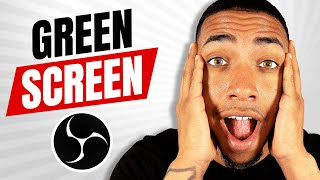

Perfect Green Screen Setup in OBS
45sShows the exact steps to achieve a smooth green screen, a common pain point for streamers.
▶ Play Clip"The title accurately describes the tutorial content; the video delivers a practical guide to setting up a green screen in OBS."
This video provides a step-by-step guide on setting up a green screen in OBS Studio for a smooth, professional look. The presenter covers physical setup, lighting, and OBS configuration including chroma key and color correction.
Place the green screen as far away from you as possible to avoid shadows and improve keying.
Light the green screen evenly and brightly. The presenter uses two Elgato lights but any bright light works.
Create a new scene named 'Green Screen', add a Video Capture Device source, and select your camera.
Hold Alt and drag the corners of the camera source to crop out non-green areas.
Right-click the camera source, select Filters, add a Chroma Key filter. Set Key Color Type to Custom, use the color picker to select the brightest part of the green screen.
Lower the Similarity slider until the green is removed but edges are clean. Avoid making it too low to prevent transparency issues.
Add a second Chroma Key filter to handle darker corners. Pick the color from a corner and adjust Similarity for that area.
Add a Color Correction filter. Increase Saturation slightly, adjust Contrast and Gamma to improve the image quality.
Add a game or image source behind the camera to test the key. Ensure the background appears cleanly.
If your camera is off-center, right-click the camera, go to Transform > Flip Horizontally to maintain eye contact with the audience.
A perfect green screen setup requires proper distance, good lighting, and careful chroma key adjustments in OBS. With these steps, you can achieve a clean, professional look for streaming or recording.
What is the first step to set up a green screen?
Place the green screen as far away from you as possible.
00:18
How should you light the green screen?
Light it evenly and as brightly as possible.
00:28
How do you crop the camera source in OBS?
Hold Alt and drag the corners of the source.
01:32
What filter is used to remove the green background?
Chroma Key filter.
01:55
How do you select the green color for chroma key?
Set Key Color Type to Custom, then use the color picker to select the brightest part of the green screen.
02:10
What does the Similarity slider control in Chroma Key?
It controls how much of the green color is removed; lower values remove more green but may cause transparency issues.
02:36
Why add a second Chroma Key filter?
To handle darker corners that the first filter may not clean properly.
02:57
What adjustments can be made with Color Correction filter?
Saturation, Contrast, and Gamma.
03:58
How do you flip the camera horizontally in OBS?
Right-click the camera source, go to Transform > Flip Horizontally.
05:18
Green Screen Distance
Proper distance prevents shadows and improves keying quality.
00:18Lighting Importance
Even, bright lighting is critical for a clean chroma key.
00:28Custom Color Selection
Using the color picker on the brightest green area ensures optimal keying.
02:10Dual Chroma Key for Corners
A second filter addresses uneven lighting in corners, a common issue.
02:57Eye Contact via Flip
Flipping the camera horizontally corrects gaze direction for off-center setups.
05:18[00:00] so in today's video i'm going to show
[00:02] you how to be able to go ahead and set
[00:03] up a green screen to be perfectly smooth
[00:06] because sometimes not in a place where
[00:08] you can stream and you have a nice
[00:10] background but you have a green screen
[00:12] so let's go to make that perfect today
[00:18] so the first thing we want to do is we
[00:19] want to make sure that our green screen
[00:21] is as far away as possible from us
[00:24] that's step number one
[00:28] all right so once you have the green
[00:30] screen set up and it's as far away as
[00:32] possible from you the next thing we want
[00:33] to focus on is lighting you want to make
[00:36] sure that this green screen is lit up as
[00:38] much as possible get as much light
[00:40] around you as you possibly can i'm
[00:43] utilizing two elgato uh lights to be
[00:45] able to go ahead and light this up right
[00:46] now um but you don't have to have an
[00:48] elgato green screen you can use a green
[00:50] sheet you can use a green wall anything
[00:53] that is green you can go ahead and
[00:54] utilize to put behind you so once you
[00:56] have that set up the next thing we want
[00:57] to do is
[00:59] we want to go ahead and jump into obs
[01:01] right so once you have obs open you want
[01:03] to come in here
[01:04] and we want to come to where it says
[01:06] scenes you're going to select plus
[01:08] you're going to go ahead and name this
[01:10] as put green screen
[01:12] and then select okay
[01:15] and then you're gonna come to where it
[01:16] says sources and you're gonna go ahead
[01:17] and select video capture device you're
[01:20] gonna go ahead and select just name this
[01:21] camera
[01:22] [Music]
[01:24] and you're gonna go ahead and select
[01:25] your camera mine is the cam link then
[01:27] you're gonna select okay and now we have
[01:29] our camera here right so the first thing
[01:31] that we want to do
[01:32] is we want to go ahead and crop this
[01:33] right so to be able to crop it you want
[01:35] to select alt on your keyboard
[01:38] and then you want to drag in the corners
[01:40] okay
[01:41] just get the green screen in there
[01:44] and that's going to be the first part
[01:46] right so now we're inside of our green
[01:47] screen we're ready good good to go so
[01:49] next we want to do is we want to go
[01:51] ahead and get rid of the green screen
[01:53] behind us so you want to come to sources
[01:55] you want to right click you want to
[01:56] select filters okay it's going to bring
[01:58] us up here and i always like to drag
[02:00] this to the side to be able to work on
[02:02] this image here because sometimes the
[02:04] one here is not as accurate but we're
[02:05] going to come over to effect filters
[02:07] you're gonna select plus
[02:08] you're gonna select chroma key you're
[02:10] gonna select okay and what you're gonna
[02:11] do is you're gonna hide this right
[02:13] because first we need to see the green
[02:14] screen what i want you to do is come to
[02:16] where it says here key color type and
[02:18] select custom you're gonna select color
[02:21] and then what you're gonna do is you're
[02:22] gonna select pick screen color okay it's
[02:25] very important you wanna select the part
[02:26] of your green screen that's the most lit
[02:28] okay and then you select okay and now
[02:31] what we're gonna do here is you're gonna
[02:32] go ahead and open it up unhide it you're
[02:34] gonna see that we're gone so to be able
[02:36] to fix that you want to come to where it
[02:37] says similarity and you want to go ahead
[02:39] and bring this down until it's about
[02:41] perfect until it's about perfect uh so
[02:44] you see here some of the gray area
[02:45] that's coming up uh on the left screen
[02:47] we want to kind of make sure that that's
[02:49] that's black okay um so you'll see here
[02:51] that for the most part this is pretty
[02:53] pretty smooth right um but there were
[02:55] still some things we want to adjust here
[02:57] so next what i want you to do is because
[02:58] a lot of times where people have a lot
[03:00] of issues is in the bottom corners um so
[03:02] to be able to fix that what you want to
[03:04] do is you want to come here it's like
[03:06] the plus sign
[03:08] select chroma key again and then what
[03:10] you're going to do is you're going to
[03:10] turn off the first one you're going to
[03:12] turn off the second one and you're going
[03:14] to come make sure you're selected on the
[03:16] second chroma key you're gonna come to
[03:17] where it says custom okay you're gonna
[03:19] select color and what you're gonna do is
[03:21] you're gonna select pick screen color
[03:22] and you're gonna select the bottom
[03:24] corner right which is more of a darker
[03:25] area you're gonna place okay and now
[03:28] you're gonna open it up and you're gonna
[03:29] see here you're going again so we're
[03:30] gonna go to similarities okay you're
[03:32] going to come here until it's about
[03:33] about perfect right like i try try your
[03:36] best don't worry too much remember for
[03:38] this one we're just focused on the
[03:40] corner so don't worry about what you see
[03:42] here behind me right now uh we're just
[03:44] working on the corners you can see that
[03:45] they're nice and dark so that means it's
[03:47] very transparent so now what you want to
[03:49] do is you want to go ahead and select uh
[03:51] close and sear now you want to go ahead
[03:53] and turn this on so now you see here
[03:55] that the top and the bottom are
[03:56] perfectly good to go so the next thing
[03:58] that you want to do here is to be able
[04:00] to give your quality just more of a
[04:02] touch give you more of a high definition
[04:03] kind of look you want to select the plus
[04:05] icon you're going to select color
[04:07] correction
[04:08] and now here you're going to mess with
[04:09] the saturation just a little bit
[04:11] uh not too much but it's gonna give you
[04:13] a little bit better better quality then
[04:15] your contrast you can adjust it up or
[04:17] down uh typically like do a little bit
[04:18] more up and then the gam i like to do a
[04:21] little bit more up as well and then now
[04:23] you can see here i'll hit this close and
[04:25] once you close this it's gonna be safe
[04:27] you can see here that now like i have no
[04:28] green screen behind me we're good to go
[04:31] um so now what we want to do is we want
[04:33] to go ahead and give this a test because
[04:34] sometimes when you don't we have just a
[04:36] black background behind you you can't
[04:38] really test to see how well your green
[04:39] screen is so what you want to do is you
[04:41] want to either open up or put a picture
[04:43] up behind you or you want to go ahead
[04:45] and add a uh your game behind you so
[04:47] that's what we're going to do here today
[04:48] so i'm going to come to sources
[04:50] i'm going to press plus i'm going to
[04:51] come to a video capture device and i'm
[04:53] going to go ahead and select my game
[04:54] okay you know make sure that's on there
[04:56] so let's see here we have uh our
[04:57] multiverse open here all right so what i
[05:00] want to do is right now i need to go
[05:01] ahead and move the game under me right
[05:03] so you can see here that right now
[05:05] i mean this is a this is so smooth of a
[05:08] green screen that i'm right here behind
[05:09] this game so you can see here and now i
[05:11] can go ahead and size myself place
[05:13] myself in the corner and have a smooth
[05:16] looking screen now one thing that i
[05:18] recommend is that you got to take a look
[05:20] at where you're going to be looking at
[05:21] so like if this is my monitor that i'm
[05:23] going to be playing the game on you see
[05:24] how i'm looking away from the game you
[05:26] don't want to do that so what you want
[05:27] to do is you want to right click on the
[05:29] camera okay
[05:30] you want to right click you want to say
[05:32] transform and then you want to say flip
[05:34] horizontally right so now you can see
[05:36] here that when i'm looking at my game it
[05:38] also looks like i'm looking that way as
[05:40] well but you can see here again this
[05:42] green screen is perfectly smooth what
[05:45] you want to do is really focus on the
[05:47] key things that i mentioned right which
[05:49] is to make sure the green screen is as
[05:50] far away from you as possible make sure
[05:52] you have it lit as much as possible and
[05:55] then follow the steps that i recommended
[05:57] and then you just tweak the similarities
[05:58] in the chroma key as much as possible to
[06:01] be able to ensure that everything is
[06:02] running smoothly and looks good
[06:05] so now that you have a perfect green
[06:07] screen set up right if you want to learn
[06:09] how to add overlays like alerts
[06:11] donations webcam stress starting all
[06:14] these scenes that you need to make your
[06:16] stream look professional go ahead and
[06:18] watch this video right here where i walk
[06:20] you step by step on setting up overlays
[06:22] and i even give you free overlays you
[06:24] can download from streamdesigns.com i'll
[06:26] see you in the next video
⚡ Saved you 0h 06m reading this? Transcribe any YouTube video for free — no signup needed.