
Green Screen Magic: From Setup to Chroma Key
45sShows a quick demo of green screen effect and promises a complete guide, hooking viewers interested in streaming.
▶ Play Clip"Title accurately describes the tutorial content; video delivers exactly what it promises."
This video explains how to set up a green screen for live streaming using OBS Studio or Streamlabs OBS. It covers why to use a green screen, equipment options for different budgets, and step-by-step chroma key configuration. The host also shares tips on lighting, camera settings, and common pitfalls.
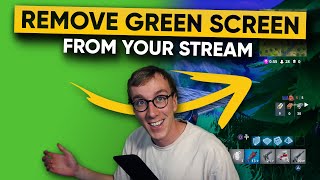
Green screens allow you to cut out the background and overlay the talent on game footage, desktop, or chat.
Higher resolution cameras (webcams like Logitech C920 or DSLR/mirrorless with capture card) yield better chroma key results.
Three types: foldable pop-up screens (~$40), traditional fabric with stand (~$50-60), and premium Elgato Green Screen (convenient but pricey).
Light both the talent and green screen separately to ensure consistent green color and reduce shadows. Distance between talent and screen minimizes shadows.
Ensure the screen is wide enough to avoid cutting off hands. Chroma keying is CPU-intensive; consider performance impact.
Hold Alt and drag edges to crop the webcam so the background is entirely green before applying chroma key.
Right-click camera source > Filters > Add effect filter > Chroma Key. Adjust settings: Key Color Type (green/blue/magenta/custom), Similarity, Smoothness, and Spill Reduction.
Same as OBS: right-click camera > Filters > Chroma Key. Also applicable to video files with green screen.
Turn off auto white balance on webcam to prevent color shifts that interfere with chroma key.
Some streamers prefer showing their personality through background items; green screen isn't always necessary.
Setting up a green screen involves choosing the right equipment, lighting properly, and fine-tuning chroma key settings in OBS or Streamlabs OBS. With careful setup, you can achieve a clean, professional look for your stream.
What is the main purpose of a green screen in streaming?
To cut the talent out from their background and overlay them on game footage, desktop, or chat.
01:14
Name three types of green screens mentioned by budget.
Foldable pop-up screens (~$40), traditional fabric with stand (~$50-60), and Elgato Green Screen (premium).
02:16
Why is lighting important for green screen?
To ensure consistent green color and reduce shadows; light talent and screen separately.
04:22
How do you crop a webcam source in OBS?
Hold the Alt key and drag the edges of the source to crop.
06:42
What filter is used to remove green screen in OBS?
Chroma Key filter.
07:30
What does the Similarity setting in Chroma Key control?
How similar a color must be to the key color to be removed (scale 1-1000).
08:29
What does Spill Reduction do?
Reduces green spill on the subject, especially on hair or light-colored clothing.
09:11
Why should you disable auto white balance on a webcam for green screen?
To prevent color shifts that interfere with chroma key consistency.
11:33
Green Screen Purpose
Clearly defines the core use case for green screens in streaming.
01:14Lighting Independence
Emphasizes the critical need to light talent and screen separately for best results.
04:22Cropping Shortcut
Practical tip: Alt+drag to crop in OBS, a time-saver for setup.
06:42Similarity Adjustment
Key parameter to dial in for clean keying without losing subject detail.
08:29Disable Auto White Balance
Important technical detail often overlooked by beginners.
11:33[00:00] What's up guys. Welcome back once again
[00:02] to the Gaming Careers YouTube channel
[00:05] today we're going to be talking about green
[00:06] screens and how you can use a green
[00:08] screen within your stream so you can do
[00:11] cool things, actually one sec, like this!
[00:17] Now obviously I'll throw some other
[00:19] examples of streamers using a green
[00:22] screen and some of the creative ways
[00:23] that they have used them to incorporate
[00:26] some funny or epic moments into their
[00:30] stream but in this video we're going to
[00:31] be going through why you'd want to use a
[00:33] green screen for your stream, what
[00:35] equipment you need exactly and I'm going
[00:36] to be covering different budgets for
[00:38] this so right from the cheapest way of
[00:40] implementing a green screen up to
[00:42] something more expensive like the elgato
[00:44] green screen that I've got. We're also
[00:46] going to be talking about how you can
[00:48] use a green screen in OBS and streamlabs
[00:50] OBS, so exactly how you set it up to
[00:53] chroma key out the background. And
[00:54] finally I'll be going over some tips and
[00:56] tricks for lighting and exactly how you
[00:59] want to set up your green screen to make
[01:02] sure you get the crispest image. All of
[01:04] that coming up!
[01:12] So obviously the main purpose of having
[01:14] a green screen is to be able to cut your
[01:16] talent out from their background and
[01:19] then you can overlay that talent on
[01:21] your game or maybe it's your
[01:23] desktop or your twitch chat or whatever
[01:25] you want to do. But the idea is that you
[01:26] can have both your your talent and some
[01:29] sort of background in the same shot
[01:31] composited one above the other. So what
[01:33] you're going to need to be able to achieve
[01:34] this look is obviously a camera of some
[01:38] sort.
[01:39] This can be a webcam, it can be
[01:40] a camera plugged into an elgato
[01:43] cam link like mine is and basically
[01:45] the the higher resolution, the more
[01:47] detail you're going to get and the better
[01:49] quality the cut between the talent and
[01:52] the green is going to be. So I would
[01:54] recommend certainly using one of the
[01:56] higher-end webcams to achieve really
[01:58] great results.
[01:58] Something like the Logitech c920 which
[02:01] is often recommended. I've been
[02:02] recommending it in my kits for absolutely
[02:04] ages. That will do absolutely brilliantly, but
[02:07] if you have the luxury of being able to
[02:08] use an actual camera mirrorless or DSLR,
[02:10] plugged into a capture device like the
[02:12] elgato cam link, then that will do even
[02:14] better. In terms of the actual green
[02:16] screens, it's one of those things that's
[02:18] going to be completely dependent on your
[02:19] budget. Here on Amazon I found three
[02:22] different types of green screen for
[02:24] three different budgets so hopefully one
[02:26] of these will be perfect for you. At
[02:28] the start we've got these sort of
[02:30] foldable green or blue screens that they
[02:33] sort of fold up into a circle similar to
[02:35] some of those pop-up tents that you can
[02:37] get for camping and festivals and things
[02:38] like that. So they pack away nice and
[02:40] small but when they actually open up
[02:42] they open up to a decent size. The
[02:43] difficulty with these is that they have
[02:45] to be hung or placed against
[02:49] the wall or something like that, so these
[02:51] are really great if you have the ability
[02:54] to be able to hang it or to be able to
[02:55] put it against the wall if that is what
[02:57] your streaming setup is but they're
[02:59] super cheap and you know you can't
[03:01] really go wrong with something like this
[03:02] for forty dollars. Next up you have the
[03:05] traditional green screen which is the
[03:06] green material. This one here is is nice
[03:10] and large 9 by 15 feet, comes with three
[03:13] clips but you would need to have a place
[03:16] to secure it to and most of you I
[03:18] imagine would have to purchase something
[03:19] like this, so a studio rail
[03:22] which is two light stands with a beam
[03:26] across the top which you can hoop
[03:27] through the green screen. These are
[03:30] pretty much what a traditional green
[03:32] screen setup is, something nice and large,
[03:34] does take up quite a bit of room but can
[03:37] pack down quite quickly unless you're
[03:40] going to leave it up the whole time. But
[03:41] this is the traditional sort of around
[03:43] $50-60 when you factor in both the stand
[03:46] as well as the green screen. Then
[03:48] finally we have what I have, which is the
[03:50] new elgato green screen. Well I say new,
[03:52] it's probably been out for six months or
[03:54] so now, super handy, super convenient,
[03:57] packs all the way down into its body has
[04:01] its own support beams at the back so you
[04:03] can set it to any height. I've absolutely
[04:05] loved the product but it is on the
[04:07] pricey side, so I think this is the ideal
[04:10] solution and there isn't really any
[04:11] competitor for it in terms of how
[04:13] convenient it is and how quickly it
[04:15] packs away and you can set it up but it
[04:17] is a little bit pricey, so I understand
[04:19] for some people this might be out of
[04:20] budget. The last bit of equipment that
[04:22] you're going to need is some decent
[04:24] lighting, now you might not think that
[04:26] lighting is that much of a key aspect in
[04:28] terms of a green screens, you actually
[04:30] need to be able to light both your
[04:32] talent or your subject yourself I would
[04:34] imagine, as well as the green screen
[04:36] separately to make sure that you have
[04:38] that consistent green color which is
[04:40] going to make it much easier when it
[04:41] comes to chroma keying it out. I've got a
[04:43] couple of examples here on Amazon, the
[04:45] neewer 160 is a very popular light for
[04:48] filmmakers, gets very very bright even in
[04:51] such a small panel or something like the
[04:53] VILTROX panel as well, there's so
[04:55] many of these LED light kits on Amazon
[04:58] I'm sure you can find one that is large
[04:59] enough for you but the main purpose
[05:01] obviously is to be able to light
[05:03] yourself as well as your green screen
[05:05] independently so you might need to pick
[05:07] up a couple of these kits. A couple of
[05:08] tips to do with the actual lighting, the
[05:11] further away the green screen is from
[05:13] the talent, so the bigger the distance
[05:15] between the talent and the green screen,
[05:17] the less harsh the shadows are going to
[05:18] be so if you're stood right next to your
[05:20] green screen and you may have to be,
[05:21] you're going to get harsher shadows and
[05:23] in that case you probably are going to
[05:25] want to light the green screen
[05:27] separately with a second light source.
[05:29] Before we jump into OBS and streamlabs
[05:31] OBS,
[05:32] one tip would be that you don't want the
[05:35] green screen to be too narrow
[05:37] when surrounding your talent or yourself,
[05:40] you want to have some leeway so that the
[05:43] person on screen can raise
[05:44] their hands and things like that without
[05:46] the hands being cut off because of the
[05:48] narrow green screen.
[05:49] The second thing worth mentioning is
[05:51] that keying out in OBS or any of these
[05:54] programs is actually quite CPU intensive,
[05:56] so if you are struggling to keep frame
[05:59] rates and not drop frames anyway, you
[06:01] might consider maybe just having a
[06:02] normal webcam without any keying because
[06:04] it is a CPU intensive task, your computer
[06:07] is having to do all the processing of
[06:08] removing that background information and
[06:10] so just bear that in mind if you're
[06:12] having any issues. Ok so here we are in
[06:15] OBS and the first thing that we want to
[06:17] do probably is just to play around with
[06:19] the cropping of our webcam to make sure
[06:21] that it's completely surrounded by green.
[06:22] I've just got an example scene set up
[06:24] here with a picture of
[06:27] fortnight just as if I was playing it
[06:28] and my webcam camera in the bottom
[06:31] corner so the first thing you want to do
[06:32] is crop the webcam to make sure that we
[06:34] are completely surrounded by green and
[06:36] this section just here where you can see
[06:38] some of my background shelving unit
[06:40] isn't changed. So to do that you can hold
[06:42] down the Alt key and drag in any of the
[06:44] areas that you want to crop, so I'm
[06:46] just going to drag in the sides a little
[06:47] bit, so they're surrounded by green and
[06:49] the top right just a touch and there we
[06:52] go.
[06:52] Now I am completely surrounded by green.
[06:54] My background isn't completely the same
[06:56] color but it's a pretty good attempt. So
[06:59] next we're going to be looking at removing
[07:00] this green background so that I can sit
[07:02] just on top of the game layer, to do that
[07:04] we want to come down to the camera
[07:05] source here or your webcam source, right
[07:08] click and go to filters, now you can see
[07:10] in the effect filters list, we do
[07:12] actually have the LUT that we set up a
[07:14] couple of weeks ago, so if you haven't
[07:15] yet watched that video of how to add
[07:16] filters and LUTs to your webcam to
[07:19] change the look and make them look
[07:20] a little bit more cinematic, do go and
[07:22] check out that video, I'll link it up in
[07:23] the top card, but we're just going to have
[07:25] that disabled for now and we're going to
[07:27] come and add a new effect filter by
[07:28] clicking the plus icon and selecting
[07:30] chroma key. Obviously you can name this
[07:32] whatever you want, chroma key works for
[07:34] me so I'm just going to leave it at its
[07:35] default and click OK. Now you can see as
[07:38] soon as I click OK, OBS has applied its
[07:41] default settings which is a green chroma
[07:43] key and you can see it's done a pretty
[07:45] decent job really, if you look to
[07:46] the bottom corner where it's already
[07:47] been cropped, it's not bad. There's a
[07:49] little bit of green on my shoulders and
[07:52] in my hair, obviously blonde hair and
[07:54] light colored t-shirts aren't ideal to wear
[07:56] for this but I thought I would challenge
[07:57] myself and get the settings perfect for
[08:00] you guys. So the first option that we have is
[08:02] this key color type and you have the
[08:05] choice between green blue magenta as
[08:07] well as a custom color, this is just the
[08:09] color of the screen behind you that you
[08:11] are wanting to remove so that the most
[08:12] typical ones are green and blue.
[08:14] Obviously they've got the option of a
[08:15] magenta or by keying in your custom
[08:18] color if you know exactly what it is or
[08:21] you can use the color picker. I've
[08:22] actually found that for the elgato green
[08:24] screen I'm using the green one seems to
[08:26] work the best so I'm going to leave it at
[08:27] green and then move on to the other
[08:29] options. Similarity is on a scale of 1 to
[08:32] 1000 so if you drag this left and right
[08:34] you can see it's choosing how similar of
[08:37] a color to the green that they've got
[08:38] set you want to remove. So if I lower
[08:40] this you can see that some of the darker
[08:42] areas in the bottom corners of my green
[08:43] screen are still showing so you want to
[08:44] get this to the point where all the
[08:46] green screen is removed but you know
[08:47] none of your t-shirt or your body or
[08:49] your face so around 400 seems to work
[08:54] quite well for me. Next we have
[08:55] smoothness and this is how smooth of the
[08:58] keying effect will be so again you don't
[09:00] be removing any of your t-shirt or your
[09:02] hair by going too high so somewhere
[09:05] around 100 seems to work quite well for
[09:06] me but this will be completely dependent
[09:07] on your your setup and your lighting and
[09:10] all those kind of things your camera. Key
[09:11] color spill reduction this is just
[09:13] trying to reduce the amount of spill
[09:15] that might appear on the shoulders or in
[09:17] the hair if you certainly if you have
[09:19] blond hair it's a little bit more
[09:20] difficult so you're just trying to
[09:21] remove that spill of green from those
[09:24] areas and that looks pretty decent
[09:26] actually. Then finally you have some
[09:28] options for a contrast, brightness,
[09:30] gamma, those kind of things I'm going to
[09:32] leave these all as default but do feel
[09:34] free to play around if you need to and
[09:36] then if we can just click close and you
[09:37] can see that has now applied my green
[09:39] screen effect and you can see how clear
[09:41] that is, if I hold my hand up especially
[09:43] you can see straight through my fingers
[09:44] onto the green screen. There is still a
[09:46] little bit of green color in my hair so
[09:49] I would probably go back into the
[09:51] settings and just make sure that I'm
[09:52] fine-tuning to make sure that that is
[09:54] removed but bearing in mind I haven't
[09:57] set of any sort of lights just specific
[10:00] for the background here and I've tried
[10:02] to make it challenging as possible by
[10:03] wearing a light t-shirt and obviously
[10:05] having blonde hair, I think that looks
[10:08] pretty decent. I'm just going to go back in
[10:09] and just play a tiny bit just to try and
[10:12] remove that green from my hair, so I
[10:14] should be able to play around with the
[10:15] color spill a little bit and maybe the
[10:18] smoothness as well and there you go, you
[10:20] can see it's reduced now and then if you
[10:22] went back to apply your LUT you can see
[10:24] that even looks even better, so there I
[10:27] am in the bottom corner of my screen,
[10:29] obviously if I put my hands on the
[10:31] outside of where I've cropped my camera
[10:32] that's going to remove so I want to try and
[10:34] remain in this frame as much as possible
[10:35] but there I am in the bottom corner of
[10:38] my fortnight game example. If streamlabs
[10:41] OBS is your your streaming software of
[10:43] choice the process is exactly the same
[10:45] as it's part of that core OBS
[10:47] functionality that was originally moved
[10:49] across into streamlabs OBS. So all you
[10:51] have to do is find your webcam or your
[10:52] camera source, right click, filters find
[10:55] the color key and make sure you dial in
[10:58] the settings to be able to remove your
[10:59] background without removing any of your
[11:01] subject. Another really important point
[11:03] is that you want your subject not to be
[11:05] wearing any of the color that your
[11:06] background is so if your background is
[11:08] green avoid wearing any green as that
[11:10] will also be removed so if you have a
[11:11] green logo on your t-shirt or something
[11:13] like that that's obviously also going to
[11:15] be removed. Another bonus tip for OBS and
[11:18] streamlabs OBS is it's not just video
[11:20] capture devices that you can apply the
[11:23] color keying to, you could also do it to
[11:24] video so if you find some videos on the
[11:26] internet that have a green screen you
[11:28] can also apply the color key in OBS or
[11:31] streamlabs OBS to a video. One last
[11:33] thing I will mention is if you are using
[11:34] a webcam that has sort of some drivers
[11:37] installed and those things with auto
[11:39] white balance you're probably going to
[11:41] want to jump into those options and
[11:42] disable it because when auto white
[11:44] balance is enabled sometimes that's
[11:45] going to mess up what the green looks
[11:47] like and obviously OBS is looking for a
[11:49] specific color of green to remove from
[11:52] the keying so if it's going to keep
[11:53] changing white balance because of this
[11:55] auto white balance setting within the
[11:56] webcam that's going to mess up so make
[11:58] sure you disable that. The last thing
[12:00] that I will mention is just to raise the
[12:01] question do you actually want to remove
[12:03] your background from your livestream? A
[12:06] lot of people find that having a
[12:08] background with you know some things on
[12:09] shelving units I know I don't have
[12:10] anything interests
[12:11] on there yeah but over time I'd like to
[12:13] think I'm going to build up parts
[12:15] of my personality and have them on this
[12:16] shelving unit so maybe a green screen
[12:18] isn't right for you but if it is I hope
[12:20] you found this video useful, if you have
[12:22] please do give it a thumbs up and
[12:24] subscribe if you haven't already. As
[12:26] always a massive thanks to the patrons
[12:28] this month who have helped fund the
[12:30] creation of these videos do check out my
[12:32] patreon page if you haven't already and
[12:33] subscribers I will see you in the next
[12:35] video. Peace!
[12:38] [Music]
⚡ Saved you 0h 13m reading this? Transcribe any YouTube video for free — no signup needed.