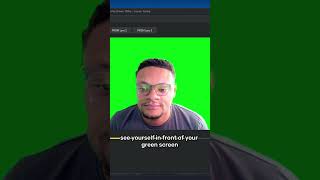

Remove Background Without Green Screen in OBS
56sThis clever workaround uses a green screen image instead of expensive equipment, making it a highly shareable productivity hack.
▶ Play Clip"Delivers a practical workaround, but 'NO GREEN SCREEN' is a stretch — the method still relies on a green screen image and chroma key."
This tutorial demonstrates how to remove your webcam background in OBS Studio without a physical green screen. It uses the free Prism Lens app to simulate a green background, then a standard Chroma Key filter in OBS to make it transparent. The result is a clean webcam overlay that can be layered over gameplay.
Download Prism Lens from prism.live.com, select a Prism Lens, and choose your webcam as the video source.
Search Google for a 1920x1080 green screen image, then in the Prism Lens app go to the My tab, tap the plus icon, select the downloaded image, and open it.
In OBS, add a Video Capture Device source and select the corresponding lens (e.g., Prism Lens 1) that you configured.
With the source selected, open Filters, add a Chroma Key filter, and adjust until the green screen is removed.
Close the filter window, readjust your webcam positioning, and place your gameplay source behind the webcam layer.
By combining a virtual green screen image in Prism Lens with OBS's Chroma Key filter, you can achieve a broadcast-quality background removal setup without purchasing any physical equipment.
What application replaces a physical green screen for webcam background removal?
Prism Lens, installed from prism.live.com.
00:01
What size green screen image does the tutorial recommend downloading?
1920 by 1080 pixels.
00:14
Where do you upload the green screen image inside Prism Lens?
In the My tab, using the plus button to select the image file.
00:14
What OBS source type is used to bring the Prism Lens feed into the scene?
A Video Capture Device source.
00:30
Which OBS filter removes the green background from the webcam source?
The Chroma Key filter.
00:43
Why is the 'NO GREEN SCREEN' claim only partially accurate?
It removes the need for a physical green screen but still uses a digital green screen image and chroma key.
00:01
Software-only background removal
Prism Lens lets streamers generate a green background digitally, avoiding a physical green screen purchase.
00:01Virtual green screen via static image
A simple 1920x1080 green JPEG can stand in for a real backdrop.
00:14Standard chroma key workflow
OBS's Chroma Key filter does the heavy lifting, proving you only need a green source, not a fabric screen.
00:43Content layering in OBS
Placing gameplay behind the filtered webcam creates the classic streamer layout.
00:56[00:01] also remove the background of your webcam, but without owning a green install the Prism Lens application from prism.live.com. After it's installed, select one of the Prism Lens, choose your webcam from the
[00:14] you want to go to Google and download a 1920 by 1080 green screen image, and then back in the Prism Lens app, go to the My tab, and then select the plus green screen image that you just downloaded and select open. You should
[00:30] now see yourself in front of your green screen. But now to add it into OBS, capture device source, and select the corresponding lens that you just configured. In my case, it was Prism Lens 1. Go ahead and select okay, and
[00:43] with the source still selected, you're going to want to select the filters option. From here, you're going to need to add a chroma key filter to make the done, you can close out of the filter window, readjust your webcam
[00:56] positioning, and apply your gameplay source behind yourself.
⚡ Saved you 0h 01m reading this? Transcribe any YouTube video for free — no signup needed.