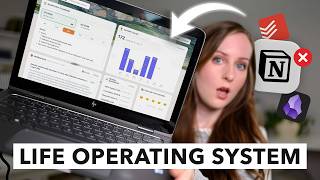

I Run a Business, Have 6 Kids, and Started an Etsy Shop
54sThe creator's chaotic life with six kids and multiple businesses immediately hooks anyone overwhelmed by their own to-do list.
▶ Play Clip"Genuinely informative walkthrough of a free app, though the '2026' and 'EVER' hype slightly oversells a personal tool recommendation."
The creator, overwhelmed by managing a business, family, and new side projects, found AmpleNote, a free all-in-one planning app that combines notes, tasks, and calendar. She demonstrates how Jots, time blocking, recurring tasks, and attachments help her keep everything organized. The video is a practical walkthrough with a clear recommendation to adopt gradually rather than migrate everything at once.
Runs a business, YouTube channel, podcast, homeschools six kids, and makes food from scratch; relies on notebooks, phone notes, and self-text reminders, which proves hard to manage.
Asana works well for business, but adding personal tasks makes it cluttered, so she keeps it strictly business-focused.
AmpleNote combines notes, tasks, tags, and calendar integration in one app, letting users embed tasks inside notes and organize projects holistically.
AmpleNote syncs with Google Calendar, shows appointments alongside tasks, and allows dragging tasks onto calendar days to block out dedicated time.
To overcome the fear of switching, she recommends not importing anything and simply starting daily planning in the new app, integrating Google Calendar and copy-pasting notes as needed.
Every day AmpleNote creates a new Jot, which works as a scratchpad; any piece can be saved as a tagged note, and tasks carry over to the tasks pane.
In the demo, tasks without dates sit in the to-do pane and can be dragged onto the calendar, assigning due dates and hour-long blocks (e.g., sewing table cleanup).
A random book idea becomes a note via the 'extract to note' button, where it can be fleshed out with bullet points, to-dos, and tags like project ideas.
Tasks can repeat daily, on set weekdays, or a number of days after completion — great for habits you do inconsistently, like working out.
Files and images can be attached as clickable links inside notes and tasks, especially helpful for Etsy designs and YouTube thumbnails/descriptions.
AmpleNote offers a free, flexible way to unify notes, tasks, and calendar in one place, and the creator's biggest advice is to simply start without migrating everything at once.
What is a 'Jot' in AmpleNote?
A note created automatically every day that serves as a daily scratchpad; parts can be saved as permanent notes.
06:46
What three apps can import data into AmpleNote?
Notion, Evernote, and Obsidian.
15:46
How does she recommend starting with AmpleNote to avoid migration overwhelm?
Don't import anything; just start doing daily planning in it and integrate Google Calendar.
04:37
How can recurring tasks be set to match inconsistent completion dates?
Set the task to repeat a certain number of days after it is checked off, e.g., every 2 days after completion.
11:41
What does the footnotes feature allow you to attach to tasks?
Files and images as clickable links, providing direct access to resources needed for the task.
13:16
Why does she keep Asana exclusively for business?
Adding personal tasks clutters it and distracts from important business tasks.
01:24
How do unscheduled tasks appear in the calendar?
They stay in the to-do task pane and can be dragged onto a specific day/time block.
11:10
Just start without migrating
The key insight that unblocks adoption of a new system: begin daily planning first, let old notes stay put.
04:37Jots are a game-changer
A daily auto-created scratchpad with easy conversion to permanent notes solves the capture problem.
06:46Recurring tasks tied to completion
Repeating tasks after completion rather than on fixed days adapts to real-life inconsistent habits.
11:26Attaching resources to tasks
Footnotes turn tasks into actionable cards with the needed images/files one click away.
13:16[00:03] that. I run a business, I have a YouTube channel, a podcast, I have six kids who I home school, I make all our food from scratch, I do jujitsu and lift weights and try to spend some time outside, you know, so many things. But, recently I
[00:18] decided to try something new and I started an Etsy shop. And I also started a couple of hobby YouTube channels. So, I'm busier than ever before, but I am
[00:31] worried because really it's pretty manageable. But, managing it itself actually was being pretty tricky. Even though it was fun, I was not quite sure
[00:43] how to get all these different things done, how to keep all those plates spinning without dropping any of them. Especially because the current system, those new things, the old system was I have quite a few notebooks around my
[00:57] house where I write down different types of things in different notebooks. And then of course I use like the notes app on my phone. And then I'm also like texting myself reminders and stuff. Now, for my business, I've got things very
[01:10] well handled. I use Asana, I love it, it works super well for my business, highly recommend. But, it seems like I can only manage the one main thing in Asana. And that if I try to add other things in, which I've done in the past, it starts
[01:24] to get cluttered and it kind of distracts me from the important business tasks that I need to get done. So, these days I keep Asana totally focused on my business. But, that left my personal life a little bit of a mess. Now, I
[01:37] wasn't too flaky because I do use Google Calendar to put appointments down that are at specific times, but as far as getting the tasks done, finishing the projects, and yeah, just keeping all those plates spinning, I didn't have a
[01:51] really good system. So, a few weeks ago I got introduced to a new app that purports to be like a life operating system. An all-in-one planning app that you can put all of your projects in and it's not just like to-do lists, but you
[02:07] can actually attach files and you can integrate it with Google Calendar. And so it can take the place of potentially several different apps that you're project management tool like ClickUp or Asana. Also you're using Google Calendar
[02:22] and maybe you're also writing stuff down in notebooks like I was and I still love writing. I love that analog feel, but it's mostly good for processing information, I think, not necessarily great for getting things done. So,
[02:37] testing out and has been working pretty well for me is called AmpleNote and it looks like this right here. So, let me first give you a super big picture and
[02:49] then tell you a little bit about how it's been helping me. So, big picture, there are these notes and you can start a new note whenever you want, of course, and this is a tiny bit like Evernote. But, inside of the notes you can put
[03:03] tasks. And these notes are very modular. You can be typing along some information and then you can switch gears and start inserting tasks. So, you can be creating
[03:16] these really holistic sort of plans. And actually all of the tasks are going to be inside of notes like this, which then you can scroll through, you can add tags to keep them sorted and keep them organized, but you can also click over
[03:30] here to get into the tasks list and just see all of the tasks that you have. And here also you can sort them. You can sort them based off of those tags and things like that. And then like I said, it also integrates with your calendar.
[03:44] And on the calendar you can see appointments that you have at specific you put on your calendar and you can actually block time off on your calendar. So, this is a really cool time blocking system as well. Now, before we
[03:58] get into AmpleNote any more deeply, let me tell you about one of my biggest concerns I had when I thought about possibly switching to AmpleNote or even trying to use a system like that. And the thing that prevented me from even
[04:11] trying it for the first couple months after I heard about it. And that was the migration process. You know, how do I migrate my notebooks or the notes app on
[04:23] my phone or I thought also maybe I had to migrate away from Google Calendar over to a different system. That is so much information. There are so many balls I have in the air. How could I do that? Well, what ended up getting me
[04:37] over the hump and getting me into the system was actually to not try to migrate anything, but just to jump into the new system and start doing my daily planning in there. Start creating my daily to-dos. This helped me get my feet
[04:51] wet and start using the tool out and learning how it worked. But, also it really helped when I realized I could just integrate Google Calendar, so I that system. I could see all the appointments in AmpleNote and so it
[05:05] served that all-in-one planning app purpose, but I could continue to input the appointments into Google Calendar. And that's something that I really like about this is I'm not having to double enter anything. Before using AmpleNote,
[05:18] I had a lot of redundant project planning, but that is slowly getting eliminated. Now, the other thing that has happened since I started using AmpleNote is that when I find that I need to reference a note that I have in
[05:33] some other system, whether that is on paper or it is in the notes app on my phone, well, then I can pretty easily just copy and paste over to AmpleNote. feature in AmpleNote, but so far I haven't actually needed to use it
[05:47] copy and paste has worked so well that that was actually just quicker and easier. And it's serving as this kind of digital declutter because I'm not taking all of my old stuff, all of my old records over from all of those other
[06:01] apps. But, instead I'm just taking the notes, the to-do lists, and the records referencing. Now, of course, I'm not talking here about digital files. I still have all of those important personal files tucked away in Google
[06:16] Drive and I'm definitely not talking about business files or records. Those hard copies of them. So, I'm just talking here about all these notes that I have in all these different systems. And it has been really helpful to be
[06:31] able to put them together into this one life operating system. Now, one feature that is really unique about AmpleNote and that has solved a big problem for me is called Jots. And this is actually the first thing you see when you log into
[06:46] your AmpleNote account. And Jots are actually the same as notes, except it is a note that is created for you every single day. So, if I scroll down you can see these daily Jots from previous dates. So, every day this new Jot gets
[07:01] created and you can just use it as like your scratchpad. But, what's cool is that whenever there's part of it that you want to save to be able to reference later on, you can just save it as a note with a title and with whatever tags are
[07:14] relevant to that note so that you can find it really easily. And also as you are scribbling and making your plans and writing things out, you can of course be adding these to-do items, these tasks. And those, they're not going to just
[07:28] disappear when you move on to the next day, they will still be showing up here in the tasks pane. And also, if you have tasks left over from previous Jots that
[07:40] little thing that pops up that asks you if you want to add them to today's Jot before we go any further, I should probably tell you that AmpleNote is totally free. So, this isn't a pitch on a paid product or anything like that.
[07:55] and I wanted to share it with you. So, let me just give you a little like real life example of how I use AmpleNote. So, these are just a few random things I've thought of today that I need to do or want to do. Um and one more here would
[08:09] be tidy sewing table because there's a big pile on my sewing table that needs of these things there's several different places I can take them. So, one of the simplest ones would be I can just immediately schedule it on my
[08:24] calendar. So, maybe for example, I want to start working on this dress this weekend. So, now it has that due date. And if I was to pop over to the calendar and look at that day, you can see like now it's on that day. Now, if it
[08:37] it and I can just drag it to a new place on my calendar to have that block of time to work on that project. Okay, now another thing that I could do is you see here tidy sewing table. So, I just added that to do to my to-do list here. It's
[08:50] just part of my daily Jot. It doesn't have a due date yet. So, when I come over to the calendar, here it is. Just hanging out in this like to-do list task pane. Well, I can grab that and let's say I want to work on that the following
[09:04] here. And when do I have a block of time? Well, this early afternoon is open, so I could grab this and I could drag that on here and maybe that's just going to take an hour. Okay, now let's go back to the daily Jots. I have this
[09:17] one kind of crazy task, which is an idea I had for a book. And it kind of makes sense as a task, but there's a lot more I need to obviously write to plan it and into a note so I can continue to plan it. So, I'm just going to push this
[09:32] it. So, I'm just going to push this little button right here to extract to a little button right here to extract to a note and I'm going to call it um book note and I'm going to call it um book why life is boring. Okay, so now I have
[09:44] happened. First of all, that text has immediately gotten into my note, so and I can actually like see the note right here or I can go into my notes and
[09:56] I can find this note that I made about this book. And of course, I can start to flesh this out here, you know, with bullet points or to-do's, or I can add a tag, which is maybe like ideas. Um or I could call it project ideas. And
[10:11] so that way, whenever I want to pull up all of my project ideas, which now I'll few more of them as project ideas. But anytime I want, I can just like click on this tag and see all of the notes that have that tag. And then also, if this
[10:25] note ends up having some to-do's, so for example, let's say I need to draft chapter one. So then from here, I can either come over into the tasks pane, and I can filter the tasks just to see the tasks for that specific project or
[10:41] that note. But also, down here in the tags section, I can click on that know, nothing changed, but that is now showing me just all of the tasks that have that tag. And I also could look over into any other tags that I have and
[10:56] see the to-do's for that one. And then finally, if I came over into calendar, then I would see that to-do on my task pane here, not scheduled on the calendar yet, and I could decide, you know, what day in the future that I want to do this
[11:10] task, and I could just drag it onto that day. If you are going to try AmpleNote out, here are a few features that I've been really finding helpful that I think you should definitely take for a spin. So the first one is recurring tasks. So
[11:26] repeatedly, rather than putting it on your to-do list over and over again, doing when I was planning on paper, where I every day I was making a new to-do list and just repeating that same work over and over again, you can use
[11:41] these recurring tasks in AmpleNote to make the task repeat either every day or on certain days of the week. Or, this is really helpful for a lot of things, a certain number of days after you've checked it off. So this is helpful for
[11:56] things that you do kind of incrementally, or you don't always successfully do. But what works better than setting the task to repeat every other day, which might end up being different than the days you actually do
[12:08] it on, you can set it up to repeat two days after you complete it every time. Now, another feature that I really like is how you can get the tasks to show up on your calendar, because this brings together two things that previously were
[12:21] not integrated for me at all. I had my to-do list, and I had my calendar. And I had to somehow make those things jive, even though they were kind of in two different worlds. And I even see this reflected on a lot of paper planners. I
[12:33] planner like this, or if you use paper planners, but a lot of the time they have a schedule portion, and then they separately have a to-do list. And if there's not a better option, then you need both of those things. But when
[12:46] you're using AmpleNote, you can make your to-do list, and then those things calendar, and you can set aside blocks of time to work on each of your tasks, day and realize that some of your most important tasks you never found time to
[13:01] do. Okay, and then there's one more feature that I think you should know footnotes. Now, this is cool because it definitely sets AmpleNote apart from most to-do list type of apps. So basically, how this works is you can
[13:16] basically, how this works is you can attach files and images directly into your notes and attach them even to your tasks. It's kind of like you're creating where you can create this little clickable link that can take you to the
[13:30] resource that you need to be able to do that task. And this has been very helpful for me with managing the new Etsy shop and the new YouTube channels, because both of those things have a lot of visual elements. With the Etsy shop,
[13:43] I have these shirt designs that I've been creating, and when I'm working on publishing a new listing on the Etsy shop, I needed to be able to have that image at hand, so that I can easily attach it to that new listing. And then
[13:57] of course, with YouTube, we have the thumbnails, but it's also really helpful that I can write the video descriptions right in AmpleNote, and that can actually be attached to those tasks. Now, I know that it might feel
[14:09] overwhelming to switch to a new app, especially one that can potentially replace so many other apps. And the reason that I know that is because I felt very overwhelmed by this. Like I said, it took me a couple months to
[14:23] actually even just get started with it. But as soon as I finally did get started, I was able to use it more and more and slowly replace other systems tool that I'm using to make my grocery lists every time I go to the grocery
[14:37] store. It's the tool that's helping me to manage my Etsy shop and actually get the tasks done that I need to to be able to grow that business. It's the tool that's helping me to make sure I get my workouts in, and it's also just the
[14:50] place where I can do those brain dumps and start doing that messy middle sort of planning that often turns into creating some next step tasks for myself. This is different than writing in a diary. I still like to do that with
[15:04] people certainly use tools like AmpleNote to do their journaling. I like brain dumps, for the daily planning, for managing all my personal to-do's,
[15:16] why I wanted to share with you guys today. Now, like I said before, AmpleNote is totally free, so I will put the link down below where you can go and try it out for yourself. And if you do give it a try, one little tip, you can
[15:29] either do it like I did, not import anything, just start dipping your toes over anything that you find that you need. Or, you can do a migration process, and you can use AmpleNote's importers to port over your data from
[15:46] importers to port over your data from Notion, from Evernote, or Obsidian, or several other planning tools that their migration tool supports. So if you've or you just have too much on your plate,
[15:59] and the idea of an all-in-one planning app sounds helpful to you, even if it also sounds a little scary, I would really recommend that you give AmpleNote like it. All right, well that is everything for today's video. If you
[16:12] enjoyed learning about this new tool, then please give it a thumbs up to let me know. And if you're new here, be sure to subscribe for new videos every month. I generally talk about digital entrepreneurship and how to make money
[16:25] online. And then sometimes I talk about productivity like I talked about today. Now, after you take care of clicking those two buttons, then you can click right here to watch this video about how you can prioritize when you have too
[16:38] many to-do's and everything feels urgent and important.


⚡ Saved you 0h 16m reading this? Transcribe any YouTube video for free — no signup needed.