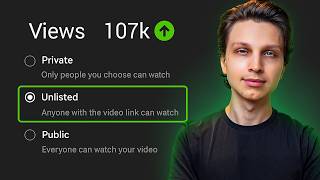

The 2026 YouTube Upload Settings Nobody Talks About
44sViewers are always looking for the latest optimization tips, and this promises a complete walkthrough of the best settings to maximize views and revenue.
▶ Play Clip"Delivers on the promise of a step-by-step upload guide with actionable settings, though the '2026' is a bit of a stretch and some parts are padded with self-promotion."
This video provides a comprehensive, step-by-step walkthrough of uploading and optimizing a YouTube video in 2026, covering everything from file preparation to publishing. The creator demonstrates the exact settings and strategies they use to maximize views and revenue, including AI tools, thumbnail testing, and ad placement.
The video is a complete guide to uploading and optimizing YouTube videos in 2026, showing the exact settings used for maximum views and money. The creator uses Trello to manage video ideas and tracks them through an assembly line until ready for upload.
The creator downloads the video file and names it with the exact title of the video. Even though YouTube says file names don't matter, they believe it can't hurt.
The upload process begins by going to YouTube, clicking 'Create' and then 'Upload video'. The file is dragged and dropped into the browser.
The title is copied and pasted. The description is the most important part, especially the first few lines (above the fold). The creator writes a quick summary with keywords like 'subscribers', 'YouTube', and 'grow on YouTube'. They also include a teaser to incentivize watching.
The first link in the description is always to a long video on the channel (the 'money video') to increase session time. Session time is a secret statistic that measures how long people stay on YouTube after watching your video. The goal is to keep viewers on YouTube for 30 minutes to an hour before sending them to a product.
The creator uses a default description with sections for the money video link, program link, about me, subscribe call-to-action, and a sponsor email. They emphasize using a separate email for sponsors, not a Google account. They also recommend a disclaimer for finance or health content.
Thumbnails must be under 2 MB. The creator resizes them using Windows' built-in tool. They use multiple thumbnail variations and A/B testing to let YouTube find the best one.
Adding videos to at least one playlist is recommended for better surfacing and indexing. The creator always selects 'No' for 'Made for Kids' due to COPPA, which restricts targeted ads. They also skip age restriction and altered content unless applicable.
If using AI tools, it's safer to select 'yes' for altered content. The creator allows automatic chapters, believing it improves viewer experience and helps with search indexing.
Tags are not as important as they used to be, but they still add them. The creator uses Tube Magic's 'Warp Upload' tool to generate titles, descriptions, and tags from an unlisted video link. They also add a 'title tag' (main search term) and a channel name tag.
End screens are crucial. The creator always adds a verbal call-to-action to the 'money video' and places an end screen element pointing to it.
Videos longer than 8 minutes can have mid-roll ads. The creator recommends placing ads right before high-retention moments (cliffhangers) and spacing them out. They also enable automatic ad slots.
The creator sets the category to 'How-to & Style' and recommends setting a default category in channel settings. Scheduling allows you to stack videos and take breaks while content continues to upload.
The best time to upload is a couple hours before your audience's peak activity, which can be found in YouTube Analytics under 'Audience'. However, this only matters once you have a lot of videos; otherwise, upload anytime.
The video is published. The creator then promotes a 'secret strategy' video on how to go viral and monetize, which is a free course.
The video provides a complete, actionable workflow for uploading and optimizing YouTube videos, emphasizing the importance of session time, strategic ad placement, and using AI tools to streamline the process. The creator's method is designed to maximize both views and revenue.
What is the 'money video' and why is it linked in the description?
The 'money video' is a long video on the channel that sells a product (e.g., coaching). It's linked to increase session time and direct traffic to monetization.
03:23
What is session time and why is it important?
Session time is how long people stay on YouTube after watching one of your videos. It's a secret statistic that's often neglected, but keeping viewers on YouTube for 30-60 minutes can boost your channel's performance.
04:03
What is the maximum file size for a YouTube thumbnail?
Thumbnails must be under 2 MB.
05:56
What is COPPA and how does it affect YouTube videos?
COPPA is the Child Online Privacy Protection Act, which prohibits targeted ads towards kids. Therefore, you should select 'No' for 'Made for kids' to allow ads.
08:09
What is a 'title tag' and why is it added?
A 'title tag' is a tag that corresponds to the main search term of the video title, helping it rank for that keyword.
13:00
What is the recommended strategy for placing mid-roll ads?
Place ads right before spots with high audience retention (cliffhangers) and space them out, tapering off towards the end. Also enable automatic ad slots.
16:21
What is the minimum video length for mid-roll ads?
Videos must be longer than 8 minutes to be eligible for mid-roll ads.
15:41
Session Time is a Secret Statistic
It's a key metric that most creators neglect, but it's crucial for YouTube's algorithm and monetization.
04:03COPPA and Ad Targeting
Understanding COPPA is essential for monetization, as it directly affects ad eligibility.
08:09Strategic Ad Placement
Placing ads before cliffhangers is a proven technique to maintain audience retention.
16:21Best Time to Upload
Uploading a couple hours before your audience's peak time can boost initial views, but it's only relevant for established channels.
18:36[00:01] way to upload and optimize YouTube videos in 2026 and all of the best settings that go into it for doing this correctly. I'm going to walk you through on my computer as I actually upload a YouTube video from start to finish so
[00:14] you can see the exact settings that I put on it to get the maximum amount of views and in order to make the most amount of money. Stuff that a lot of you how to use AI for certain parts of this as well to make it a lot faster.
[00:28] So, the first thing we need is our video itself. I keep all of my videos on this right here, which is called Trello and I create a Trello board for all of my of my video ideas and then they get moved to pending script when their
[00:42] ready to record it gets moved here and it basically gets moved along this assembly line until it is ready for upload. This is the video we're going to be uploading today. I have a due date on this right here of today's date and this
[00:55] video is all set and ready. So, what I'm going to do here is go ahead and copy the title of this video and then go to my complete YouTube video that's linked right here so I have my editor attach it to this Trello card when the video is
[01:08] ready and then I'm going to go to download this video. I'm going to make sure to give it the name of the title of the video and even though YouTube says file names and metadata doesn't really matter, I just think it can't hurt to
[01:20] have the video the exact title of the video. So, when I go ahead and download it, I'll make sure to have that. Next up, we're going to start the upload of the actual video in order to do that, we just go to YouTube, click create and
[01:33] click upload video. Then we're going to find the file on my computer, which is right here and we're simply going to drag this into our browser and drop it right there. From here then, you'll notice some punctuation gets messed up.
[01:47] title are gone right there. So, we're going to go ahead and copy that title again and then paste it in there. Then, I have a default description written that is set within my settings. However, I want to change a few things and show
[01:59] So, I'm going to delete this. And the most important part of your description is going to be the first few lines since that is what is considered to be above the fold before people click show more. And I always like to give a really quick
[02:12] summary of what the video is about. And so, for this video, which is about if you're under 1,000 subscribers, do this now, I'm going to try to use keywords like subscribers, YouTube, grow on YouTube. And I'm going to write that in
[02:25] certainly can. My recommendation would be Google Gemini or Claude for that, but I'm going to write it myself here and just simply say, "In this video, I show just simply say, "In this video, I show you exactly what to do if you're under 1
[02:41] you exactly what to do if you're under 1 thousand subscribers to grow fast and most importantly monetize the right way. And we don't about in the video in the description. And so, we want to incentivize actually
[02:56] information. So, I'm going to say something along the lines of, "I share a something along the lines of, "I share a secret strategy that secret strategy that almost nobody talks about that I bet you
[03:09] seen before." There we go. Now, that's the first part of the description. The second part is going to be a call to action to a long video on your channel. So, I'm going to go to YouTube, go to my YouTube studio,
[03:23] and then go to the content tab right here. And then I'm going to find a very long video on my channel. I have a video specifically made for this, which is an hour and 30 minutes long, which is basically a full tutorial for what I
[03:35] teach. And this is what I consider to be my money video. So, I direct the traffic from all of my other videos to this video specifically. So, that's going to be the first link always in my description because at the end of this
[03:49] video, I sell my YouTube coaching. And this can be an affiliate product that product as well. But essentially what this does is it keeps people on YouTube for an extended period of time, increasing a secret statistic called
[04:03] session time. This is how long people stay on YouTube after watching one of your videos. And nobody prioritizes it. Everybody neglects it. They send people off of YouTube. You want to keep them on YouTube for about another 30 minutes to
[04:15] an hour, and then send them off to whatever you want to sell. This way, not whatever you're selling, but also you'll make a lot more money as well. Now, if you're running an entertainment channel, just link to the longest video that you
[04:28] can find on your channel. So, I have a more or less default description I use throughout my videos, and I'll break it down for you right here. That first link goes to that video, which again I consider to be my money video, that very
[04:41] goes to my program. So, if you are selling something, whether it's an that will go right there. If you have any notes about the video, you can also add them here. I'm going to remove that for this one. But then I simply have an
[04:54] about me section, and asking people to subscribe, and an email that sponsors can contact. And it's really important that this email is not your Google threat where people will try to log in to that email to get access to your
[05:08] You want to make sure this is a separate email. And then I have a disclaimer right here. If you're doing anything related to finance or health especially, I do think it's a really good idea to have a disclaimer saying something along
[05:20] the lines of this is for educational purposes only. And also, if your links, make sure to put that disclaimer in there as well. So, what I'm going to do is copy this section of the description from this video. Simply
[05:32] highlight it right here. Copy that. Go to the video that I'm uploading, and paste it in there. Then I'm going to delete that since that was specific to that video. That was just that note about it right there. And now my entire
[05:44] description is done. It's written. Now, let's go on to thumbnails. I also keep my thumbnails within Trello. I upload them right here, but again, you can just have them wherever you want. But, when I'm ready to use these, then what I'll
[05:56] do is go ahead and download them right here. And once they're downloaded onto my computer, I have a folder called thumbnails where all the thumbnails for about YouTube thumbnails is that they have to be under 2 MB. And if we go to
[06:11] the main thumbnail I'm going to use here, this is a 6 MB file. So, it's too big to use. So, what I'm going to do is on Windows, what you can do is click these three dots and then click resize image. If you're using another operating
[06:24] system, you can simply use an online tool that will resize an image to be whatever size that you want it. You want to make sure it's under 2 MB. I'll little bit less space. Do the highest quality I can, making sure that it will
[06:37] be under 2 MB, and then clicking save. Then, I'll simply name it like 1.1 at the end just to differentiate it. Save it. There we go. Now, going back to YouTube, as you can see, I have multiple different variations of thumbnails that
[06:50] I'd like to use. And if you do, this is actually a really good idea to utilize them all, and you can do that by going to AB testing. This will allow YouTube to test these different thumbnails to find the one that converts the best, and
[07:04] then YouTube will pick that one for you. Then, you just click add thumbnail, and then go to your thumbnails and select the main one that you want. And then, see, I have one without my face with a blue logo, and then another one with an
[07:18] orange one. So, I'm testing out a few different variations to find the best thumbnail. Then, I'll just click set test, and then that test is ready. So, when the video is published, it will run automatically for us, which is awesome.
[07:30] And scrolling down here, next up, we have playlists. I do recommend adding your videos to at least one playlist on your channel. And the reason for that is place they can surface. Plus, if people ever find that playlist for whatever
[07:44] when they're within a playlist environment, the next one plays automatically. And it helps YouTube index to see, "Okay, this video is similar to all these other videos on their channel." And it helps YouTube
[07:56] understand what the video is about. So, I always like to add it to something about basically how to grow on YouTube, so I'll add it to the how to grow on YouTube playlist. Clicked done. And then we'll scroll down to is this video made
[08:09] for kids? You always want to select no. And that's due to the reason that there's something known as COPPA, which is the Child Online Privacy Protection Act, which states that advertisers cannot run targeted ads towards kids.
[08:21] And obviously, if your channel is directed at kids, you'll definitely have to select yes, it's made for kids. But I would really recommend that you don't run a channel for kids just for that reason, so you can select that it's not
[08:33] age restriction, don't restrict the video to 18 only. Then scrolling down, you would check this. This one doesn't, so we're going to skip it. Altered content, this basically means is if you make a real person, like a celebrity or
[08:49] like an AI clone, and you make yourself say something that you didn't actually say, then you have to check this box right here that it contains altered you use an AI tool, you'll just want to select yes just to be safe with this. It
[09:04] videos whatsoever. It's just a nice disclaimer to have and it'll add a disclosure to your content. Really small, and it'll help keep your channel personal video. However, on most of my faceless channels, since I'm using AI
[09:17] with most of them, I will select yes for that. But for this channel, I'll just here, I do like to allow automatic chapters. There's some debate on this on shouldn't add chapters because it allows people to skip to different points in
[09:31] the video. However, my view on it is that if you make the best experience for viewers, they're going to want to come back and watch more content then later. So, maybe even in the moment if people can skip around in the video easier, the
[09:43] fact that they get a better experience makes it more likely in my mind that and watch more videos in the future. So, I like to look at YouTube as a long game So, I always like to do allow automatic chapters. Another thing about chapters
[09:57] as well is that they will get indexed in YouTube search results. And so, what this means is that if I talk about in this video how to get views in order to get subscribers, it'll rank for that keyword how to get views and YouTube
[10:09] chapter. You might have seen this when you're searching things on YouTube. So, I'll leave that checked. I'll also leave allow automatic places checked as well and automatic concepts. And right here as well, you can add a collaborator if
[10:22] you collab with someone else to make the video, it'll make both people's channel skip that since I didn't do it here. and multiple of them are in the same niche, this is a really great way of
[10:35] plan to do this with my channel called Stickman Matt, but only if that Stickman video, then I'll be able to do that. So, the next step is adding tags. And tags
[10:47] have gotten so easy now on YouTube. I did a video about them a little while ago where I mentioned that tags do not matter as much as they used to. However, the fact that YouTube does still give us the option of adding tags means they're
[11:00] not completely useless. So, I do think it's a good idea to add them, but don't put way too much time in trying to find the best tags because that's going to just introduce further resistance towards uploading videos and it will
[11:12] you upload. I noticed this was happening to myself as well back when I used to upload videos and do crazy keyword research and everything else. I wouldn't so much work. Now, it's so easy for me to do. I haven't seen any difference in
[11:26] my views. In fact, views are up on most of my channels. So, this method works really well. And what I use now is my tool called Tube Magic. You don't have to use this if you don't want. You can also use any AI of your choice, but Tube
[11:38] Magic is made specifically for YouTube. And then you can go into the all tools section right here, and then scroll down to this tool called Warp Upload. This allows you to put in a YouTube video link that is set to be unlisted. So,
[11:52] what I like to do is to first of all, turn on monetization for this video if your channel's monetized. It might not be, in which case you'll skip that. Then go to add suitability, click none of the above, submit the rating, and then go to
[12:06] visibility, and then set it to be unlisted, and then click save. From here then, what we're going to do is to copy the link of this video by clicking get shareable link, and then going to Tube Magic, going to URL, pasting it in right
[12:20] there, and clicking generate. What this is going to do is index everything that was said within that video, as well as all the concepts and everything else, and then generate you three sets of title ideas, a description, and a set of
[12:34] tags that you can just simply copy and paste. And what you want to do is to all make sense. Like for example, I talk about Tube Magic in the video. I talk about YouTube tips, YouTube strategy, channel growth. It all looks great. So,
[12:46] I'll just simply copy those, go over back here to the specific video, click details, then scrolling down here. And now before I paste these tags in here, I always like to add what I call a title tag. This is a tag that corresponds to
[13:00] the title of the video. For example, this one is if you're under 1,000 this one is if you're under 1,000 subscribers, do this now. So, I'll add a title tag of 1,000 subscribers. And that's due to the fact that that is the
[13:13] main search term that people will search for for this video. It's got it directly the additional tags, and as you can see, going to need to delete a few. I'm going to delete stuff like sub milestone, not
[13:27] something people are likely to search for. Um YouTube tips, YouTube growth, yeah, that all looks good. New channel tips, get views fast, grow channel fast. I don't really see too many people keying that in, so I'll delete that as
[13:41] well as video ranking as well. There we go. And then I like to leave a little space at the end so that I can add one additional tag, which is my channel name tag. So, my channel name is Make Money Matt, so I'm going to add first of all,
[13:55] just my real name Matt Par, and then Make Money Matt at the end as well. That way, when people search my channel, it'll index, and also it'll connect this video to all of the other videos on my channel just a little bit more as well,
[14:08] which is always nice to cement that in so that your own videos will appear in the suggested video tab of your other videos. And now, just like that, our over to TubeBuddy and look at these titles and see if any of these are
[14:21] thinking of, like how to get your first 1,000 subscribers, do this now. You can actually split test titles as well. So, you can split test these three titles if you want. I think the title I have is pretty decent, to be honest, so I'm just
[14:35] going to keep that right there. And then I'm going to scroll up, and then go to end screens. This is one of the most important things that I put on any video on my channel because I always make sure to have a verbal call to action in my
[14:48] to have a verbal call to action in my actual videos to that pillar money video video that sells something, you know? If you don't have that, you can always make in future videos because it's going to absolutely blow up your channel if you
[15:02] do. So, then you'll just click element, click video, and then you will go choose specific video, and I'm going to find that long video that I made specifically for this, and I'm going to put it where I'm pointing here. Now, if this is a
[15:14] faceless channel, I'm going to have the AI character pointing in a certain Stick Man Matt, or if it's just a standard faceless channel with no character, I'll just put an arrow as to what to watch next. So, there we go. Now
[15:27] adjust the timing to make sure it plays at the right time. It looks like I'm that looks good. Perfect. Then we'll click save. And then the next step is adding advertisements at the right spots. So, then we'll save all these
[15:41] changes so far. And then go to monetization. And as you can see, this video is 7 minutes and 39 seconds. And only videos longer than 8 minutes are video. Now, the majority of videos on my channel are over 8 minutes. You'll be
[15:55] able to make a lot more ad revenue by making videos longer than 8 minutes. So, take the amount of time it takes you to give maximum value. Sometimes it'll be an hour, other times it'll be 5 minutes. Now, if this video was over 8 minutes,
[16:07] mid-roll ads, and I'll show you an example on a video that was longer than 8 minutes like this one, for example. If we go to this video, go to the monetization tab, and then go manage ad slots right here. This allows you to
[16:21] then add where the ads are going to be popping up throughout the video. Now, I recommend doing is putting ads right before spots that are likely to be very high audience retention. This is right before you reveal something, right
[16:36] before people are going to get a payoff, you drop an ad. And TV shows do the same cliffhanger before an ad break before the show continues to keep people watching. And this can be your way of doing the same thing. And what I like to
[16:49] beginning of the video within the first minute or two. And then I like to wait another 2 minutes at least before adding another one. As you can see, I put one here at a minute 50, and then another one here at 4 minutes, and then another
[17:02] one at 7 minutes. And then space them out a little bit, tapering them off towards the end of the video. And I also check this box for automatic ad slots as well, because if YouTube sees that some spot is really perfect for an ad,
[17:14] they'll add one automatically like it looks like they did there. Then you can now going back to our video, if you scroll down here, you'll see some additional settings like the category of your video. I always just select how-to
[17:27] the settings of your channel. So if you go down here to settings, and then go to section of your description that'll be consistent on every video on your settings, you can set the default category of all future videos, so you
[17:43] every video on your channel. And I just have mine set to how-to and style. Setting it to education could certainly work as well, because I'm teaching people how to grow on YouTube. So either one of those works. I just did how-to
[17:56] and style there. But choose the one that most closely aligns to your content. And here. And now when we're ready to publish our video, then we'll scroll up, go to visibility, and we can set this to either be public right now, and then
[18:09] published. Or we can set it to be scheduled. Scheduling can really come in you upload. So for example, if you're producing five videos a week, but you're only uploading three, that lets you stack an extra two videos per week, and
[18:24] you can schedule those out into the future. So you could theoretically take a break in a few months for an entire month, and not even have to upload a single video. Yet videos would still continually be going up to your channel.
[18:36] This is a great way to get ahead of your content schedule by using the scheduling tool. Now, what's the best time to upload a video on your channel? Well, here, and then go to audience, and then this
[18:50] will show you if you scroll down, when your viewers are on YouTube. So for the majority of my viewers, right now I'm actually traveling out of the country, so this might be a little bit messed up for my normal time zone. But in the time
[19:02] viewers are on YouTube at like 1:00 in the morning. However, most of my audience is in the US, so I believe that's like 1:00 or 2:00 p.m. in the US. So the ideal time to upload videos would be a couple hours before then. So, you
[19:15] hit that big surge of viewers that are going onto your channel. So, I'd ideally upload my video anywhere from 10:00 a.m. to 12:00 p.m. However, this really only comes into play once you have a lot of videos on your channel. If you don't,
[19:27] Upload at any time you want. Heck, upload even at 3:00 in the morning. I couldn't use my whole family's internet, so I had to wait to upload till then. with over a million subscribers doing that. So, don't let this stop you. It's
[19:42] just one extra optimization you can add onto this when you can. However, I'm ready to upload this video right now. So, I'm just going to go back to content also switch it right there and then click publish. And now our video is up.
[19:55] And just like that, we have uploaded and published a video from scratch. That's exactly how I do it. But, just because you upload a video, it doesn't mean subscribers and views and, of course, make a ton of money from this. I want to
[20:08] show you some secret strategies that I've never shared anywhere publicly before on how to legitimately go viral on YouTube and then make a lot of money from those views as well. And I'm going to show that to you in this video next
[20:21] to me right here. So, I'm doing exactly what I talked about, but trust me, this video is incredibly valuable. I do highly recommend watching it. Especially video because it's going to show you how to blow up your channel like crazy and
[20:34] monetize it to the next level. So, check it out right there. It'll show you also the right topics, everything else. This is basically my completely free course is basically my completely free course gift to you. I'll see you there.

⚡ Saved you 0h 20m reading this? Transcribe any YouTube video for free — no signup needed.