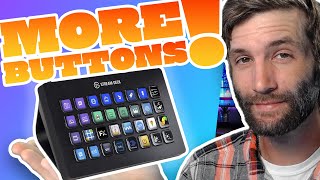

Multiply Your Stream Deck Buttons Without Folders
48sSolves a common pain point for streamers who run out of buttons, promising a simple, unique solution.
▶ Play Clip"The title is slightly hyperbolic but the tip genuinely eliminates folders and multiplies buttons."
The video demonstrates a method to multiply the number of usable buttons on an Elgato Stream Deck by creating a persistent 'hotbar' across multiple pages, allowing instant navigation without folders.
The creator found the standard Stream Deck and XL lacked enough buttons, leading to a custom solution.
A hotbar at the top of the Stream Deck remains constant across all pages, enabling quick page switching.
Start with a blank profile and add multiple pages (e.g., 8) to organize buttons.
Drag page-switching buttons to the top row to form a hotbar that links to each page.
Use the 'Page Numbers' action from the navigation menu to label each hotbar button with its page number.
Copy the configured hotbar from page one to all other pages, then adjust the arrow keys to match the current page.
The hotbar allows instant access to any page. Each page can be customized for specific tasks like Twitch scenes, sounds, or apps.
By implementing a hotbar, you can access any page with one click, eliminating the need for folders and maximizing your Stream Deck's efficiency.
What is the main problem the creator faced with the Stream Deck?
It didn't have enough buttons.
What is the 'hotbar' concept?
A row of buttons that remains constant across all pages, allowing instant page switching.
0:24
How many pages does the creator recommend adding?
8 pages.
2:27
What action is used to label hotbar buttons with page numbers?
Page Numbers from the navigation menu.
4:02
How do you copy the hotbar to other pages?
Select the hotbar buttons, copy (Ctrl+C), go to another page, and paste (Ctrl+V).
6:13
What is the benefit of the hotbar over folders?
It allows one-click access to any page without nested folders.
8:50
Unique hotbar setup
The creator claims this configuration is not commonly seen, offering a novel solution.
0:24Blank profile start
Starting from scratch ensures a clean setup.
1:53Page numbers for clarity
Using page numbers instead of arrows makes navigation intuitive.
4:02Copy-paste efficiency
Copying the hotbar across pages saves significant setup time.
6:13Instant page access
Demonstrates the final result: one-click navigation to any page.
7:46[00:00] [Music]
[00:00] when I first started streaming I fell in
[00:02] love with it so much so that I got
[00:04] myself the stream deck but I soon
[00:06] realized it didn't have enough buttons
[00:08] so I upgraded to the stream deck XL it
[00:12] still didn't have enough buttons so I
[00:14] devised a solution add more buttons and
[00:17] today I'm going to show you how to do
[00:18] just that I'm dubinator this is stream
[00:20] well let's get into it
[00:24] My Stream deck setup is pretty unique
[00:26] and I haven't seen this configuration
[00:27] anywhere else which is surprising
[00:29] because it's not that hard to set up but
[00:31] I'm gonna walk you through step by step
[00:33] on how to set up your stream deck and it
[00:35] doesn't matter what stream deck you use
[00:37] you could have six buttons 15 buttons or
[00:40] even 32 buttons I'm gonna show you how
[00:42] to multiply your buttons on your
[00:44] streaming deck far beyond the number of
[00:46] buttons you see on it and you're
[00:48] probably thinking to yourself how is he
[00:49] gonna do all this a hot bar my friend a
[00:52] hot bar so the basic idea of what I'm
[00:55] going to show you today is the Hotbar
[00:57] you see along the top here this Hotbar
[00:59] of mine never changes no matter what
[01:02] page I'm on this Hotbar will constantly
[01:05] remain the same and I know exactly where
[01:08] my buttons are on what page my stream
[01:10] deck actually reset itself the other day
[01:13] so I started rebuilding it and that's
[01:14] how I actually got the idea for this
[01:16] video I thought I haven't seen anyone
[01:18] else do this I really want to share it
[01:20] with other people so they can get the
[01:22] most out of their stream decks no matter
[01:23] the size I'm going to show you how to
[01:26] set this up so you can hop from page to
[01:28] page easily without having to hop into
[01:30] folders it's just as easy as one button
[01:32] click away to hop into anything you want
[01:34] isn't that amazing
[01:37] thank you thank you
[01:39] it's just that easy you can hop to
[01:41] anything you want you can hop to any
[01:43] screen you want you can jump around you
[01:45] can do things I can play sound effects
[01:47] all within one button click without
[01:49] using any folders it's amazing so what
[01:53] I'm going to do here is I'm going to
[01:54] switch over to a blank profile so here
[01:56] we are we're on a completely blank
[01:58] profile nothing does anything you can
[02:00] match all the buttons nothing and we
[02:02] only have one page now depending on your
[02:05] stream deck if you have the six button
[02:07] 15 button or the 32 button like myself
[02:10] this will depend on how many buttons or
[02:13] Pages you want to add to your stream
[02:15] deck keep in mind you could do this
[02:18] vertically going up and down as a hot
[02:19] bar on the side of the stream deck here
[02:21] instead of going along the top I'm going
[02:24] to put mine along the top because that's
[02:25] how I've always done it so I'm going to
[02:27] add eight buttons or eight pages sorry
[02:30] I'm going to add eight pages so we have
[02:33] one two three four five six seven eight
[02:36] and now if we click these everyone
[02:38] should be familiar with d pages
[02:41] but the problem is to get to page seven
[02:43] I have to click a bunch of times and we
[02:47] don't want to do that so what we're
[02:48] going to set up is a hot bar to hop from
[02:51] each page quickly
[02:53] so we're going to start off with page
[02:55] number one
[02:56] with page number one here this button
[03:00] obviously goes to page number two so
[03:02] what we're gonna do is we're just gonna
[03:04] drag that button up here to the second
[03:06] the second slot if that makes sense all
[03:10] right now we're going to go into the
[03:11] second page
[03:13] see now we can move this button to the
[03:15] first page and this button to the third
[03:17] page now we can hop between page one and
[03:20] two we can even hop to page three but
[03:23] unfortunately Page Three is out of
[03:25] position so we're gonna move page three
[03:26] always remember you want your three to
[03:29] be uh the pager on you want to make
[03:31] blank so we're gonna go to four that's
[03:34] here we're gonna drag here and here five
[03:37] would be here so we'll drag four and six
[03:40] six would be here we'll grab five and
[03:43] seven seven would be there we'll grab
[03:46] six and eight and then page eight
[03:49] obviously only has page seven there we
[03:51] go that's the Bare Bones basic of this
[03:55] setup now we just need to add in every
[03:58] other page in between is this starting
[04:00] to make sense
[04:02] I hope so next up we're going to want to
[04:04] go all the way back to page one here so
[04:06] I'm going to click on my stream deck
[04:08] we're going to go all the way back to
[04:09] page one here you can see now we're
[04:10] gonna come over here to our sidebar
[04:12] we're gonna go down to navigation and
[04:15] we're gonna go to page numbers
[04:18] all right
[04:19] um you could do page indicators too for
[04:21] some of the pages but we're gonna go to
[04:23] page numbers
[04:24] we're gonna go through every single or
[04:27] uh we're gonna just go through page one
[04:30] we're even gonna add one to page two
[04:33] all right so because that's an arrow key
[04:35] and not a page number key we're actually
[04:38] gonna make a page number key so this one
[04:40] we're going to keep number one what I
[04:42] like to do personally is actually add in
[04:44] indicators so I downloaded the Legion
[04:48] Key pack for the Elgato stream decks
[04:51] and it's amazing because it has so many
[04:54] so many great images that I always use
[04:58] one of them being these numbers for the
[05:01] start the very start of my heart Hotbar
[05:04] is just crucial so we'll go through
[05:06] we're gonna add three four and if you
[05:09] guys didn't know this you can just click
[05:11] on the button and then click on the
[05:12] image you don't have to keep clicking
[05:14] and adding the plus sign and all that
[05:16] you can just go through just like this
[05:17] quickly do all the numbers and there we
[05:20] go
[05:22] this is essentially what every page will
[05:24] look like except for the two button will
[05:26] be here we're just going to change that
[05:27] up so if you look down here at the
[05:29] bottom in the navigation settings this
[05:31] is set up to page number one this will
[05:34] set up to page number two
[05:36] this one will set up to page number
[05:38] three
[05:39] this one will set up to page number four
[05:43] and so on and so forth all the way down
[05:46] the line until all of these are set to
[05:49] their appropriate Pages this is
[05:51] essentially done this is essentially
[05:52] done so we can actually change this so
[05:55] another thing I do is with these arrows
[05:57] because this is page one we don't
[05:59] actually need this kind of ignore that
[06:01] we're going to copy and paste that to
[06:03] the other Pages that's why I've made it
[06:05] but for this one it's going to stay here
[06:07] and what we're actually going to do is
[06:09] make it number two because it goes to
[06:11] the number two page
[06:13] and there we go so now this is our very
[06:15] first Hotbar for page one now what we
[06:19] need to do is essentially copy and paste
[06:21] this entire thing to every single one of
[06:25] these other Pages along here see how
[06:27] they're all blank but number one looks
[06:29] amazing look at we can go to page six
[06:30] you're instantly on page six we can go
[06:33] to page four you're instantly on page
[06:35] four you can go to eight you can go to
[06:37] one what whatever you want right but now
[06:41] all the other Pages we need to set up
[06:43] that's where the copy and paste comes in
[06:47] so we're gonna grab we're gonna do
[06:50] control V on that we're gonna go paste
[06:53] there we can't put it there we'll put
[06:55] two there put two there I should have
[06:58] started with one but we started with two
[07:00] for some reason and we'll copy and paste
[07:03] this one oh we can't do it there so that
[07:05] what I do at the end is just go through
[07:07] and Swap all the arrows to their
[07:09] appropriate keys because they're going
[07:11] to be the only ones left when we're done
[07:12] just make sure that you have all the
[07:15] pages set before you do this the last
[07:18] thing you want to do is have to go
[07:20] through all these pages and set all
[07:22] these icons so they're individual Pages
[07:24] you want them already set as you can see
[07:26] I just copied and pasted the number six
[07:28] here I'll do it again so I haven't done
[07:30] anything other than copy and paste it
[07:32] and it's already set to page six that's
[07:34] what I mean by that there we go the bare
[07:36] bone Basics is done I left the arrow
[07:38] keys that way you guys can see what we
[07:40] started with so remember when we just
[07:41] started with the arrow keys well now we
[07:43] can jump to any page anywhere at any
[07:45] time
[07:46] any of them as you can see from uh
[07:49] from the bar here
[07:51] we can jump to any of our keys
[07:54] all of our keys are available to us and
[07:57] now that you're done you can go through
[07:59] and you can customize every single page
[08:01] to do whatever you like you can have one
[08:04] dedicated just to Twitch just so you can
[08:06] switch scenes activate different uh
[08:08] socials Discord even
[08:11] um raid messages all sorts of stuff you
[08:13] can have a page just for sound a page
[08:15] just for music which I haven't set up
[08:17] yet you're gonna have a page for your uh
[08:19] Photoshop and recording and all that
[08:22] stuff you can even have a desktop home
[08:24] page like I do where I can open certain
[08:26] apps and programs I even have an
[08:28] emergency shutdown button that says are
[08:31] you sure on my stream deck before I can
[08:33] shut it down also if you want to learn
[08:36] how to do this leave a comment below and
[08:38] I'll show you how you can shut down your
[08:40] PC from your stream Deck with one button
[08:42] press and that's it with that simple hop
[08:45] bar in place you now have a multitude of
[08:48] buttons at your fingertips all within
[08:50] two button presses one click to the hot
[08:52] bar one click on the item you want it's
[08:54] so simple and so much more efficient
[08:56] than using folders within folders or
[08:59] having to go left and right to different
[09:00] pages now all your pages are right there
[09:03] at your fingertips if you're using a
[09:06] budget webcam just like myself and you
[09:07] want to make it look high quality make
[09:09] sure to check out this video right here
[09:11] I cover some of the key steps everyone
[09:13] seems to miss if you enjoyed the video
[09:15] make sure to like And subscribe it
[09:17] really helps the channel and until next
[09:18] time happy streaming
⚡ Saved you 0h 09m reading this? Transcribe any YouTube video for free — no signup needed.