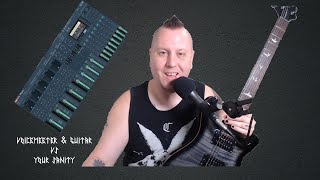

Voicemeeter Setup for Guitar & Streaming
45sAddresses a common pain point for musicians/streamers with a promise of help.
▶ Play Clip"Title accurately reflects the content: a guide to using Voicemeeter with guitar, though the 'VS Your Sanity' is hyperbolic."
This video tutorial explains how to set up Voicemeeter Potato to route a guitar and microphone into a DAW or plugin, and then into OBS for streaming. The host, JD Blood, provides a step-by-step guide, emphasizing the importance of ASIO drivers, proper input/output mapping, and the 'insert' patch for signal return. The video also addresses common issues like latency and sample rate settings.
The video addresses PC users who want to make music, stream games, and possibly stream their music, and have heard about Voicemeeter.
You need to download Voicemeeter Potato, access your sound card's routing (sample rate and buffer size), and have a DAW or plugin to route audio to.
After installing Voicemeeter Potato, restart your computer to ensure it takes over audio. The host uses a Focusrite 2i2 sound card and STL Tones ToneHub plugin.
First, set up where your audio is outputting. In Voicemeeter, select your ASIO driver (e.g., Focusrite USB ASIO) for hardware out A1. Avoid MME, KS, or WDM.
Go to Menu > System Settings to map your microphone and instrument inputs. For a 2i2, mic is on input 1 and guitar on input 2. Set them to mono and assign the correct input numbers.
Highlight the 'insert' button on the input strip (e.g., right on input 2) to allow the signal to return from the plugin/DAW. This is essential for real-time monitoring.
Leave sample rates at the highest default (e.g., 384 kHz). For buffer size, 192 is reasonable for voice; musicians may notice latency increase from 32 to 192 (about 2-8 ms round trip).
A channels (input strips) are for monitoring; B channels are for broadcasting final audio to destinations like DAW, plugin, or OBS. B3 is VAIO 3 output, B2 is aux, B1 is for PC audio like Spotify.
Enable 'Auto restart audio engine' to fix crackles automatically. Enable 'Run at startup' in system tray so Voicemeeter takes over audio on boot.
In the plugin's audio I/O, select ASIO, choose Voicemeeter Insert Virtual ASIO as the device, set input to the correct channel (e.g., mono right on channel 2), and ensure sample rate and buffer size match.
The setup works, but the host dislikes the latency and plans to use a lower-latency alternative. However, this method is functional for those committed to the Voicemeeter ecosystem.
The tutorial successfully demonstrates how to route guitar audio through Voicemeeter Potato into a plugin and out to OBS, but the host notes that latency is a trade-off and suggests exploring lower-latency alternatives.
What is the recommended audio driver type to use in Voicemeeter for low latency?
ASIO
2:48
What must be highlighted on the input strip to allow the signal to return from a plugin?
The 'insert' button (e.g., right on input 2).
5:17
What is the difference in round-trip latency between 32 and 192 buffer size according to the video?
About 2 to 8 milliseconds.
7:48
What are the A channels in Voicemeeter used for?
Monitoring (auditioning) audio.
8:52
What are the B channels in Voicemeeter used for?
Broadcasting final audio to destinations like DAW, plugin, or OBS.
9:55
What should you do after installing Voicemeeter Potato?
Restart your computer.
1:29
What is the default sample rate that Voicemeeter sometimes sets to, which the host says ruins audio?
384 kHz (lowest).
6:49
What is the name of the virtual ASIO device you select in the plugin for Voicemeeter routing?
Voicemeeter Insert Virtual ASIO.
14:58
Use ASIO Drivers
Essential for low-latency audio routing on Windows; avoiding MME, KS, or WDM is critical.
2:48Insert Patch Enables Signal Return
A key step that allows processed audio from a plugin to return to Voicemeeter for monitoring.
5:17Latency Trade-off
Highlights the compromise between buffer size and latency; musicians may notice the difference.
7:48A vs B Channels Explained
Clarifies the difference between monitoring (A) and broadcasting (B) channels, a common point of confusion.
8:52Host Prefers Lower Latency Alternative
Acknowledges that while the setup works, the host plans to use a different method for better latency.
16:14[00:00] if you're using a pc to make music
[00:03] stream games and possibly stream your
[00:05] music
[00:06] you've probably heard about voice meter
[00:09] don't worry
[00:10] i'm here to help
[00:16] hello heathens thank you so much for
[00:18] joining the channel i'm jd blood i'm a
[00:20] guitarist
[00:20] a goth a gamer and a giant nerd
[00:24] and for the purposes of this video we're
[00:26] gonna be giant nerds together
[00:28] i'm assuming you want to use voice meter
[00:31] to get
[00:32] your audio from your microphone
[00:36] and your guitar into your daw
[00:39] plug-in whatever else you want to use
[00:42] and then automatically out
[00:43] into something like obs for streaming
[00:46] you're in luck
[00:47] i have decided to task me with getting
[00:50] you there
[00:52] for this experiment you're gonna need to
[00:53] download voicemeeter potato
[00:56] the link is in the description you are
[00:58] going to need
[00:59] access to your sound cards routing as in
[01:03] your sample rate and buffer size
[01:06] and then just to make sure that we've
[01:08] done all this correctly you are going to
[01:09] need any plug-in or daw
[01:11] that you may want to route this to okay
[01:14] let's get started i'm spoiler alerting
[01:17] here
[01:17] just a little bit because i want to make
[01:20] sure that you've got
[01:21] everything that you need now when you
[01:23] install voicemeeter potato
[01:25] i'm going to assume you know how to
[01:27] install software
[01:29] just a guess please do actually restart
[01:33] your computer
[01:34] because it does help potato actually
[01:37] take over your audio i don't know the
[01:39] scientifics behind it
[01:40] but it totally does so what you have
[01:42] here is
[01:43] the three things that i mentioned you
[01:45] need you have in my case the 2i2
[01:48] routing sample rate buffer size
[01:51] you have the actual voicemeeter potato
[01:54] screen
[01:54] that is intimidating as balls but we
[01:57] will get there
[01:58] and then in the back here you have a
[01:59] plug-in i happen to love stl tones so
[02:01] i've got my tone hub back there we'll
[02:03] get to that in just a minute
[02:04] first things first what you want to do
[02:06] is actually set up
[02:08] where your audio is outputting
[02:11] this seems kind of counter-intuitive
[02:13] because you'd want to make sure
[02:15] that you're getting the inputs right as
[02:16] you can see
[02:18] my voice is making that view meter move
[02:21] but we got to get that to go somewhere
[02:24] up here
[02:24] are your outputs you can see hardware
[02:27] out
[02:28] it tells you sample rate and buffer size
[02:31] and here it also tells you that i have
[02:33] chosen my focusrite usb
[02:34] ausio which is what the 2i2
[02:37] uses when it's installed on a pc how you
[02:40] pick it is you simply go into your a1
[02:43] and scroll don't worry so much we're not
[02:47] going to use
[02:48] mme or ks or wdm those are all windows
[02:51] specific we want asia
[02:53] so you're definitely going to pick your
[02:55] focusrite
[02:56] yours will vary of course whatever sound
[02:58] card you happen to have
[03:00] pick the main asio driver that you're
[03:03] expecting
[03:03] you can pick any alternative number of
[03:06] outputs as well
[03:07] i used to for a while have my a2 as
[03:09] speakers and then i routed my speakers a
[03:11] little differently
[03:13] don't worry about that you can not
[03:16] relevant to this conversation
[03:17] so first things first you have to figure
[03:19] out and i notice i got it wrong
[03:21] look at that we're going to correct it
[03:22] together you have to output
[03:24] you have to get your mic input going
[03:27] into the proper input or your mic output
[03:29] going into the property you know what i
[03:30] mean so we're gonna go into the menu
[03:34] i'll get to this in just a second
[03:36] because that's very important this is
[03:38] also very important
[03:39] this is not very important but we'll go
[03:41] in order so you go into your system
[03:43] settings
[03:45] and here you will see
[03:48] oh no wonder it sounded like trash okay
[03:51] i don't know why this happened whenever
[03:53] there's a windows update
[03:55] potato banana voice meter og
[03:59] they all screw up this is not how
[04:01] they're supposed to be
[04:02] so you can right click to back that off
[04:06] and then you can what this does
[04:10] is it maps your microphone input on my
[04:13] 2i2 which is a two physical input
[04:15] i have my mic on the left input and my
[04:18] guitar
[04:18] or instrument on the right input so what
[04:20] should happen
[04:21] is your inputs should also match well
[04:24] you have
[04:25] five inputs that's why it says in one
[04:27] two three four five
[04:29] those all work up here one
[04:32] two three four five there's your math
[04:34] lesson for the day
[04:36] so your input one it really doesn't
[04:38] matter if you do stereo or mono
[04:40] i prefer mono and then you'll see i also
[04:42] have it labeled mono because i'm
[04:44] really anal about this and then your
[04:46] input 2
[04:48] which in my case is my instrument you
[04:51] just click it up
[04:52] to 2 and away you go and if you were
[04:54] looking at the screen you saw
[04:56] tonehub there actually shift a little
[04:58] bit this is a really great example of
[05:00] how
[05:01] things can screw up and i'm happy it did
[05:04] because now i've got it correct and now
[05:07] i can start to go on with everything
[05:09] else the other main thing you want to do
[05:12] is whatever
[05:13] you label here on your on your
[05:16] instrument
[05:17] input whether it's 1 2 7 20 who cares
[05:21] is make sure that first of all you're
[05:24] down here at the patch
[05:25] inserts this is key this is how we get
[05:27] it to go
[05:28] into your plug-ins daws whatever
[05:31] and fully route the signal if you don't
[05:35] highlight these
[05:36] and i'll show you what i mean they will
[05:39] not take the signal back from the
[05:42] plug-in
[05:42] daw etc etc you won't have real-time
[05:45] monitoring
[05:46] in fact as in my experience you won't
[05:48] have any monitoring
[05:50] so we've highlighted right two on input
[05:53] two
[05:54] so my input to right is highlighted
[05:58] what that does is it transports the
[05:59] signal these ones here
[06:01] in four left and right is kind of a
[06:05] little trick
[06:06] i picked up i won't go over that in this
[06:08] video
[06:09] but this is wonderful for
[06:13] setting a master track output
[06:16] on your daw and having it come back in
[06:19] through voice me that's all the spoiler
[06:22] i'm going to give you basically we need
[06:24] here
[06:25] also for whatever reason you don't need
[06:28] to do that
[06:29] for your microphone i have not figured
[06:31] out why i cannot explain it please just
[06:34] go with me
[06:38] now we have everything set up
[06:42] one thing you may notice when potato
[06:43] comes in is that these
[06:46] sample rates are insanely high
[06:49] do not change them do not be alarmed i
[06:51] don't know why
[06:52] sometimes they will default to the
[06:54] lowest which is 384
[06:56] and that sucks it ruins your audio
[06:59] just leave them at the highest one and
[07:02] never think about it again
[07:03] so right now you can see obviously that
[07:06] my latency is pretty high
[07:10] this will take you a good half an hour
[07:13] to figure out
[07:15] where your compromise is if you are
[07:18] using this application primarily for
[07:20] voice
[07:21] then 192 is a pretty reasonable buffer
[07:23] size
[07:24] and it won't matter nearly at all
[07:27] it'll still get you through voice meter
[07:30] into whatever you need and into
[07:32] i'm going to use obs because i'm
[07:33] assuming that's what you're using for
[07:34] streaming for the musicians in the crowd
[07:37] i understand this is driving you a
[07:39] little twitchy because it drove me a
[07:40] little twitchy
[07:41] i went from using about 16 to 32
[07:45] to get the maximum chug up to 192.
[07:48] now the scientists tell me that the
[07:50] human ear
[07:51] can't really determine the latency
[07:54] difference between 32 and 192 because
[07:58] that difference is about two
[07:59] milliseconds
[08:00] or less than two milliseconds
[08:03] to about eight milliseconds round trip
[08:07] i don't know if i'm being an uber nerd
[08:10] but i really can hear the difference so
[08:12] be aware that you will sacrifice latency
[08:15] in your music for this configuration to
[08:19] work
[08:19] it's not going to affect your technique
[08:21] at all i don't find
[08:23] it's that different when i'm playing
[08:26] but it is something to keep in mind and
[08:28] it's actually one of the main negatives
[08:29] i have about this
[08:31] so once you've set up your sound card
[08:33] and you'll know you've set up your sound
[08:34] card there won't be any crackles there
[08:36] won't be any weird distortion
[08:38] there won't be any artifacting
[08:41] it takes time i can't tell you what your
[08:44] magic number is
[08:45] you have to experiment so once you have
[08:47] that down
[08:48] you never have to set it again so we can
[08:51] get rid of that
[08:52] now how you're hearing me i have to go
[08:54] backward a little bit here how you're
[08:55] hearing me now
[08:57] is a direct result of this b3
[09:01] you can think of the a channels in your
[09:04] input strips
[09:05] as auditions so anything you want to
[09:09] monitor
[09:10] you can monitor of course so it doesn't
[09:13] matter to me because i'm not monitoring
[09:15] through cans and i don't have my
[09:16] speakers on
[09:17] but theoretically since my
[09:20] a1 output is my main sound card
[09:24] i would definitely want to generally
[09:26] monitor that
[09:27] and then you can see over here on the
[09:29] monitoring these are the outputs
[09:32] you can see that i am now mimicking the
[09:34] two meters
[09:35] the same is true for my guitar i
[09:38] definitely
[09:38] want to hear that so i would just click
[09:41] that on
[09:42] and again if you want that to come out
[09:43] through any of the other
[09:45] outputs that you may have selected
[09:47] through your choice
[09:48] all you have to do is click the
[09:50] corresponding button
[09:52] simple as that the b channels are
[09:55] basically broadcasting
[09:57] so this is where you route your
[10:00] final audio to wherever it is
[10:04] it's going be that your daw your plug-in
[10:07] straight into obs you know choice is
[10:10] yours
[10:12] this concept took me a little bit to get
[10:14] over but these are actually your b
[10:16] inputs up here bio this is actually
[10:19] called aux but i've
[10:20] already labeled it for my use for chat
[10:23] and then pc audio because you can
[10:25] actually route
[10:26] your the entirety of every sound your pc
[10:28] makes
[10:29] through voicemeeter useful for gamers
[10:32] useful for streamers not at all
[10:34] practical for music making so
[10:37] use at your own risk i'm not really
[10:39] gonna get into it the concept that took
[10:40] me a while to get into
[10:42] was the fact that these are not hard and
[10:45] fast
[10:46] like this input does not necessarily
[10:48] have to be that output
[10:50] and that took me way too long once i
[10:52] figured it out this all came together
[10:54] this is why this video is taking so long
[10:57] so b3 is my vaio 3
[11:01] output this is important when you're
[11:03] going into
[11:05] honestly just obs it doesn't matter
[11:07] about anything else really i don't think
[11:09] i'm probably wrong on that correct me in
[11:11] the comments so b2
[11:13] then becomes my aux i don't know why i
[11:16] think of
[11:17] guitar as an aux cable it's literally
[11:20] the thing in your car that you can plug
[11:21] your
[11:22] your friend's android into because
[11:23] they're too cheap to have an iphone and
[11:24] have carplay
[11:26] that's basically how i think of it so
[11:28] then your guitar
[11:29] would be routed through there and if you
[11:31] don't believe me i will show you a
[11:33] demonstration once we log in
[11:35] to the plugin of choice log into the
[11:38] plugin
[11:39] you get what i mean and then b1 i have
[11:41] it on again this is the special channel
[11:44] right here you also see i have spotify
[11:47] or your music
[11:48] app of choice and you can route that
[11:51] through here i highly recommend that
[11:53] for streamers or if you're the type of
[11:56] person who
[11:57] learns a song on a stream and you're
[11:59] chugging away and you want to just
[12:01] repeat and get that copyright
[12:03] demonetization going
[12:05] this is a way you can do that so your
[12:07] audience can hear what you're listening
[12:08] to
[12:09] they can hear your pause and rewind and
[12:11] all that other good stuff it's a great
[12:13] way to get that going
[12:14] and again that's routed through a1 and
[12:16] if i were
[12:17] to route it i think i would honestly put
[12:20] that on the b1 channel as well
[12:22] your mileage may vary not really
[12:24] important you're here for the guitar
[12:26] so we have our guitar it is set up it's
[12:29] broadcasting
[12:30] through the aux and we also have i'll do
[12:33] a little reminder here
[12:36] the insert this is key to getting it
[12:39] into your plug-in one more step before
[12:42] we go into the plug-in i'm going to show
[12:43] you that menu
[12:44] auto restart audio engine although voice
[12:47] meter is arguably
[12:49] the best program for audio routing
[12:52] in windows it is also one of the worst
[12:55] sometimes
[12:56] you'll hear a crackle a blur or that
[12:59] weird distortion
[13:00] and what voice meter can do is
[13:01] automatically correct itself
[13:03] highly recommend keeping this on you
[13:06] will lose
[13:07] like a second or two of audio if you're
[13:09] not monitoring you won't notice
[13:12] but it'll come back and you just have to
[13:15] do a plug-in
[13:15] system tray run at startup this is so
[13:18] that it automatically takes
[13:20] over again this is why i have my pc
[13:22] audio
[13:23] routed over here because as soon as my
[13:26] computer boots up voice meter boots up
[13:28] and it takes control
[13:30] of my audio how i show that since it's
[13:33] in the vaio 3
[13:35] is in your pc sound you can see voice
[13:37] meter vayo3
[13:38] this is all sort of next level stuff you
[13:40] don't have to but i honestly think if
[13:42] you
[13:42] are running your stream and your music
[13:46] all at the same time i think this is the
[13:47] optimal way to do it hook
[13:49] volume key i honestly turn this off i
[13:51] have no idea what the hell this does
[13:53] so whatever it can go away now we need
[13:56] to make sure this is inserted
[13:58] perfect let's go in to our guitar
[14:01] plug-in
[14:02] of choice shall we there's my tone hub i
[14:05] want to move it over here so you are
[14:07] looking at this channel strip
[14:09] and you are looking at the audio i o of
[14:11] your plug-in
[14:12] many plug-ins ios look very similar so
[14:16] this shouldn't be too difficult to
[14:18] decipher for your own end
[14:20] you can mute the audio if you want i
[14:22] actually like keeping it on because that
[14:24] feedback lets me know i'm alive
[14:26] so your audio device type of course
[14:28] windows audio trash direct sound trash
[14:31] azio it's what we're using the device
[14:35] spoiler alert here you can see you can
[14:37] just go through your sound card as you
[14:39] normally would if you weren't
[14:40] doing the voicemeeter setup reroute seo
[14:44] is
[14:44] for a different video because as soon as
[14:46] i finish this video and i like the
[14:48] quality
[14:49] i'm never using the setup again spoiler
[14:51] alert
[14:52] and then you have your voicemeeter
[14:53] inputs we highlighted that
[14:55] insert patch for a reason
[14:58] and it's this reason right here you use
[15:01] your potato
[15:02] insert virtual clicky clicky
[15:05] you have to make sure that you're set up
[15:07] correctly now even if you have the mono
[15:09] input
[15:10] make it a stereo output and this is on
[15:14] whatever channel you want you can see i
[15:16] can
[15:16] scroll
[15:19] down to input 8. so whatever input
[15:22] channel you have
[15:23] make sure that it matches that stereo
[15:25] output and then of course your input
[15:27] channel
[15:28] mine is the mono right on the second
[15:30] channel so there is a mono write
[15:32] on the second channel sample rate
[15:34] matches
[15:36] one second sample rate matches
[15:40] buffer size matches your plug-in will
[15:42] probably lie to you
[15:44] this is four milliseconds one way so
[15:46] therefore you double it it's an eight
[15:47] millisecond round trip
[15:50] again human ear can't decipher less than
[15:52] 10 milliseconds
[15:54] maybe i'm a nerd because i'm certainly
[15:55] not an audiophile
[15:57] i can hear the difference but this is
[15:59] the sacrifice we make to get this going
[16:01] pop that down and then once you close
[16:04] out of here
[16:05] you should be able to hear
[16:08] your guitar if i turn it on
[16:14] and voila you now have your guitar
[16:18] routed from your headphones per
[16:22] se or your speakers depending on what
[16:24] your sound card offers
[16:25] or your external speakers or your
[16:27] monitor or your printer
[16:29] or whatever you have that broadcasting
[16:32] to your obs which i'll do in another
[16:36] video this was just to get here because
[16:38] of that
[16:39] insert you have that audio coming
[16:42] in from voice meter so from your
[16:46] guitar into voice meter into your plugin
[16:49] and that little insert highlight button
[16:52] takes the processed audio and pops it
[16:55] back
[16:55] into potato and then back into your ears
[16:59] and then wherever you decide to
[17:01] broadcast it it goes as well
[17:03] so that is the quick and dirty setup
[17:06] it ain't pretty i still hate the latency
[17:09] once i'm done editing this video
[17:12] i will probably never use this setup
[17:14] again i have already found
[17:16] a better slash lower latency way to make
[17:20] all of this happen and i really think
[17:23] it's the better alternative but
[17:26] if you are in the voice meter ecosystem
[17:29] and if you
[17:31] are okay with the settings presented it
[17:33] works
[17:34] this setup legitimately works it's what
[17:36] i'm recording this video on right now
[17:38] make sure if you have any questions to
[17:40] leave them down below
[17:42] i think i did a pretty thorough job but
[17:43] i'm always open to helping i'm not going
[17:45] to delete
[17:46] voicemeeter i'm just not going to use it
[17:47] again if i have made your life better by
[17:50] making it more difficult for showing you
[17:52] this
[17:52] throw a like on the video it helps more
[17:54] than you could possibly imagine
[17:56] and if you are watching this without
[17:58] being subscribed consider
[18:00] subscribing i will do more guitaring i
[18:02] will do more
[18:03] gaming i will do more gothing i think
[18:07] and i will definitely do more giant nerd
[18:09] stuff like this because this has been
[18:11] hella fun for me
[18:12] either way if you've stuck around this
[18:13] long thank you
[18:15] so very much from the bottom of my black
[18:17] little heart and remember
[18:19] be safe be consensual and if you can't
[18:22] be good
[18:22] well then sweet satan on a pogo stick be
[18:26] good at
⚡ Saved you 0h 18m reading this? Transcribe any YouTube video for free — no signup needed.