
Play music through mic instantly
37sSolves a common problem for streamers and gamers in a quick, actionable way.
▶ Play Clip"Title accurately describes the tutorial; video delivers exactly what it promises."
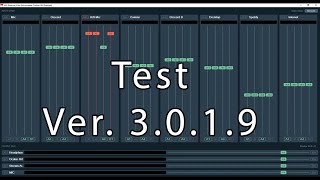
This video provides a concise guide on using Voicemeeter to play any audio (music, browser sounds) through your microphone while still being able to talk. It covers setup, routing, and configuration for apps like Discord and OBS.
Play any audio through your mic so others hear it while you talk.
Any version (standard, Banana, Potato) works; steps are the same.
Left-click to add mic (WDM), right-click to rename it 'Mic'.
Click A1 in top right, select MME, then choose your headphones.
Prevents hearing yourself (feedback) by disabling the A1 button on the mic column.
Open Windows Volume Mixer, find the app (e.g., Spotify), change its output to 'VoiceMeeter Input'.
A = what you hear, B = what others hear. Disable A to mute for yourself, disable B to mute for others.
In Discord/OBS, select 'VoiceMeeter Output' (B1) as mic input to send combined audio.
Disable extra Voicemeeter playback/recording devices (1-5) to reduce clutter. Ensure headphones are default device.
In Discord, use 'Studio Mode' to prevent audio cutting. For browsers, disable certain flags (list shown) to avoid echo cancellation.
With Voicemeeter, you can easily route any audio through your mic while talking, using simple settings in the app and Windows volume mixer.
What does the A button control in Voicemeeter?
What you hear (your own headphones).
2:12
What does the B button control in Voicemeeter?
What others hear (output to apps like Discord).
2:12
How do you route an app's audio through Voicemeeter?
Open Windows Volume Mixer, find the app, and change its output device to 'VoiceMeeter Input'.
1:34
Why should you disable the A1 button on the mic column?
To prevent hearing yourself (feedback loop).
1:17
What is the recommended Discord setting to prevent audio cutting?
Enable Studio Mode.
4:11
A vs B Buttons
Clear explanation of the core routing logic in Voicemeeter.
2:12Routing App Audio via Volume Mixer
Simple method to route any app's audio without extra cables.
1:34Discord Studio Mode
Prevents Discord from cutting audio when not speaking.
4:11[00:00] All right, let's make this short and
[00:03] sweet here. So, you want to play music.
[00:07] You want to play your browser audio. You
[00:10] want to play any audio through your mic
[00:14] so then people can hear it coming from
[00:18] your mic and you can talk at the same
[00:20] time.
[00:21] All right, you have voice meter
[00:23] installed. Either the regular one like
[00:26] this, you either have banana or potato.
[00:28] Doesn't matter which one. Whatever one
[00:30] you downloaded, you can open this one,
[00:34] follow along, and then open the other
[00:35] one you want to use. It doesn't matter
[00:37] which one. They all do the same thing.
[00:39] Uh if you all the things that we do in
[00:42] this one will apply to banana or or
[00:45] potato, doesn't matter. First things, uh
[00:49] add your mic here. WDM. You just left
[00:52] click. Then you can also rightclick and
[00:55] rename it to mic.
[00:58] Good. Um,
[01:01] then we can come over here to A1 in the
[01:03] top right. You can just click it. MME
[01:07] and then whatever your headphones are.
[01:11] Sweet.
[01:13] You can probably hear yourself right
[01:14] now. That's probably Oh. Oh, yes. Now I
[01:17] can hear myself. Disable the A or A1
[01:20] button on your microphone column
[01:24] because that is going to your headphones
[01:25] right up here. So disable that. You no
[01:28] longer hear yourself.
[01:31] Then we will
[01:34] type the word mixer into the Windows
[01:36] search bar.
[01:40] You're going to find the app you want to
[01:41] play through your mic. So in my case, I
[01:44] want to play Spotify through my mic. Uh
[01:46] and we're going to have it change the
[01:49] output. We're going to change the output
[01:51] to voice meter input, which is right
[01:54] here. as you can see. So, you want to
[01:57] click that. Perfect. You can rename this
[02:00] column to music like I did
[02:03] and we can test it out real.
[02:07] There we go. You hear music?
[02:12] Cool. You don't want to hear it, disable
[02:13] the A. You don't want other people to
[02:15] hear it, disable the B. So, the A is the
[02:18] A is is what you hear. The B's are what
[02:22] other people hear. So, if I have B
[02:25] enabled on both my mic and the music,
[02:27] then you will hear both. As you can
[02:29] already tell, that's what's happening
[02:31] right now. So, like in OBS, the
[02:33] microphone I selected is B1, which is
[02:36] this. And you'll see that in better,
[02:39] you'll see that better in potato and
[02:42] banana because it actually says B1. But,
[02:45] uh, yeah, B1's the mic you'd select in
[02:47] Discord, in the game, wherever.
[02:51] And now you're sending both music and
[02:54] your mic together combined into wherever
[02:56] you want to throw it. Um,
[03:01] another important thing, type change
[03:03] system sounds into the Windows search
[03:05] bar. Open that.
[03:11] And since you just downloaded a new
[03:12] program, you're just going to want to
[03:16] I'll just tell you to disable one
[03:18] through five here. don't need them.
[03:21] Playback recording.
[03:24] You can do the same thing. Just disable
[03:26] one through five. Just get rid of some
[03:28] of the clutter. Go back to playback.
[03:32] You just need to make sure your
[03:33] headphones are the default device of
[03:34] Windows. Like you always have, we don't
[03:37] need to route any other audio through
[03:39] voice meter if this is all you're trying
[03:40] to do.
[03:43] So yeah, you just set it as default.
[03:44] Good to go.
[03:46] Um,
[03:49] what else is there? So, yeah, same thing
[03:51] with uh browsers. It'll show up the
[03:53] browser here and you just change the
[03:54] output. Good to go.
[03:57] Um,
[04:01] so yeah, if you select it in Discord,
[04:03] input devices, voice meter outbones
[04:08] like you always have. Uh, now if you
[04:11] don't want it Discord to cut it out,
[04:13] select studio mode. Um, in browsers, if
[04:17] you're trying to play, like say you're
[04:18] doing Omega or something, and you're
[04:20] trying to play music through your mic,
[04:22] then you might want to disable some of
[04:24] the
[04:26] uh these flags, I guess they're called.
[04:28] I don't know. Um, you can pause the
[04:30] video and just read this. And then this
[04:32] these are the ones you disable. So,
[04:34] that's for Chrome and Edge. Um,
[04:38] what else? Anything else?
[04:43] I think that's it.
[04:45] Uh
[04:48] yeah, that's how you play anything
[04:50] through your mic
[04:53] easily.
[04:55] You just got voice meter. So, hope that
[04:58] works.
[04:59] See you.
⚡ Saved you 0h 05m reading this? Transcribe any YouTube video for free — no signup needed.