
Route Chrome audio to VoiceMeeter
45sSolves a common problem for streamers and podcasters who need to isolate browser audio.
▶ Play Clip"Title accurately describes the tutorial; the video delivers exactly what it promises."
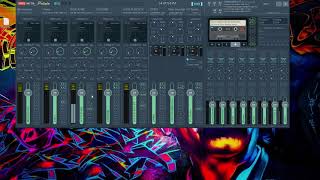
This tutorial demonstrates how to route audio from a website (Chrome) into VoiceMeeter Potato using the Audio Pick Chrome extension and a virtual audio cable. The creator shows his preferred method for assigning website sound as a virtual input.
Scott Fisher asked if it's possible to assign sound from a website as a virtual input. The answer is yes, and the preferred method uses Chrome and a plugin.
In VoiceMeeter Potato, route audio from a website to a virtual audio cable (e.g., virtual audio cable B) by selecting it on a channel (e.g., channel 4).
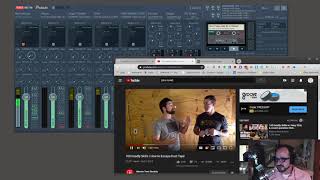
Install the Audio Pick extension from the Chrome Web Store. It appears as an icon in the toolbar, allowing you to select the output device (e.g., VB Audio Cable B) for the current tab.
Audio from the tab is routed to virtual audio cable B, which is received by VoiceMeeter. The creator demonstrates by playing a YouTube video and unmuting it.
The audio is routed to headphones (B1) and recording output (B3) in OBS. Audio Pick is a great extension for routing audio to any hardware or virtual cable.
The easiest way to route audio from a website into VoiceMeeter is using the Audio Pick Chrome extension to send audio to a virtual audio cable, which VoiceMeeter then receives. This method works with any hardware or virtual cable installed on your machine.
What Chrome extension is used to route audio from a website to a virtual audio cable?
Audio Pick
1:21
In VoiceMeeter Potato, how do you set a channel to receive audio from a virtual audio cable?
Left-click on the channel and select the virtual audio cable (e.g., virtual audio cable B).
0:57
What is the purpose of the Audio Pick extension?
It allows you to route audio from a specific Chrome tab to any hardware or virtual audio cable installed on your machine.
1:21
What output devices does the creator route audio to in the demonstration?
Headphones (B1) and recording output (B3) in OBS.
2:49
Question: Assigning Website Sound as Virtual Input
Addresses a common user need for routing browser audio into VoiceMeeter.
Audio Pick Extension
Key tool that enables per-tab audio routing in Chrome.
1:21Routing to Multiple Outputs
Demonstrates practical use case: sending audio to headphones and recording software simultaneously.
2:49[00:00] hey YouTube Morel Cox here recently I
[00:02] was asked a question on YouTube it was
[00:08] under one of the videos that I did
[00:09] called voiced meter inputs and outputs
[00:11] Scott Fisher asked is it possible to
[00:15] assign sound from a website as a virtual
[00:18] input and the answer is yes there are
[00:21] actually several ways you can do that
[00:23] and I'm going to show you my preferred
[00:26] way now my preferred way you have to be
[00:28] using Chrome as your web browser and
[00:31] that is because there's a plug-in that I
[00:33] use so let's switch over to my desktop
[00:35] here and there's the plug-in but first
[00:39] right here is a voice meter potato and
[00:42] what I'm going to do is I'm going to
[00:44] route all the audio from a my web
[00:47] browser that the website that comes up
[00:49] and I'm going to route it to a virtual
[00:53] audio cable that I have configured here
[00:55] in voice meter so if you go over to
[00:57] channel remember this is channel 0
[00:59] channel 1 channel 2 channel 3 channel 4
[01:02] right here so I'm gonna left click on
[01:04] that and you'll see I have virtual audio
[01:06] cable be selected so any input on
[01:10] virtual audio cable B will come into
[01:13] this channel right here okay so you
[01:15] gotta remember that virtual audio
[01:16] channel B okay so now the extension that
[01:21] chrome uses and that you can get in the
[01:23] Chrome Web Store here is called audio
[01:25] pick okay so you install that extension
[01:28] and then what happens is up here on the
[01:31] top and this toolbar here you will see
[01:33] the icon audio pick current tab if I
[01:37] left click on that you will see I have
[01:39] speaker VB audio cable be selected so
[01:42] this allows me to route to the various
[01:45] physical or virtual cables that I have
[01:49] installed on my machine so again we're
[01:52] going to pick virtual audio cable B so
[01:55] any audio being played in this tab right
[01:59] here will be routed to virtual audio
[02:02] cable B and back here on voice meter
[02:05] potato again I left click that's virtual
[02:08] audio cable B so I'll go back to my
[02:10] YouTube channel a YouTube channel here
[02:13] gonna hit plate and as you can see it's
[02:16] muted right now but I'll unmute it and
[02:18] now you are hearing the audio when I
[02:20] unmute from this YouTube video here it
[02:23] is so there you go the audio from it now
[02:29] it's video right now right now so you
[02:40] can see that's the easiest way to route
[02:43] audio from a website into voice meter
[02:49] and then of course I am rallying it to a
[02:53] one which are my headphones I have right
[02:56] here so I can hear it and then b3 which
[02:58] is the output that's I'm recording all
[03:01] the audio in OBS that is coming through
[03:04] b3 which that's how you're able to hear
[03:07] it so really that's the easiest way so
[03:10] yeah audio pick is a great extension
[03:13] that allows you to route audio from a
[03:17] website to any hardware or virtual audio
[03:22] cable that you have installed on your
[03:23] machine so I hope that makes sense if
[03:27] you got any questions leave them below
[03:28] and hey thanks for supporting me I just
[03:32] do this for fun so there's no fancy
[03:33] intros for outros it's just my way of
[03:36] giving back because you know there's a
[03:38] lot of people who have helped me so
[03:39] hopefully this helped you so until next
[03:41] time you guys take care we'll see you
[03:43] around
⚡ Saved you 0h 03m reading this? Transcribe any YouTube video for free — no signup needed.