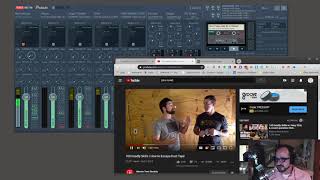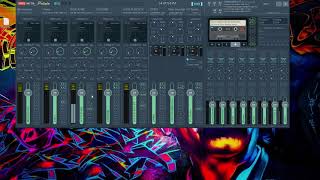

New VoiceMeeter Streamer View Feature
48sShows a brand new, simplified interface for VoiceMeeter that streamers and podcasters will find immediately useful.
▶ Play Clip"Title accurately describes the feature; video delivers exactly what it promises."
This tutorial introduces the new VM Streamer View feature in VoiceMeeter Potato version 3.0.2.1, which provides a simplified interface for controlling audio inputs and outputs. It's designed for broadcasters and podcasters who want a cleaner, distraction-free control panel.
Merl demonstrates a new feature in VoiceMeeter Potato 3.0.2.1 called VM Streamer View, which offers a simplistic view of the control panel.
Open Start Menu, type 'VM streamer view', and launch the application. It shows inputs and outputs with volume sliders and routing buttons.
The interface mimics the main VoiceMeeter control panel but is simpler. Users can adjust volume, mute inputs or outputs, and route audio easily.
Inputs and outputs must be named (via right-click and typing a description) to appear in VM Streamer View. Default names will not show up.
VM Streamer View is a clean, easy-to-use interface for streamers who need basic audio control without distractions. Ensure your inputs and outputs are named for them to appear.
What is the name of the new feature in VoiceMeeter Potato 3.0.2.1?
VM Streamer View
0:51
How do you launch VM Streamer View?
Open Start Menu, type 'VM streamer view', and launch the application.
0:51
What must be done for inputs and outputs to appear in VM Streamer View?
They must be named by right-clicking and typing a description.
2:46
What happens if inputs and outputs have default names in VM Streamer View?
They will not show up in VM Streamer View.
2:46
New Feature: VM Streamer View
Introduces a simplified interface for audio control, reducing distractions for streamers.
0:51Naming Requirement
Critical step to ensure inputs/outputs appear in the simplified view.
2:46[00:01] Hey YouTube, it's Merl again. Just going
[00:03] to
[00:05] share a brief tutorial on a new feature
[00:10] that has been released in the updated
[00:13] voice meter release. And if you look
[00:16] here under voice meter about, you'll see
[00:20] that I have installed voice meter potato
[00:23] version 3.0.2.1.
[00:25] I run the 64-bit version. Um, but this
[00:29] was just released a few weeks ago. I
[00:31] just didn't install it last week and I
[00:34] came across a new feature that may be of
[00:36] interest to you. Um, if you're a
[00:38] broadcaster, podcaster, and you want
[00:40] more a more simplistic view of, let's
[00:43] say, the control panel, and this new
[00:48] feature
[00:49] can be found
[00:51] if you go over and click the start menu
[00:55] and type in VM
[00:58] streamer view. And you'll see that right
[01:00] there, VM streamer view. If you launch
[01:02] that,
[01:04] you will see that it basically launches
[01:07] this nice little simplistic
[01:10] application that [clears throat] gives
[01:12] you
[01:14] your inputs and outputs
[01:16] with sliders for volume and buttons to
[01:20] basically route the audio wherever you
[01:23] want to. Um, so this all the inputs and
[01:26] outputs mimic what's here in voice meter
[01:29] potato control panel in a more
[01:31] simplistic uh easy to use I guess
[01:34] interface. So as you can see here my go
[01:37] XLR mic right I've got that routed to
[01:40] B3. So right here you'll see go XLR mic
[01:44] routed to B3. B3 is my virtual output.
[01:48] Um
[01:50] and let's see here. Yeah, it's uh pretty
[01:54] simplistic. I can adjust the volume
[01:56] slider for that output to B3 up and
[01:59] down. I can mute. If I click this,
[02:04] that was muted. You could tell. Um, so
[02:07] that's an easy way to mute that input.
[02:10] Or you can mute the whole output over
[02:12] here. There you go. See that was muted.
[02:14] You just push that button. I can adjust
[02:17] the volume right here or the input. Um,
[02:21] so if you're coming in hot, I can slide
[02:22] it down, I can slide it up. Um, so yeah,
[02:26] it's a nice little feature that they
[02:28] just released and um, it's clean and
[02:32] easy and you know, it's really pretty
[02:35] much well if you're just streaming, it's
[02:37] all you really need if and you don't get
[02:40] extra don't get distracted uh, with the
[02:43] other things. So, one important note is
[02:46] that you have to actually name your
[02:48] inputs and outputs. If they are not
[02:51] named, they're just default, then they
[02:54] will not show up in the VM streamer view
[02:57] right here. And just to go over that
[02:59] real quick, right, for the inputs, you
[03:01] come up here, rightclick, okay, and you
[03:04] type in a description. Or you go over
[03:08] here to your outputs, you got to go down
[03:09] here, low, right click, and again, you
[03:11] type in the description. If those are at
[03:13] the defaults, my understanding is they
[03:16] will not show up in the VM streamer
[03:19] view. So, yeah, just a real quick
[03:21] tutorial to show you a neat little,
[03:24] we'll call it a feature uh that has been
[03:27] added to the latest and greatest version
[03:30] of Voice Meter, Potato. I'm pretty sure
[03:32] it's in some of the other versions of
[03:36] Voice Meter. I use Potato, so don't hold
[03:38] me to that, but um yeah, pretty cool. So
[03:43] hopefully you found this interesting and
[03:45] until next time we will see you guys
[03:49] later. Take care YouTube.
⚡ Saved you 0h 03m reading this? Transcribe any YouTube video for free — no signup needed.