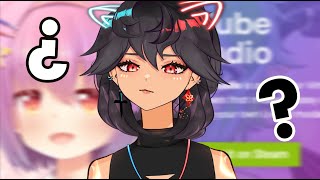

What app do VTubers use?
52sDirectly answers the title's question, hooking viewers who want to know the exact app.
▶ Play Clip"The title accurately reflects the content, as the video explains the main app used by VTubers and how to get started."
This video is a beginner's guide to VTubing, focusing on 2D VTubing using VTube Studio. The creator explains how to get started with the app, adjust settings, and connect it to a PC for better facial tracking. It also covers tips for customizing models and using virtual webcam features.
The video aims to answer common questions about becoming a VTuber, focusing on 2D VTubing as the creator's area of expertise.
VTube Studio is the recommended app, available on phone and PC, with built-in models and tracking.
A yellow button locks the VTuber model in place, preventing accidental dragging.
To use phone facial tracking on PC, match the IP and port in VTube Studio settings on both devices, then connect.
V Bridger is a $10 Steam app for facial mocap; models rigged for V Bridger may not work perfectly with VTube Studio tracking.
Adjust mouth parameters to reduce sensitivity and improve smile detection, using the settings bars.
Activate virtual webcam for use in streaming software; Spout 2 provides transparent capture without chroma key issues.
Getting started with VTubing is easy with VTube Studio, which offers free models and plugins. The key is to familiarize yourself with the app before investing in custom models.
What is the main app recommended for 2D VTubing?
VTube Studio
0:42
How do you lock the VTuber model in place in VTube Studio?
Click the yellow button to lock the model's position.
1:40
What is the cost of V Bridger on Steam?
$10
3:25
What does Spout 2 do in OBS?
It provides transparent capture without needing chroma key.
6:46
How do you connect your phone to PC for facial tracking in VTube Studio?
Match the IP and port in settings on both devices and click connect.
2:14
VTube Studio as the starting point
Emphasizes that beginners can start with a free app without needing a custom model.
0:42Difference between VTube Studio and V Bridger tracking
Highlights compatibility issues when using models rigged for different tracking software.
3:19Adjusting mouth tracking parameters
Provides a practical technique to improve facial tracking accuracy.
4:46Spout 2 for transparent capture
Offers a solution to avoid chroma key issues with certain model colors.
6:46[00:00] hi are you interested in becoming a
[00:01] vtuber or just the V tubing World in
[00:03] general what apps do they use how do I
[00:06] get started how the heck do you become a
[00:08] vtuber what is the vtuber 101 now in the
[00:10] past when I answer this question a lot
[00:12] of times I jump into explaining 3D PNG
[00:15] tuber going into how to get your own
[00:17] model and whatever else might be best is
[00:19] to take a couple steps back and uh start
[00:22] where I started which was just
[00:23] downloading one app this video is going
[00:25] to go over 2dv tubing since that's the
[00:27] one I know the most I do have a video on
[00:29] how to get started with PNG tubing but I
[00:32] don't really know anything about 3D V
[00:34] tubing so if you have any programs
[00:37] really good for beginners please feel
[00:38] free to leave them down below I'd love
[00:40] to see the suggestions let's get started
[00:42] on to the V tubing when I was really
[00:44] interested in V tubing the first thing I
[00:47] did was try and discover what app are
[00:49] these people using vtube Studio is the
[00:52] app I use and in it already has some
[00:55] models so I downloaded it on my phone I
[00:57] use the dog model first you can click on
[01:00] here and you can click on some of the
[01:01] models that are available this was my
[01:03] favorite one honestly I still want a
[01:06] model that looks like this so much I
[01:08] love them if you get it on your phone
[01:11] it'll automatically start tracking your
[01:13] face that you can start to see how it
[01:15] moves get a sense of some of the tools
[01:17] so as you can see here uh there's some
[01:19] animations look at what is already built
[01:22] in so that's number two they are the HCK
[01:25] keys were already established
[01:27] backgrounds that you can play around
[01:29] with that are really really nice here
[01:30] are some of the items if you want to
[01:33] explore more you can go onto this cloud
[01:36] and it's hooked up to steam so you can
[01:38] download some more free items this
[01:40] yellow button locks your vtuber in place
[01:43] so see my model movement is now locked
[01:46] oh so if I click it now it's locked I
[01:48] can't drag it anywhere no matter how
[01:50] much I try I add the vtube studio logo
[01:53] and I want it to stay on my head right
[01:55] you see here when you click on the item
[01:57] it says pin item to model so it is
[02:00] pinned onto my head and whenever I don't
[02:02] want the item anymore I just drag it
[02:04] over to the end and it deletes it as you
[02:07] get more familiar with the tool there
[02:08] are some cool things you can do I have a
[02:10] whole bunch of Tik toks that go over it
[02:12] but I'm going to go over one important
[02:14] one right now let's say you want to
[02:16] connect your vtuber to your phone let's
[02:19] watch the setup video together after
[02:21] creating my video on the phone stand I
[02:23] got a couple of you asking questions on
[02:25] facial tracking what apps do I use main
[02:27] app I use is vtube Studio I like to set
[02:30] it up where my phone is tracking my face
[02:33] and it's sending the information over to
[02:35] my PC you can do this in two ways you
[02:38] can have your facial tracking all within
[02:40] vtube studio meaning you use the
[02:42] application and then the PC application
[02:45] as well to set that up you need to go to
[02:47] your settings page when you first open
[02:48] up the vtube studio app on your phone
[02:50] there will be nothing on the IP section
[02:52] so what you want to do go to your PC
[02:55] click on show IP list make them match
[02:57] make the port match and then click on
[02:59] connect to your PC make sure the status
[03:01] bubble is green that means your
[03:03] connection is working in case it still
[03:05] doesn't look like it works get out of
[03:07] the settings click on the very first
[03:09] circle with the camera it should start
[03:11] working for me this worked for a lot of
[03:13] my models but for this one in particular
[03:15] I rigged it for V Bridger only my teeth
[03:17] do not move when I'm using vtube Studio
[03:19] tracking because they are rigged to the
[03:21] jaw movement captured in V Bridger most
[03:23] of you you do not need to worry about V
[03:25] Bridger V Bridger is an application that
[03:27] costs $10 on Steam $5 for eye facial M
[03:30] cap so in that video I mentioned a
[03:32] little bit about V Bridger now I don't
[03:34] want to get into it but if you are
[03:36] interested in understanding a little bit
[03:38] of the differences I'll share with you
[03:40] one scary scary thing so I rigged my
[03:42] teeth move with my jaw so when I don't
[03:44] use V Bridger this is what it looks like
[03:47] using vtube Studios facial tracking and
[03:49] your mouth won't do this mine only does
[03:52] this because I made it specifically like
[03:55] this only to work with my jaw from my
[03:57] understanding mimics the way three
[04:00] models can be very expressive I highly
[04:02] recommend that before even looking at
[04:04] vtuber models just get familiar with the
[04:07] app see if you like it vtu studio is
[04:10] particularly nice because it comes with
[04:12] a lot of nice plugins I'm using the V
[04:14] Bridger plugin as you get more familiar
[04:17] with your model and your tracking you
[04:19] can adjust some of these items so here
[04:22] you can see all the little items um
[04:25] where my brow is these are all modified
[04:27] to my face you don't have to stay with
[04:30] the settings that are on by default you
[04:33] can play around be very careful not to
[04:35] adjust too much I personally like to
[04:38] take screenshots of the settings that I
[04:39] am changing so that I know what the
[04:41] default was and I can go back and
[04:44] restart if I have to let's do one
[04:46] together for this one it usually shows
[04:48] up like this this isn't great because
[04:50] when you are trying to close your mouth
[04:53] sometimes it stays open a little bit
[04:56] even though your mouth is closed adjust
[04:57] it a little bit so it takes a little bit
[04:59] more effort to open your mouth so
[05:01] another aspect is look this is me when I
[05:03] smile or my teeth it's awful it's awful
[05:07] so I'm looking at this bar that shows my
[05:11] I don't know exactly what this bar is
[05:13] but it's indicating where my mouth lands
[05:15] when I'm smiling so let me smile
[05:18] again it's like hitting the0
[05:21] 45 so I put
[05:24] 45 and now I can reach a
[05:27] smile I full smile without having to
[05:30] hurt my cheeks that's a way to adjust
[05:33] the mouth to fit your needs and you can
[05:36] see now my mouth moves a lot nicer with
[05:39] less restraints if you want to add a new
[05:41] one you just scroll all the way to the
[05:43] bottom and you can hit your input this
[05:46] will be matched up to a face tracking
[05:49] parameter you can have the ones from
[05:52] that are common all the way to be
[05:55] Bridger plugins or I guess this is like
[05:59] hand tracking never I've never done it
[06:02] so I wouldn't know and then we have
[06:05] output and that is a parameter that you
[06:07] rigged in live 2D it's also a good idea
[06:10] to go to the camera settings and scroll
[06:13] down so you see virtual webcam
[06:15] configuration and activate this virtual
[06:17] webcam this will be very helpful if you
[06:19] use like prism live studio or if you use
[06:22] uh Tik toks live streaming program so
[06:25] that you can use the vtube studio cam as
[06:28] your source
[06:30] and it helps not having to worry about
[06:33] uh seeing all this extra dialogue like
[06:35] you won't see this popup you won't see
[06:38] settings pop up if you have to change
[06:40] something it'll be your virtual webcam
[06:42] so it'll just show something like this
[06:44] right underneath it as well there is
[06:46] spout 2 configuration I would install
[06:49] spout 2 if you're using something like
[06:50] OBS Studios it helps to do everything
[06:53] that the virtual webcam does except it
[06:55] has an added thing of not needing to
[06:58] chroma key out your green screen so
[07:01] it'll automatically show you when you
[07:03] have the Color Picker screen on and
[07:06] transparent in capture so this is how it
[07:09] works with spout 2 I don't have to worry
[07:11] about my model changing its color a
[07:14] little bit one of my blue ears
[07:16] disappearing cuz this blue is too close
[07:18] to Green I guess so it disappears when I
[07:21] try to chroma key it out it looks like a
[07:23] much nicer capture I just get this very
[07:25] clean transparent look all over my model
[07:28] you don't need a model you don't need to
[07:30] think about like creating art you can
[07:32] start getting into the world of
[07:34] youtubing getting familiar with the app
[07:36] is a great first step that's all for me
[07:37] in this video thank you so much for
[07:39] watching and I hope to hear so much more
[07:41] about your journey and V tubing
[07:47] [Music]
⚡ Saved you 0h 07m reading this? Transcribe any YouTube video for free — no signup needed.