

Raspberry Pi 500 Unboxing!
45sThe excitement of unboxing a new tech gadget draws viewers in.
▶ Play Clip"The title asks 'who is this even for?' and the video answers it, but with some fluff and a sponsor segment."
The video is an unboxing and review of the Raspberry Pi 500, a keyboard with a built-in computer, and the new Raspberry Pi Monitor. The creator compares the Pi 500 to its predecessor, the Pi 400, tests it with his five-year-old daughter, and discusses its target audience and value.
The Raspberry Pi 500 is a keyboard with a built-in Raspberry Pi. It comes in a nice box and feels good. The creator is curious about how it compares to the Raspberry Pi 400.
The Pi 500 has a quad-core 64-bit ARM Cortex-A76 processor at 2.4 GHz, compared to the A72 at 1.8 GHz in the Pi 400. It also has 8GB LPDDR4X SDRAM, a significant upgrade from the 4GB LPDDR4 in the Pi 400.
The Pi 500 comes preloaded with an operating system, making it easy to set up. The base price is $90, and the desktop kit is $120, which includes a power supply, HDMI cable, and beginner's guide.
The Pi 500 shares many specs with the Pi 400: two micro HDMI ports (4Kp60), two USB 3.0 ports, one USB 2.0 port, gigabit Ethernet, a 40-pin GPIO header, Wi-Fi 802.11ac, and Bluetooth 5.0.
The monitor is 15.6 inches, 1080p, with an IPS LCD and anti-glare coating. It has a stand that tilts, and it can be powered via USB-C from a Pi, but with limitations: 60% brightness and 50% volume when powered by a Pi.
The monitor costs $100, which is competitive with other monitors in its class. It has two 1.2W speakers, supports 44.1/48/96 kHz audio, and has a standard VESA mount.
The creator gives the Pi 500 to his five-year-old daughter to set up. She successfully connects the monitor, mouse, and power, and installs updates. They try to play Roblox, but it doesn't work well.
The Pi 500 is for kids, beginners, and Linux tinkerers who want a simple, all-in-one computer. It's not for experienced tinkerers who prefer to configure SD cards themselves. The monitor is a solid second monitor for laptops.
The Raspberry Pi 500 is a great entry-level computer for kids and beginners, offering a complete desktop experience in a keyboard. The monitor is a good value for the price, though it has some limitations when powered by a Pi. Overall, the Pi 500 is a solid upgrade over the Pi 400, but may not appeal to hardcore tinkerers.
What processor does the Raspberry Pi 500 use?
Quad-core 64-bit ARM Cortex-A76 at 2.4 GHz
01:05
How much RAM does the Raspberry Pi 500 have?
8GB LPDDR4X SDRAM
01:32
What is the base price of the Raspberry Pi 500?
$90 US
02:37
What are the limitations when powering the Raspberry Pi Monitor via USB from a Pi?
Only 60% brightness and 50% volume
04:48
What is the price of the Raspberry Pi Monitor?
$100 US
06:21
What is the screen resolution of the Raspberry Pi Monitor?
1920x1080 (1080p)
06:21
What is the main difference between the Pi 500 and Pi 400?
The Pi 500 has a faster processor (A76 vs A72) and more RAM (8GB vs 4GB)
01:05
Processor upgrade
The Pi 500's A76 processor is a significant performance jump over the Pi 400's A72.
01:05Preloaded OS
The Pi 500 comes with an OS preloaded, making it easier for beginners.
02:01Child-friendly setup
The Pi 500 is designed to be easy enough for a five-year-old to set up, showing its target audience.
06:49Target audience
The creator clearly defines who should buy the Pi 500: kids, beginners, and Linux tinkerers.
13:58[00:00] They need a desktop computer they can use, but nothing crazy. Thankfully your raspberry pie just sent me this. The Raspberry Pie 500. Wow.
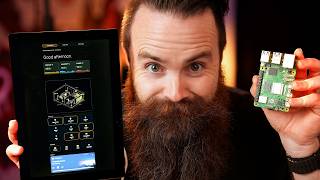
[00:12] A keyboard with a raspberry pie built in. They also sent me this, a raspberry pie monitor. Yes, they make monitors now, I've got my coffee, it's time for unboxing. Let's make some room. And Noah,
[00:27] That box is pretty and nice and just kind of slides out. There we go. And here it is.
[00:40] but we know there's raspberry pie inside, which makes it cooler. It feels good. And what I'm really curious about is how it compares to the Raspberry Pie 400,
[00:53] what came before. I've got one of those right here. As you can tell, roughly the same size. The 400 is definitely thicker and heavier. Keyboard feel feels a lot better on the new one. Keeping in mind,
[01:05] I really haven't used the 400 for anything since I got it. So it's fairly new. The Raspberry Pi five hundred's rocking a quad Core 64 bit arm cortex, a 76 processor, that's a mouthful. This sucker is 2.4 gigahertz.
[01:20] This is compared to the A 72 processor on the Raspberry Pi 400 blocking a 1.8 Another big difference is ram, huge RAM upgrade from the Raspberry PI 400,
[01:32] specifically LP DDRX four SD ram compared to the four gigabytes of LP DDR four without the X ram. Now what's the difference? Three things.
[01:45] And while it does have the same data rates and bandwidth, And the Raspberry PI five has the exact same thing again as the Raspberry PI They also come in two gigabytes and four gigabyte flavors and they should call
[02:01] You heard it here first. Now those are the only real technical differences between the Raspberry PI 500 Now an added bonus for the Raspberry PI 500 is that it does come preloaded with
[02:13] Whereas the 400 kind of left you out in the cold. And the intent is that they want it to be easy to set up. Like here you go, kid,
[02:25] which is what I'm going to do with my three youngest daughters. Now the other massive difference is the price. The base price for the Raspberry PI 500 is $90 US.
[02:37] You could pay $120 for their desktop kit. a 27 wat USBC power supply and a two meter micro HDMI to HDMI cable. Also a raspberry pi beginner's guide. Is that extra $30 worth it?
[02:53] I don't know. Probably not. But it makes for a great gift. you still do need a mouse with this. It's $70 US for the base and $100 for its desktop kit. Now, like I said before,
[03:09] the Raspberry PI 500 and the 400 share a lot of technical specs. For example, it has two micro HDMI ports supporting up to four KP 60. It has two USB 3.0 ports and one USB 2.0 port ethernet port gigabit
[03:21] And a horizontal 40 pin GPIO header, which I am struggling to remove. Ah, It has wifi 8 0 2 point 11 AC and below as well as Bluetooth 5.0.
[03:35] And in itself is a compact keyboard. Now I feel like the desktop kit should have included the monitor, right? You kind of need that for a desktop situation. Let's take a look inside.
[03:47] So 15.6 inch 10 80 p. You can see right from the get-go what this is. This is red and white classic raspberry pie. It'll also come in black as well. Let's open it up the raspberry pie monitor. And there it is.
[04:02] So first impression, it's pretty light but it doesn't feel cheap at all. this is not sponsored by a raspberry pie. They just sent it to me. very rarely do I even make content about the stuff they send me.
[04:17] So I say all that to say that this is a coffee fueled opinion of my own and no I can see it has a nice little stand that goes all the way back. But can it do this? Which is nice.
[04:32] And then it has other stuff that we'll talk about here in a moment. And then also in the box we have A-U-S-B-C cable to And what's interesting about this is that it should be able to be powered by the
[04:48] And it can also be powered by any other raspberry pie. But when you're being powered via USB from a raspberry pie, you do have some limitations. You can only go to 60% brightness and 50% volume.
[05:03] Nothing that actually might be it that is it all fluff. So if you did want a hundred percent power and a hundred percent volume, Now what's in this thing first? Let's try that stand. Let's see, I like it.
[05:20] even like the most upright one. I dig it very portable. brightness rockers. Feels very raspberry pi. And honestly,
[05:33] and this is not like an offense or anything, but it feels very Fisher-Price. Kind of like those Fisher-Price cars, the red and yellow ones that just, Oh, then it's underneath the stand.
[05:48] I just saw this that we have all the connections. It's a typical stereo jack, And then of course we have our standard base amounts. There are two 1.2 watt speakers and they support 44.1 kilohertz,
[06:06] 48. And what does that say? 96 As far as the screen itself, it is an I-P-S-L-C-D with anti-glare coating. Even though I can see a glare, It's 1920 by 10 80 and the color depth is 16.2 million.
[06:21] The price is $100 us, which actually is pretty good for a monitor. other monitors in the same price range and with the same features, it's competitive with the added bonus that you get the Raspberry Pipe branding,
[06:34] So now let's test out the promise of the Raspberry PI 500. Let me give it to my five-year-old daughter and see if she can do it. I'm going to give her the Raspberry PI 500, the new monitor and a mouse.
[06:49] Whoa, ho ho. Hold on. Before we give her a computer and access to the internet, she's five years old, she has no idea what she's doing. Now I know what you're thinking.
[07:02] You already know what Nord PN does or do you because yes, it is A VPN. protecting you from hackers on insecure websites and putting you in Japan when it's a thing called Threat Protection Pro that actually helped protect you from
[07:18] you. I pictured this. You're shopping online. The items are so unique and wow, You got to take that deal too good to be true because it's stinking. that shop is gone.
[07:32] Your grandma Evie trying to buy Christmas presents for her sisters. So no VPN with Threat Protection Pro will actually block these websites. It's going to do it even when you don't have VPN on because you're like me,
[07:46] right? Sometimes you'll have VPN turned on, sometimes you don't. it's going to be blocking those nefarious websites. I can turn it on by clicking turn on just like this. By the way,
[07:59] Anti-malware browsing protection. My kids are always visiting these random kind of sketchy online game websites
[08:11] ads popping up and the DNS filtering, oh crap, it's not even on. Here we go. Now a v VPN is always good to have, but right now during the holiday season, Check my link below nord vpn.com/network Chuck and you'll get a crazy deal.
[08:26] time. They make videos like this one and many others possible. Anyways, back to setting up the raspberry high 500. If you want to play Roblox, you got to make this computer work. Okay?
[08:43] inside this keyboard is a raspberry pie. What? Yeah, so you have to turn the computer on and make it work. Okay? You know what to do?
[08:55] Okay, go ahead. Okay, first we're going to set up your monitor. Okay, so I'll set up your monitor and I'll look in the back here. This cable will go into here and here to make
[09:11] Roblox go on the screen. Okay, can you do that? So this end goes into here. So where does it go? It goes right there. There you go. I'll push it too hard. It'll break you got it? Good job. High five.
[09:29] this screen will also get power from here. So you need to plug this end into here. That
[09:43] come on kid. Get it in there. There we go. And now this other end will go on the back of there. Can you do that? You got it. Good job. Okay,
[09:55] so now I want you to set this up and put it up so you can see it. There you go. Now we need a mouse. Now where do you think the mouse plugs in? Got it. You got it. High five.
[10:11] Good job. One last thing. This thing needs power computer. Okay, so you're going to plug it in to the place in the back. Looks like power. Okay, where's it go? Did you get it?
[10:26] Look, it's turning on. Whoa, you did that. Let's do a few things set up real quick. Can you click next? Put your hand up here. You want to click it with this?
[10:44] let's change the time zone to Chicago. Look on next. now I'm going to set up your account real quick. I want to use chromium.
[11:03] Let you just say, alright, keep on clicking next. Okay. there you go. All right. That's going to check for some updates real quick. You always got to update your stuff. Okay? What?
[11:19] You're so cute. So I do want to see if this can play Roblox. Maybe. Maybe. We'll see. Huh?
[11:33] The computer itself, the raspberry high 500. It's almost away. Oh yeah, it's almost done. It's done.
[11:49] Click on the, see that right here on that. There you go. Now it's going to restart. Why daddy? He's going to install the updates. Saw a guy. Ooh. So it's all set up.
[12:04] Your computer's ready. Let's get Roblox going. Okay, I play Roblox. Daddy, why are not Roblox dad, why you not Roblox on your phone? Cause I love playing Roblox. I play it all the time. Oh yeah,
[12:20] Now the monitor just kind of flickered on us a little bit. So I'll say it's pretty stinking fast right now and it looks really good. The monitor looks awesome. The live Toia holidays. Okay,
[12:35] excellent. So the monitor just restarted again. Hey, what's that website y'all play games on? Huh? What's that website y'all play games on?
[12:53] Why is she just hanging up on me? My pokey good. Go for it. Play something. Ah, keeps doing that. Okay, there's the speakers. Ah, so let's try an external power supply. Daddy,
[13:11] once y'all turning up the volume, So it's even with just a regular raspberry pie. But it sounds pretty good and it looks really good too. Hey,
[13:27] go watch a video on YouTube. Want to watch network chat? No. Hey, I hate your what? This voice.
[13:42] What play games You weren't even playing. You wish a different game. Let's see, you have arrows. Oh, you got it. Oh no.
[13:58] It has the power of the Raspberry Pi five, eight gigs of delicious ram and it's in a keyboard. Makes it simple. And while I do have to set up wifi and a user account for my five-year-old
[14:12] It's like a regular computer. So who is this for? Who would buy the Raspberry Pi 500? It's I think for the kids, For someone who isn't going to go through the process of flashing an SD card,
[14:27] It's also for someone who just wants to buy a little computer and tinker with Linux, a great starter to Linux. Now, who isn't this for? You're a tinkerer. You like to mess with things and break things. You know,
[14:44] You've already got monitors and stuff laying around. You've got a keyboard. I do all my config on the SD card before I even put it in. But you know what, They're going to be familiar with Linux. They're going to use it every day.
[15:00] Play games, maybe do a few things for school. I feel bad though. that you could not play Roblox on a raspberry pie. Roblox, can you change that? Please Do a Linux thing for us. Come on. Now as far as the monitor goes,
[15:15] Now while running off the power of the Raspberry Pi 500, we got some flickering. 27 watts. And that would be more than enough to power that monitor as you travel around.
[15:30] Dude, I got me a hacking station wherever I go. And that little monitor's great for sitting in an airplane seat. Pop it up. I love what Raspberry Pie is doing and I see the problem they're trying to
[15:44] I need a monitor. And they go and try to find a monitor. Is it good? they at least know the compatibility there and they know the qualities there based on their experience with raspberry pie. Same thing goes for the keyboard.
[15:59] Or vice versa. They got a mouse for you too. But honestly, up other raspberry pies that might need some graphical display.
[16:11] Or when I'm doing videos like this or for any kind of server thing I'm doing, could this be a second monitor for you? Let's try it out. Got my MacBook here. Now normally you could just do this with an iPad if you have that.
[16:25] But let's see how this fares. Powers up and adding a little HDMI action. which is kind of weird. I'm just realizing any HDMI. HDMI. Yeah, it's a solid second monitor. I think it looks great. So for the price,
[16:39] a hundred bucks. Second monitor, great for raspberry pie. It looks really good. I'll catch you guys next time. Oh, forgot one thing. When is it launching? I don't know. Video editors will find out and put it right here. Okay,
[16:53] not for real. Bye.



⚡ Saved you 0h 16m reading this? Transcribe any YouTube video for free — no signup needed.