How to Add Stream Alerts in OBS
45sDirectly addresses a common pain point for new streamers, offering a clear solution that is highly searchable and shareable.
▶ Play Clip"Delivers exactly what the title promises — a concise, actionable guide with no fluff."
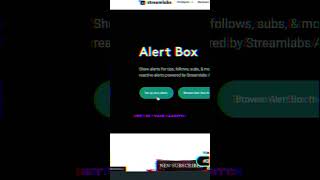
This video provides a quick, step-by-step guide on how to add stream alerts to OBS using Streamlabs. It covers creating an account, setting up the alert box, copying the widget URL, and adding it as a browser source in OBS.
Go to streamlabs.com, click on 'Alert Box' under products, then select 'Set up your alerts'.
If you don't have a Streamlabs account, create one. Then, under 'Streaming Essentials', click on 'Alert Box' and copy the widget URL.
In OBS, add a new 'Browser Source' under Sources, paste the widget URL, and alerts will automatically appear on your stream.
By following these simple steps, you can easily integrate Streamlabs alerts into your OBS setup, enhancing viewer engagement with minimal effort.
What is the first step to add stream alerts in OBS?
Go to streamlabs.com, click on 'Alert Box' under Products, and select 'Set up your alerts'.
Where do you find the widget URL in Streamlabs?
Under 'Streaming Essentials', click on 'Alert Box' and copy the widget URL.
00:13
How do you add the widget URL to OBS?
Add a 'Browser source' under Sources in OBS and paste the widget URL.
00:27
Quick Setup for Stream Alerts
Provides a direct, actionable path to enable alerts, saving streamers time.
Automatic Alerts Integration
Shows that alerts work automatically once the URL is added, simplifying the process.
00:27[00:00] Here's how to add stream alerts in OBS. If your stream feels basic or nothing pops up, go to streamlabs.com and in under products, you wanna click on the alert box, then click on set up your alerts. If you don't have a Streamlabs account yet,
[00:13] you can just make one here. Then under streaming essentials, click on alert box, and then copy this widget URL. Then in OBS under sources, you wanna add a browser source, and then paste your widget URL right here. Now alerts will show up automatically on your stream.
[00:27] I use this in my setup, but my full setup is in my bio. Follow for more content like this
⚡ Saved you 0h 00m reading this? Transcribe any YouTube video for free — no signup needed.