Novo efeito perspectiva no Canva?
45sRevela um truque pouco conhecido que gera curiosidade imediata entre usuários do Canva.
▶ Play Clip"Delivers exactly what the title promises — a quick, practical Canva perspective effect tutorial with minimal fluff."
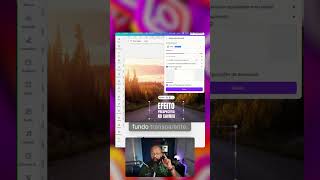
This video demonstrates how to create a perspective effect in Canva using the Transform Image app. The creator shows a step-by-step process for converting text into a perspective effect, including downloading with a transparent background and uploading it to the app.
The creator introduces the topic of creating a perspective effect in Canva and encourages viewers to subscribe to the channel for weekly videos.
Write the text you want to convert, then press Shift and select all text boxes (if more than one). Images also work. Right-click and choose 'Selection to Download' to download with a transparent background.
Go to Apps and search for 'Transform Image'. Upload the downloaded image of the letters, adjust it in the app, and add your design to get the perspective effect.
The effect can be applied to images and other elements as well. The creator reminds viewers to save the video for future reference.
The video provides a quick and simple method to create a perspective effect in Canva using the Transform Image app, applicable to text, images, and other elements.
What is the first step to create a perspective effect in Canva?
Write the text you want to convert.
00:12
How do you select multiple text boxes in Canva?
Press Shift and select all text boxes.
00:12
What option do you use to download text with a transparent background?
Right-click and choose 'Selection to Download'.
00:12
Which app is used to create the perspective effect in Canva?
Transform Image app.
00:25
Can the perspective effect be applied to images as well?
Yes, it works with images and other elements.
00:41
Transparent background download
Key technique for preserving text quality when applying effects.
00:12Transform Image app
Core tool that enables the perspective effect in Canva.
00:25Versatility of the effect
Shows the method is not limited to text, expanding its usefulness.
00:41[00:00] Quando é que você descobriu esse novo aplicativo que dá pra fazer efeito perspectiva no Canva? Eu vou te mostrar como é feito. Mas antes disso, se você ainda não é inscrito no canal, já se inscreve aqui. Nós temos vídeos todas as semanas, assim você não perde nenhuma dica. Nesse caso eu vou fazer com texto.
[00:12] Escreva o texto que você quer converter, depois você aperta o Shift e seleciona todas as caixas de texto, se você tiver mais do que uma. Imagem também funciona. Clica com o botão direito, clica em Seleção para Download. Faz o download disso com fundo transparente.
[00:25] Depois, você vai vir em Aplicativos e vai procurar por Transform Image. Esse aplicativo aqui. Agora você vai fazer o upload da imagem que você acabou de fazer o download, daquelas letras. É só você ajustar aqui no aplicativo e adicionar o seu design e pronto, você tem o seu efeito perspectiva feito no Canva.
[00:41] Dá para fazer com imagem e outros elementos. Já salva aí para não perder.




⚡ Saved you 0h 00m reading this? Transcribe any YouTube video for free — no signup needed.