
Stop Jumping Between AI Tools – Do This Instead
54sShows how to unify AI tools into one chat, solving a major workflow pain point for creators.
▶ Play Clip"Title accurately describes the tutorial content; the video delivers a full MCP integration guide with live demonstrations."
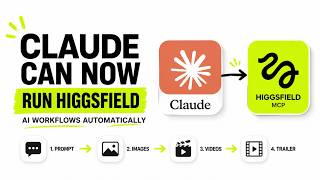
This video demonstrates how to connect Higgsfield AI's MCP (Model Context Protocol) with Claude to create a unified AI creative workflow. Instead of juggling multiple tools, users can generate images, videos, and full cinematic sequences from a single chat interface, streamlining content production.
Higgsfield MCP allows Claude to control image generation, video animation, ad creation, and landing page design from one chat, eliminating the need to switch between tools.
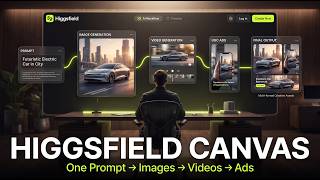
The platform offers a dashboard with tools for cinematic videos, AI ads, product promos, and short-form content, plus ready-made templates and automated workflows.
Go to MCP section in Higgsfield, select Claude, copy the MCP server URL, then in Claude settings add a custom connector with that URL and allow permissions.
Claude can generate images using GPT Image 2 directly through the MCP pipeline. Example prompt: cinematic astronaut on frozen alien planet with solar eclipse.
Using SeaArt 2, Claude can transform static images into cinematic 5-second videos with motion effects like drifting snow and camera movement.
Claude can generate multiple scenes (e.g., 8 cinematic sci-fi scenes) using Nano Banana 2, then automatically animate them with Kling 3, all without manual intervention.
Claude can combine all clips into one cinematic sequence automatically through Higgsfield MCP, producing a coherent trailer-like output.
Higgsfield MCP transforms Claude into a full creative studio, enabling automated multi-step content production from a single chat. This workflow is ideal for faceless channels, ads, short films, and marketing content.
What is Higgsfield MCP?
A bridge that lets Claude communicate directly with Higgsfield's creative tools, enabling unified AI workflows.
02:17
How do you connect Claude to Higgsfield MCP?
Copy the MCP server URL from Higgsfield, then in Claude settings add a custom connector with that URL and allow permissions.
02:44
What tool is used for image generation in the demo?
GPT Image 2.
03:54
What tool animates images into videos?
SeaArt 2.
05:15
What tool generates multiple cinematic scenes in parallel?
Nano Banana 2.
07:03
What tool animates the generated scenes?
Kling 3.
08:39
What is the benefit of Higgsfield MCP for creators?
It allows generating images, videos, and full cinematic sequences from a single chat without switching between tools.
10:05
Unified AI Creative Studio
Introduces the concept of a single-chat workflow for generating multiple media types, a significant productivity boost.
00:01MCP Integration Steps
Provides a clear, actionable guide to connect Claude with Higgsfield, enabling the workflow.
02:17Image-to-Video Animation
Demonstrates seamless transition from static image to animated video within the same chat, showcasing pipeline efficiency.
05:15Automated Multi-Scene Production
Shows how Claude can coordinate multiple tools to generate and animate a full cinematic sequence automatically.
07:03Practical Applications
Highlights real-world use cases like faceless channels, ads, and short films, making the workflow relevant to content creators.
10:05[00:01] entire AI content workflow for you? Not just write ideas, not just answer I'm talking about generating cinematic images, animating videos, creating ads,
[00:13] designing landing pages, and connecting everything together automatically from inside a single chat. That's exactly what Higgsfield MCP just unlocked. Before this, most AI workflows felt messy. You'd jump between ChatGPT for
[00:29] scripts, another tool for images, another for video generation, then spend together manually. But now Claude can directly control Higgsfield's creative pipeline through MCP, which means
[00:42] instead of juggling five different tools, you can literally describe what building the entire project step-by-step. step-by-step. Images, videos, scenes,
[00:55] creative assets, even full cinematic workflows. All connected together inside one system. And honestly, this feels less like using separate AI tools and more like having an actual AI creative studio
[01:09] running beside you. So in this video, I'll show you how to connect Higgsfield MCP with Claude, how the entire workflow functions behind the scenes, and how you can start generating high-quality AI visuals and multi-scene
[01:23] itself. And once you see how fast this setup works, you'll understand why creators are going crazy over this right now. All right, so here's where everything starts. This is the main interface
[01:37] inside Higgsfield AI. And honestly, it already feels more like a complete creative operating system than just another AI tool. there are multiple tools built specifically for content creators.
[01:51] Whether you're making cinematic videos, AI ads, product promos, or short-form content, everything is organized inside one dashboard. You'll also see ready-made templates and automated workflows already built for
[02:03] you. So, instead of creating every project from zero, you can simply choose a workflow, tweak a few things, and start generating content almost That alone saves a ridiculous amount of time. Now, to connect everything with
[02:17] Claude, go up to the MCP section. This is basically the bridge that lets Claude communicate directly with Higgs Field's creative tools. Inside here, you can connect different AI hosts like Claude, Open Claude, Hermes, and Nemo Claude.
[02:31] But, for this video, we're using Claude since that's where the workflow becomes really powerful. So, select Claude, then click on the settings option. That'll instantly open the Claude MCP setup page where we can finish connecting
[02:44] everything together. Once you're inside Claude, click on your profile icon, go into settings, then open the connector section. From there, click add custom connector. Now, for the connector name, you can
[02:58] call it whatever you want, but I'll just name mine Higgs Field to keep things Next, jump back to the Higgs Field MCP page and copy the MCP server URL. Then, head back into Claude and paste that link into the remote server field.
[03:14] After that, just click add. And within a few seconds, you should see the new connector appear inside your connector list. Now, hit connect. Claude will open a permission screen asking if you want to allow access to the Higgs Field
[03:26] tools. Click allow, and just like that, the integration is fully connected. At this point, Claude can now directly interact with Higgs Field's creative pipeline instead of only generating text responses.
[03:40] I'm going to open a completely fresh chat so you can see this from the preconfigured. And to keep things simple at first, let's start with image generation. I'll ask Claude to create a cinematic
[03:54] I'll ask Claude to create a cinematic scene using GPT image 2 and see how the MCP workflow handles it in real time. Now, let me show you the exact prompt I'm going to test with. I'll type, "Use GPT image 2 to create a cinematic
[04:07] astronaut standing on a frozen alien planet during a massive solar eclipse with glowing ice crystals, drifting snow, atmospheric fog, ultra-realistic lighting, and a dark sci-fi movie aesthetic." Make sure you actually
[04:21] describe the mood and motion clearly in your prompts because that massively affects the final result. Now, if this is your first time running the MCP connector, Claude will probably ask for permission before sending the request.
[04:34] this. The image generation is happening directly through Claude using Higgsfield MCP in real time. You can even switch over to Higgsfield, open the image section, and literally watch the
[04:48] generation process happening live behind the scenes. And there it is. What's wild is that none of this requires switching between multiple apps anymore. The entire workflow is happening inside one conversation.
[05:01] From here, I can immediately continue the project, modify the image, animate it into a cinematic clip, or build an entire scene sequence without restarting the workflow. And honestly, this is where things start feeling insanely
[05:15] powerful because right now, this is only a static image. So, next, I'm going to turn this exact scene into a cinematic AI video using SeaArt 2. Here's the prompt I'll use. Transform
[05:28] this frozen alien planet scene into a cinematic 5-second sci-fi video using SeaArt 2. Add drifting snow particles, moving atmospheric fog, subtle reflections across the ice, slow cinematic camera
[05:42] movement, and realistic environmental motion during the solar eclipse. Again, if Claude asks for permission while running the workflow, just hit allow and let the MCP pipeline continue generating everything automatically.
[05:56] finish processing and pay attention to what's happening here. Claude is now taking the exact astronaut scene we generated earlier and sending it directly into SeaDance 2 through the Higgs Field MCP pipeline. And this is
[06:10] workflow. Claude already understands the full context of the project. It knows which image we're talking about. It remembers the visual style. It understands the atmosphere, the lighting, the motion
[06:23] instructions, and the cinematic direction without me repeating And now the render is finished. That frozen sci-fi image just turned into a fully animated cinematic sequence
[06:35] directly from a follow-up prompt inside Claude, which is honestly kind of insane when you think about it. This is why so many creators are saying Claude finally feels like it can actually create instead of just respond.
[06:48] But right now, we've only generated a single image and a single video. Now, let's push this way further. Because this is where Higgs Field MCP starts feeling less like an AI tool and more like an actual production pipeline.
[07:03] Instead of generating assets one at a time, I'm going to give Claude one large cinematic prompt and let it handle the entire workflow automatically. to use. Use Nano Banana 2 to generate eight
[07:18] cinematic sci-fi scenes following the same astronaut exploring an abandoned frozen research facility on a distant planet. Maintain consistent character design across every scene.
[07:30] Include dramatic environmental storytelling, glowing frozen corridors, holographic control rooms, snowstorms outside massive glass windows, cinematic lighting, realistic atmosphere, and movie-level composition throughout the
[07:44] sequence. Now, this is where the workflow gets really interesting. Claude isn't just generating one asset anymore. It's coordinating multiple Higgs Field AI tools together automatically inside one connected pipeline. Right now, Nano
[07:58] Banana 2 is generating all the cinematic scenes in parallel. And once the scenes finish, the workflow automatically moves into video generation on its own. one. I'm not downloading files or moving
[08:12] assets between different apps. Claude is basically handling the entire production workflow through Higgs Field MCP behind the scenes. So, let's wait a few seconds go. All the scenes have now been generated
[08:26] successfully. First, but here's the crazy part. The moment image generation finished, Claude instantly moved into video generation automatically without me doing anything. No organizing files. No rewriting
[08:39] prompts. No manually selecting scenes. sequence and continued the workflow by itself. Originally, I asked Claude to animate everything using Kling 3, and that's exactly what it used for the
[08:53] And honestly, the results turned out really good. Now, everything has fully Claude may mark a render as failed during the process, but when you check inside Higgs Field, the clips usually still finish successfully in the
[09:08] Now, let me preview a few scenes. Here's the opening shot. And as the sequence continues, you can see the cinematic lighting, frozen environments, and camera movement all staying visually consistent across the project. And
[09:22] remember, all of this was generated inside one connected workflow through Claude. What's really impressive is how consistent everything feels across the entire sequence. The character, lighting, atmosphere, and
[09:36] camera movement all flow together like a real cinematic trailer instead of disconnected AI clips. Now that all the scenes are finished, I'll give Claude one final prompt. Combine all clips into one cinematic
[09:50] And just like that, Claude starts stitching everything together automatically through Higgs Field MCP. No manual editing. No switching between tools. Everything happens inside one connected workflow. And honestly, this
[10:05] creators. Faceless channels, ads, short films, marketing content, entire workflows can now be generated inside Claude using Higgs Field MCP. If you want to try it yourself, I'll
[10:19] leave the link in the description below. And if you enjoyed this video, make sure to like and subscribe for more AI workflow tutorials. Thanks for watching, and I'll see you in the next one.


⚡ Saved you 0h 10m reading this? Transcribe any YouTube video for free — no signup needed.