
Unboxing Elgato's New 4K S Capture Card
54sUnboxings of new gaming gear attract high curiosity and engagement from tech enthusiasts.
▶ Play Clip"Delivers exactly what the title promises – a hands-on review and setup guide for the newly released capture card."
The video is an unboxing and setup guide for the new Elgato 4K S capture card, featuring a Nintendo Switch 2 demonstration. The creator shows the contents of the box, explains how to connect the capture card to a PC and console, and provides gameplay footage to showcase the card's performance.
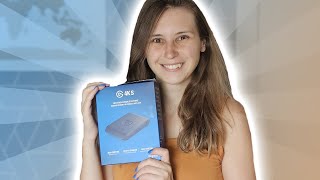
The package includes the capture card, HDMI cable (labeled 4K high-speed with Ethernet), USB-C to USB-C cable (3.5 Gbps), and a safety instructions booklet. The packaging uses minimal plastic.
To connect the Nintendo Switch 2, you need the dock. The setup: plug the Switch 2 into the dock, connect HDMI from dock to capture card's HDMI in, then HDMI out to monitor, and USB-C from capture card to computer. LAN cable recommended for online play.
Download Elgato Studio from the Elgato website to check for firmware updates. The software shows device info and allows checking for updates; the unit was up to date.
In OBS, add a Video Capture Device source, select 'Elgato 4K S', set resolution/FPS to custom (4K 60fps or desired), and enable audio monitoring. Resize the source to fit the screen.
The Elgato 4K S costs $159.99. It captures 4K 60fps, 1080p 60fps, or 1440p 120fps. Pass-through: 4K 60fps or 1080p 240fps. Compatible with OBS, Streamlabs, ME, and works with PC, Mac, and iPad.
The Elgato 4K S is a versatile and affordable capture card that delivers high-quality 4K capture and low-latency pass-through, making it ideal for streamers and content creators using consoles like the Nintendo Switch.
What cables are included with the Elgato 4K S?
An HDMI cable (4K high-speed with Ethernet) and a USB-C to USB-C cable (3.5 Gbps).
01:17
What is the price of the Elgato 4K S?
$159.99.
20:07
What are the maximum capture resolutions and frame rates for the Elgato 4K S?
4K 60fps, 1080p 60fps, or 1440p 120fps.
20:07
What are the pass-through capabilities of the Elgato 4K S?
4K 60fps or 1080p 240fps.
20:19
Which software is compatible with the Elgato 4K S?
OBS, Streamlabs, and MEL; it works with PC, Mac, and iPad.
20:19
How do you connect the Nintendo Switch to the Elgato 4K S?
Place the Switch in its dock, connect HDMI from dock to capture card's HDMI IN, then HDMI OUT to monitor, and USB-C from capture card to computer.
04:19
Unboxing and cable labeling
Elgato labels their cables (e.g., '4K high-speed with Ethernet'), ensuring users know the cable specs.
00:02Price and specs announced
Key specs: $159.99, captures 4K 60fps, pass-through 4K 60fps or 1080p 240fps, compatible with multiple platforms.
20:07Setup simplicity
The setup process is straightforward: plug and play with the dock and included cables.
05:46[00:02] 4KS, and we're going to take a look at it. First, we're going to unpack it and see what's in the box. Thank you so much, Elgato, for sending me the 4KS. much, Elgato, for sending me the 4KS. Oh, no, I didn't rip it open completely.
[00:27] Another box. Yeah, with the Elgato logo on it.
[00:43] for not using any plastics if they don't need to. And underneath the paper is the capture card, the 4Ks. This is how it looks like. So, it has
[00:56] the Ogato logo on it. Then it has HDMI in and out and an USBC for going to the computer. You get a little book with important safety instructions. And important safety instructions. And underneath here, if we lift this
[01:17] inside it, actually, we got two cables. One is an HDMI cable. And on the HDMI cable nowadays, Elgato is labeling them So, we will see what kind of cable it is. And it says a 4K cable, highspeed
[01:34] with Ethernet. So, we do know what kind of cable it is. Um, which is nice. And we can know which things we can use it with, but it will of of course work with this capture card. I would recommend using this cable for the capture card
[01:49] when you work with it, so you know that it's going to work. If you use other cables, other HDMI cables, it might not work or it might not work as intended. So, the quality might be a little bit less. If you use an other HDMI cable
[02:04] that can't use 4K, you might not be having that 4K output. Then the second having that 4K output. Then the second cable that is included is an uh you use cable that is included is an uh you use USBC to USBC cable. And again, Ogato
[02:16] labels their cables. So, this one says 3.5 5 gigah bits per second cable. Not sure if you can see it on the camera, but it does say that. Otherwise, you
[02:28] makes that the box is empty. I'm recording this on the most sweaty day ever in the Netherlands. So, uh if you see sweat on my face, I'm sorry for it. It is just really, really sweaty in here. I had to close all the windows and
[02:43] uh the doors because otherwise the sound will come in and you guys would hear all the outside sounds and people will just make a lot of sound around here. So yeah, I had to close everything. So to recap in the box, the capture card, the
[02:58] USBC to USBC cable that goes to computer and the HDMI to HDMI cable and the little safety instructions manual. Now, we're going to go to tree behind a PC where C is going to explain how this capture card works and she's
[03:12] going to show you some footage from this capture card with the Nintendo Switch 2. I've got a PC here and we're going to connect our Nintendo Switch 2, this one right here, to our PC with the new capture card. To connect the Nintendo
[03:25] Switch 2 to your computer, you need the Nintendo Switch 2 dock. So, keep that in mind. Setting up the Nintendo Switch One works exactly the same, but I'm doing it with the Nintendo Switch 2 because we're going to get the best quality and this
[03:37] going to get the best quality and this shows the capture card the best. SD 4KS has the best quality and I want to show that. So, we're using the Switch 2 instead of the Switch One. So, what do we need for this is a computer. If you
[03:49] If you do not want to stream, you can download the Okato software for the capture card. You can find that on the Okato website. You do need the dock for the um switch two or switch one if you're doing it for the switch one. And
[04:03] one if you're doing it for the switch one. And you need the capture card, the If you're doing it with another capture card from Elgato, for example, the 4KX, thing we're going to do is we're just going to plug in the cables normally in
[04:19] the dock. I've already done that, but I'm going to show you which cables I've plugged in. Here in the back you see some inputs and basically the USBC cable to charger. Doesn't matter which charger
[04:35] you have. I'm from the European Union. I have the European Union charger, but if you're American, yours looks a little bit different. You're going to plug this bit different. You're going to plug this one in the USBC slot in the back. Then
[04:48] one in the USBC slot in the back. Then you have this one, which is the HDMI cable. to HDMI cable. You're going to plug that in the HDMI slot. If you're going to play online games, I
[05:01] do recommend plugging in the LAN cable as well. If you're not going to play any online games, you don't have to do this step, but I would recommend it if you are going to play online games. All right. And then you can just put
[05:14] All right. And then you can just put this back back on. Make sure that the cables are not caught in it because that happens.
[05:31] power supply. Now we have the HDMI cable left. We're going to leave that for a second. And we're going to put the switch to in the we're going to put the switch to in the dock.
[05:46] Next thing we're going to do is we're going to grab the capture card. And then in HDMI in, which is right here, HDMI in, we're going to grab the HDMI cable
[05:58] coming out of the Nintendo Switch Dock and we're going to put it in the HDMI in. Here we go. That's in the capture card. Then we're going to grab the other HDMI cable that came with the capture card.
[06:13] cable that came with the capture card. We're going to put that in HDMI out. Boom. And this is going to go to your monitor. With this capture card, you don't have to do that. Uh because it has instant
[06:26] play through. You could watch OBS. You can look at OBS and play the game. However, I do recommend using another monitor to actually look at that monitor this in a monitor and actually use that monitor to play the Switch with. And
[06:41] then the other one we're going to use as the computer. So, I plugged that in my plugging it in. So, you just have to believe I plugged that in. And then the last action for connecting you need to do is this uh USBC cable to USBC cable
[06:55] that came with the capture card. There is a USBC input here in the capture card. You plug that in. Boom. Plug it into the capture card. And then this other end need to go into your
[07:09] computer. Look at my cable management, guys. Oh my god, it's so bad. Uh, but there is a USBC port here somewhere.
[07:26] There we go. In the back. That was like the most uncomfortable position to sit in and film in. Now I'm turning on the Switch with my Pro Controller and I'm just like clicking on and the screen audio is on. So that is a pain. I hate
[07:41] going to do is I'm going to just route my audio through my headphones so I don't hear it like actually out loud. So, I'm just going to turn the audio of that monitor off. Now, the monitor is not making any sounds when I move it.
[07:56] So, that's good. I don't want it to make any sounds. So, you can hear that through my microphone. What I'm going to do right now is I'm going to go to the Okato website and I'm going to download Okato Studio and I'm going to check if
[08:08] that the capture card has any updates or not because if it has firmware updates, we want to install the firmware updates first. So, I'm going to go to the Elgato website, then go to downloads, and right here is Elgato Studio.
[08:21] And if we open the program, we would see our capture card. And then here at the top left, we see 4KS. And if you click on that, we can go to device info. And here we can see um general and software updates. And in software updates we can
[08:35] check for updates and it will say that we're up to date. This is also where we we're up to date. This is also where we can actually play from if we want to. So we don't need to actually have a second monitor for this. And then here in OBS,
[08:48] what I'm going to do is I'm going to add the capture card. So, I'm going to click on the plus and go to video capture device and we're going to call it um Elgato 4KS
[09:04] then we're going to find the capture card which is the Elgato 4KS. What we can do is we can have the resolution and f FPS type on default, but we can also have it on custom. And then we can have it on 4K
[09:28] We can set this all we want. Limited full range default. We can even flip it vertically if we want to.
[09:43] we're going to do is we're going to resize this. So transform and then fit the screen. Now it is in 4K but we are having an um 1080p screen right now. So the resolution will be 4K displaying on 1080p screen. And how we can fix this?
[09:59] going to go to video and then here output and the base we're going to put the same resolution down as well and we're going
[10:13] and we're going to make this fit the screen again.
[10:26] also want to do is we want to record this audio. So, what we're going to do properties and we're going to put moni monitor and output on. So, this way headphones and the audience is going to hear it. And we're going to make sure
[10:41] that the tracks one is on at least. And now, if I move this, you can see that the audio is coming through here, meaning that OBS is actually catching the audio. Let me start recording a little bit. Knockout.
[10:56] little bit. Knockout. Here I'm the cow. Of course.
[11:13] [Music] Oh no, I missed my my speed boost.
[11:25] this game. It's strategy to start out slow. Uh so you know we can get better items. I swear. [Music] And we have a lot of coins already. You
[11:39] know, see we have like 20 coins already. see we have like 20 coins already. It's worth
[11:52] [Music] It's worth
[12:12] that one didn't like me. [Applause] [Applause] [Music] [Music] Now it's just uh city driving.
[12:25] anything like that. So, but at least we're in top 20. [Applause] [Music]
[12:39] [Applause] [Music] [Music] No. No. Don't hit me. Hey, that's not fair.
[12:54] grab the double. They were going straight for the double and then they straight for the double and then they weren't anymore.
[13:21] [Applause] [Music] Oh, I hit somebody [Music]
[13:41] and go and go. and go. You got a feather. [Applause] [Music]
[13:55] I almost jumped over the items. It's fine.
[14:43] item. Couldn't [Music] do much about that.
[14:57] [Music] [Applause]
[15:20] Oh no. What have I done? What have I done?
[15:54] Now it's just a normal Mario Kart race. Mumu Meadows.
[16:11] Oh no, I couldn't protect myself from that anyway. [Music] [Applause]
[16:24] I'm going to grab them anyway. It's fine. I'm going to get them. Oh boy. [Music]
[16:47] Oh boy, I'm driving into people. Ah, what did I miss him?
[17:04] [Music] What? No. I had item. I had item.
[17:47] It's always better now. [Applause]
[18:16] No. Oh, I wish I still had invisibility there. one. Yeah. Yeah. Yeah. Yeah. Yeah. [Music]
[18:32] [Music] Oh.
[18:48] It's fine. You got saved by the items. Use this on the water because we're slow on water.
[19:09] [Applause] >> Top four. Yeah.
[19:24] Let's go. Let's go. Let's go. Let's go. Let's go.
[19:40] [Music] Shouldn't have used that one. [Music]
[19:55] No. Second a second place. Well done. A couple of specs about the 4Ks. It's going to be
[20:07] $159.99. It can capture 4K 60fps or 1080p 60 fps if you want to. It can also capture 1440p on 120 fps. The pass through you
[20:19] see in your monitor is 60 fps on 4K or 240 fps on 1080p. And it's basically compatible with every streaming software, OBS, MEL, and Streamlabs. And it works with the PC, Mac, and even with iPads. So, I hope that's enough info
[20:35] about the capture card itself because I I'm the kind of person who just loves to see some footage instead of like knows a lot of details about technical stuff. I'm a little bit nerdy, but not that nerdy, I guess. And I feel like you guys
[20:48] are pretty casual yourself as well. So, I don't like to go super deep into the technical stuff, but just show you guys. Thank you so much, Ugato, for sending me Thank you so much, Ugato, for sending me the 4Ks to test out and show it to you
[21:00] guys. I really appreciate that. If you guys want to see some more Elgato videos, I'll leave a link to the playlist up here. If you want to see some more streaming related videos, make sure to subscribe here. and I'll see you
[21:13] sure to subscribe here. and I'll see you in one of my other
⚡ Saved you 0h 21m reading this? Transcribe any YouTube video for free — no signup needed.