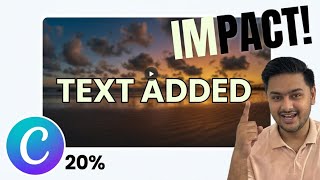

How to Add Text to Any Video in Canva
45sDirectly answers a common user need with a quick tutorial, perfect for beginners seeking actionable steps.
▶ Play Clip"Delivers exactly what the title promises — a clear, concise tutorial on adding text to videos in Canva, though it's basic and lacks advanced tips."
This tutorial demonstrates how to add text to videos using Canva, covering the entire process from uploading a video to downloading the final product. It provides step-by-step instructions for customizing text, adding multiple frames, and applying transitions.
Open Canva, click the video icon on the home screen, and choose a size (e.g., landscape).
Upload your own video or search for stock videos via the elements section.
The video is added to the design area; adjust its size as needed.
Click 'add a text box' in the left bar, adjust size, and type your text. Double-click to select and change the font.
Use options to increase text size and change color.
Add another page/frame and upload another video or use a stock video from the library.
Write another text in the new frame.
Drag frames to play the video; add transitions between frames and try different options.
Click share, then download, select MP4 format, and click download.
This tutorial provides a straightforward method to add text to videos in Canva, making it easy for beginners to create engaging video content with custom text and transitions.
What is the first step to add text to a video in Canva?
Open Canva, click the video icon, and choose a size (e.g., landscape).
00:01
How do you upload a video in Canva?
Go to the upload section and upload your video, or search for stock videos in the elements section.
00:16
How do you add text to a video in Canva?
Click 'add a text box' in the left bar, type your text, and adjust size and font.
00:46
How do you change the color of text in Canva?
Click the color option after selecting the text.
00:59
How do you add transitions between frames in Canva?
Use the transition option and try different ones until you find the best.
01:55
What format do you choose when downloading a video from Canva?
MP4 format.
02:12
Canva's video editing interface
Shows the starting point for adding text to videos, making it accessible for beginners.
00:01Text customization options
Demonstrates how to adjust font, size, and color, which are essential for effective video text.
00:46Transitions between frames
Highlights the ability to add professional transitions, enhancing video quality.
01:55[00:01] can add text to any video using Canva. On the home screen of Canva, click on this video icon and you will see a bunch of options. You can choose any size as per your preference. I will choose landscape.
[00:16] Now, here in the upload section, you can upload any video that you want to add text to or if you want, you can click on elements and search for the type of elements and search for the type of video you want.
[00:30] automatically be added to the design area. Adjust the size of the video. Now to add text, go to the left bar and click add a text box.
[00:46] Adjust the size and write the text you want to add. Double click on it to select. And you can change the font here.
[00:59] Clicking here will let you increase the size of the text. Clicking here will give you an option to change the color.
[01:12] options here and click whatever option you like the best.
[01:27] an option to add another page or frame and add another video from your laptop and add another video from your laptop or a stock video from the library.
[01:41] Now go ahead and write another text in this frame as well.
[01:55] This option will let you drag the frames and play the video. This option gives you an option to add transitions between two frames. You can try a bunch of them until you find the best one.
[02:12] Now, once everything is done, click share and then click download. MP4 format and then finally click on download. If this video was helpful, please don't forget to like and subscribe to the


⚡ Saved you 0h 02m reading this? Transcribe any YouTube video for free — no signup needed.