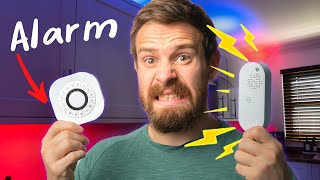

No Subscription Alarm System?
42sAddresses the common pain point of expensive monthly subscriptions and contracts, offering a free alternative.
▶ Play Clip"The title accurately represents the content: the video indeed shows how to build a local smart home alarm system with no subscriptions."
This video demonstrates how to build a locally controlled smart home alarm system using Home Assistant and existing hardware, eliminating the need for expensive subscriptions or contracts. It covers hardware recommendations, software setup with the Alamo integration, and key configurations like sensors, notifications, and automatic arming.
The video introduces the concept of using existing hardware (sensors, Home Assistant) to create a custom alarm system without subscriptions.
Minimum setup requires contact sensors (e.g., Aqara, Shelly) and motion sensors (e.g., Aqara P1, Philips Hue, SwitchBot). Sensors connect via Zigbee, Wi-Fi, or Bluetooth.
Add keypad (e.g., Develco), siren (Develco with battery backup), and environmental sensors (smoke, heat, leak detectors).
Alamo is a community-made Home Assistant integration that simplifies alarm configuration. Install via HACS, then configure modes, sensors, codes, and actions.
Create different modes (e.g., armed away, night) and assign sensors accordingly. Set entry/exit delays and bypass settings.
Use disarm code for disarming; arming can be automatic via GPS. Add individual user codes in Alamo settings.
Add built-in alarm panel card in Home Assistant dashboard, select Alamo entity and modes to arm/disarm manually.
Use Alamo's actions tab to send notifications on trigger (with sensor wildcards) and integrate scripts for sirens, lights, etc.
Use Home Assistant Companion app to trigger automation when all users leave home, setting alarm automatically.
This DIY alarm system using Home Assistant and Alamo is a cost-effective, customizable alternative to paid services, leveraging hardware you may already own.
Home Assistant
tool
Alamo integration
tool
HACS
tool
Home Assistant Companion App
tool
Zigbee
tool
Z-Wave
tool
Squarespace
service
Everything Smart Home
person
Aqara contact sensor
tool
Shelly contact sensor
tool
SwitchBot contact sensor
tool
Aqara P1 motion sensor
tool
Philips Hue motion sensor
tool
Shelly motion sensor
tool
SwitchBot motion sensor
tool
Develco keypad
tool
Develco siren
tool
Aqara leak detector
tool
Develco smoke/heat alarm
tool
What is the minimum hardware needed for a Home Assistant alarm system?
A contact sensor and a motion sensor.
00:43
Name two recommended Zigbee contact sensors mentioned.
Aqara contact sensor and Shelly contact sensor (Wi-Fi based also mentioned).
02:04
What is the name of the community-made integration used in Home Assistant for the alarm?
AlarmO (or Alamo).
03:56
What is the purpose of setting an 'entry delay' on a sensor?
It gives a time window (e.g., 60 seconds) to disarm the alarm via code before it triggers.
08:22
How can you automatically arm the alarm when leaving home?
Use Home Assistant Companion app GPS tracking and create an automation that triggers when all persons' state leaves 'home'.
13:09
What wildcards can be used in Alamo notification messages?
Wildcards for sensor name and arming mode.
10:38
Which Develco device is recommended for a siren with battery backup?
Develco siren (mains powered with battery backup).
03:28
What is the 'bypass automatically' setting used for in Alamo?
For contact sensors on internal doors that should not trigger the alarm if open when arming.
08:46
No-subscription alarm system
Challenges the norm of paid alarm services, showing a cost-effective alternative.
Alamo integration ease
Highlights how Alamo simplifies complex automations into a few clicks, making it accessible.
03:56Entry/exit delay configuration
Critical for usability – allows time to disarm without false alarms.
08:22GPS-based auto arming
Demonstrates seamless, fully automatic alarm activation using phone location.
13:09[00:00] Thank you to Squarespace for sponsoring this video. Have you ever wanted to get yourself an alarm system for your smart home, for added security and peace of mind, but find yourself put off by expensive monthly subscriptions, being tied into year-long contracts, or having to buy even more
[00:17] hardware especially when you likely already have much of the hardware required. What if you could use the hardware you already own, along with some home assistant secret sauce, to create your very own
[00:29] locally controlled smart home alarm system with no subscriptions and no contracts? What if I showed you how? The first thing we need to talk about before we get into the software side is the hardware
[00:43] because obviously we need some hardware before we can configure it. So let's first look at what I would call a minimum setup first and then we will take a look at something a little more fully featured. Now it goes without saying that a paid-for service obviously does have its advantages
[00:59] from 24.7 monitoring, automatic police dispatch, and replacement parts, and all of that good stuff, but this is a much better solution than just not having anything at all, so that is why I think
[01:11] it is a good method. For the minimum setup we are going to need two different types of sensors, a contact sensor and a motion sensor. A contact sensor is usually placed on a window or a door,
[01:23] or an entryway into your property, and detects when that door or window is opened, and then a motion sensor detects movement inside of your property, both of which will send signals to home assistant where we can then decide how we want to take action. We can then use our phones to not
[01:40] only receive notifications about what the alarm system is doing, but also to set the alarm automatically when our GPS location detects that we have left for the day, or we can also use it to manually set
[01:52] the alarm using our smart home dashboard. As for which motion and contact sensors to use, on the Zigbee side, I really like the Akara contact sensor, battery life is insane, and it works
[02:04] really well, and that is my go-to contact sensor, but if you are not using Zigbee, then you may also consider using something like the new Shelley contact sensor, which is Wi-Fi based, and has have an included luck sensor, or now that home assistant has much better support for Bluetooth and
[02:20] Bluetooth proxies, you could also consider the switchbot contact sensor too, which also has a motion sensor inside, so that's kind of like a two-in-one device. For motion sensors, again the Akara
[02:32] P1, or Philip's Hue motion, is a really good device on the Zigbee side. The new Shelley motion sensor is good on the Wi-Fi side, and the switchbot motion sensor is good on the Bluetooth side.
[02:44] For the more fully featured setup, I would recommend a contact sensor and a motion sensor once again, but this time we are going to include a few more things like a keypad, which will allow us to set and unset the alarm with a pincode, a siren for audible alerts, and some environmental sensors,
[03:01] such as a smoke alarm, heat alarm, or leak detector. These devices can be a little harder to find sometimes, and I only have recommendations for some Zigbee stuff at the moment, but you may be
[03:13] able to find some other alternatives. For a keypad, I have this one from Develco, which I've had for a long time now, and it works really good, the battery life is solid. Let's have a bit pricey though, and there are certainly cheaper ones out there. And then for a siren, I also have this one again from
[03:28] Develco 2. The thing that I do like about this one is that it's mains powered, but it also has a battery backup, so that if someone tries to unplug it while the siren is going off, it will keep alerting.
[03:40] Finally, for environmental sensors, you have things like the Akara leak detector for water leaks, and then I also have these smoke and heat alarms from Develco once again that work really well. Inside of Home Assistant, we are going to use a community-made integration called AlarmO.
[03:56] Now it is possible to do everything manually inside of Home Assistant, using all native components and using automations. That's actually how I used to do my own alarm for the longest time, but AlarmO makes the configuration options really easy to do, and it's very customizable.
[04:13] Because I don't know which hardware you're going to be using, I'll show you kind of an overview of all of the settings and how everything works, so that you can kind of fill in the blanks with the hardware you are using, and then we can also take a quick look at my own setup too. I'll also assume
[04:28] that you have your hardware connected to Home Assistant already, and it is good to go. If you are creating or selling anything online these days, then you definitely need a website. Squarespace is the AlarmOne platform that makes it so incredibly easy for anyone to build their
[04:43] own website in no time at all without any coding. You can choose from one of their stunning templates to get you started and then customize everything using the super intuitive drag and drop style interface
[04:55] to get your website looking just. All websites are automatically optimized for desktop and mobile to give the best user experience possible, and all sites come with 24.7 award-winning support
[05:08] if you ever need it. So, no matter if you're creating guides and tutorials, podcasts, newsletters, or even selling a product, Squarespace is the perfect platform to create a beautiful website and online presence in no time, so you can get back to doing what you do best. Creating.
[05:25] Check out Squarespace for a free trial, and then when you're ready to launch, head to squarespace.com, slash everything smart home, to save 10% off your first purchase of a website or domain using code
[05:37] everything smart home. Thanks again to Squarespace for sponsoring this video, and let's get back to creating our smart home alarm. First, head over to hax in home assistant, which if you don't already have installed, I will leave instructions for a link to how to do that down in the description,
[05:52] and then go to integrations and search for alarm and hit the download button. Then make sure to head over and restart home assistant first for that to take effect, and then go to settings,
[06:04] devices, and services, add integration, and then search for alarm. Once alarm is added, you'll have a button in your sidebar that will take you to the alarm settings page. This brings you into the main configuration page for alarm, and pretty much everything is controlled here,
[06:20] although for my setup, I do supplement the settings here with some automations and scripts. The first thing we're going to do is create a mode for armed away. This is the alarm mode that will be activated when everyone leaves the house, and we want to kind of secure the whole
[06:35] house. The reason for having different modes is that you may want to have different sensors active for different scenarios. For example, with the away mode, you would probably want to have all of your contact sensors and motion sensors active, but for night mode, you probably wouldn't want to have the
[06:51] internal motion sensor set in case you set them off when you're going to the bathroom in the middle of the night. Click on the drop down part of the armed away mode and then adjust the settings to suit your needs. Because my alarm will automatically be set when my phone's GPS location is away from the
[07:07] house, then I like to set the exit delay to zero, but just set the timings to whatever is suitable for you. You'll notice that it says that we have zero sensors active, so let's add those now by clicking on
[07:19] the sensors tab at the top left hand corner. From here, you will see that alarm mode gives you a list of all of the sensors that you have connected to Home Assistant, and this is where I hope that you have a good naming scheme set for your sensors, otherwise this could be pretty challenging. Firstly,
[07:35] let's select all of the devices that we want to use for the armed away mode, which is going to be our contact sensor and motion sensors, and if you have any smoke or water sensors, then you can also add those in here too, if you want to. Once selected, click the add to alarm button, which will then display
[07:52] all of the sensors in the top section, where you can then toggle them on and off. If you now click into one of the sensors, you'll get more options for customization. Alarm mode will make best guesses as to
[08:05] what settings to use depending on the sensor, but we can change some of the settings to further customize it. You'll see that you can set the device type as well as which modes the sensor is active in, like we talked about before, but you can also indicate if the sensor is used during exit or entry.
[08:22] So for example, if you open a door and it's not set as an entry delay, then it will cause the alarm to immediately start triggering and the siren to go off, etc. Whereas if you mark it as an entry
[08:34] sensor, that will then give you the 60 second period to punch in the code and disable the alarm first. The other setting that is useful here is the bypass automatically setting, which is good if you
[08:46] have contact sensors on internal doors, that you don't necessarily mind being open when the alarm gets set. Go ahead and sort of figure out which settings you want to have active and which ones are an entry and an exit sensor, and apply those to the rest of your sensors. Next let's set up our
[09:03] pin code for disarming the alarm. Head over to the codes tab at the top and then take the use disarm code option. I like to have a code for disarming the alarm obviously, but I don't have a
[09:15] code for setting one since this is done with my location. Then add a new user and set the code for this person. You can have one code that everyone uses, or you can have a code set up for each individual
[09:27] person that you want. At this point the alarm should now be functioning at a basic level, so let's add an alarm card to our dashboard quickly. Edit your dashboard and then add a new card and use the
[09:40] built in alarm panel card. Select the new alarm entity as the entity from the drop down and then select the available modes if applicable and hit save. Now if you hit the arm button the alarm
[09:52] should set itself, and then if you trigger one of your sensors it should go to the pending state which gives you time to enter the code, and then after that it will go to the triggered state. Nice, our alarm is now working, except that you'll notice that it kind of doesn't do very much
[10:09] at the moment. That's where the last tab in the settings comes in, the actions tab. This allows you to create notifications easily to alert you when the alarm is triggered and also by which sensor, and it also allows you to create actions to perform when certain things happen to the alarm.
[10:26] Let's create a notification first by hitting the new notification button. For the event I'm going to select alarm is triggered and then under the target I will select my phone and give the notification
[10:38] a title and customize the message. Notice underneath there are wildcards that you can use for showing which sensor triggered the alarm as well as the arming mode. Being able to see the open sensors or the
[10:50] triggered sensors in particular is really useful. Then hit save to create the notification and whenever the action you selected happens that notification will immediately be sent to the devices and you can
[11:02] repeat this and create more than one notification for each action. Finally for actions this is where we can have other things happen depending on the state of the alarm. So for example if the alarm starts
[11:14] triggering then I want to activate my siren and turn on some lights. If you're doing something simple then you could do this directly in the task box inside of alarm but I prefer to create scripts
[11:26] to do this instead. This means that it's easily expandable in the future without having to change the alarm settings and you can also do much more advanced things. So I'm going to head over to settings,
[11:38] automations and then click the scripts button at the top and create a new script. I'm going to name it alarm triggered action and then I'm going to start adding my sequence of events that I want to happen when the alarm goes off or gets triggered. This is going to depend a little bit on how much your
[11:55] devices are connected to home assistant and what you are working with but for my particular devices I'm going to add a new action and select call service from the drop down and then I have a service in my home assistant called siren turn on. I select my siren or sirens as my entity and then set the
[12:14] options accordingly. I can then change some of the light colors and add my other sirens from the smoke and heat alarms too and then once I'm happy with my script I can then hit the save button.
[12:26] You'll probably want to go ahead and create another script for a disarm action as well so that the siren actually knows when to stop sounding otherwise you're going to be in for a pretty bad time. Once you have the scripts created head back to alarm and into actions and create a new action.
[12:43] Making sure to select the mode. Then search for and select the script from the entity box and then click on run as the action and hit save. And that's your custom actions now added.
[12:55] You will of course want to create custom scripts for all of your different actions like I have and have different things happen depending on the different states of the alarm. The final thing I wanted to show you for today was how to set the alarm automatically when you
[13:09] leave the house. So you'll need to make sure and have the home assistant companion app installed on your phone already which is really easy to do and then we need to link it to our person. Head over to
[13:21] settings, people and then select your username and under the track devices section make sure to add the device that belongs to your person and then repeat that process for any other users you may have.
[13:34] Once done head over to settings, automations and create a new automation. Then in the trigger section select state as the type and then in the entity box search for your username. In the from box
[13:48] select home which means that this automation will be triggered when I leave home. Then repeat and add another trigger with any other people you may have. Then in the conditions box select not as the type and then select the state as the condition. Search for your username once
[14:06] again and then in the state box select home. Then add a second condition and again add all of your user names that you want to track in here. I know this may seem a little bit confusing but basically
[14:18] what this condition does is check that no one is home and if they aren't then the automation will proceed and if one of any of the user specified is home then the automation will not proceed.
[14:31] This means that the alarm won't set accidentally when someone is at home. Under the action section select call service and then in the service box search for alarm and then select the alarm alarm service. Select your alarm entity from the box and then set the
[14:49] mode and enter a code if you ticked that option earlier. Finally hit save to store the automation and you are now done. Whenever you leave the house the alarm should be automatically set and then you will need to disable it on entry from your smart home dashboard.
[15:05] And there we go that is how to go about creating an excellent locally controlled and very customizable alarm system inside of home assistant using hardware that you probably already have
[15:17] at least some of. Now there was a lot of information in this video to get everything up and running initially and there is a lot more that you can do with this. For example, using the keypad I have a Zigbee keypad that I have linked up to alarm which I've managed to get working with multi code
[15:33] support which then announces the person who disarmed it on speakers which was a little challenging to get it working but it works really well and then I also do some other stuff with the smoke and heat alarms too to get it all integrated into one sort of solution. So if you are interested in
[15:48] seeing some more of the advanced stuff that you can do let me know and we can do a follow up video on that really soon. So drop a comment if you want to see that but other than that I hope this was useful and you enjoyed this video. Thank you so much for all of the continued support and forgetting
[16:04] us to 100,000 subscribers. Insane, hugely appreciated and this is such an insanely cool community to be a part of so thank you so much once again. Please make sure to drop this video a like and to get
[16:16] subscribed if you aren't already and I will see you in the next video.
⚡ Saved you 0h 16m reading this? Transcribe any YouTube video for free — no signup needed.