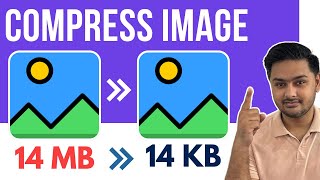
Compress Images Without Losing Quality
45sThis is a highly practical tutorial that addresses a common pain point, making it likely to be saved and shared.
▶ Play Clip"Video exactly matches its title, with a clear, step-by-step demonstration of how to compress images without quality loss."
The video offers a straightforward demonstration of how to compress an image while preserving its quality, using the online tool iloveimg. It walks the viewer through the simple steps of uploading, compressing, and downloading the image.
The video introduces the website iloveimg as the solution for compressing images without losing quality.
Users are guided to the 'Compress Image' option, then can select an image via file picker or drag-and-drop.
After clicking 'Compress Images', the tool processes the file and automatically starts the download of the compressed version.
The presenter encourages viewers to like and subscribe if the tutorial was helpful.
Direct Tool Recommendation
Provides a specific, actionable tool (iloveimg) for image compression, saving the viewer time in searching.
Two Upload Methods
Offers flexibility by showing both click-to-select and drag-and-drop upload options, catering to different user preferences.
00:16Effortless Process
Highlights that the entire compression process is automatic and fast, reinforcing the tool's ease of use for non-technical users.
00:30[00:00] In this video, I'm going to show you how to compress image size without losing quality. Open the website iloveimg using the URL provided in the description below. Now go to the first option that says compress image. Click on select image and upload your image.
[00:16] You can also drag and drop your image here. Now click on compress images. It will take a few seconds and your image will be compressed and downloaded automatically.
[00:30] If this video helped you, please consider liking and subscribing.




⚡ Saved you 0h 00m reading this? Transcribe any YouTube video for free — no signup needed.