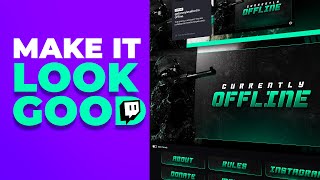

Small Streamers: Don't Skip This Step!
43sDirectly addresses a common fear among small streamers, creating immediate relatability and a sense of urgency.
▶ Play Clip"Delivers exactly what the title promises: a step-by-step guide to customizing a Twitch channel with free graphics."
This video is a beginner-friendly guide to customizing a Twitch channel using free graphics. The creator demonstrates how to set up branding elements like profile pictures, banners, and panels, and emphasizes the importance of a consistent visual style for small streamers.
The video is for complete beginners and procrastinating streamers. It stresses the importance of a good first impression for small streamers.
Navigate to the Creator Dashboard, then to Settings, to begin customizing the channel.
The bio appears under the About page. It's recommended to write a paragraph about yourself here.
The Brand tab allows you to set colors. Consistent branding is key, but if you lack artwork, you can find free graphics on Gumroad.
The creator recommends downloading a free graphics pack from Gumroad, emphasizing to read the description thoroughly and set a fair price (or $0).
The pack includes items like Avatar Transparent and Banner. Some files go into broadcasting software, not Twitch directly.
Using an image of yourself and a transparent avatar, you can create a profile picture with tools like MS Paint.
The accent color highlights VODs and clips. It should match your banner and overall artwork.
Upload a custom banner and set a video player banner for when the channel is offline.
Edit panels by clicking 'Edit Panels', add text or image panels, and link them to external URLs if desired.
Use accessible image descriptions for screen readers. Panels can be dragged to reorder.
The About panel supports markdown for formatting. You can also create custom panels for socials or schedules.
Avoid self-deprecating bios; focus on strengths. Place donate/tip panels prominently. Update offline images regularly.
Customizing your Twitch channel with free graphics is straightforward and essential for making a good first impression. Consistent branding and thoughtful panel setup can significantly enhance your channel's professionalism.
Where do you find the bio section in Twitch settings?
Under Settings > About.
00:43
What is the purpose of the profile accent color?
It highlights VODs and clips, and should match your banner and artwork.
04:25
What is the video player banner used for?
It is displayed on the player when the channel is offline.
05:55
How can you make panels clickable to external links?
By adding a link when editing the panel.
07:09
Why is the accessible image description important?
It helps screen readers for people who cannot see the screen.
07:38
What should you avoid in your bio?
Self-deprecating statements; focus on strengths.
09:19
First Impressions Matter
Emphasizes the importance of a good first impression for small streamers.
00:13Free Graphics on Gumroad
Provides a practical resource for free graphics.
01:23Accent Color Consistency
Explains how accent color ties into overall branding.
04:25Accessibility in Panels
Highlights the importance of accessibility for screen readers.
07:38Avoid Self-Deprecation
Advises against negative self-talk in bios, focusing on strengths.
09:19[00:00] Today we're going to be customizing a Twitch channel, This video is for complete beginners and people who have been procrastinating. big streamers who don't have fancy looking channels, But as a small streamer,
[00:13] can you allow yourself to take the risk of not giving a good first impression? let's get started. So I'm going to be using my alt or my bot account for this.
[00:28] So if you're new, this should be as close as possible to what you have. I also made my mouse huge so you can hopefully see where I'm at at all times. Then you want to click on Creator Dashboard.
[00:43] You want to go down to settings and click on. Now immediately under about this is where you can put your bio. Your bio appears under your about page.
[00:57] So if I go back here this is the bio section right there. so if you want to write a little paragraph, you should put it here. But this is not what we're concerned about today.
[01:10] So we're going to click on the next tab which is brand. and play around with colors. Now the whole thing about branding is picking a consistent style
[01:23] But if you're starting out, I'm guessing you don't have a bunch of artwork. This is where you can go to Gumroad e-commerce level. those are graphics that I created myself.
[01:36] Well, that would help me out a lot. make sure you download something that is free first. You can get something paid. All right.
[01:49] We're going to go with this one because it's like typical dude gamer bro. Our creators FPS competitive shooter game. And you want to make sure you read the description thoroughly before
[02:01] It tells you exactly what's in the pack. And then on the right here, you can name a fair price.
[02:13] If not, type zero add to cart and then top right. From there you have access to all the contents of that package. also you have an email that's been sent to you
[02:28] So we have something called Avatar Transparent. We would like a banner please. into your broadcasting software and not Twitch itself.
[02:44] We're going to download a couple of them. Panel about. You'll see. this goes into your broadcasting software.
[02:57] So at this point we should have everything we need right here. Usually you want to try your best But it's not super necessary.
[03:10] And what I'm going to do is find an image of myself. with the selection tool. So I right click on the image on Twitter copy image.
[03:27] Now what we need is our avatar transparent. You'll see. Import to canvas from a file. Mine is right there.
[03:42] All we have to do is go at the bottom here until we see this icon and drag it. So we have a good idea where the corner is going to be.
[03:55] Click away from the selection to deselect everything, And then bring that up. Up until this fits. We're going to save as picture.
[04:11] But I must say that if in 2026 you still don't know how to use RMS paint, I'm going to delete my previous profile picture. And click open. There it is.
[04:25] Next thing is the profile accent color. And the accent color is basically going to be the highlight color for your VODs. I do so when I hover over clips.
[04:40] this is all purple and on the right side we have this little purple thing. If you're going to have a banner that's going to be a certain color you kind of want all of that to match, right.
[04:56] matches our banner, our artwork in general. Well, we can color pick it. But Emma Spain, for example.
[05:11] Most likely has a color picker too. We're going to try to pick that specific color okay. And from there what we can do is click on that rainbow color, added colors.
[05:27] Right click copy. Right click paste. Now would you look at that. Click save changes
[05:40] But we're not going to keep it that way because we're going to use a custom image, Click once here and we're going to click on banner, which we downloaded. And then we can click Save. All right.
[05:55] And at the very bottom there's something called the video player banner. And it tells you this is displayed on the player when your channel is offline. This is when people click on the word chat or the chat tab on your channel.
[06:10] You could actually have some information displaying right there. And thankfully we had an offline image included in the overlay pack.
[06:23] So if we go to the channel and we refresh. Profile picture has that little. And then our chat has the currently offline.
[06:37] Now of course, now of course if you have access to Photoshop or Canva or Photoshop or Affinity, you can add your socials here. Now let's do something about the panels and then we will be done.
[06:53] all you have to do is click on Edit Panels or right here on top of them. And if you have none, you can click on the plus, click add Text or image panels. the image literally will say exactly what the panel is.
[07:09] Make sure you do not crop anything. If you want it to be clickable to an external link. For example, the specs panel could link to a PC builder website
[07:24] and if you're affiliated, you can make some money like that. it could be ready for them. And something very important here is the accessible image description.
[07:38] This will help with accessibility. Screen readers for people who cannot physically see what's on screen. This is where you can describe a list of skills.
[07:54] And a link to buy the specific parts. Click on edit Panels again and it should appear. Oh, yeah. And you can also. Why is the so weird?
[08:11] You can also click and drag the panels to switch the order. All right. That looks way better. now for the about panel. You kind of want to write maybe one paragraph or two about yourself.
[08:26] right there, it'll tell you supports markdown. exactly what you need to put in order to have, like, you know, some bold tags, some headers, some actual links inside the text.
[08:39] This is also useful for your schedule if you want to type it out. But also there is a blank panel in case you want to create your own.
[08:51] Let's say you're an artist and you want to put your Spotify. And also, you know, if you read the description, And then from there you just got to match the color.
[09:06] So that everything matches. And there you have it. Those are the basics of customizing your Twitch channel with some artwork. Make sure you do put some lines in your about me and also put your socials here.
[09:19] Should be fine. If you write a little paragraph, do not be self-deprecating. It makes people genuinely think that
[09:32] Focus on your strength. I don't want to hear about what you can or can't do, what you're bad at, Other tip is, make sure that your donate panel or your tip panel.
[09:47] I would say the same line as the about me. Don't make it difficult for them to have to scroll to find it. This will populate more once you start streaming like your home page here.
[10:02] You can see that I have my banner actually blending into my. You can see my featured clips are showing. Oh, I need to remove this. No, this was just a test.
[10:17] I went for something that is more square, but those are custom made. you can also put your own full about Me text inside of one. And let's check my offline image.
[10:31] I should really, really update that, If this was helpful, make sure you subscribe, And, let me know what else would you like to know?
[10:43] Possibly how to set up the overlays that actually matches the Twitch channel. Maybe. Let me know in the comments
⚡ Saved you 0h 10m reading this? Transcribe any YouTube video for free — no signup needed.