
I Ditched iPhone for Android and Built a Custom Remote
56sRelatable frustration with ecosystem lock-in and a clever DIY solution sparks curiosity and engagement.
▶ Play Clip"Delivers on the promise of a feature-packed dashboard, though some fluff in the intro and sponsor-like mentions."
The video demonstrates how to build a custom TV remote dashboard in Home Assistant using a phone, specifically to control an Apple TV. The creator switched from iPhone to Android and found no good options to control Apple TV, so they built their own remote with features like app shortcuts, commercial skipping, light control, and automations for pausing TV when kids leave bed. The process uses Home Assistant's dashboard with sections and tile cards, requiring no coding.
The creator built a custom TV remote dashboard in Home Assistant because they switched from iPhone to Android and lacked good options to control Apple TV. The build took about 20 minutes on the couch using only a phone, and it's free.
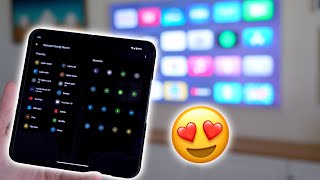
The creator uses a Pixel 9 Pro Fold, leveraging the outside screen for basic remote controls and opening it for a tablet view with more buttons, making it convenient to have all controls in the pocket.
Instead of navigating with arrows, the creator added buttons that jump directly to apps like YouTube TV, HBO Max, Netflix, and YouTube, making it faster than the Apple TV remote.
Added a button to jump back 30 seconds to rewatch missed content, and a skip commercial button that jumps ahead a set amount to skip ads, reducing the need to press forward multiple times.
The dashboard includes buttons to dim, turn off, and brighten lights. Also added a button to disable the automation that dims lights when TV is paused, to avoid annoyance during gatherings.
Using motion sensors in the hallway, the TV automatically pauses and turns off if kids get out of bed at night, preventing them from seeing TV and making it easier to put them back to bed. There's an override button on the remote.
Home Assistant is free and open source, and the Apple TV integrates well. The dashboard is created by adding a new view with sections (drag-and-drop) and using tile cards with the 'remote send command' interaction to control the Apple TV.
For each button, choose the entity (Apple TV) and the command (e.g., 'left', 'right'). Commands are listed online. Buttons can be copied and pasted, then tweaked, making it easy to add many controls without coding.
Building a custom TV remote dashboard in Home Assistant is accessible to anyone, requiring no coding and just a phone. It enhances convenience with app shortcuts, commercial skipping, and smart automations, and the creator encourages exploring more smart home projects.
What is the main reason the creator built a custom TV remote?
They switched from iPhone to Android and found no good options to control Apple TV with an Android phone.
00:19
What are the two screen modes of the Pixel Fold used for?
The outside screen is used for basic remote controls, and the open tablet view provides more buttons.
01:13
How does the skip commercial button work?
It jumps ahead a set amount of time to skip commercials, reducing the need to press forward multiple times.
02:52
What automation pauses the TV when kids leave bed?
Motion sensors in the hallway detect kids leaving bed and automatically pause and turn off the TV.
04:55
What interaction type is used for buttons in the Home Assistant dashboard?
The 'remote send command' interaction is used to send commands to the Apple TV.
06:32
What layout option in Home Assistant makes dashboard creation easier?
Selecting 'Sections' for the view provides a drag-and-drop interface, avoiding manual coding.
06:02
App Shortcuts
Demonstrates a significant improvement over the Apple TV remote by allowing direct app access.
01:43Skip Commercial Button
Shows a practical automation that saves time and reduces annoyance.
02:52Kids Bedtime Automation
Illustrates a creative use of motion sensors to solve a common parenting problem.
04:55Home Assistant Integration
Highlights the flexibility and power of Home Assistant as a free, open-source platform.
05:35[00:02] I built my own and this thing is packed full of features and automations and the best part is it cost me nothing to make this it only took me about 20 minutes sitting right here on the couch and I only used my phone to make this remote
[00:19] and I did it all while watching TV seriously anyone can make this so this all started because I switched from an iPhone to an Android phone and we use an Apple TV here in our family room and there doesn't seem to be any good
[00:32] options to control the Apple TV with an Android phone so I thought maybe I'll just use the Apple TV remote to change the channel and volume and all that kind of stuff but this is way less convenient first of all you have to find it from
[00:45] wherever the kids put it last or if I'm in the kitchen I can't just quickly pull out my phone and change the volume or Channel or whatever and I got really used to doing that on my iPhone with the Apple TV so then I realized I'm just
[00:58] going to have to make the remote myself and you can use any device for this any Android phone iPhone iPad and I'm using the pixel fold and what's awesome about this use case is I can use the outside screen for the remote or if I need more
[01:13] buttons I can just open it up and it's basically the tablet view of this remote with all the buttons right there in my pocket at all times it's pretty sweet first wanted the same functionality as the iPhone to control the Apple TV to be
[01:28] on this phone so so being able to turn on the TV so I just press the button to turn it on and then I also have the little remote buttons for the arrow so I can go around and I can select something you can play skip it works like a normal
[01:43] remote and I'll explain in a minute how I added these buttons and you'll see it's pretty simple but then I was like hm using the little arrows to go and hm using the little arrows to go and select a different app each time it's
[01:56] way I mean I can create any button I want so why not have one jump straight into a TV app look how well it works if I want to go to YouTube TV or HBO Max or I want to go to YouTube TV or HBO Max or Netflix or YouTube and it goes to it so
[02:11] fast it's way faster than selecting it and this already has made it so much better than the Apple TV remote what else could I add well one issue I always run into is when the kids are out here they're Extremely Loud I don't know what
[02:27] it is maybe they want me to pay attention to them or something I don't know but when they're really loud and I miss something on the TV I can just press a button and it'll jump back 30 seconds so if I did miss something I
[02:39] don't have to get mad at them I can just press that button and then I was like press that button and then I was like what if I took it the other way and used it to skip commercials I don't know if you saw the tour I did at David's house
[02:52] he had a custom remote that he built and he could press a button and it would skip certain amount of times ahead to skip commercials that's that's such a the remote so when I realize it's getting close to the commercial I can
[03:05] just press the skip commercial button and it will skip the right amount of times that a normal commercial is and then it stops and that way this one's a little short I can just press forward a couple more times and boom I'm already
[03:19] there so it's so much faster at skipping commercials when you've recorded TV like I do on YouTube TV I don't have to press it like 15 or 16 times which is super annoying to do this makes it so much easier another thing I want to be able
[03:33] to do is manually change the lights so I have some buttons on here to dim the lights turn them off turn them back on bright and it's nice to have these buttons right here but you might have seen that the lights will actually
[03:45] automatically change with our TV if it's playing a movie on Netflix all the movie is paused the lights will turn to a dim setting and that's been super convenient to use but every once in a while we don't want that automation to
[04:01] run like for pausing in a bunch or if there's people over so I added another button on the remote to disable that automation that way the automation doesn't get annoying and it keeps a high spouse approval
[04:14] Factor then that got me thinking how could I make Ally even happier with an automation when we're putting kids down if you're a parent you know this it can take a while like it could take a full hour trying to tuck them in tell them
[04:28] stories all that good stuff Stu come on $2 if you stay in bed make it five and it's a deal and then when you come out here and you turn on a show they come out and see you watching TV that could start that whole process over again or
[04:41] make it so they don't want to go to bed yeah it's terrible I hate when that yeah it's terrible I hate when that happens so I made an automation that makes it so the kids never see us watching TV out here there are a few
[04:55] motion sensors in the hallway where the bedrooms are and if the kid get out of bed at night and we're watching TV out here the TV will automatically pause and turn off and that way when the kids walk out here we're not watching TV and it's
[05:10] so much easier to walk them back to bed Ali loves this automation it works so Ali loves this automation it works so well but there is some times where we don't want this automation to run so there is a button right on the remote to
[05:23] override it as well so no matter what the automation does exactly what we want and we love it so you might be like all right we how did you make all this happen well I'm using home assistant and home assistant is free and open source
[05:35] so anyone can have access to it and I have my Apple TV integrated into home assistant that's how I'm able to control it you don't have to use the Apple TV though there are a lot of other options you can use with home assistant but I
[05:48] like the Apple TV because it integrates extremely well and it's so fast as fast as I can press the buttons on my phone to control the Apple TV is just as fast as using the Apple TV remote to make this you'll just need to create a
[06:02] customized dashboard by creating a new view and then select sections that will be the drag and drop option if you don't do that you'll have to do a little more coding and it will be a little more difficult so select sections and it'll
[06:17] be much easier when it comes time to adding the buttons it's pretty simple you just create a card and a card can be a button or I'm choosing tile and the reason I'm using that is because I can change the color of the different icons
[06:32] but you can use whatever you want so I choose tile and then for the interaction I'm going to choose remote send command and what this will do is send a command
[06:45] to whatever device that you want to use so for the entity I'm going to choose the Apple TV here in my family room and for the command I'm going to put left right or whatever command I want there's a whole list online that you can choose
[06:58] from it's pretty self-explanatory and you just paste that in and then you save it and now you have a button that will control the Apple TV or whatever device you want and then it's really easy to make more of them because you can just
[07:13] copy and paste that button and then just slightly tweak it so you can just change the command to right and change it to a right arrow and then just keep doing with home assistant now you can drag and drop all the buttons it's really easy to
[07:28] it right here on the couch just using my phone because it's a lot of just dragging and dropping there's not a whole lot of typing or pretty much no coding at all so anyone can do this I'm using the pixel 9 Pro fold and I love
[07:43] this thing the screen is massive and it makes working on home assistant so much yeah that's how I was able to do everything right here on the couch and
[07:55] not have to go get my computer so I'm excited to explore more smart topics and different things using a foldable phone again you can use any phone or tablet an iPhone for two years and then switching back to an Android phone has
[08:10] definitely shaken things up in my smart home it's been a little challenging to get it all working with an Android phone but it's been a really good challenge because I've been doing projects like this which have made things way better
[08:22] and it's been so much fun thanks for watching watching [Music]
[08:39] wait wasn't the TV just on what no the TV's off H okay


⚡ Saved you 0h 08m reading this? Transcribe any YouTube video for free — no signup needed.