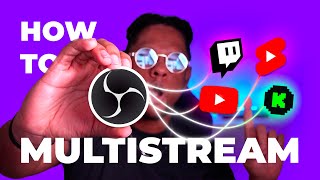

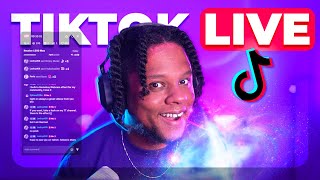
Stream to Twitch, YouTube & TikTok at once!
45sThe promise of multi-streaming to all major platforms in one setup is a high-demand topic for streamers.
▶ Play Clip"Delivers a solid tutorial on multi-streaming setup, though some sections are padded with personal anecdotes."
The video is a tutorial on setting up the Aitum Streaming Suite for OBS Studio, an all-in-one add-on that simplifies multi-streaming to platforms like Twitch, YouTube, and TikTok, including vertical streams. The creator walks through installation, configuration, and customization of the interface, highlighting the suite's features and limitations.
The video introduces the Aitum Streaming Suite, an all-in-one add-on for OBS Studio that enables multi-streaming to various platforms simultaneously, including YouTube vertical, TikTok, and any service with a stream key.
The add-on is available for free at aitum.tv and requires OBS Studio version 32 or later. The creator notes that familiarity with OBS and its plugins is necessary.
The creator clarifies this is not a paid endorsement, but they previously tested Aitum's first multi-streaming plugin and found it messy, which led them to try this new suite.
Installation is straightforward, running through a setup wizard that also installs necessary OBS plugins. The creator warns that existing OBS setups might get rearranged and need tidying.
The suite provides a customizable interface with separate areas for landscape and portrait streams. Users can drag and drop elements like chat, activity, and mixer to suit their preferences.
The recommended layout places landscape streams in the center, audio mixer in the middle, and portrait streams on the left. Combined chat appears for all platforms.
Users can connect Twitch, YouTube, and Kik accounts. Once connected, a red indicator appears. The creator skips Kik due to lack of account.
Users can set stream titles and categories that apply to all platforms. For YouTube, advanced settings allow changing title and category before going live.
To add services like TikTok, users need a stream key. This is done via Settings > Stream, entering the server address and stream key from the platform's live center.
The suite includes built-in stream outputs for the main canvas and virtual camera. Users can add additional streams by pasting stream keys, enabling simultaneous streaming.
YouTube offers a dual stream option for vertical streams, but using it means losing OBS customization. Twitch is also working on similar features, potentially making vertical outputs unnecessary.
The creator praises the suite for cleaning up their setup, which previously required multiple plugins. They wish TikTok made obtaining a stream key easier and hint at future content.
The Aitum Streaming Suite is a powerful tool for streamers wanting to multi-stream to multiple platforms, including vertical streams, with a customizable interface. Despite minor limitations like TikTok's stream key difficulty, it significantly simplifies the streaming setup.
What is the Aitum Streaming Suite?
An all-in-one add-on for OBS Studio that enables multi-streaming to multiple platforms simultaneously, including vertical streams.
00:15
What OBS Studio version is required for the Aitum Streaming Suite?
Version 32 or later.
00:43
How do you add a custom streaming platform like TikTok?
Go to Settings > Stream, and enter the server address and stream key from the platform's live center.
05:13
What is the recommended layout for multi-streaming in the Aitum suite?
Landscape streams in the center, audio mixer in the middle, and portrait streams on the left.
03:45
What is a limitation of using YouTube's dual stream feature?
It doesn't allow full OBS customization for the vertical stream.
07:21
All-in-one multi-streaming
Introduces a tool that consolidates multi-streaming into a single OBS add-on, simplifying the setup.
00:15Optimal layout strategy
Provides a clear layout recommendation for managing landscape and portrait streams efficiently.
03:45Adding custom platforms
Explains how to integrate any platform with a stream key, expanding streaming options beyond the built-in services.
05:13Platform-specific limitations
Highlights the trade-off between using platform-native vertical streaming features and OBS customization.
07:21Setup simplification
Demonstrates how the suite replaces multiple plugins, reducing complexity for streamers.
08:30[00:00] Because that's coming soon on YouTube, on YouTube vertical, which is already there or a small portion of creators on TikTok. Then any other website that allows you to input a stream key all at the same time.
[00:15] Today we're going to be checking out the Aitum stream suite* for OBS studio. This is basically an all in one add on for OBS studio that gives you So yes, you do need to be familiar with OBS studio and some of the plugins.
[00:30] If anything feels confusing, there will be links in the description So let's get started. Whether you get this add on by going to aitum.tv.
[00:43] Download Streaming suite for free. And it also tells you immediately that it does require OBS studio version 32 or. I do feel like it's important to let you know that this is not a paid endorsement.
[00:57] I did make a video where I tried their very first plugin for multi streaming, And I use that in combination with StreamElements ground control But it was basically a mess.
[01:11] So in that same video, I was like, oh, I see that Aitum I always disclose when a video is a paid advertisement.
[01:23] And I also always disclose a company approaches me to talk about something, and the multi stream plugin, it's actually going to run you through a setup wizard. installed. The installation is pretty simple.
[01:39] And surprisingly, this also installs a couple of OBS plugins for you. So let's click next and next and next.
[01:51] Since I'm recording with OBS. I'm gonna do just that. Now, if you already had your OBS set up, it might jumble a bunch of stuff around. You just need to tidy it up a little bit.
[02:04] for example on the right here I can see that Therefore, I do not need my singular twitch chat to be on the left here. I know that this is going to be over there at Stream Info, and I'm going to be able
[02:22] So I can close this. And now we can really dedicate this left side of for our vertical stream. I can see that my sources and my scenes are here, and my transition.
[02:35] So game scene right now I don't like the transition I can set that to cut. It collapses on itself which is pretty nice.
[02:47] I actually lost a bunch of stuff on my hard drive. So. You know what, then? For this and that.
[02:59] There's no reason for my audio mixer to be huge like that. And it's simple. This is a paid version, so we're not going to use it for this tutorial.
[03:14] You could keep your chat here but it's combined chat. so I can click drag and try to find a way to. Let me. We'll just drop the activity here.
[03:30] So we can also just drop it here. So I would probably keep it on activity. Set my mixer to this layout.
[03:45] So all of your landscape live streams would be in the middle here, Your audio mixer in the middle so you can control everything.
[03:59] whether it's on YouTube, on Twitch or Kik, it's going to appear here. And then everything that has to do with portrait streams on the left.
[04:13] And you can see my Twitch activity already appeared right there. Let's go with YouTube. Once you're connected you're going to see the little red thing appear here.
[04:28] Nice. Now I don't have a Kik account so we're going to skip that step. Okay. So important step. Well I guess it's not super visible here but let me drag it out.
[04:45] I guess here wouldn't be that bad. and a category, and it's going to apply to all. One thing to note is that for YouTube
[04:59] So you can now change your stream title and category in advanced. Before going live on YouTube, you need to go live and then save here And once you're done, you click Save All and Now, one thing you might be asking is,
[05:13] You do need a stream key for that. And the way you can do it is by going to settings top left here. Click on stream.
[05:25] And enter the information you'll have on your TikTok Live center. They've always been pushing their own live studio. if you're super lucky to have a stream key, this is where you would put it.
[05:40] And as you can see, there's way more than just Twitch, YouTube and Kik. Any other service that's going to give you a server address in the stream key. That being said, we're actually missing a tab here.
[05:55] So if I go up there and I go to Doc's, I'm looking for something called outputs. And as you can see built in stream main canvas. So if I want to record my landscape preview here, backtrack.
[06:10] Virtual camera. As you can see here, I have twitch for my main canvas, and I have. So I'm going to click on the plus add a new stream.
[06:24] And then from there I can put my, YouTube stream key. It used to be at the bottom here, but now it's up there. Here you go. That and here I could just paste.
[06:38] So now I have my YouTube output. all I have to do is click on those buttons and then boom, I'll go live. so I would have to activate that if I want that.
[06:53] and you don't necessarily want to have like a separate, different. And this looks like a mess.
[07:05] and then on YouTube you have the option called dual stream. A vertical stream. so you don't get all the sweet options from OBS to actually customize it.
[07:21] what I know, Twitch is also working on something like that. Which means that you might even remove your vertical output. And if you never plan on recording or using the backtrack feature
[07:33] And now you have a way cleaner output. Okay, so if I want to go live now, I would go bow, bow bow. before the other, I would just click on it again to stop the stream.
[07:46] There they go. That's that's what I meant. Built in stream means that in your OBS settings. So if in here in stream you're logged into Twitch
[08:00] Your main canvas your built in stream. Then you would need to go to your output and actually add Twitch So again, that's also a tab that you're not going to fuss around with too much.
[08:16] So boom boom boom. Oh, and of course, since you don't have the vertical thing That way it's super duper clean.
[08:30] You decide your own the best layout for yourself. But before that my setup was really wonky. I had the EDM vertical plug in with the item
[08:44] to manage chat and the activities and also the stream info. It was a mess. I really wish TikTok would make it easier to get a stream key, though.
[09:01] I might be trying those in the future. Anyways, subscribe and thank you for watching.
⚡ Saved you 0h 09m reading this? Transcribe any YouTube video for free — no signup needed.