
OBS for Complete Beginners
45sDirectly addresses a common pain point for new streamers, making it highly relatable and shareable.
▶ Play Clip"Delivers a thorough, step-by-step tutorial on Twitch alerts in OBS, though some sections are padded with personal anecdotes."
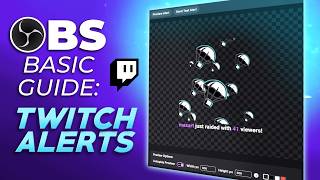
This tutorial video is part of a series for complete beginners on using OBS Studio for live streaming. The focus is on setting up and customizing Twitch alerts, from basic setup to advanced customization, including celebrations and TTS.
The video continues a series of OBS Studio tutorials for complete beginners, covering setup, camera, game capture, and alerts.
The alert box failed to load on the full screen scene, prompting the tutorial on setting up alerts.
To access alerts, click on your name at the top right, go to Creator Dashboard, and find alerts on the right side.
The simplest setup is to click 'Create Alert Box', which includes follow alerts, subscriptions, gifted subs, bits, raids, and hype train alerts.
Right-click and copy the alert box link, which is a secret URL that connects to the alert widget.
In OBS, add a browser source, name it 'Alert Box', and paste the copied link. The default width and height (800x600) are fine.
Enable 'Control audio via OBS' to see the alert box in the sound mixer, allowing volume control.
Alerts can be placed anywhere and filters like color correction can be applied.
Copy the alert box source and paste as reference in other scenes to have alerts appear everywhere.
With the basic alert setup, you are ready to stream and will be notified of support.
Twitch does not support direct tipping; external services like Streamlabs are needed for PayPal tips.
Alert widgets display custom text with the username and use template text for customization.
You can inject custom HTML and CSS to change the alert appearance.
Alerts can fade out, roll in, or have other animations; you can preview them.
Custom alert packs can be downloaded from sites like Gumroad; the creator has some available.
You can adjust the layout to place text on top, left, or right of the image, and add drop shadows.
Username variable is used in text; if deleted, it won't show. Available variables can be inserted.
You can customize text based on themes like space or Magic: The Gathering.
Text can be bold, italic, and accent color can be changed to match your scheme.
TTS can read alert text aloud with language, voice, and volume controls.
There is a text delay option to wait before reading aloud, useful to avoid overwhelming with music.
Twitch provides a variety of alert animations and sounds, including pixel art and 3D effects.
You can set different alerts for different bit amounts (e.g., 100 vs 500 bits).
Custom alert files (WebM, etc.) can be uploaded and are compatible with Twitch alerts.
Twitch gives control over alert sound volume, which is better than other services.
Twitch accepts WebM, OGG, and WAV files for alert sounds.
Twitch's alert system is robust; customization is key to making it look professional.
Celebrations are confetti/fireworks effects that need to be manually enabled; they can be set to appear on the player or the whole page.
You can preview celebrations, but they may not show in OBS; they appear on Twitch when live.
Celebrations should be used sparingly to make them feel special, e.g., only for prime subs.
Send test alerts to see how they appear; celebrations may not show in OBS but will on Twitch.
Alerts also appear in chat, so you can catch them even if you miss the on-screen alert.
TTS can help you know when someone follows, but it hasn't been tested on Twitch yet.
Custom CSS can be used to further customize alerts; it's under general settings.
External services like StreamElements are not necessary unless you need tipping; Twitch's built-in alerts are sufficient.
Tipping is not essential for Twitch streaming; subs and bits are common, and tipping is rare.
Viewers may buy items from wish lists instead of tipping; external tipping may be needed for specific cases.
The audio setup for alerts was covered in a previous video; this video focuses on customization.
The creator encourages questions and community help, emphasizing that the streaming community is supportive.
The entire OBS series is free, though it could be sold as a course.
Follow on Twitch and suggest next tutorial topics.
This tutorial provides a comprehensive guide to setting up and customizing Twitch alerts in OBS, from basic setup to advanced features like celebrations and TTS. It emphasizes that Twitch's built-in alert system is robust and sufficient for most streamers, with external services only needed for tipping.
What is the simplest way to set up Twitch alerts?
Click 'Create Alert Box' in the Twitch Creator Dashboard.
02:51
How do you add the alert box to OBS?
Add a Browser Source and paste the copied alert box link.
04:37
What does 'Control audio via OBS' do?
It allows you to see and control the alert box volume in OBS's sound mixer.
05:06
Why might you need an external service like Streamlabs?
To accept direct tips via PayPal, as Twitch does not support direct tipping.
07:40
What is the purpose of the username variable in alert text?
It displays the name of the user who triggered the alert.
11:00
What are celebrations in Twitch alerts?
Confetti or fireworks effects that appear on screen when an alert is triggered.
17:54
What audio formats does Twitch accept for alert sounds?
WebM, OGG, and WAV.
17:14
Create Alert Box
This is the core step that simplifies alert setup for beginners.
02:51Tipping Limitations
Clarifies that Twitch doesn't support direct tipping, guiding streamers to external services.
07:40Celebrations Feature
Highlights a unique Twitch feature that can enhance viewer engagement.
17:54External Services Not Necessary
Reassures streamers that Twitch's built-in alerts are sufficient, reducing dependency on third-party tools.
22:15[00:00] And today we're going to continue our series of OBS studio Basic tutorials for complete beginners. OBS, the whole configuration for your settings,
[00:14] how to set up your camera, your game capture or your display capture. you're actually live on your platform and you have everything you need your audio, your alerts.
[00:27] and I want to maybe, maybe do a little deep dive into it. It'll be very similar to what we had in the previous video.
[00:39] And then we're going to go over and talk about customizing your alerts. So if it's your first time watching this series Basically I started this because some people were saying
[00:53] and my jump cuts were confusing and people had a hard time following. So this whole series is for those people for complete, complete, complete beginners
[01:05] so that they can follow everything step by step, hopefully. All right, so I have OBS on my laptop right there. I have a huge mouse so that you can know where it is at all times.
[01:19] If I say click on this or click on that, you'll know where to click. So we have our Starting Soon screen. We have our full screen just chatting. Hey guys what's up?
[01:34] And then we have our game scene. Then we have a be right back. Okay, so as you can see on the full screen,
[01:50] that error, the alert box wasn't able to be loaded. And and I think I should have said that. alerts today because unfortunately for people who don't stream on Twitch,
[02:07] Twitch alerts are the easiest ones to set up right now as far as I know. You can click on the little trash bin icon, or you can right click and go to remove.
[02:23] Or you can just press delete on your keyboard. That's that's by clicking on your name top right creator Dashboard.
[02:35] And you'll see alerts right there. And here on the right it should be empty for you But basically the simplest and the fastest
[02:51] setup is create alert box And this already has everything you need. So you can see it has follow alerts subscriptions, gifted subs.
[03:06] Basically bids raids if you have your twitch, So if you get a bunch of subs and a bunch of bits in a short amount of time,
[03:20] it'll trigger a hype train and then your viewers can can unlock like emotes and stuff like that from the hype train, which is really cool. rewards and people redeem them, you can actually have an alert for that.
[03:37] and and yeah, and you'll be able to know when someone redeem something, If you're using the Twitch goals stuff, you can have a follower goal, a sub goal,
[03:50] So once you reach the goal, you can have an alert. There's sound, there is animation. You'll see this is what will appear on screen.
[04:05] Also an obsolete. The easiest setup is go down, right click copy and this basically copies a secret link created for
[04:21] Your alerts are basically a web page that's waiting for events to be triggered. So if we go to OBS studio and we want to bring that in, we would add
[04:37] something called a browser source because a web page from your browser, you get the link you want to call this alert box, So I'm going to call this alert box two.
[04:52] And as you can see the width and the height is also 800 by 600. You don't have to touch that. And you just need to replace the link right there.
[05:06] to do is control audio via OBS. This will allow you to see your alert box in your sound mixer. That way I can actively control the volume when it's happening, right?
[05:25] that was very low or that was very loud, you can just go ahead see how far it goes, how how far that bar goes.
[05:40] and it should appear and you can see it in your mixer. Of course you can place this anywhere. It's a source just like any other source, so filters will work with it.
[05:55] you can add a color correction filter and change the color of the alert. So sub alerts rate alerts, all the alerts we just saw there in there.
[06:07] And all you have to do is make sure that you have this alert box. I'm going to right click copy I have the old one here right click Paste reference.
[06:22] And you basically want your alerts to appear everywhere. something very specific. a specific scene where you don't want alert boxes
[06:40] want to be alerted every time someone decides to support you, basically. Like, that's that's the basic alert setup. You're ready to go, you're ready to stream, and you'll be completely fine.
[06:53] Now let's get into the depth, the new ones, the intricacies. because of this page and the fact that it's part of Twitch, you just go to Twitch, copy the link, bring it into OBS studio.
[07:09] that streamers will have that you might not notice here. The thing is, Twitch itself does not accept They do the whole tipping through subs of course, and through bits
[07:27] People pay a little bit more for bits, and then you get the exact But tipping directly, like through PayPal and things like that is not really a thing on Twitch.
[07:40] And, and we're actually not going to cover that in this video. if you're like, oh, how do how do I get tips via PayPal? You will have to use an external service, something like Streamlabs
[07:53] And in order to have this, this tipping thing. And then those services will also provide you with the widget. So with the donation or tip widget to give you an alert for tipping okay.
[08:09] All right. Now that that is said So how does this whole thing work. So Twitch basically or any alert widget really basically works
[08:23] with showing a custom text with the name of the user. to to, to bring the name of the person who triggered the specific alert.
[08:35] And then there's a template text. So if we go and we click around we should be able to find it. So general setting you can see that I have new follow selected here.
[08:47] Variant name is just the name that shows up here so you can know what you're doing. Usually you don't want to touch that.
[09:01] I can't read it off of my OBS. There's customize HTML and CSS because that's what this is.
[09:13] So you can inject your own code to make this look different for example. So if I do preview alert
[09:26] And then after 10s it's actually going to fade out Come on. So you actually have more options.
[09:40] You can make it roll in. It rolls in. Keep it keep it on fade. And honestly
[09:52] And it'll be the same general settings for all of them. You might have differences depending on the alert but basically that's it. if you're going to create custom alerts
[10:06] or if you're going to download custom alerts from Gumroad level, because I have an alert pack that will be available very, very soon. I have a bunch of alert products already available,
[10:19] Okay, so right now we can see that we have image and then we have text at the bottom right. If we want text on top of the image we can do that too.
[10:34] just be careful of the text. You can have the text on top of the image on the left of the image,
[10:46] But this is like the most standard way of setting it up. You can have a drop shadow for the entire alert. And that's it for layout.
[11:00] Text and speech. So username under curly brackets is where it's going If you delete this by accident or anything.
[11:16] It's not going to show the username right. In fact let me delete this by accident. But thankfully Twitch when you click here there's available variables username.
[11:32] So that's really cool. Which means that if you have some theme names for your followers or for your live stream, you can you can type whatever you want, right?
[11:46] the dungeon. Probably not. So things like that.
[11:59] So if you have like a space theme you can do something like that. If you have like a magic The gathering type of theme,
[12:11] And I think it's a nice touch here. So text here You can make it bold, normal, italic depending on the font,
[12:27] middle, you can change the accent color. If you have a whole color scheme and you want things to be red for boom, you got it right there.
[12:43] As I said before, if you have your layout to be on top of the image, And you don't want that white part to be like invisible, like it is There you go.
[12:58] So it has followed would make more sense and things like that. Right then you have a drop shadow for the text. And then
[13:12] And then you have say alert text. And then you have all the different languages, and then you have all the different voices and you have volume control.
[13:27] But remember that we have So we can always turn it down here. Right.
[13:42] Keep that in mind. And I believe this is text delay. Never mind.
[13:55] So basically the alert goes bring. wait a little a couple seconds and then it reads it out loud. wait five seconds before it starts reading.
[14:08] RTS plus music, it can get overwhelming really, really, really fast. Then we have visuals and sounds. Now something cool about Twitch is that there's actually
[14:24] Now of course a lot of them are already assigned. I didn't realize our video bloated my alerts. Stay tuned for that. Stay tuned for that.
[14:39] But basically you have a whole bunch of alerts. So rate is going to say rate or sub is going to say sub. But then you have some other cool pixel art animations and all that.
[14:54] If it's not specifically themed or something like that. For some reason, I'm guessing the whole alert system came out during Halloween. You can figure out those are like sub trains and things like that.
[15:09] So I encourage you to go and actually check them out. So if you get 100 bits versus 500 bits you can have a different alert, right?
[15:21] But but yeah even if you don't like the default ones make sure you look into all of this because you have some 3D ones here too. And then and then me got a level.
[15:35] and you look up my alerts, And those are also compatible
[15:47] So you can just go on your raid on your sub and those are different ones. Right. So for your follow, all of that is absolutely compatible.
[16:03] I'll show you exactly where to upload them I'll blow the file and you go find the file and that'll be it.
[16:15] You can also scale and mess with the volume here. This is like the volume for the WebM file because you can also have sound
[16:28] Twitch actually gives you control over it, which is really, really nice. Let me.
[16:41] That is actually better than other services. They don't give you that much control. What? Unfortunately, you can't hear it because I don't have my setup in that way
[16:55] And also Twitch gives you not as much but a bunch of sound. Wave three. It accepts by clicking on upload file and by just checking here.
[17:14] And you can see wave OG. So if you have any files that is any of that it'll work.
[17:27] accept wave at all because of the big file size. Some of them don't accept three nor wave and only accept OG. So,
[17:39] that Twitch has a pretty robust alert system. People just need to go and customize it so it doesn't look as basic. Now my favorite part about alerts is celebrations.
[17:54] Now, celebrations is basically a bunch of confetti or fireworks or whatever that happens on screen, and you actually need to go and manually turn them on. I can click turn them on and and then here I can see the layout.
[18:11] So only on the player because those happen on the website. that they'll see it on the stream only here.
[18:24] the whole page, which is my favorite because it kind of blows people's minds. This is something you need to remember to do, and
[18:36] This is basically what the celebration is going to look like, but think about it over the entire web page.
[18:48] Let's try it out. So basically you would be here does it do it?
[19:06] it doesn't. That kind of sucks. But yeah, and that's about it. So the whole celebration thing, you can decide to put it for specific alerts.
[19:21] I can turn it off and then go to subscriptions and say that only prime subs get that. And now if I go to Prime subs I have prime subs selected.
[19:36] I can turn on celebrations for prime subs only, right? So I'd say use it sparsely especially
[19:50] Really use it in a way that makes it feel special when it finally happens, Okay.
[20:03] And since we already added our link, it actually doesn't change. since it's our specific link, that's why it's like hidden here. If I go send test alert and I go to
[20:20] So the celebration. So if you don't see an OBS that's completely normal. It's supposed to show on Twitch when you're live and it works.
[20:34] It's something that I've been doing for for a while now. What else is there to say? For example, when you get a sub, it will actually actually appear in chat.
[20:49] So if for some reason you miss the, while the alert triggered, you can always look at chat for certain things.
[21:03] So this is where people use like external bots and things like that. But setting up TTS also might help you to let you know that hey, someone followed.
[21:16] I haven't actually tested TTS on Twitch yet, But yeah, that's pretty much it for customizing and doing all sorts of stuff.
[21:31] So if you know CSS for example, setting up like custom CSS will probably help you just remember where things are like. I don't right now exactly know where custom CSS is is under general settings.
[21:47] So if you go to custom like I just turned it on here, if you go to yes, enter custom mode, it'll probably break your alert. And in here it shows you the the HTML
[22:02] and you can access the, the CSS, you can insert images, you can insert emotes, you can insert an empty image. This is this is great.
[22:15] And yeah, better than some of those external services. There's a big, big service that everyone was using stream elements, that is.
[22:28] So people were panicking and saying, oh my God, oh, where am I? The truth is, you don't necessarily have to use anything external except if you need tips if you're going to have a tip system.
[22:45] going to stream on Twitch, you don't necessarily need the tipping system. People grew accustomed to subscribing and giving and giving bits.
[22:59] personally, people basically stop tipping for a while. I rarely, rarely like tipping is the thing that I get like the least. Basically, people will buy stuff off of my wish list
[23:13] before they tip nowadays, so you're not necessarily missing out unless you plan on having a stream where you know you're heavily into tipping Because Twitch has like a terms of service on how you can use bits and subs,
[23:29] you cannot do in exchange for subs, and in that case, using tipping or something external to twitch basically might be a better idea. Okay, okay,
[23:43] I think that's it for the audio for the alert. I'm not going to cover it here because I already covered it, but also So yeah, in my previous video I cover exactly how I'm still
[23:58] I covered how you can hear your own alert and have chat, hear it, and most importantly, not have it heard twice while you're streaming. back to this camera so I can give you my finishing statement.
[24:16] I don't have a script on top of that. I'm not going to edit it. So yeah, if you have any questions, if you feel like there's If you're already knowledgeable on the subject and you see
[24:30] The streaming community is super selfish, which is something that you're going to I'm trying to let people know, remind people that, hey, you can also help.
[24:43] Other streamers don't view other people as competition where all like there's an audience for everyone, so you actually don't Everything here is free.
[24:56] This whole OBS series for complete beginners could have been like a course that I could sell, but. For now, I'm not desperate enough yet.
[25:08] Anyways, follow me on Twitch because I stream sometimes and make sure so you can catch more tutorials and let me know what should be next. I actually don't have a clear idea of what the next step would be
[25:21] in live streaming yet, so give me some suggestions. Thank you for watching me. Yep. Bye bye.

⚡ Saved you 0h 25m reading this? Transcribe any YouTube video for free — no signup needed.