
Beat the S&P 500 with This One Trick
45sTaps into the universal investor desire to outperform the market, with a clear and actionable tip.
▶ Play Clip"Delivers a solid step-by-step guide as promised, though some sections are repetitive and could be condensed."
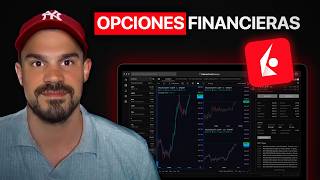
This video is a comprehensive, step-by-step tutorial on trading financial options using the Interactive Brokers platform. The presenter, who uses Interactive Brokers personally, walks viewers through the home screen, wallet, and trading tabs, and demonstrates how to sell puts, sell calls, buy calls, buy puts, and execute a neutral strategy (short strangle). The tutorial is part of a series, with a free course available for beginners and an advanced course for those seeking deeper knowledge.
The video is a comprehensive guide to financial options on Interactive Brokers, one of the most widely used brokers. The presenter uses it personally and provides a link in the description for account creation benefits.
The tutorial is divided into several videos so viewers can watch only what interests them. This video focuses on financial options, home screen, and wallet.
The home tab shows portfolio performance in a graph, comparable to the S&P 500. The goal is to beat the S&P 500. The portfolio tab shows positions in stocks and options, with daily and total gains/losses.
The presenter explains how to sell a put option, emphasizing that understanding this process makes other option trades similar. Steps include searching for the stock, clicking on 'action' to see the chart, and then selecting 'options' to view the options chain.
The presenter advises against trading around earnings or dividend dates unless experienced, as mentioned in the free course.
The options chain shows premiums for different strike prices and dates. Calls are on the left, puts on the right. The bid column is for selling, ask for buying.
After selecting a strike, a dropdown shows bid/ask prices. The spread is the difference between bid and ask. Order types: market (accepts worst price) or limit (set desired price). Example: setting limit at 0.10, which is per share, so 0.10*100 = $10 premium.
If the order isn't accepted, go to the trading tab, orders and transactions, and modify the order (e.g., lower price to 0.09). This results in a $9 premium.
The sold put position shows positive results if the stock price rises, as the seller won't be assigned. The profit is the premium received.
Three options: let the contract expire and open another put sale on Monday; open another put sale immediately (since not assigned); or do a rollover, though not recommended for small premiums due to commissions.
Similar to selling puts: search for stock, click action, select options, go to calls column, and use the bid subcolumn to sell. Set limit order and accept.
Example with a silver ETF for long-term investment. Select a far expiration (464 days), choose a strike with high delta (e.g., 89% or 93%). The break-even point is shown (e.g., 30.31).
Similar to buying calls, but in the puts column and ask subcolumn. Review break-even and Greeks, set price, and send order.
Simultaneously sell a call above current price and a put below current price. The dropdown shows combined bid/ask. Set limit and send order.
The video provides a thorough, practical guide to trading options on Interactive Brokers, covering selling and buying puts and calls, and a neutral strategy. The presenter emphasizes understanding the basics and offers a free course for further learning.
What is the minimum difference between bid and ask for options on a low-priced stock like Ford?
One cent.
03:59
What is the premium for an option contract when the price is $0.10 per share?
$10 (0.10 * 100 shares).
05:01
What are the two main order types for options on Interactive Brokers?
Limit and market.
04:28
What is the break-even price for a call option with strike 30.31?
30.31.
10:08
What is the delta of the call option with strike 19 in the example?
93%.
10:47
Why does the presenter recommend not doing a rollover for small premiums?
Because commissions are a large percentage of the premiums received.
07:31
What is a short strangle strategy?
Simultaneously selling a call above the current price and a put below the current price.
12:14
Avoid Trading Around Events
Important risk management advice: don't trade options around earnings or dividends unless experienced.
02:49Premium Calculation
Clarifies that option premiums are per share, multiplied by 100 for a contract.
05:01Rollover Caution
Highlights that commissions can eat into small premiums, making rollovers inefficient.
07:31Break-Even Point
Shows how to calculate break-even for a call option, essential for evaluating trades.
10:08[00:02] financial options on Interactive Brokers in the most comprehensive way possible, since it is undoubtedly one of the most widely used brokers worldwide and therefore one of the best, besides being the one I use. And by the
[00:16] Interactive Brokers account from scratch, you can do so through the link in the description, as it will give both you and me some advantages. Let's start with the basics, which is looking at the home screen. By the way, this tutorial is
[00:31] divided into several videos so that each person can see what interests them most and not have to watch one hour-long tutorial. If you want to see how to create your account, request permissions, etc., you can view the complete free course. In this video we will
[00:46] focus on financial options, home screen and wallet. Once on the main page, we can see different tabs such as home, portfolio, trading, and some others. But in this video we're going to focus
[01:02] on the three I've mentioned. Right now we're on the home tab and it's great, because if we select performance it will show us the performance of our portfolio in the graph and we can also compare it
[01:16] with the performance of, for example, the SP500, since our goal will always be to beat the SP500. If we select portfolio, it will show us our positions, both in stocks and in our options contracts. And on
[01:32] the right it shows the situation of losses and gains, both daily and total, although we will see that in a moment with each of the types of financial options contracts. And finally, we'll also look at the negotiation tab
[01:47] in a few seconds, since it's better to see what it's used for and not just see it for the sake of seeing it. Selling puts on Interactive Brokers. Let's move directly to how to sell a put option on Interactive Brokers, and
[02:02] this section will be the one I dedicate the most time to , because if you understand this put option sale on Interactive Brokers well, the rest is basically doing the same thing, but selecting different boxes. First of all, go to the
[02:17] search box and look for our action. If it's the first time we're searching for it and it doesn't appear by default, we need to type the company name and select it. We could go directly to options, but I prefer to click on
[02:33] action first so we can see the chart and the stock price. And we can also see important information in the box that says Ford events, where we will see if it will present results or distribute dividends. As I mention in
[02:49] the videos of the free financial options course, on these kinds of financial options course, on these kinds of dates it's best not to do anything, unless of experience. To begin with the options, we simply have to
[03:03] click on the options text and the entire options chain will appear, and as you can see, the different premiums that are paid to us according to the strike price or the stock price and of course also the dates. If we change the
[03:18] dates, the premiums for each strike also change. On the each strike also change. On the left side we would find the calls and on the right side we would find the puts. And in turn, if what we want to sell is
[03:31] both a call and a put, it would be in the bit column. And if what we want is to buy, it would be in the Ask column. Since in this case we want to sell a boot,
[03:43] we select the date and the strike we want. Once this is done, a drop-down menu will open with much more information, the most important being the bit and the Ask, which is the price at which the options are being sold and bought. Given
[03:59] that it is a company with a low cost per share and a lot of buying and selling of options, the difference between these two numbers is barely one cent. And that's the minimum amount that can exist between the bit and the ask. However, this
[04:13] difference can be even greater, and that is called the spread. Next, in the order type, we're going to have two main ones. The first would be limit and the main ones. The first would be limit and the second market. If we choose market, it will
[04:28] send our request to the market and accept it directly. The thing is, she's going to accept it at the worst possible price. If, on the other hand, we choose limit, we can choose what price we want to be assigned. In this case,
[04:44] I will choose 0.10. But of course, this acceptance is not going to be instantaneous. In fact, they might not even accept it, so we'll have to wait until someone is willing to pay 10. By the way, that 0.10 is for each share. As you know, we
[05:01] do option contracts on 100 shares, therefore, 0.10* 100 would be $10 premium. As you can see, they are not accepting it, so now I have two options. Wait for them to accept it, with the
[05:17] possibility that it won't be accepted, or what we can do is modify it and put 0.09. In my case, I'm going to choose to modify it, and that way I'll explain what the negotiation tab is for. Go to the trading tab and choose
[05:34] orders and transactions. We simply place the cursor and click on modify place the cursor and click on modify my order, lowering the price to 0.09. And now they should accept it and give me my $9 bonus.
[05:50] I hope everything is perfectly clear. Now let's see how this puttera sale option is displayed . But before I tell you, the next day the price was 12.13, that is
[06:05] , it had gone up and therefore, if we look at the portfolio, we see our sell position with positive results, both daily and total.
[06:17] This is because the share price has gone up, so I won't be allocated it and I won't have to buy it. Those positive results you 're seeing there are simply what I'm going to take away from my cousin. When
[06:30] the contract is closed, it would simply be the $9 of the total premium. If you have any questions about how selling puts works or anything else, check out the full course, which is free. And here, being a little more advanced, but
[06:46] always to add more value, we would have three options. To put things in context. What you just saw was on a Friday and the market closed after 10 minutes, so we can let the contract expire and
[07:02] open another put sale on Monday. The second option would be that since I'm not going to be assigned one, I can open another sale of putternes right now. The difference between the first and second options is that if we wait until
[07:16] Monday, we'll get paid less for the option we open for the following Friday, because if we open it this Friday, today instead of Monday, we have two extra days, and you know that with options, time is paid for. And
[07:31] thirdly, we can also do a rollover, although with such small premiums I don't recommend it, since the commissions are a large percentage of the premiums we are receiving. If we simply open a contract on Friday for the
[07:46] we simply open a contract on Friday for the following Friday we would receive about 9 instead of the six of doing the first option, since from the nine we have to subtract the
[08:00] contract. By the way, if you don't know what this rollover thing is, there's a video in the free course, you can go and watch it. And at this point I've gone on a bit , but from now on it's going to be exactly the same, so let's move on
[08:14] to selling call options on Interactive Brokers. You already know that you can watch a completely free course on YouTube, but if you like it and want to learn much more, becoming an expert in financial options, I recommend you
[08:28] check out the advanced course where you will learn much more and join the community of smart investors. We enter the company we want in the search engine , in this case Ford, and click on action to see the graph and
[08:42] the price. Then we select options as usual and see the first ones they give us for the different dates and strikes. If you already know what you want, we just need to go to the calls column and since we want to sell, we should go to the
[08:58] since we want to sell, we should go to the Bit subcolumn. We click on the strike that interests us and the window appears where, of the window appears where, of course, we must select limit. If
[09:10] we select, we limit ourselves and they accept us. And just like that, we've already and they accept us. And just like that, we've already won another bonus, buying a call option at Interactive Brokers. To avoid showing the same thing all the time, I'll
[09:24] show you other interesting facts when buying cabbage . In this case, I'm going to . In this case, I'm going to buy a long-term investment, in this case a silver ETF, as I showed you in the lip video. As always, we go
[09:38] to the search engine, enter the name, click action, and then click options. Since it's a lip, it's long-term, so I'm going to select for within 464 days. Then I raise the strike price, since
[09:53] I'm interested in buying the inmoney to have a higher delta, which we'll see right now . But first, in the drop-down menu, other important data also appears, such as the break even, which in this case is
[10:08] 30.31. That means that if, in That means that if, in 464 days when the contract ends, the price of the ETF is above 30.31, I will be in profit. And if it's a
[10:21] fair 30,31, I will neither have won nor lost. Of course, if it was lower, I would have lost money. If we scroll down the drop-down menu, we see other very important data, such as the delta, which in this
[10:35] case is almost 89%, which is exactly what I was looking for. If I wanted a delta to a higher one, what I would do is close that strike and go to the
[10:47] 19 strike. I would go to the dropdown, look at the delta and it would be 93%. If I like that one, then I'll choose the strike price of 19. And from here it's the
[10:59] same as always: limit, we set our price, send the order and it's accepted. If they don't accept it, we go to negotiation, orders and transactions and modify it until they accept it. Remember that for both
[11:15] call and put purchases, we are the ones paying the put purchase premium at Interactive Brokers. And if we want to buy a put option, it's exactly the same. In this case I'm going to do it with Bank of America.
[11:30] We look for the action, we go to options and in the puts column, but in this case since we are buyers in the Ask subcolumn, we look at all the information that the drop-down offers us, break even and Greeks,
[11:45] graphs, etc., we put our price and send the order. Neutral strategy at Interactive Brokers. Finally, I want to show you how to do two options at the same time. I'm going to show you two, but we could do three, four,
[12:01] five, as many as we want. And I'm going to do it with the example of the short strangle, a neutral strategy that I also explained in the free course. For this example, we own 100 shares of the Ford company and I am going to
[12:14] simultaneously sell a call option at a strike price higher than the current price and at the same time sell a put option at a price lower than the current price. If you have any questions about the Strangle Sort, check out this video. As always, we go to
[12:28] Ford's options chain. We selected our put option and our call option. And as you can see in the dropdown it shows us both in the dropdown it shows us both options to the bet and the bit and the ask is the one
[12:41] for both combined. We set our price limit, send the order, and we already have our neutral strategy done in a very simple way. If you want to you can click here. And if you want to see the entire free course, you can
[12:57] the entire free course, you can click here.
⚡ Saved you 0h 12m reading this? Transcribe any YouTube video for free — no signup needed.