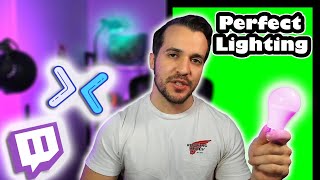

From Bad to Pro Lighting in 45 Seconds
45sImmediate before/after transformation hooks viewers who want better stream quality.
▶ Play Clip"Title is honest; video delivers exactly what it promises—a thorough lighting tutorial for streamers."
This video provides a comprehensive guide to improving stream lighting, covering how to light yourself, a green screen, and your background for a professional look.
Standard ceiling lighting creates poor video quality as the camera struggles to compensate for backlight.
Key light is most important, fill light fills shadows, backlight separates from background.
Lights should be in front and above, angled down to create a drop shadow under the chin for a flattering look.
Ensure lights are not too high to avoid shadows under the eyes; adjust so eyes are visible.
A $150 two-pack of bi-colored lights is recommended; a $20 light with webcam clamp is a budget alternative; or use household lamps with daylight bulbs.
Lighting too close or direct can reflect green onto the subject. Bounce light off walls to avoid this.
Uneven lighting creates different shades of green, causing distortion when chroma keying.
Adjust similarity, smoothness, and key color reduction to improve keying (e.g., similarity 400, smoothness tuned).
Use two lights on either side of the green screen, with white light (not yellow) for best results. Yellow light combined with green creates a different color.
White light has a color temperature of 5000-5500K; yellow (tungsten) is 2000-3000K.
Depth of field separates subject from background. On webcams, use light/dark contrast: brightly light yourself, dimly light select background items.
Colored lights (like tech-in bulbs) add dynamism and help separate subject from background.
Proper lighting for yourself, greenscreen, and background is key to a professional stream. Use a three-point setup with proper positioning, white light for greenscreen, and contrast or colored lights for the background.
What are the three lights in a standard lighting setup?
Key light, fill light, and backlight.
01:13
Why should lights be positioned above and angled down?
To create a drop shadow under the chin, which reduces chin fat appearance.
01:30
What is 'raccoon eyes' and how do you avoid it?
Raccoon eyes are shadows under the eyes when lights are too high. Avoid by ensuring lights can see your eyes.
02:03
What is the recommended budget for a two-pack of bi-colored lights?
About $150.
02:46
What is the problem with lighting a greenscreen too directly?
It reflects green onto the subject, causing green spill.
04:26
How do you fix green spill on a greenscreen?
Bounce the light off walls or ceiling instead of pointing directly at the greenscreen.
04:54
What are the three settings to adjust in OBS chroma key?
Similarity, smoothness, and key color reduction.
05:45
Why should you use white light on a greenscreen instead of yellow light?
Yellow light mixed with green creates a different color, making it harder to chroma key.
07:12
What color temperature indicates white light?
5000-5500K.
07:30
How can you create background separation with webcam?
Light yourself brightly and dimly light select background items to create contrast.
09:14
Three-point lighting explained
The foundation of professional stream lighting.
01:13Common greenscreen mistake
Highlights a frequent error that ruins keying.
04:26Importance of consistent greenscreen lighting
Uneven lighting distorts chroma key, key point often overlooked.
05:11Using contrast for background separation
A practical technique for webcam users without depth of field.
09:14[00:00] Does your stream lighting look like this, but you want it to look like this? By the end of this video, you're going to understand how to light yourself, your green screen, and your background, and it's going to look pelagood. Just a quick shout out and thank you to anyone
[00:16] who reached out to me about my last video. I've been getting lots of positive feedback and it makes me want to make even more videos, so thank you, but let's start with the lighting. So at the beginning of the video, I showed you what my room would look like if I just used
[00:30] my ceiling lamp. The standard lighting you get in your house just an overhead light that is shining behind you. Your camera almost looks like it's having a delay because it's trying to compensate so hard for the light that is not entering the camera. I'm going to throw a few timestamps up here
[00:45] just so you don't have to watch the entire video if you don't want to. If you just use a green screen and you're never going to have a background behind you, watch the first two. If you're the exact opposite and you do not use a green screen and you will never use a green screen, watch one and watch
[01:01] three. If you want to learn some more advanced stuff about background lighting, watch all three. So there are three lights in a standard lighting setup. Your key light, your fill light, and your back
[01:13] light. The key light is the most important of the three and it's going to do most of the lighting on your face. This is what my setup looks like without my key light. Your fill light does exactly that. It fills the rest of the space on your face that your key light isn't going to hit. This is what my
[01:30] setup looks like without my fill light. You want your key light and your fill light to be in front of you looking down at you. The reason you want them to be looking down at you is because you get an effect called a drop shadow. A drop shadow is basically when your lights do not accentuate your chin fat
[01:46] and it makes you look a lot better under light. You can see my drop shadow right here under my chin. If I move to either side, you can see that it follows me wherever I go. Now you want your lights to be above you but you don't want them to be above you so much that you end up getting raccoon eyes.
[02:03] I'll show you what raccoon eyes looks like so if I come close to the camera and I look down you can sort of see the raccoon eyes forming around my eyes. The way to remedy that is to make sure your lights are always able to see your eyes and your face so adjust them accordingly. I know it might
[02:17] take a while because everyone's space is different but make sure you're always adjusting as you need to. I actually don't have a backlight straight behind me. I actually just use this purple lamp on my side as my back lamp. If you look at the right side of my body, I've actually got a little bit of a purple
[02:32] glow from my lamp bouncing off of the wall and it really does separate you from the background. This is what my setup looks like without my purple backlight. Now depending on your situation, you might either have a budget or not have a budget and I'll show you a few different options
[02:46] depending on what your budget is. So I got these newer lights off of Amazon. They're fantastic, they're bi-colored which means you can either make them yellow light or white light. A two pack of these costs about a hundred and fifty dollars but it will absolutely change your streaming setup and
[03:01] it's totally worth it. Now the alternative if you do not have a budget, I'll show you right here. That's my Brio webcam. It's on a clamp with the light that it came with. There's the light there.
[03:14] That's my fill light and that only cost about 20 dollars. So if you're on a budget, I would definitely suggest this light. It is also bi-colored and for 20 bucks to have a stand for your webcam and the
[03:27] light that clamps to either your monitor or your monitor stand or your desk, it is absolutely at a great price point. If you can't afford anything right now, just find a couple lamps in your house,
[03:40] put some white daylight bulbs in them and place them on your desk and make sure they are giving you enough light without directly hitting you. When I say directly hitting you, make sure you cannot see the light bulb. So have a lamp shade on that light. Okay Google, make the computer lamp white.
[04:10] So this is what my green screen looks like when it's properly lit and you can put yourself into a background just like that and you can see the edges all over my body are very consistent. There's no green coming in and I'll show you how you can achieve this and how you can avoid stuff like this.
[04:26] So here's a common mistake when you're lighting your green screen. You put your light source too close to the green screen or too direct on the green screen. The effect of that is it reflects the green from the green screen back on to you. So you can see the side of my face here is actually
[04:42] kind of green and so is my arm. The way to remedy that is to bounce the light off of walls or different sources that you have. Bouncing a light off of a white wall or off your ceiling will actually
[04:54] remedy this by not directing a light directly into your green screen. So this is what my green screen looks like when it's lit by just my residual light from my key light, my fill light and then I have my ceiling lamp on as well. And this is a result when you chroma key it. You see the distortion on this
[05:11] side and you see the distortion on this side. This is what happens when you don't have consistent light hitting your green screen and the green isn't the same color of green all the way around. Now you can fix this a little bit and I'll show you. So here we are in OBS. If you want to go find your green screen
[05:28] settings go to your webcam source. So webcam 2 for me right click go to filters and then you want to go on the left side here there's a plus symbol hit the plus symbol go to filter type and find
[05:45] chroma key it's right there. I already have one up so we're going to use the one I have up already. So what you want to adjust first is the similarity it's around 400 right now you just want to adjust it slightly because adjusting it too much will distort your image then next you want to go to smoothness
[06:02] again adjust this accordingly but not too much you're starting to see that how it distorts and then you want to do key color reduction just a little bit. Okay that looks not bad for a non light green screen.
[06:14] So this is the result I got without the lighting on my green screen and adjusting the settings properly. I was able to fix a little bit of the green issue but you still see some distortion around the edges as well as the corners it looks really sloppy. The best way to fix this is to get
[06:30] the proper lighting and to light it accordingly. So the way to remedy this is to use two lights on either side of your green screen in order to light it properly. I use one of my newer LEDs off of its stand
[06:44] just lying on the floor as well as my desk lamp directed at the wall so it bounces off into the green screen. And this is what happens when I turn those lights on a super seamless green screen that you
[06:56] can use to make your stream look very professional. Now when you light your green screen you do not want to use yellow light you want to use white light. The reason for this is because yellow light combined with green actually makes a different color other than green it makes it more yellow and when that happens
[07:12] you're trying to key out a different color than the actual green that your program wants to key out. So you end up with a more distorted image you want it to be consistent and you want the light to be white. Now the way you can distinguish whether a light bulb is white light or tungsten light
[07:30] is if you look on the back of it if it is closer to 5,500 or 5,000 that is a white light bulb and if you see the number 2000 3000 that is a yellow tungsten bulb. If you're on a budget again go to a goodwill
[07:46] store find a couple cheap lamps for a few dollars get some white lights and throw them beside your green screen it will make it look a hundred times better and it will make you look a lot more
[07:58] professional on stream. Okay so let's talk about lighting your background have you ever seen a camera that has made a blurry effect of the background while the subject stays clear that's called depth of field and it's manipulating the different fields of view that you see through the camera. Now making
[08:16] your background blurry through depth of field is the best way to separate yourself from your background. So if you're on a DSLR camera on your stream you can get that effect pretty easily.
[08:28] But if you're using a webcam I'll show you how you can manipulate your background in order to make it look like it's on a different plane. So this is what my background looks like with all my lights on and this is what it looks like when I have no lights on in the background. So I still look
[08:44] pretty good. But the background looks awful now it looks so bad. What's happening now is my lights that are lighting me are actually lighting the background now too except not very well and it looks
[08:58] really bad. So there's a few ways you can remedy this. On a budget use daylight I'll show you what it looks like with my windows open. I'm not getting a lot of separation from my background but at least it looks a lot better now. Now the best way to separate yourself from your background is to manipulate
[09:14] light and dark. So you can see my background has three lights in it but it's still pretty dark at least a lot darker than I am right now. So what you need to do is make sure there is a lot of light on yourself and then just a small amount of light in the background and make sure the light is only
[09:31] fixed on certain aspects. So I'm focusing on the cat pillow and then I'm focusing on making the background purple. By doing this I separate myself completely from my background and the focus
[09:43] remains on me because I'm lit up the most out of anything in my room. Colored LED lights are the easiest way to make a background look dynamic. So these are the light bulbs that I use they are called
[09:55] tech-in light bulbs. They come in a pack of two or a pack of four. I would suggest the pack of four I'll leave a link in the description. You can make them both white and tungsten light. They are super bright and you can make them any color you want as you can see in the background here. So I'll turn
[10:09] them on one at a time just so you see what it looks like when I start to activate them. So this is just my blue side lamp on. You can start to see that my background is getting a little bit more dynamic and it's starting to look a little bit better. Now this is what it looks like with the side lamp
[10:23] and the kitty lamp on. Now this is what happens when you turn on my computer lamp. When you flood your background with a color light it changes the entire dynamic of your background. It is the easiest way to separate you from your background without it being super dark and still looking really good.
[10:40] I hope this information helps you guys. Like, comment, tell me about your stream, tell me if it's been helping you and subscribe so you can see the next video. All right, that's it, but
⚡ Saved you 0h 10m reading this? Transcribe any YouTube video for free — no signup needed.