The Tool That Gives Vtubers Their Robot Voice
41sReveals the exact software behind a famous voice effect, satisfying curiosity.
▶ Play Clip"Delivers a real, repeatable setup guide despite the flashy title — just a short intro and subscribe plug."
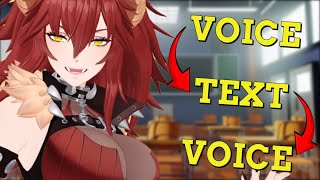
This video is a step-by-step tutorial for VTubers and streamers who want to use a voice-to-text-to-speech setup to sound like popular VTuber Zentreya. The creator demonstrates how to install and configure TTS Voice Wizard, route audio through a virtual cable, and connect it to streaming apps like vTube Studio and OBS.
The tutorial shows how to use voice-to-text-to-speech to talk like Zentreya, with all tool links in the description.
Go to TTSWizard.com, download TTS Voice Wizard, copy it to the desktop, and extract the archive.
Open the extracted TTS Voice Wizard folder and launch the app. If Windows SmartScreen appears, click More info and Run anyway; install .NET Framework if prompted.
In TTS Voice Wizard's Settings, set the input device to your microphone, first output device to your headset, and change speech-to-text from Whisper to System Speech if needed.
In the Text to Speech tab, delete any default text and pick a voice. The video uses TikTok Jesse female, but many other voices are available.
Click the enable speech-to-text-to-speech button, press play, and speak clearly and slowly so the app can accurately detect your words.
Download and install VB-CABLE from vb-audio.com. Then in TTS Voice Wizard, set the second output device to Cable Input and select Use TTS Voice Wizard.
In vTube Studio, set the microphone to Cable Output. In OBS, change mic/auxiliary audio to the cable output audio and click apply.
The creator reminds viewers of the streaming schedule and demonstrates the final result using a Ryan Reynolds-style TTS voice.
By pairing TTS Voice Wizard with a virtual audio cable, you can route your spoken words through a chosen TTS voice in real time, and with simple settings changes in vTube Studio and OBS, you can sound just like Zentreya during your streams.
Which website do you use to download TTS Voice Wizard?
TTSWizard.com
00:18
How do you handle the Windows SmartScreen warning when launching TTS Voice Wizard?
Click More info, then Run anyway.
00:44
What setting should you change if the speech-to-text recognition doesn't work?
Change the speech-to-text setting from Whisper to System Speech.
01:11
What should you do in the Text to Speech tab before selecting a voice?
Delete any existing text or writing that is already there.
01:25
What is the purpose of installing a virtual audio cable like VB-CABLE?
It routes the TTS audio from TTS Voice Wizard to other applications as a virtual microphone input.
02:41
In TTS Voice Wizard, what should the Second output device be set to?
Cable Input (the virtual cable).
02:54
In OBS, where do you change the audio input to use the virtual cable?
In the Audio tab, under mic/auxiliary audio, select Cable Output and click Apply and OK.
03:19
Zentreya-style TTS is achievable with free tools
It reveals that a highly entertaining streamer effect can be created with free software and no coding.
00:03Key audio settings for accuracy
Selecting the correct microphone and output devices, plus switching the speech engine, is the foundation for reliable recognition.
00:57Speaking clearly improves detection
The creator emphasizes that slow, clear speech is essential for the TTS system to produce the right output.
01:37Virtual cable bridges TTS to streaming apps
VB-CABLE acts as a virtual microphone, enabling the TTS voice to be used in OBS and vTube Studio seamlessly.
02:41Routing Cable Output to apps completes the chain
The final configuration steps in vTube Studio and OBS are what make the effect work live on stream.
03:07[00:03] has been sought out by so many vtubers so today I'm going to show you on how to voice to text text to speech just like zenta now try to say that five times in a row really really fast links for everything that's used in this video is
[00:18] in the description down below the first website we want to go to is TTS wizard.com and then click on download TTS voice wizard once we're done downloading let's copy to our desktop and then extract the file with our file
[00:31] downloaded we just want to right click on it and then we want to click extract all then we're just going to click on extract then what we're going to do is just double click on the folder we will scroll down until we find TTS voice
[00:44] Wizard and then we'll double click to open Windows might pop up saying Windows protect your PC just click on more info and then click run anyway you might also get a pop up that says you need to install NET Framework it's okay just
[00:57] download and install Net Framework with TTS voice wizard open first thing we want to do is head over to settings we want to scroll down just a little bit to audio we are going to change our input device to our actual microphone and our
[01:11] device to our actual microphone and our first output device to our headset you might also have to change this setting the speech to text from whisper to system speech to make it work now what we're going to do is move away from the
[01:25] settings tab and go to the text to speech tab if there is any writing up here we want to delete it and just get rid of it next thing we want to do is go the one we want I'm going to stick to Tik Tok I'm going to stick to Jesse
[01:37] female but the options that you can choose from is absolutely endless to enable the speech to text to speech all we got to do is click on this button right here and then we got to click on play we'll let the program load a little
[01:50] bit and then we'll start our speaking we got to make sure we talk very clear into the application so it detects what we're saying correctly so let's give it a
[02:09] hello hello YouTube hello you Tobe hello there hello there I'm Deadpool I'm Deadpool as you can see you
[02:26] might have to talk a little bit slowly and very clearly but once you get used to it you'll do just fine in my testing I also did notice some voices actually pick up and understand what you're saying a lot better than others great
[02:41] we're almost done but now we got to install a virtual cable so we'll head install a virtual cable so we'll head over to vb- audio.com SLC and then click on the download and install it on TTS voice wizard all we
[02:55] need to do is head to the settings tab now go to Second output device virtual cable input select here and go to cable input and then select use TTS voice
[03:07] wizard wise we are now good to go applications like vtube Studio depending how you have your tracking set up all you got to do is double click go to your settings and then scroll down a little bit until you get to microphone settings
[03:19] click on use microphone change your microphone to Cable output and then you're good to go in applications like OBS what we want to do is go to the audio Tab and then under the mic auxiliary audio change it to our cable
[03:34] output audio virtual cable and then click apply and okay and now I sound like a very smart man just like that you are now using voice to text text to
[03:47] speech just like Zena again I'm your vtuber Senpai I stream here on YouTube every Friday and try to upload here every Wednesday so come on by say hi and
[03:59] well I'll catch you on the next one bye well hello there I'm Ryan Reynolds your new vtu senpai
⚡ Saved you 0h 04m reading this? Transcribe any YouTube video for free — no signup needed.