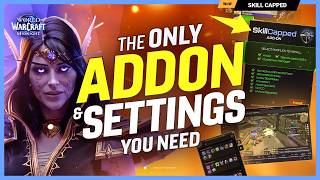

Your UI is BROKEN in Midnight
45sHigh engagement from frustrated players whose add-ons broke, with a promise of a solution.
▶ Play Clip"The video title accurately reflects the content, delivering a detailed guide on optimal settings and add-ons for PvP in Midnight."
World of Warcraft's Midnight expansion broke nearly all popular PvP add-ons, requiring a complete rebuild of the user interface. This guide provides both a manual step-by-step setup and a one-click solution using Skill-Capped's pre-configured add-on package. It covers essential gameplay settings, UI positioning, and key add-ons like S Arena Reloaded and MiniCC.
Blizzard's new API in Midnight broke major PvP add-ons including OmniBar, Big Debuffs, WeakAuras packs, Gladius, and OmniCD.
Skill-Capped spent months rebuilding and testing a new add-on package that replaces multiple broken add-ons with a single, optimized setup.
Arena Coach is a new tool that automatically records arena games and analyzes mistakes, missed opportunities, and wasted cooldowns.
Enable sticky targeting to avoid accidentally losing your target when clicking the ground, especially during totem or pet selection.
Set camera to 'never adjust' to allow free camera movement independent of character direction, improving awareness.
Enable status text to both (percentage and health number) and replace character portraits with class icons for faster identification.
Enable display power bar, class colors, and debuffs. Disable bigger role debuffs and dispellable debuff indicator to reduce clutter.
Enable personal resource display (required for nameplate resources), target of target, loss of control alerts, and self-cast set to auto.
Enable cooldown manager, external defensives, and diminishing returns tracking (not only castable by me) in the new Midnight section.
Enable always show nameplates and stack nameplates. Set enemy buffs/debuffs to only show personal debuffs, as MiniCC will handle the rest.
Replace broken Gladius with S Arena Reloaded, customized to look like Gladius with mirrored frames, class icons, and class-colored health bars.
MiniCC replaces OmniBar, OmniCD, OmniAuras, and WeakAuras packs. It handles debuffs on raid frames, buffs/debuffs on nameplates, a healer-in-CC alert, and an enemy offensive cooldown tracker.
Better Blitz Plates optimizes nameplate styling, size, and position. It adds class-color health bars, arena ID display, and toggles friendly nameplates automatically in PvP.
The Blizzard cooldown manager replaces WeakAuras for tracking personal buffs, procs, and cooldowns. Skill-Capped provides pre-configured profiles for every class and spec.
The Skill-Capped add-on enables smart tab targeting (enemy players in arena, mobs outside), error spam hiding, and a queue pop notification sound.
The Skill-Capped add-on package provides a complete, one-click solution for restoring and optimizing a PvP UI in Midnight, replacing multiple broken add-ons with integrated alternatives. For a full setup, premium members also gain access to arena coaching and class-specific profiles.
Arena Coach
tool
Skill-Capped
service
S Arena Reloaded
tool
MiniCC
tool
Better Blitz Plates
tool
Better Blizzard Frames
tool
Frame Sort
tool
Health Bar Color
tool
Frame Color
tool
Details
tool
Battleground Enemies
tool
Mini Overshields
tool
Better Character Panel
tool
Deja Character Stats
tool
True Stat Values
tool
Talent Loadout EX
tool
Talent Tree Tweaks
tool
Better Bags
tool
Teleport Menu
tool
World Quest Tracker
tool
Handy Notes for Midnight
tool
Bug Grabber
tool
Bug Stack
tool
Battleground Win Conditions
tool
Vers
person
Which add-on does the guide recommend to replace Gladius for arena frames?
S Arena Reloaded.
10:32
What is the purpose of enabling 'Sticky Targeting'?
To prevent losing your target if you accidentally left-click the ground.
03:35
What setting must be enabled for the resource display on nameplates to work?
Personal Resource Display must be enabled in Combat settings.
05:04
What does MiniCC replace in terms of add-ons?
It replaces OmniBar, OmniCD, OmniAuras, and WeakAuras packs.
11:57
What is the name of the new automatic coaching tool introduced in the video?
Arena Coach.
02:30
What is the recommended setting for enemy nameplate buffs and debuffs to allow MiniCC to handle them?
Set both enemy NPC and enemy player buffs and debuffs to 'Only Show Personal Debuffs'.
06:55
What is the purpose of the 'Smart Tab Targeting' feature?
It makes Tab target the nearest enemy player in arena and mobs outside of arena.
19:14
What does the 'Frame Sort' add-on do?
It automatically sorts party frames so your character is always in the same position (player on bottom recommended).
21:08
What is the recommended position for the Details damage meter window?
Bottom left, sized to match the chat window.
21:41
What does the 'Better Blizzard Frames' add-on do?
It cleans up the UI by hiding default arena frames, removing red lines on loss of control effects, adding a combat indicator, and hiding unnecessary elements like realm names.
20:22
Complete Rebuild of Add-on Stack
Explains that Skill-Capped rebuilt the entire PvP add-on stack from the ground up, consolidating four separate add-ons into one package.
00:35Introduction of Arena Coach
Arena Coach automatically records and analyzes arena matches, identifying mistakes like unused defensives and missed interrupts, which is a novel tool for self-improvement.
02:30Sticky Targeting Prevents Accidental Target Loss
This simple setting is crucial for maintaining target lock during fights, especially when clicking totems or pets.
03:35Personal Resource Display Enables Nameplate Resources
Enabling PvP resource display is a prerequisite for showing resources (e.g., combo points) on nameplates via Better Blitz Plates.
05:04UI Layout Optimization for Peripheral Vision
The guide emphasizes moving all essential information (health, party, focus) into the player's peripheral vision to keep focus on the center of the screen where action occurs.
09:18[00:00] If you've logged into Midnight and your
[00:01] UI looks like a disaster, you're not
[00:03] alone. Blizzard completely overhauled
[00:06] how add-ons work in this expansion and
[00:08] it broke everything. OmniBar, gone. Big
[00:10] debuffs, gone. The WeakAuras packs you
[00:13] relied on, gone. Gladius, no longer
[00:15] maintained. OmniCD, dead. The entire PvP
[00:18] add-on stack that players have been
[00:19] using for years just stopped working.
[00:23] And if you've been searching online
[00:24] trying to figure out what to use now,
[00:26] good luck. Half the guides are outdated,
[00:28] the Reddit threads are full of
[00:29] conflicting advice, and every other post
[00:31] is just someone asking, "Is there an
[00:33] OmniBar replacement yet?" Well, we've
[00:35] spent the last few months rebuilding
[00:36] everything from the ground up, testing,
[00:38] configuring, and fine-tuning until every
[00:40] add-on works together perfectly for
[00:42] Midnight. And we didn't just replace
[00:43] what broke, we made it better. What used
[00:46] to take four separate add-ons to pull
[00:47] off now takes one. And with just the
[00:50] click of a button, you can go from this
[00:51] Midnight mess to this, a completely
[00:54] optimized PvP UI. Every add-on
[00:56] installed, configured, and ready to go.
[00:59] Don't worry though, if you prefer to do
[01:00] it all manually, this guide has you
[01:02] covered. We'll be walking you through
[01:03] every add-on and every setting from the
[01:05] ground up. But, if you don't want to
[01:07] lock in like Zaryu and spend hours
[01:10] setting everything up, all you have to
[01:12] do is head over to skill-capped.com,
[01:14] grab our add-on package, and follow the
[01:16] instructions. After logging in, you'll
[01:17] be met by this window letting you pick
[01:19] exactly what you want us to configure.
[01:21] And with everything installed, this is
[01:22] what your UI will look like, clean,
[01:24] balanced, and optimized for PvP with
[01:27] every add-on automatically configured
[01:29] for you. And if you're a Skill-Capped
[01:30] member, well, you'll get access to even
[01:32] more, including our cooldown manager
[01:34] profiles that configure your buffs and
[01:36] procs automatically for every class and
[01:38] spec, ready to go the moment you log on
[01:40] to any character. Alongside our Arc UI
[01:43] profile that completely overhauls the
[01:45] Blizzard cooldown manager, splitting
[01:46] your offensives and defensives into
[01:48] separate groups. You also get premium
[01:50] talent import strings for every spec and
[01:52] even an in-game bis list, both of which
[01:54] are constantly kept up to date as the
[01:55] season progresses. Oh, and we've also
[01:58] built something that might change the
[01:59] way you improve at PvP entirely, but
[02:02] more on that in a moment. So, whether
[02:03] you're coming back for midnight and have
[02:05] no idea what add-ons to use, or you just
[02:07] want to skip hours of setup and get
[02:08] straight into arena, this guide has you
[02:10] covered. Let's get into it. First
[02:12] though, it's about time we unveil
[02:13] something we've been quietly working on
[02:15] in the background since the end of 2024.
[02:18] For years, the only way to figure out
[02:19] what went wrong in an arena game was to
[02:21] either record your gameplay and manually
[02:23] review it, or just hope you remembered
[02:24] what happened. And let's be honest, most
[02:26] of us just queue the next game and make
[02:28] the same mistakes over and over again.
[02:30] Well, we built Arena Coach to fix that.
[02:32] Arena Coach automatically records your
[02:34] arena games and then analyzes everything
[02:36] that happened, every mistake, every
[02:37] missed opportunity, all of it. Did you
[02:40] die with major defensives still
[02:41] available? It'll show you. Did your
[02:43] teammate waste their CC? You'll see it.
[02:45] Missed an interrupt on a crucial cast?
[02:47] It's right there. Used offensive
[02:49] cooldowns that didn't land your damage?
[02:51] That, too. It's basically an automatic
[02:53] coaching tool that watches every game
[02:54] you play and tells you exactly what you
[02:56] need to work on. You can even find
[02:58] insights on arenacoach.gg that you can't
[03:00] find anywhere else. Your hardest
[03:02] match-ups, your most common mistakes,
[03:04] and your DPS and HPS score for your
[03:06] spec. And if you're a Skill-capped
[03:07] member, the same premium code you use
[03:09] for our add-on package unlocks unlimited
[03:11] Arena Coach shuffle and 3v3 analysis.
[03:14] We'll have a lot more to show you on
[03:15] Arena Coach soon, but for now, let's
[03:17] build your UI from the ground up. Before
[03:20] we get into add-ons, let's quickly run
[03:21] through some important gameplay
[03:22] settings. Now, if you're using our
[03:24] add-on package, this is all handled for
[03:26] you, but it's worth knowing what's going
[03:27] on under the hood so you understand why
[03:29] these settings matter. Start by pressing
[03:31] escape and opening up options. Under
[03:33] controls, make sure you've got sticky
[03:35] targeting enabled. Without this, if you
[03:37] accidentally left click the ground,
[03:38] you'll lose your target. And this
[03:39] happens more often than you think,
[03:41] especially when you're trying to click
[03:42] on things like totems or pets in the
[03:44] middle of a match. Then, make sure your
[03:45] camera is set to never adjust camera.
[03:48] Without this, you can't move in one
[03:49] direction while looking in another,
[03:50] which massively limits your awareness.
[03:52] You want to be able to look around
[03:53] freely while your character is moving.
[03:55] Moving into interface, we suggest
[03:57] setting status text to both. You'll get
[03:59] the percentage, which is great for
[04:01] knowing when execute abilities are
[04:02] usable, and the actual health number
[04:04] helps you spot under geared players
[04:06] early in the season. We then suggest
[04:07] enabling replace player frame portraits
[04:10] and replace my frame portrait. This
[04:12] swaps the character portraits on your
[04:13] unit frames for class icons, making it
[04:15] faster to see exactly what class you're
[04:17] targeting or have on focus. You'll then
[04:19] want to scroll down to your raid frames
[04:21] settings and configure them just like
[04:22] this. The standout settings here are
[04:24] display power bar, so you can see how
[04:26] much mana your healer has, class colors,
[04:28] which is mandatory to know which class
[04:30] is which, display pets, so healers can
[04:32] heal their teammates pets, and show
[04:34] debuffs. We also highly recommend
[04:36] disabling bigger role debuffs and the
[04:38] dispellable debuff indicator as this
[04:40] adds unnecessary icons and an annoying
[04:42] glow, which makes the raid frames less
[04:44] readable at the worst possible time. You
[04:46] should also disable center big
[04:48] defensives as this will be taken care of
[04:50] by an add-on that we'll talk about a
[04:51] little later on. Next, in action bars,
[04:54] make sure you've got show numbers for
[04:56] cooldowns enabled. With Omni CC gone in
[04:58] Midnight, this is how you'll see
[04:59] cooldown timers on your abilities.
[05:01] Moving into combat, you'll want to make
[05:02] sure that personal resource display is
[05:04] enabled. Now, our UI doesn't actually
[05:06] use the personal resource health bar
[05:08] under the character. However, this
[05:09] setting needs to be enabled in order to
[05:11] have resources enabled on name plates,
[05:13] which we'll get to later. You'll also
[05:15] want to make sure target of target is
[05:16] enabled. This lets you see who the enemy
[05:18] team is targeting, which is super useful
[05:20] for knowing which player on your team is
[05:22] going to be taking damage. For example,
[05:23] as a DPS, if both you and your DPS
[05:25] teammate are under pressure, you can
[05:27] decide whether or not to trade a
[05:28] defensive based on who the enemy team is
[05:30] currently targeting. And as a healer, if
[05:32] both you and your DPS are dropping low,
[05:34] you can prioritize healing the player
[05:35] that the enemy team is targeting. You
[05:37] should then make sure that loss of
[05:38] control alerts are enabled as playing
[05:40] without this is questionable at best.
[05:42] And finally, we also recommend having
[05:44] self cast set to auto for convenience as
[05:47] without this you need macros that
[05:48] specifically target yourself whenever
[05:50] attempting to cast buffs such as
[05:52] Blessing of Freedom or Power Word:
[05:54] Shield. Next, we have a new section in
[05:55] Midnight, which is the gameplay
[05:57] enhancements. Here, you'll want to make
[05:58] sure you enable the cooldown manager, as
[06:00] well as enabling external defensives. We
[06:02] won't be configuring these just yet, but
[06:04] make sure it's enabled for now. You
[06:06] should also enable diminishing returns
[06:08] tracking, but make sure you don't enable
[06:10] only castable by me, as you want to see
[06:13] DRs from all players, not just your own.
[06:15] Keep in mind, you won't need to enable
[06:17] the damage meter, as we'll be using
[06:19] Details. Next, head into nameplates,
[06:21] where we suggest configuring everything
[06:23] just like this. The key decisions are
[06:25] enabling always show nameplates and
[06:27] enemy unit nameplate, while disabling
[06:29] everything else here, as we'll be using
[06:30] Better Bliss Plates later in this guide
[06:32] to take care of nameplate visibility.
[06:34] You'll also want to ensure stack
[06:35] nameplates is enabled for enemy units,
[06:37] as it's much easier to click on specific
[06:39] targets when they're not overlapping.
[06:41] Something that's vital for accurate
[06:42] target selection in arena, especially if
[06:44] you're trying to quickly kill a totem or
[06:46] target someone without relying on
[06:47] targeting keybinds. We also prefer the
[06:50] modern style, but honestly, this is just
[06:52] down to personal taste. However, the
[06:53] critical setting you'll absolutely need
[06:55] to do here is setting both enemy NPC and
[06:57] enemy player buffs and debuffs to both
[07:00] only show personal debuffs. This is
[07:02] important because we'll be using an
[07:03] add-on called Mini CC to handle the rest
[07:05] of your buff and debuff tracking on
[07:07] nameplates, letting us perfectly size
[07:09] and position everything, rather than
[07:11] relying on Blizzard's default. We also
[07:13] recommend setting friendly player buffs
[07:14] and debuffs to none, and ensuring that
[07:16] none of the nameplates are simplified,
[07:18] as this will be handled by Better Bliss
[07:19] Plates. Okay, so that covers all the
[07:21] critical settings in the gameplay
[07:22] section. The only thing you'll also want
[07:24] to do is make sure that in graphics, you
[07:26] have projected textures set to enabled
[07:28] with your spell density at a reasonable
[07:30] amount, just to make it easier to see
[07:32] effects like Ring of Frost and Smoke
[07:33] Bomb. And one quick tip on audio, make
[07:35] sure you've lowered music and dialogue
[07:37] while turning up effects and ambiance.
[07:40] Effects can help you hear things like
[07:41] when you faked an interrupt and ambience
[07:43] lets you hear rogues nearby in stealth.
[07:45] Trust us, your ears are one of your best
[07:47] add-ons. With your settings sorted, the
[07:50] next step is positioning the core
[07:51] elements of your UI using edit mode. By
[07:53] default, everything is spread across the
[07:55] screen. Your unit frames are up in the
[07:57] top left, your party frames are off to
[07:59] the side, and all the important
[08:00] information you need during a fight is
[08:01] scattered in every direction. The
[08:03] problem is that in arena, most of the
[08:05] action happens directly in front of you.
[08:07] If you're constantly looking at the top
[08:09] left corner to check your health or the
[08:10] far left to see your party frames,
[08:12] you're not watching the game. You need
[08:14] all that information within your
[08:15] peripheral vision, not buried in the
[08:17] corners of your screen. This is why our
[08:19] pre-configured edit mode layout pulls
[08:21] everything in. We've moved your unit and
[08:23] target frames closer to the center,
[08:24] converted your party frames to raid
[08:26] style, and positioned them below, and
[08:28] placed your focus frame right alongside
[08:30] them. The goal is simple, all essential
[08:32] information within your peripheral view,
[08:34] and the center of your screen
[08:36] uncluttered so that you can actually see
[08:37] what's happening. To import our layout,
[08:39] just install the SE add-on package,
[08:42] check the edit mode box during setup,
[08:44] and it's done for you automatically. If
[08:46] you're going the manual route though, we
[08:47] suggest organizing your UI exactly as
[08:49] you see on screen before tweaking a few
[08:51] important settings to make sure
[08:52] everything is configured properly. Start
[08:54] by changing your party frames to be the
[08:56] raid style party frames you see here,
[08:58] while making sure the width and height
[09:00] are maxed out. You'll also want to
[09:01] ensure you've got sort by group enabled
[09:03] so that the frame sort add-on works
[09:05] properly, another add-on we'll discuss
[09:07] later. We also suggest sticking with the
[09:09] legacy template and getting the icon
[09:11] size maxed out too for the best
[09:12] visibility of everything that's going
[09:14] on. For your action bars, we stack bars
[09:16] two and three on top of action bar one
[09:18] while ensuring they remain pinned
[09:20] together, which means your UI will
[09:22] dynamically adjust when things like the
[09:23] talking head or vehicle bars appear.
[09:26] This way you won't run into situations
[09:27] where your cast bar suddenly overlaps
[09:29] with something. The only other critical
[09:31] change that we highly suggest you do is
[09:33] setting both utility cooldowns and
[09:34] essential cooldowns to hidden while
[09:36] configuring your tracked buffs just like
[09:38] this with a vertical orientation. Set it
[09:40] to always visible while enabling hide
[09:42] when inactive. Doing so will give you
[09:44] the cleanest UI ensuring that your procs
[09:46] are only visible when they're up. This
[09:48] is exactly how we recommend using the
[09:49] cooldown manager to avoid clutter while
[09:51] still maximizing awareness of important
[09:53] procs when they're active. We also
[09:55] suggest positioning external defensives
[09:57] near your character to make it instantly
[09:58] obvious the moment a defensive has been
[10:00] used on you. And lastly, don't worry
[10:02] about your arena frames as we'll be
[10:04] using an add-on for them in just a
[10:06] second. So, just to show you the
[10:07] difference, this is the default layout
[10:09] we started with and this is where we're
[10:11] at now. Everything you need right where
[10:13] you need it. Now, if you've been playing
[10:15] PvP for any length of time, you'll know
[10:17] that arena frame add-ons are
[10:18] non-negotiable. For years, the standard
[10:20] was Gladius and then Big Meks's custom
[10:22] version became the go-to. Well, Gladius
[10:24] is no longer maintained in Midnight and
[10:26] this is one of those add-on apocalypse
[10:28] casualties that had a lot of people
[10:30] worried, but don't panic because we've
[10:32] moved to S Arena Reloaded and we've
[10:35] customized it to look and feel almost
[10:37] identical to the Gladius setup many of
[10:38] you are already used to. Enlarged cast
[10:40] bars so you can actually see and react
[10:42] to casts, pixel as close as we could get
[10:44] it perfect icons, the whole thing. S
[10:46] Arena is included and pre-configured in
[10:48] our free add-on package. Install it and
[10:50] it's ready to go. Position to sit
[10:52] parallel with your party frames so you
[10:53] can see everything without darting your
[10:55] eyes around your screen. If you're doing
[10:56] this manually, you can just go with one
[10:58] of the preset layouts that suit your
[11:00] taste or you can mess around with the
[11:01] individual settings in each section to
[11:03] get something that works for you.
[11:04] However, the settings we definitely
[11:06] suggest you go with are enabling
[11:08] mirrored frames, replacing the class
[11:10] icon, making sure class stacking only is
[11:12] enabled, hiding the shield on
[11:14] uninterruptible cast to clean things up,
[11:16] and making sure class colored health
[11:18] bars is enabled.
[11:20] Our next add-on of choice is quite an
[11:21] ambitious one. See, in previous
[11:23] expansions, if you wanted proper buff
[11:25] and debuff tracking on your frames,
[11:27] enemy cooldown awareness, a healer and
[11:29] CC alert, and interrupt monitoring, you
[11:31] needed to install and configure at least
[11:33] four separate add-ons. OmniBar, OmniCD,
[11:35] OmniAuras, WeakAuras packs, each with
[11:38] their own settings, each needing hours
[11:40] of setup and configuration. Well, with
[11:42] the add-on apocalypse, those are
[11:44] completely dead in Midnight. But, where
[11:46] there is darkness, light, or in this
[11:48] case, MiniCC. Vers, a good friend of
[11:50] Skill Capped, worked tirelessly
[11:52] throughout the Midnight beta to create
[11:53] what has become one of the most widely
[11:55] adopted add-ons in the PvP community,
[11:57] built specifically for the new API
[11:59] restrictions. And it does pretty much
[12:01] everything those add-ons used to do in
[12:02] one package. Let's walk through what it
[12:04] gives you. First, raid frame debuffs.
[12:06] MiniCC displays important crowd control
[12:09] directly on your party frames, making it
[12:10] instantly obvious when your team is
[12:12] CC'd. We suggest configuring it like
[12:14] this, where it's positioned to the left
[12:15] of your raid frames, so as not to
[12:17] overlap with any of the native Blizzard
[12:19] buff and debuff tracking. We also
[12:20] suggest enabling reverse swipe as the
[12:22] swipe is a little more intuitive with
[12:24] this on. Now, remember when we told you
[12:26] to leave center big defensives disabled
[12:28] in your raid frame settings? This is
[12:30] why. MiniCC handles those defensives in
[12:33] the center of your raid frames instead.
[12:35] But, unlike Blizzard's version, we can
[12:36] actually resize them so they don't cover
[12:38] up your teammates health bars. MiniCC
[12:40] also displays important buffs and
[12:41] debuffs on your unit frame portraits,
[12:43] just like the old big debuffs and
[12:45] OmniAuras used to. You also get a clear
[12:47] visual notification whenever your healer
[12:49] gets crowd controlled. A big healer in
[12:51] CC alert along with icon showing exactly
[12:53] what CC they're stuck in. For this one,
[12:55] all we've done is resize it and position
[12:57] it exactly where the old healer in CC
[12:59] WeakAura used to be. Then just above
[13:01] that, where our old enemy offensives
[13:03] WeakAura used to lie, we've positioned
[13:05] and resized MiniCC's enemy offensive
[13:08] cooldown tracker. Combustion, Shadow
[13:10] Blades, Ascendance. When these icons
[13:12] light up, you'll know someone on your
[13:13] team is about to int you. Ah, if only
[13:16] they were using MiniCC. Anyway, MiniCC
[13:19] also handles buff and debuff styling on
[13:21] nameplates. Now, this is exactly why we
[13:23] told you earlier to only enable personal
[13:25] debuffs on enemy nameplates as mini CC
[13:27] allows us to perfectly resize and
[13:29] position these buffs and debuffs around
[13:31] our name plates creating a nice clean
[13:33] cohesive look and feel. For the name
[13:35] plate module, we've got crowd control
[13:36] displaying on the right side and
[13:38] important spells on the left again with
[13:40] reverse swipe enabled. We don't enable
[13:42] the friendly name plate tracking here
[13:44] though as we can already see debuffs on
[13:46] raid frames and having offensives
[13:48] tracked on your teammates name plates
[13:49] would add unnecessary clutter to your
[13:51] UI.
[13:52] Mini CC even comes with a pre-cognition
[13:54] indicator. When you successfully duke a
[13:56] kick, mini CC displays a glowing icon
[13:59] above your character letting you know
[14:00] that you can now free cast without
[14:02] getting interrupted. By default, this
[14:03] one is sized pretty large so what we've
[14:05] done is resize it to perfectly match our
[14:07] external buffs and positioned it right
[14:09] on top of it. Mini CC also includes an
[14:11] experimental interrupt tracker that
[14:13] shows enemy kicks at the bottom of your
[14:15] screen. Now to be clear, this feature is
[14:17] still experimental and isn't 100%
[14:19] reliable yet but it's one of the only
[14:21] add-ons currently offering anything like
[14:23] this for midnight and even in its
[14:24] current state having some interrupt
[14:26] awareness is better than flying
[14:28] completely blind. There's also one more
[14:30] experimental feature. Omni CD makes a
[14:32] return in spirit with a trinket tracker
[14:34] which we recommend placing on the left
[14:36] of your raid frames above the large CC
[14:38] auras showing you when your teammates
[14:40] have used their PvP trinket. Again, this
[14:42] one is also experimental and not fully
[14:45] reliable but it's there, it helps, and
[14:47] it can only improve. With mini CC
[14:49] handling most of the buff and debuff
[14:51] tracking, Better Blitz Plates in
[14:52] Midnight has shifted to being more about
[14:54] optimizing the look and feel of your
[14:56] name plates. See, Blizzard's default
[14:58] name plate configuration is not exactly
[14:59] optimized for PvP. First, we use Better
[15:02] Blitz Plates to style, resize, and
[15:04] position debuffs properly to make sure
[15:05] everything is clean and readable.
[15:07] Combined with mini CC handling the buffs
[15:09] and debuffs on the left and right of
[15:10] name plates, everything works together
[15:12] to make your UI feel good to use. We've
[15:14] also kept party pointers enabled which
[15:16] puts big icons above your teammates so
[15:18] you always know exactly where everyone
[15:20] is including a special healer indicator
[15:22] for your healer. And by hiding friendly
[15:24] nameplates and allowing Better Bliss
[15:25] Plates to automatically toggle them on
[15:27] when you enter PvP, you'll only see
[15:29] these pointers when you're actually in a
[15:31] PvP match. Another great feature is
[15:33] replacing enemy names with their arena
[15:35] ID, making it way easier to quickly
[15:37] target or focus specific arena targets
[15:39] using the information your nameplates
[15:40] are giving you. We've also enabled class
[15:42] color health bars. So, just like your
[15:44] unit frames, you can instantly tell what
[15:46] class each nameplate belongs to from
[15:47] color alone. In the cast bar settings,
[15:50] we've got quick hide enabled, so cast
[15:52] bars disappear as soon as a cast ends or
[15:54] gets interrupted. Without this, there's
[15:55] a noticeable delay where the cast bar
[15:57] lingers even after it's done. We've also
[15:59] enabled the who interrupted feature, so
[16:02] when you do kick a cast, you'll see your
[16:03] name pop up on the interrupt, which can
[16:05] be extremely useful when making
[16:06] decisions based on whether or not your
[16:08] interrupt actually landed. Now, remember
[16:10] how we enabled personal resource display
[16:12] earlier? This is where it pays off. In
[16:14] the Better Bliss Plates CVar control,
[16:16] we've enabled show resource on target
[16:18] nameplate. So, resources like combo
[16:20] points for rogues and holy power for
[16:22] paladins are shown on your target's
[16:24] nameplate. We anchor it underneath and
[16:26] set the scale to 0.9 while also hiding
[16:28] it on friendly nameplates where you
[16:30] don't need it. Better Bliss Plates also
[16:31] handles which nameplates actually show
[16:33] up. We've enabled enemy guardians, pets,
[16:35] and totems, but disabled minions and
[16:38] minus enemies, so you'll see important
[16:40] things like Syphons and grounding
[16:41] totems, but you won't have your screen
[16:43] flooded with hundreds of demo lock imps.
[16:46] For stacking, we've set the horizontal
[16:47] overlap to 0.5 and vertical to 1.1,
[16:50] which gives you enough separation to
[16:51] click individual nameplates without them
[16:53] spreading too far apart. We've also
[16:55] switched to the pre-midnight nameplate
[16:57] style, just a personal preference, so
[16:59] this one's really up to you. And to show
[17:01] you the difference, here's what
[17:02] nameplates look like by default, and
[17:04] here's what they look like with Better
[17:05] Bliss Plates and Mini CC configured,
[17:07] night and day.
[17:09] Next up, we've got what might be the
[17:10] single biggest loss from the add-on
[17:12] apocalypse, but don't fret because
[17:14] WeakAuras ran so that the cooldown
[17:16] manager could crawl. Now, let's be real.
[17:19] The cooldown manager doesn't do
[17:21] everything WeakAuras did. You're not
[17:23] going to get custom sound alerts, enemy
[17:25] cooldown tracking, or half the crazy
[17:26] stuff people built with WeakAuras. But,
[17:28] for tracking your stuff, your procs,
[17:30] your buffs, your cooldowns, it gets the
[17:32] job done. This is where our Skill-Capped
[17:34] profiles come in. For premium members,
[17:37] we built cooldown manager configurations
[17:39] for every class and spec. So, no matter
[17:41] what character you log on to, whether
[17:42] it's your main or your fifth alt, you'll
[17:45] have a fully configured manager ready to
[17:47] go. If you want to set this up yourself,
[17:49] you'll need to open the advanced
[17:50] cooldown settings. There, we actually
[17:52] recommend not using the essential
[17:53] cooldowns or utility cooldowns, as these
[17:56] are basically just mapping the abilities
[17:57] on your action bars onto extra bars.
[17:59] Instead, head into the buff section and
[18:01] assign any buffs and procs you want to
[18:03] see when they are active. Now, if you
[18:05] remember back in edit mode, we set
[18:07] utility and essential cooldowns to
[18:09] hidden and configured tracked buffs to
[18:11] only show when active. That's all part
[18:13] of this setup, and now you'll only see
[18:15] the tracked buffs you assigned when they
[18:16] are active. And then, for premium
[18:18] members, we've also included our R Q I
[18:21] profile. This takes the Blizzard
[18:22] cooldown manager and completely
[18:23] overhauls how it looks and feels.
[18:25] Instead of the default Blizzard layout,
[18:27] R Q I allows you to create custom groups
[18:29] to separate your buffs and procs instead
[18:31] of having them all together. We've split
[18:33] it into two groups, defensives
[18:34] positioned just underneath your
[18:36] character and offensives off to the
[18:38] right. If you want to set this up
[18:39] yourself, you'll need to create custom
[18:41] groups in R Q I, and then drag your
[18:43] tracked buffs into the relevant group.
[18:45] This is something you'll need to do on
[18:46] every spec you play. You'll also want to
[18:48] resize everything and position it
[18:50] properly and enable account sharing so
[18:52] it carries over between characters. Fair
[18:54] warning though, the interface for this
[18:55] is a bit awkward to work with. It's
[18:57] doable, but it's one of those things
[18:59] where the Skill-Capped profile genuinely
[19:00] saves you hours. All right, let's
[19:02] quickly run through a few more features
[19:04] and add-ons that are included in the
[19:05] package. Each of these adds a small but
[19:07] meaningful improvement to your overall
[19:08] experience. First, we have a feature
[19:10] built into the Skill-Capped add-on that
[19:12] you might not know about, smart tab
[19:14] targeting. With this enabled, when
[19:15] you're in arena, pressing tab will
[19:17] always target the nearest enemy player.
[19:19] Outside of arena, it goes back to
[19:20] targeting mobs. An awesome quality of
[19:22] life feature that you won't be able to
[19:24] live without once you start using it.
[19:26] We've also set up the add on to hide
[19:28] error spam, so you won't get bombarded
[19:30] with out of range or not enough mana
[19:32] messages across the top of your screen
[19:33] every time you press an ability that
[19:34] can't be used yet. Oh, and there's a
[19:36] queue pop notification sound, so you can
[19:39] alt tab while waiting without missing
[19:41] the queue. For your character panel, we
[19:43] use a combination of better character
[19:45] panel, Deja character stats, and true
[19:47] stat values. Together, these make your
[19:49] character pane actually useful. You can
[19:51] see the item level on every piece of
[19:53] gear, spot missing enchants and gem
[19:55] slots at a glance, and compare your
[19:56] equipped item level versus what's
[19:58] sitting in your bags. And for premium
[20:00] players, our in-game bis list plugs
[20:02] right in, showing which items you should
[20:04] be purchasing, your stat priority, best
[20:06] embellishments, and which gems and
[20:08] enchants to use, all kept up to date
[20:10] throughout the season. Next, talent
[20:12] loadout EX makes it easier to organize
[20:14] and store builds, and premium members
[20:16] get automatic imports of talents for
[20:18] every class and spec that you can swap
[20:20] to with a click, updated every week. We
[20:22] also highly recommend using better blizz
[20:24] frames, which cleans up your UI in a
[20:26] bunch of small but important ways. For
[20:28] example, it hides the default arena
[20:29] frames you don't need with S Arena
[20:31] installed. It removes the red lines on
[20:33] loss of control effects just to make
[20:35] everything look a little nicer. It adds
[20:37] a combat indicator to know if your
[20:38] target's in combat. It filters out
[20:40] useless chat messages. It even hides a
[20:42] ton of unnecessary elements, realm
[20:44] names, the raid frame manager,
[20:46] reputation colors, target of target
[20:48] debuffs, all stuff that just adds noise
[20:50] for no functional gain. There's a whole
[20:52] bunch of useful settings in here, so
[20:53] feel free to look around the add on to
[20:55] tune it to your needs. Mini overshields
[20:57] adds a small absorb indicator on health
[20:59] bars, so you can quickly tell how much
[21:01] of a shield someone has left. This one's
[21:02] really useful for judging whether a
[21:04] target is actually able to be pressured
[21:06] or sitting behind a massive absorb.
[21:08] Next, Frame Sort automatically sorts
[21:09] your party frames so you're always in
[21:11] the same position with player on bottom
[21:13] recommended. If you use party one and
[21:15] party two macros, this one is mandatory.
[21:17] Health Bar Color changes the color of
[21:19] your unit frames to match class colors,
[21:21] making it instantly obvious what class
[21:22] you're targeting or have on focus. Frame
[21:25] Color then gives your entire UI a
[21:26] cleaner, darker look. It's literally
[21:28] just dark mode for your UI. And of
[21:31] course, Details is included for tracking
[21:33] your damage. While most of its features
[21:35] have been gutted as it's just a reskin
[21:37] of the Blizzard combat log meter, it
[21:39] definitely looks a lot nicer. We
[21:41] positioned it on the bottom left, sized
[21:43] to match your chat window so it sits
[21:45] neatly without taking up extra space.
[21:47] And finally, we've also included a few
[21:48] more plug-and-play add-ons that just
[21:50] work out of the box. Talent Tree Tweaks
[21:52] makes your talent pane nicer to work
[21:53] with. Better Bags categorizes your bags
[21:56] so you can actually find things.
[21:57] Teleport Menu puts all your portals
[21:59] right in your escape menu. World Quest
[22:01] Tracker for quickly seeing what world
[22:02] quests are up. Handy Notes for Midnight
[22:05] Treasures and rares on your maps. And
[22:07] Bug Grabber and Bug Stack for catching
[22:09] add-on errors if anything breaks.
[22:11] For those BG enjoyers out there, we've
[22:13] also included Battleground Enemies,
[22:15] which lets you see all opposing team
[22:17] members and click to target any of them
[22:19] from anywhere on the map. We positioned
[22:20] it right here where your arena frames
[22:22] normally sit and set it to only load in
[22:24] six to 15 player battlegrounds. And it's
[22:27] disabled in arena so it doesn't
[22:28] interfere with S Arena. We've also added
[22:30] Battleground Win Conditions, which gives
[22:32] you an overview based on the current
[22:34] objective state and capping BG timers so
[22:37] you always know exactly how long is left
[22:38] on every objective. And just like
[22:40] everything else in the package, these
[22:42] are pre-configured to optimize their
[22:44] position, look, and feel. So, that's
[22:46] everything you need to set up the most
[22:47] powerful PvP UI available for Midnight.
[22:50] As a quick recap, our free add-on
[22:51] package on CurseForge instantly
[22:53] configures S Arena Reloaded, Mini CC,
[22:56] Better Blizzard Plates, Better Blizzard
[22:57] Frames, Frame Sort, Health Bar Color,
[22:59] Frame Color, Details, Battleground
[23:01] Enemies, and everything else covered in
[23:03] this guide all with a click of a button.
[23:05] And as a Skill-capped member, you'll
[23:06] unlock premium talent import strings for
[23:08] every spec, in-game best lists, and
[23:11] optimized cooldown manager profiles,
[23:12] plus our pre-configured Arc UI profile
[23:15] that takes your setup even further.
[23:16] Plus, your premium code unlocks
[23:18] unlimited arena coach analysis. Every
[23:20] game recorded, every mistake identified,
[23:22] and automatic coaching tool that tells
[23:24] you exactly what to work on. Everything
[23:26] we offer is backed by our rank up
[23:27] guarantee. If you don't gain at least
[23:29] 400 rating while using our service,
[23:30] you'll get a full refund, no questions
[23:32] asked. So, head on over to
[23:33] skill-capped.com using the link in the
[23:35] description, download the add-on, and
[23:37] start climbing today. Thanks for
[23:38] watching, and we'll see you in the next
[23:40] one.
⚡ Saved you 0h 23m reading this? Transcribe any YouTube video for free — no signup needed.