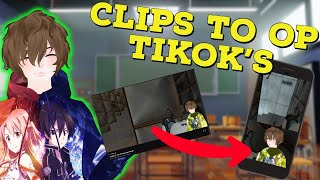
Turn Twitch Clips Into Viral TikToks Without Editing
40sHigh-engagement promise of fast growth and zero editing hooks viewers immediately.
▶ Play Clip"Delivers what it promises—a real four-minute workflow—but the early subscribe plug and channel promo cost it a few points."
StreamLadder is a web tool that lets streamers and V-tubers quickly repurpose Twitch clips and YouTube videos into vertical videos for TikTok, YouTube Shorts, and Instagram. This tutorial walks through the entire process, from pasting a clip URL to selecting templates and exporting the final file, all without manual video editing.
V-tubers like Girl DM and Realists have grown their brands overnight by using Twitch clips on TikTok, and editing these clips doesn't have to take much time.
The video aims to show how to edit Twitch clips and YouTube videos for TikTok and Shorts using StreamLadder, with a couple of minutes and no real editing required.
StreamLadder lets you enter a clip URL, upload a local file, or pull the clip directly from Twitch.
The free plan supports TikTok, YouTube, Instagram, unlimited videos, no watermark, free templates, and 720p output. Plus adds 1080p60, stickers, direct posting to TikTok/YouTube, premium templates, mobile support, and save/crop areas.
For the example, the user enters the clip URL and clicks 'Get Clip' to load the clip into the editor.
Available free templates include split, blurred, and full screen; the video chooses split.
Step 1 asks for the webcam area (default 16:9, or choose 4:3 or freeform). Step 2 asks for the game feed area (default fills the rest, or 16:9/freeform).
After clicking 'Finish Transcode', the video renders. Once finished, users can download it or, with premium, send directly to TikTok or YouTube.
What platforms does StreamLadder's free plan support?
TikTok, YouTube, and Instagram.
00:57
What resolution does the free StreamLadder plan output?
720p.
00:57
What does the Plus plan add over the free plan?
1080p 60fps, stickers, direct sending to TikTok and YouTube, premium templates, mobile support, and save/crop areas.
01:11
What are the three ways to bring a clip into StreamLadder?
Enter a clip URL, upload a local file, or pull the clip directly from Twitch.
00:43
What are the three free template options in StreamLadder?
Split, blurred, and full screen.
01:53
In the split template, what is the default aspect ratio for the webcam area?
16:9.
02:07
Which button starts the rendering process in StreamLadder?
Finish Transcode.
02:47
What can premium users do after transcoding that free users cannot?
Send the video directly to TikTok or YouTube.
03:14
No editing required
The core promise is removing manual editing from the clip repurposing workflow.
00:16Generous free tier
Unlimited conversions, no watermark, and 720p output make the free plan usable for most creators.
00:57Layout configuration
Choosing 4:3 or freeform lets you isolate just the avatar/webcam area, which is essential for V-tubers.
02:07Simple export
Downloading the rendered clip makes it easy to upload later or repurpose across platforms.
03:14[00:02] to grow your twitch your youtube or even your twitter we've seen v-tubers like girl dm and realists grow their brands just overnight and if you ever stop by you to use your twitch clips for your tech and a lot of you think it takes a
[00:16] lot of time to edit these to put it up on tiktok but what if i told you it could only take a couple of minutes and no editing really required hello everyone i'm your youtuber senpai and in today's video i'm to show you on how you
[00:29] can edit your twitch clips and your youtube videos for tic toc and if you haven't already consider smashing that like and subscribe button the first streamladder.com links for the website will be in the
[00:43] description bar down below once on the website we can see we can enter a clip url we can upload a local file or we can pull the clip straight from twitch but before we do that let's check out the pricing for stream ladder
[00:57] in the free standard version we can see it supports tick tock youtube and instagram it also converts unlimited amount of video so you can do as many as you want there's no watermark there's free templates and it supports 720p at
[01:11] as you can see in the plus version it has everything that's in the free has everything that's in the free version but it does support 1080p 60fps stickers sending directly to ticktalks sending directly to youtube premium
[01:24] templates you could use it on your phone you could send results to your phone as well to watch you can save and crop areas and you can support development by giving feedback for most people i don't see them using more than just the free
[01:38] version itself great now that we chose a version that we want to use let's upload our very first twitch clip or youtube clip for this particular example we are just going to enter the clip url and we are going to click on get clip as we see
[01:53] on the top left hand side our clip is playing and we now can select different templates down below some of these are premium we are going to choose the free option so we got split we got blurred and we got full screen but we're gonna
[02:07] select split great for step one it tells us to select the area where your webcam is so by default it goes by 16 by nine so if you have a regular webcam this is going to be perfect for you but we're going to click on 4x3 because we wanted
[02:21] just to select the avatar that we're using itself you could also use freeform if you choose to do so then we're going to click on accept now that we are on step 2 it's going to tell us select where your game feed is
[02:34] by default it'll fill in the rest of it that we need but if you wanted to you could do 16x9 or again freeform but now we're going to click on accept and just like that we see that the gameplay footage is at the top we're at
[02:47] the bottom we can flip that if we choose to but i like it this way we could also add stickers if we wanted but now we're just going to click finish transcode it's going to render the video
[03:00] particular point we're have to wait for transcoding to finish it's gonna take that's done we can move on to the next step great now that we see that the transcoding is finished we have different options here if you have
[03:14] premium you can send it to tick-tock youtube but what we're going to do is actually click on the download button so we could upload it for a later date and just like that we're all done and ready to upload our brand new tick tock or
[03:27] youtube short onto the different platforms we choose to upload it to again i'm your v tuber senpai ice cream here on youtube every monday wednesday and friday evenings come on by and say hi let's talk about anime gaming
[03:42] v-tubing whatever and well i'll catch you all the next one bye special thank you goes out to our very first patreon blue underscore devil first patreon blue underscore devil thank you so much for your support
⚡ Saved you 0h 03m reading this? Transcribe any YouTube video for free — no signup needed.