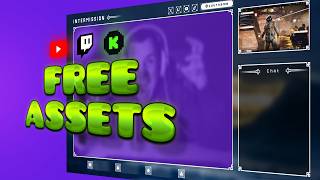

Free Game Assets for Twitch Overlay
44sViewers love free resources and quick tips to level up their streams without spending money.
▶ Play Clip"Delivers on the promise of a free Twitch overlay design, though the title slightly oversells the use of game assets."
This video demonstrates how to create a custom Twitch overlay for free using game assets from Kenny's website and the free online editor Photopea. The creator, Gal Level, shows how to download assets, customize a pre-made template, and export it for use in broadcasting software like OBS.
Kenney.nl offers a large collection of copyright-free game assets, including 2D, UI, and audio. The UI section contains overlays, icons, and packs suitable for Twitch overlays.
For full overlay packs made specifically for live streamers, the creator recommends gumroad.com/gaellevel, which includes pixel art and other themed packs.
Photopea.com offers free templates. By searching 'Gal Level' in the templates section, users can access pre-made overlay designs that can be customized.
To change the name or socials, double-click the text layer (T icon) in the layers panel and edit the text. This is the primary customization for those who like the default design.
The background is a group with an image layer. Turn off the image, copy a new one, paste it, and use Ctrl+Alt+T to transform and position it. This allows for a completely different look.
Labels and icons can be toggled or replaced. Use Ctrl+Alt+T to transform them. The 'EFF' layers are color overlays that can be double-clicked to change colors easily.
Double-click the T to edit text, or turn it off. Use the hue adjustment on the background layer to change its color. Ensure the bottom layer is off, then export as PNG with 100% quality.
Add the exported PNG as an image source in OBS Studio, Streamlabs Desktop, or MELD. The creator also mentions a Photoshop playlist for further help.
Creating a custom Twitch overlay is accessible and free using Kenney's assets and Photopea templates. With simple customization steps, anyone can build a unique overlay for their stream.
What website offers free game assets for overlays?
Kenney.nl
00:01
What online editor is used to customize the overlay?
Photopea
02:08
How do you edit the text in the overlay?
Double-click the T layer in the layers panel.
03:00
What keyboard shortcut is used to transform an image in Photopea?
Ctrl+Alt+T
03:54
What does the 'EFF' layer represent?
A color overlay that can be double-clicked to change colors.
04:33
What file format should the overlay be exported as?
PNG with 100% quality.
05:53
Free assets from Kenney.nl
Highlights a valuable resource for streamers and game developers.
00:01Photopea templates
Shows a practical way to start with a pre-made design.
02:08Customizable background
Demonstrates how to easily change the look of the overlay.
03:28Color overlay trick
Explains a simple method to recolor elements without editing each one.
04:33[00:01] can take free game assets online and actually build up like your Twitch how to do it from scratch, I realized just how long the video would be. So I'm going to show you how to customize it. And maybe at the end I'll put a
[00:15] it. And maybe at the end I'll put a time-lapse on how I actually did it. game developer and artist who creates their own games and also decided to put a bunch of assets for free. Like I'm talking copyright free. So if you go to
[00:30] gameassets.com, you'll see that up here you'll see 2D, UI, and also audio. For alerts and you can't seem to come up with ideas, there's a bunch here and video games assets. If I click on 2D for example, we're going to recognize a lot
[00:45] of stuff, but you can also see that there's a lot of like UI packs which you can also just filter by just UI. And that's what I want to take a look at. Essentially, I like this one especially for me. I'm someone who doesn't do a lot
[00:59] overlays for live streamers and all that. So we'll put a pin on this one and if you're looking for full overlay packs that were made completely for live gumroad.com/gaellevel. Look at that, we have some pixel art
[01:13] an alert or something like that if your vibe is, I don't know, pixel art cozy games. Yellow paint pack. Imagine that for yellow and black branding. There's a to create panels for your Twitch channel for example or just like a social media
[01:27] That could be cool for your overlays. Oh, there's metals and for your sub badges for example. Wireless controller icons for pretty much every console. That is pretty cool. Look at that. We got a rings pack and there's four
[01:40] >> [laughter] >> for your PNGtuber for example. Oh, look at that. We have like the separate facial expressions that you can just that as a PNGtuber. You could use that
[01:53] as emotes. Oh, and you also have the hands. Anyways, this is like a goldmine. download this. Now, after grabbing the one that I like in the UI section, this one, I opened up Photopea and basically grabbed the one SVG file and then copied
[02:08] Frankenstein them all together to give you, well, this final result. Nothing you open it, it'll be like that. So, if show you. So, this will be the front page of photopea.com. You want to click
[02:22] on templates. Once you're in templates, you want to go up top and basically type my name, Gal Level. And from there, you'll see it. I haven't published it are all things that I've created that you have access to right now. You can
[02:35] then use them. There's YouTube banners, things. Okay, so once you open it, this is what it's going to look like, and you have a couple of things for the layers on the [music] right side. All the way
[02:48] at the bottom is the background. We don't want that. Actually, we want it to be cut out so we can put our webcam behind it and the lobby top right here. But, let me show you how you would go about customizing it. If you like it the
[03:00] way it is, I'd say that the name up top here, where you have your socials, that the only thing that you need to actually customize. And you'll find it under socials here in the layers, and you'll find the text. Double click on the T
[03:14] next to the text to then edit [music] it and put whatever your name is. All attention to is the background. You'll see a group here. You can [music] expand the group, and there's layer one copy, and that's just like an image. Now, let
[03:28] me show you the full effect. If I turn off this image, you'll see that there's blue. And the thing is, you can put whatever image you want right here. So, you would turn it off, okay? Find whatever image you want. Let's say you
[03:41] like this. I can right click, copy, go back to Photopea, make sure the image that I just turned off is selected so that it will pop it just on top of it, and just control V, just like that. Now, you can control alt T. That's like the
[03:54] transform and then you can click and drag, put it wherever you want. Okay, now I selected a big image because well, yeah, we want the the quality basically. But it's just to show you that this is actually pretty customizable. I could
[04:07] confirm and boom, we have a whole different whole different vibe here. now. I encourage you to actually go and off to see what they do. For example, the labels at the bottom here,
[04:21] if you want to turn that off, you can expand this [music] and see what it them, you can replace them. Just put them in there. Control alt T to transform, make them small, and then place them. But also, while I'm in
[04:33] let's zoom in a little bit. You will see EFF next to certain things and this is basically a color overlay that I added so that you can change the colors pretty easily. For example, for the labels, the icons are white, but what's behind it,
[04:47] if you want to change that color, maybe make it darker so it matches whatever the labels group, there's another group called shapes and that's what that is. I will double click on color overlay, which opens up my layer styles and this
[05:00] make it more visible for you. Like that. So, I would click on the color here and now I can pick whatever color I want. Okay? So, if you already have your color to pop cuz right now it feels like it's just black [music] and white. Uh you can
[05:13] literally find everywhere that it says EFF, just switch the colors. And as you can see, you can individually switch each icon color and everything. The chat has a border, you can change that. The lobby, the camera border, everything.
[05:27] want to change that, double click on the T and then type whatever you want. Or if you just want to turn it off completely, you can do that, too. At the bottom What you can do is double click on the icon and it will bring you this thing.
[05:40] And what you can do is play with the hue [music] to change colors for the background only. So, if I do this, you'll see my background changing color, right? If we kept that new image that we added, it would also change color. So,
[05:53] then once you're done, put that back. We really want to make sure that this bottom bottom layer is turned off and that we see this grid basically. You want to go to file, export as PNG. Make sure quality is 100% and save. It'll
[06:08] save a PNG image. Boom. From there, just add it to your broadcasting software as an image. So, OBS Studio image source, Streamlabs Desktop image source, uh MELD I'm guessing image source. Very easy, very simple. If you're struggling a
[06:21] you watch my whole playlist called Photoshop playlist. It's basically Photopea. So, make sure you check that out and uh show some love to Kenny. They can check that out. I'll put the links in the description for this game. So,
[06:37] you can support them. I'll put obviously put a link in the description for this website. Make sure you check out more of, you know, the assets and see if probably use in order to build your own branding in a way. You can make like we
[06:51] made an intermission screen, but you can make panels, you can make uh other overlays, you can make banners, thumbnails, everything, really. And those are all uh CC, so Creative Commons. You can use them even for
[07:03] Commons. You can use them even for commercial use if you wanted to.
⚡ Saved you 0h 08m reading this? Transcribe any YouTube video for free — no signup needed.