
Customize Background & Add Text Instantly
30sShows a quick, visual way to change canvas background and add text, directly mimicking a popular feature of Canva.
▶ Play Clip"Promises a build tutorial but delivers a feature demo and sales pitch for the source code."
This video demonstrates a React-based Canva clone that allows users to edit images and PDFs directly in the browser. It showcases features like adding text, images, shapes, and exporting to various formats.
A ReactJS Canva clone image and PDF editor running locally, similar to Canva, with features to add text, images, and export to PNG, JPG, SVG, and PDF.
Export to PNG, JPG, SVG, and PDF. The canvas supports background color changes via color picker.
Add text with a modal window controlling alignment, color, and placement.
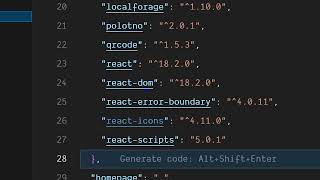
Built with React, Fabric.js for canvas manipulation, and jsPDF for PDF export. Source code available for purchase.
Add shapes like rectangle, circle, square, triangle with customizable width, height, fill, shadow. Layer-based editor with visibility, lock, and reorder controls.
Add third-party images, control size. Export to SVG (scalable vector graphics).
Gradient backgrounds, patterns, custom image backgrounds. Grid for alignment.
The project is a fully functional Canva clone with a layer-based editor, extensive customization, and multiple export formats. Source code is available for purchase via the link in the description.
What are the export formats supported by the editor?
PNG, JPG, SVG, and PDF.
00:16
Which JavaScript libraries are used for canvas and PDF generation?
Fabric.js for canvas and jsPDF for PDF.
01:14
How is text added to the canvas?
By clicking a button that opens a modal window to control alignment, color, and text.
00:44
What shapes can be added to the editor?
Rectangle, circle, square, and triangle.
02:14
What layer management options are available?
Visibility toggle, locking layers, and moving layers up/down.
02:41
Can custom images be used as background?
Yes, custom images can be set as background.
04:20
What command runs the application locally?
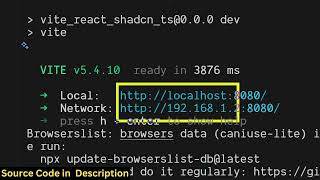
npm run dev.
01:28
Tech Stack Revealed
Identifies the core libraries (Fabric.js, jsPDF) used to build the editor, which is crucial for developers.
01:14Layer-Based Editing
Demonstrates a sophisticated layer management system with visibility and lock controls, essential for a professional editor.
02:41Advanced Background Options
Highlights gradient, pattern, and custom image backgrounds, showing the editor's flexibility.
04:06[00:02] you I built out a ReactJS Canva clone image and PDF editor directly in the browser. We running this uh locally here as you can see. So this is similar to Canva. All the features we have is simple little canvas where you can
[00:16] actually add text images. We also have different export buttons as well. We can different export buttons as well. We can export to PNG, JPG, SVG and PDF as well. So first of all we have the canvas here. We can simply click on this button to
[00:30] actually change the background color. So here you can choose from the color picker change the background color. And we also have the option to add text. So if you click that your model window will open. So right here you will be able to
[00:44] alignment, color, text. You can control all these properties and place your text. And then if you want to export this as a PNG file, you can click the export button to actually export this as a
[01:00] image file. You also have the option to export this to a PDF file as well. So once you click the it will export this. So it's a overall React Canva clone project here. Uh all the source code you can directly purchase it. I've given the
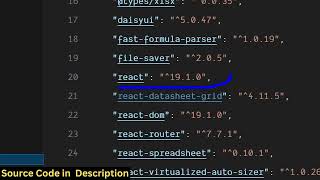
[01:14] link in the description. So for building this application, we are using React the latest version. As you can see we are also using some third party libraries such as fabricjs and jspdf and uh this is a single page
[01:28] code you will able to be modifying the source code or add additional features and we are running this application locally here by simply running the command npm rundev. So this has started this react application at localhost
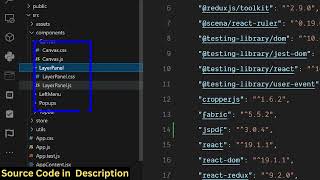
[01:44] 3000. So all the basically the components are divided into a JSX file, CSS file and JavaScript file. So each and every code it's coded here. So get the source code, you will be able to see how I built this application. And if
[02:02] any modification you want to make, you can edit any of these files. So every component is customizable. And we also have the options for adding
[02:14] different kinds of shapes as well. So from here you can select which shape you want to add rectangle, circle, square, triangle. After that you can control width, height, you can even fill out with a
[02:26] specific color as well. You can control width, shadow, you can even put and click on add. And you can put this shape right here. It's all the features of canvas. So it's a layer based editor. So it keep track
[02:41] of each layer that you add on the thumbnail on the right hand side. So here you can actually control the visibility. You can lock a particular visibility. You can lock a particular layer or basically move layer down up.
[02:54] layer or basically move layer down up. So all this you can even uh show the visibility. You can change the visibility, hide, unhide. Everything is customizable. So you will see that you also have option to add third party
[03:08] images. You simply simply add the image and then you can simply add the image and then you can control the size of the image. So everything is customizable as you can see. So using this you can make social
[03:23] see. So using this you can make social media thumbnails. You can export your make PDF files as well. So you can export this to a SVG file as well. So you can just see here. So it has basically built out a scalable
[03:37] vector graphic. So in ultimate Canva clone editor which is actually is a purchase the script here. I've given the link in the description. So you will basically get all this source code automatically from Google
[03:51] drive and you'll be able to modify it. So it's basically using JSPDF and fabric JS all the free libraries. So,
[04:06] so right here you can even change this to a gradient. So, just select, you can basically change it to a gradient as well. Or if you have a So, we have a lot of patterns. You can
[04:20] even add your own patterns as well inside this, you can select any of the patterns. Or if you want to put a custom image as a background, you can even put that as well. So custom image as a background,
[04:34] you can even put that as well. So all these customizable options are there. So you can see how easy it is to I shown you all the feature of this Canva clone. So now if you are interested, you can you can even put uh the grid as well to
[04:51] actually measure to place elements accordingly. So to place elements accordingly. So everything is customizable. So
[05:04] project can work loan project the link is given in the description.
⚡ Saved you 0h 05m reading this? Transcribe any YouTube video for free — no signup needed.