
Why 5GHz WiFi is a MUST
36sExplains the crucial difference between 2.4GHz and 5GHz, a common point of confusion for smart home beginners.
▶ Play Clip"The title accurately describes a demo of a smart home network setup, though it's more of a preview than a complete guide."
This video demonstrates a smart home network setup, focusing on its capabilities and underlying hardware. The presenter shows how the network provides full Wi-Fi coverage and supports both wired and wireless devices, which is critical for a reliable smart home system.
Matt from mksmarthouse.com introduces a demo of the smart home network system, part of a series where each video hitting 100 likes triggers early release of an OpenHAB 2 setup video.
The network offers two Wi-Fi sets: guest and personal, each with 2.4GHz and 5GHz bands. 5GHz is faster and preferred, but some devices require 2.4GHz.
The network provides complete Wi-Fi coverage throughout the property, from outside to the second floor, essential for smart home sensors and devices.
All Wi-Fi networks are accessible from anywhere in the house, and the network supports many wired devices.
A speed test of both wired and wireless networks demonstrates the network's capacity to handle significant traffic.
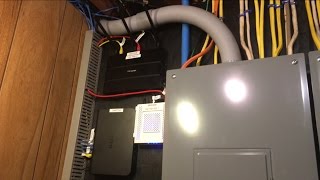
The main network in the basement includes a modem, router, and ethernet switch. Internet comes via coaxial cable to the modem, then to the router (the brain), which assigns IP addresses and manages wireless. A yellow ethernet cable connects the router to the switch, distributing signal to wired devices and two Wi-Fi access points.
Two additional access points (one in garage, one in room) extend Wi-Fi range, ensuring complete coverage for all future smart devices.
The series continues with hardware connection, software configuration, and final installation videos. Even existing network owners may find upgrade ideas like new routers or access points.
A strong network is the most critical component for a smart home; without it, device communication fails. The presenter emphasizes building a stable, fast network.
A robust network with full Wi-Fi coverage is foundational for a successful smart home. The video series will guide viewers through building and optimizing such a network.
What are the two Wi-Fi bands mentioned in the video?
2.4GHz and 5GHz.
0:42
Which Wi-Fi band is faster and preferred?
5GHz.
0:46
Why is full Wi-Fi coverage necessary for a smart home?
So all future sensors and devices can connect to the network.
2:14
What is the role of the router in the network?
It is the brain of the network, assigning IP addresses and communicating with the modem.
1:38
What is the purpose of additional Wi-Fi access points?
To increase the Wi-Fi range and ensure complete coverage.
2:05
What happens if the network is not stable and fast for a smart home?
Communication between devices will be terrible and the smart home will fail.
3:05
Full Wi-Fi Coverage
Emphasizes the critical requirement of complete coverage for smart home functionality.
0:57Router as Brain
Clearly defines the router's central role in network management.
1:38Access Points for Range
Explains a practical technique to extend Wi-Fi coverage using additional access points.
2:05Network Importance for Smart Home
Stresses that a strong network is foundational for smart home success.
3:05[00:00] Hey guys Matt here from mksmarthouse.com and
[00:05] of the Network we are going to be creating.
[00:13] [Intro]
[00:14] So the point of this demo is to show you the
[00:18] Also, when each one of these 4 videos in the
[00:23] the video of setting up the home automation
[00:28] Anyway, let’s start off with the device
[00:32] Let me just take out my phone and as you can
[00:36] With the network we have two sets of wireless
[00:41] wifi.
[00:42] Then within those two sets we have the 2.4GHz
[00:46] The 5GHz is the faster one and whenever possible
[00:53] capable so they would use the 2.4GHz.
[00:57] Another thing is that with this network and
[01:01] the property from outside to the second floor.
[01:04] Which for this Smart Home system is very necessary.
[01:06] We can also access anyone of these wifi networks
[01:10] With this network we can also connect many
[01:13] To end off what it can do I am just going
[01:18] and the wireless network.
[01:19] It can handle quite a bit.
[01:20] So, now let's go over how it all works.
[01:22] Down here in the basement we have the main
[01:27] and ethernet switch.
[01:28] We start off by getting internet from the
[01:32] goes into the modem and gets outputted through
[01:37] router.
[01:38] The router is the brain of the network as
[01:42] modem.
[01:43] This router also is one part of the wireless
[01:45] Then we have this yellow ethernet cable which
[01:49] the ethernet signal between all the wired
[01:54] access points that I have.
[01:55] One of the access points is in the garage
[01:59] and then I have another access point in my
[02:03] to the ethernet switch.
[02:05] The access points are what are responsible
[02:10] I have two of them in addition to the main
[02:13] I am not saying they are necessary to everyone
[02:18] throughout the entire home so all the future
[02:23] That’s it that is the network we will be
[02:28] is the hardware video where we connect everything,
[02:33] everything and then lastly, we have the final
[02:37] everything in their final positions.
[02:39] If, you have a network already which you probably
[02:43] videos as there might be something I do differently
[02:46] Also, even if you have a network you could
[02:51] you could possibly do such as a new router
[02:55] points.
[02:57] Some of you might be saying, just show us
[03:00] the complete process from start to finish
[03:05] the most important because if you don't have
[03:09] devices will be terrible and your smart home
[03:12] The point is make sure you have a very stable
[03:17] next videos to make sure.
[03:19] Alright thank you for watching and If you
[03:23] section below or head over to mksmarthouse.com/forum
[03:27] answered.
[03:28] Good Bye!


⚡ Saved you 0h 03m reading this? Transcribe any YouTube video for free — no signup needed.