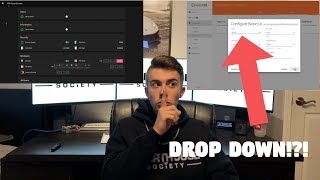

openHAB Has a Secret Dark Mode?
44sThe idea of a hidden, secret mode sparks curiosity and clicks.
▶ Play Clip"Title promises a 'complete guide' but it's a two-minute settings toggle padded with sponsor content."
In this video, Matt from MKSmartHouse demonstrates how to activate the hidden dark mode feature in openHAB's Basic UI. The tutorial walks through accessing the openHAB web interface, navigating to the services settings, and switching the Basic UI theme to dark mode.
Matt found a dark mode option while exploring openHAB settings and found it useful for blending the interface into the night.
Dark mode looks cool, especially for smart home enthusiasts who want a sleek, night-friendly interface.
Promotes smarthousesociety.com with an exclusive coupon code 'darkmode' for 10% off, available for 24 hours from upload.
Type your openHAB IP address with port 8080, e.g., 192.168.0.4:8080, to open the web UI.
In the sub menu, click 'services' to see all different user interfaces available in openHAB.
Click the configure button for Basic UI, then click on the word 'dark' in the dropdown to activate dark mode.
Navigate back to web user interfaces, click Basic UI, and the dark mode theme loads immediately.
To switch back, repeat the steps and select 'default' in the dropdown, then save the changes.
Links to parts, smart home kits at mksmarthouse.com/shop, and the forum at mksmarthouse.com/forum are provided in the description.
Dark mode in openHAB is a simple one-click settings change that significantly improves the interface's appearance at night. The video provides a quick and easy way to customize the Basic UI theme with just a few navigation steps.
How do you access the openHAB web interface?
Type your openHAB IP address followed by :8080, e.g., 192.168.0.4:8080.
00:59
Where do you find the dark mode option in openHAB?
In the services settings, under Basic UI, select 'dark' from the configuration dropdown.
01:24
How do you switch back to the default mode in openHAB Basic UI?
Go to the Basic UI configuration, choose 'default' in the dropdown, and save.
01:51
Hidden feature discovered
Shows that openHAB has a built-in dark mode that is not obvious in the main settings.
00:13Simple toggle method
Dark mode is activated via a single dropdown selection in the Basic UI configuration.
01:24Immediate effect
The dark theme loads instantly without requiring a restart or complex setup.
01:39[00:00] Hey guys Matt here from MKSmartHouse.com and in this video I am going to show you a secret mode in openHAB. [Intro]
[00:13] In this complete guide I will show you how to activate the secret mode in openHAB. I found this feature when I was playing around in the openhab settings and noticed that basic I am so glad I found it because I usually have openhab up on one of my monitors and
[00:29] With this dark mode it just blends into the night and I think it looks really cool especially If you are a smart home enthusiast like me and want to show that you are an Elite Member of the smart home community then check out smarthousesociety.com for premium quality
[00:44] Also, for 24 hours from the time this video goes live you can use the exclusive coupon code “darkmode” and get 10% off your entire order. Supplies and time are limited so check out the link in the description now!
[00:59] Those that don’t know how to do that type in your your openhab’s ip address:8080 mine is 192.168.0.4:8080.
[01:12] In the sub menu click services. You should see all the different user interfaces.
[01:24] We are interested in Basic UI so click its configure button. Now click on the word dark. Dark mode is now active, so let's check it out.
[01:39] Go back to the web user interfaces and click basic UI. There you go the beautiful dark mode is loaded up and ready to be used! If you want to switch back to the default mode just go back through this guide and choose
[01:51] default in the drop down and hit save. In the description you will find links to all the parts and devices used in the video as well as a link to mksmarthouse.com/shop where I have a wide range of smart home kits
[02:07] that you can put together such as blinds, led strips, sprinkler system and door sensors. section below or head over to mksmarthouse.com/forum.
[02:19] Good Bye!

⚡ Saved you 0h 02m reading this? Transcribe any YouTube video for free — no signup needed.