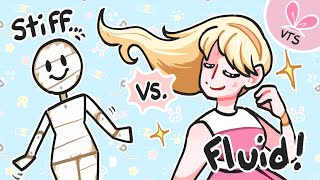

From basic to expressive VTuber model
45sShows a dramatic before/after transformation that grabs attention immediately.
▶ Play Clip"The title accurately promises a tutorial on getting the most out of your VTuber model, and the video delivers exactly that."
This tutorial teaches VTubers how to fine-tune their model's tracking in VTube Studio to make it more expressive without changing the rigging. The creator explains the tracking settings, how to adjust sensitivity and reactivity, and emphasizes the importance of personalizing settings to your own face.
Open VTube Studio and go to the model tab (person icon). Start with the default Accari model. Create an item version to see updates without affecting the original rigging.
The main settings are under the model settings (person gear icon). Includes physics settings (default 50), movement settings (set to zero to prevent sliding), and tracking settings.
Each tracking parameter has: name, input (e.g., FaceAngleX), parameter (e.g., ParamAngleX), smoothing (higher = softer movement), auto blink, auto breathing, and left/right tracking values (left = face movement, right = model output).
Adjust left side for sensitivity (smaller range = more sensitive) and right side for reactivity (larger range = more exaggerated). Invert movement by swapping min/max on the right side (e.g., -10 to 10 instead of 10 to -10).
Auto-setup often sets mouth max to 2.1, causing mouth to snap fully open. Keep right side close to rigged values (usually -1 to 1) to maintain nuance.
1) Adjust left side to comfortable expression ranges (close mouth, open wide without strain). 2) Keep right side close to rigged values. 3) Invert movements on right side if desired.
Everyone's face is different, so tweak settings to your own movements. Even with good rigging, personal setup is key for natural expression.
You still need to move your head (tilt, nod, bounce) to get the model to animate. The model can't create movement from nothing.
Fine-tuning your VTube Studio tracking settings to your own face makes your VTuber model more expressive and comfortable to use. Remember to adjust sensitivity on the left side and keep the right side close to rigged values, and don't forget to move your head to bring the model to life.
What is the purpose of the left side tracking values in VTube Studio?
The left side represents your face movement (input) and is used to adjust sensitivity.
05:00
What does the right side tracking values represent?
The right side is the output sent to the model, determining how much the model moves.
05:19
How do you make a tracking parameter more sensitive?
Make the left side range smaller (e.g., from 0-1 to 0.2-0.8) so smaller face movements have bigger effect.
08:44
What is the common issue with auto-setup for mouth tracking?
Auto-setup often sets mouth max to 2.1, causing the mouth to snap fully open even for small movements, losing nuance.
09:58
How do you invert a movement in VTube Studio?
Swap the min and max values on the right side (e.g., set max to -1 and min to 1).
07:37
What is the recommended range for the right side output to maintain natural movement?
Keep it close to the rigged values, usually -1 to 1 for most parameters.
12:04
Why is it important to personalize tracking settings?
Everyone's face moves differently, so settings that work for one person may not work for another.
12:47
Sensitivity vs Reactivity
Clear distinction between adjusting left side (sensitivity) and right side (reactivity) for fine-tuning tracking.
08:44Common Mouth Tracking Pitfall
Identifies a frequent issue with auto-setup causing exaggerated mouth movement and how to fix it.
09:58Three-Step Recommendation
Provides a simple, actionable workflow for setting up tracking: adjust left side, keep right side close to rigged, then invert if needed.
11:30Personalization is Key
Emphasizes that even with good rigging, personal setup is crucial because faces differ.
12:47Puppeting Still Required
Reminds that fine-tuned tracking cannot replace actual head movement; the model needs input to animate.
13:27[00:00] How to take your VTuber model from
[00:01] looking like this
[00:04] to looking like this without even
[00:06] changing any of the rigging. Hey, hey,
[00:08] I'm Ray. I'm an award-winning VTuber
[00:10] artist and I'm going to teach you how to
[00:11] get the most out of your model using V
[00:14] Studio. Let's get started.
[00:19] All right, so I went ahead and opened up
[00:21] V Studio and went to the model tab,
[00:24] which is a little person. We're starting
[00:26] with the original Accari model which
[00:28] comes free with Vip Studio. I'm just
[00:30] going ahead and testing out the model
[00:31] here. I'm tracking using my phone. So,
[00:34] obviously tracking will look a little
[00:35] bit different depending on what you're
[00:36] using. I go ahead and make an item
[00:39] version of Aari. The reason that I'm
[00:41] doing this is because that way the item
[00:43] doesn't actually take our updated
[00:45] rigging, so we can see the updates as we
[00:47] go. So, I thought that that'd be useful
[00:50] for seeing the differences as we're
[00:52] making them. I'm going to go ahead and
[00:54] also quickly scroll through all of the
[00:55] settings tabs in YouTube Studio so you
[00:57] can get a feel for what's in there. I
[00:59] have a few plugins. I have the Live 2D
[01:02] plugin, the Twitch stuff, um, and things
[01:04] like that set up. Most of that is just
[01:07] pretty basic. We have the camera
[01:09] settings. So, if you're using webcam,
[01:10] this is where you will adjust all your
[01:12] settings for that. There's also blink
[01:14] sensitivity,
[01:15] filters, and the screen effect, which is
[01:18] how some YouTubers will do their like
[01:20] model lighting up based on what's on
[01:22] your screen. But the thing that we're
[01:24] going to be mostly messing with today is
[01:25] actually our model settings, which is
[01:27] the little person gear. There's physics
[01:29] settings, which you can adjust to adjust
[01:32] how reactive your physics are. 50 is the
[01:35] default. That's going to be what your
[01:37] model is actually rigged for, and 100 is
[01:39] going to be very crazy. But if you don't
[01:41] like your physics, you can always, you
[01:43] know, tone them down or turn them up.
[01:45] Uh, generally, I'd suggest, you know,
[01:47] maybe talking to your rigger about this
[01:49] before the model's finalized because
[01:51] those are also easy to change in the rig
[01:53] itself. Um, I also am not really a fan
[01:56] of the models moving around, um, kind of
[01:59] sliding on the screen. So, I go ahead
[02:00] and set those to zero as well as
[02:01] deactivate. The reason I do this is cuz
[02:03] if you're using something like Vbrger,
[02:05] it might still use those movement
[02:07] settings. So, I go ahead and turn those
[02:08] off.
[02:10] And now we're actually into the settings
[02:12] for the model itself. Really quick
[02:14] before we get into actually messing with
[02:16] our tracking, I want to explain every
[02:18] aspect of this tracking setting square.
[02:23] At the top is just a name. You can
[02:25] change it to whatever you want, whatever
[02:26] makes it the most obvious to you. This
[02:28] is the default name of like face left,
[02:30] right, rotation. Basically, that's
[02:32] determining your face looking to the
[02:34] left or to the right like shaking your
[02:36] head. No. The input is the value that V
[02:40] studio is looking for. This will be face
[02:43] angle X will be that left to right
[02:45] motion. Think of it as like on a graph.
[02:48] The Xaxis is the left to the right. And
[02:51] the param angle X is actually the value
[02:54] the model is using. This is the default
[02:57] name for the parameter in Live 2D. If
[03:00] your rigger changed it, it may look like
[03:02] a different name. or if it's a value
[03:03] that wasn't originally on the model, it
[03:06] may even be something just like param
[03:07] 27, just know that that's going to be
[03:10] what the live 2D model associates with
[03:14] that movement. Next, we have the
[03:16] smoothing setting, which will determine
[03:19] how much V Studio basically buffers your
[03:23] movement from your face to the model.
[03:26] The higher that this value is, the more
[03:29] it's going to
[03:31] kind of flatten out that movement and
[03:33] make it a lot softer. So, if you're
[03:36] shaking your head left to right
[03:38] violently, it might just barely even
[03:41] move because it's just kind of taking
[03:42] that as noise in a sense. Whereas, the
[03:45] smaller it is, the more it'll just take
[03:47] your raw movement and into the output. I
[03:52] like to have at least a little bit of
[03:53] smoothing on most things because there
[03:55] does tend to be a bit of noise,
[03:57] especially if you're in low light. But
[03:59] the greater it is, the more it will be
[04:02] hard to move that particular parameter.
[04:05] So, just keep in mind that the more you
[04:07] smooth it, the kind of more slow and
[04:10] almost like jelloy, for lack of a better
[04:14] phrase, it'll feel. Just a thing to keep
[04:16] in mind. Auto blinking is going to
[04:18] basically periodically have this value
[04:22] go. So like the name says, it's very
[04:25] commonly used for a blinking for maybe
[04:28] like a pet character or something like
[04:31] that. You can also have it if you don't
[04:32] blink a lot and you want to make it look
[04:34] like you blink a lot. Please blink. It's
[04:37] good for your eyes. Auto breathing is
[04:39] going to just slowly pan up and down
[04:42] this value. It is good for a breathing
[04:45] parameter. It can also just be good for
[04:47] again things you want to move
[04:49] periodically and slowly, but generally
[04:52] that's going to be on a breathing
[04:53] parameter. And finally, we have the
[04:56] actual tracking values.
[05:00] The left side, I will say this a lot in
[05:02] the video, is your face. This is the
[05:05] movement that you are making with your
[05:07] body. This is what the camera or your
[05:09] phone is seeing. And so you'll see the
[05:12] value go up and down depending on how
[05:15] you move with the associated input
[05:17] parameter.
[05:19] And the right side is the output that is
[05:23] being sent to your model. This is the
[05:25] value of the parameter of what's
[05:28] actually moving the model itself. So if
[05:32] you have
[05:34] the left side moving, it will translate
[05:36] to the right side moving. But the right
[05:39] side is the actual movement of the model
[05:41] and the left side is the actual movement
[05:43] of your face. We'll go into a bit more
[05:45] detail on what that means and how to
[05:47] work that. But that's what all of these
[05:49] numbers mean. Um the kind of very faint
[05:54] 30 max 30 min on this example is the
[05:57] values of the model itself. So if you
[06:01] need for reference what your model's rig
[06:04] can actually do, that's where you can
[06:06] look. Okay, let's actually go into
[06:09] fine-tuning our rigging.
[06:11] So, the first one is face left right
[06:14] here. Um, and the way that I go ahead
[06:17] and set up any of my model settings is
[06:20] on the left is actually what my face is
[06:23] doing and on the right is the output
[06:26] that's being sent to the model. So, I
[06:28] usually only adjust the left side and
[06:30] keep the right side to what the model is
[06:32] rigged for, you know, within reason. I
[06:34] also go ahead and really quickly change
[06:36] the emote settings on this model because
[06:39] they're all just plain numbers and so
[06:42] that gets a little annoying when I'm
[06:44] trying to type in like, okay, do 20 and
[06:47] it sets off an emote for the model. So,
[06:50] I'm going to go ahead and do that really
[06:51] quickly and we'll be right back. I will
[06:52] also say in case you're wondering, the
[06:54] way that you can set up emotes like this
[06:56] in V Studio is pretty simple. you just
[06:59] add a hotkey and add either an
[07:01] expression file, which is where you can
[07:03] set specific values to your model as
[07:05] positive or negative, and also play
[07:08] animations. And that's how Aari is set
[07:10] up. But we're going to go ahead and get
[07:11] back to customizing the model's
[07:13] tracking. Um, and I'm doing my up and
[07:16] down motion with my head, as well as the
[07:18] head tilt, which was uh severely limited
[07:22] on the original model. Um, so I kind of
[07:25] really exaggerate that movement because
[07:27] I think that that's fun. As well as I
[07:29] invert the movement of the body because
[07:31] that's really popular right now is that
[07:33] when you lean to the side, your body
[07:35] actually leans the opposite direction.
[07:37] And the way that I do that is that's
[07:39] where I go ahead and I change the output
[07:41] where I have the output be inverted.
[07:43] Instead of going from positive 10 to 10,
[07:45] I go from - 10 to 10. If that makes
[07:49] sense, up to down. And that's going to
[07:52] inverse that movement because basically
[07:54] you're sending the opposite value to the
[07:56] model that then what its default is. So
[08:00] that's how you can pretty much invert
[08:02] anything on your model. If you're like,
[08:03] oh, I want to look the body to look the
[08:06] opposite way of my head, which is also
[08:08] very popular right now, you can do the
[08:09] same thing. And I go ahead and do the
[08:10] same thing here. I keep the side based
[08:14] off of my actual body the same because I
[08:16] want to keep what my body is doing the
[08:20] same as and just change what the model
[08:22] is being told when it comes to edits
[08:24] like that. Otherwise, I want to keep my
[08:27] face expressions the same. So, I guess
[08:30] as a rule of thumb, when do you change
[08:32] the left side of the tracking versus the
[08:35] right side? For me, the rule of thumb is
[08:38] this. If you want to make your face more
[08:41] sensitive and more nuanced,
[08:44] that's when you change the left side.
[08:46] The left side is going to take what
[08:48] you're doing with your face and
[08:52] translate that into model movement. So
[08:55] the left side, for example, when you
[08:57] make that range smaller, it's going to
[09:00] mean that smaller movements will have a
[09:02] bigger effect. So if you go from like 0
[09:04] to one from from 0 to one to 0 2 to 08
[09:09] it's going to be a greater
[09:12] movement from smaller motions because
[09:14] basically you're changing the minimum
[09:15] that'll be counted as zero to 2 and the
[09:18] maximum that'll be counted as the
[09:19] absolute max. Anything bigger than that
[09:21] is just set to the maximum value. Um
[09:24] instead of one it's8. So you're making
[09:26] that range smaller so it's more
[09:28] sensitive. When you change the right
[09:30] side, you're making it more reactive.
[09:33] So, you're taking the same motion from
[09:35] your face, but blowing the movements of
[09:38] the model is going to do up more. So,
[09:42] when you change the maximum or minimum
[09:44] values, you're saying, okay, it's always
[09:47] going to be at least this value or at
[09:50] most this value. And if the model isn't
[09:52] rigged for that much, it'll just stay at
[09:55] the maximum value that it can be. So, a
[09:58] lot of times when you do the auto setup
[09:59] in V Studio for a Vtuber model, you will
[10:02] end up with a mouth that's always open
[10:05] because it sets the mouth's maximum to
[10:08] 2.1
[10:10] generally from what I've seen. And that
[10:12] makes your mouth open really wide even
[10:14] for little movements. So, you lose a lot
[10:16] of nuance in the movements when that
[10:19] happens. If you're curious what your
[10:21] model is riked for, you can actually see
[10:23] the numbers on the right side. you'll
[10:26] see that it says like one max and
[10:28] negative 1 min or you know one max zero
[10:31] min or something else if your rigger
[10:33] rigs it a different way and so that's
[10:35] how you can go ahead and edit um to your
[10:38] model you'll be able to see oh okay the
[10:40] rigger rigged this so that it's you know
[10:43] has a maximum of one so I can work
[10:45] within that I generally wouldn't
[10:47] recommend going too much higher above
[10:49] what the rigger rigged because it can
[10:52] kind of make things look really weird It
[10:56] makes things look really, really
[10:57] exaggerated to the point where it looks
[10:59] off-putting. At least in my opinion. And
[11:02] so, if you ever seen people whose VTuber
[11:04] models mouth is either completely closed
[11:06] or completely open, that's probably
[11:08] what's happening, is that their mouth is
[11:10] set to 2.1. And so, their mouth is
[11:12] pretty much either at the minimum or at
[11:14] the maximum. And there's not a lot of in
[11:17] between. So, like I said, even if they
[11:19] messed with the left side, because the
[11:21] right side is still so large, it's still
[11:24] going to exaggerate whatever they end up
[11:27] having it set to. So, that's my general
[11:30] recommendation when it comes to setting
[11:32] up a VTuber model in Vup Studio is
[11:35] three-fold. Go onto the left side and
[11:38] make an expression that feels
[11:40] comfortable. Don't necessarily
[11:41] overexaggerate when setting up your
[11:43] model. do things that you would
[11:44] comfortably and set your maximum
[11:47] minimums that way. So like close your
[11:49] mouth, see how it goes, open and close a
[11:51] bunch of times. Set that to the minimum
[11:52] for mouth open. Open your mouth wide
[11:55] without it hurting or really stretching
[11:57] it and set that to your maximum. And
[12:00] that'll help your mouth move when you're
[12:02] just kind of talking naturally. And then
[12:04] look at what the model is rigged for and
[12:07] generally work close to that for the
[12:09] right side, if not exactly that. I keep
[12:11] it exactly that 90% of the time. So, I'd
[12:15] generally recommend just keeping that
[12:17] side to the model unless you really want
[12:20] something to be very exaggerated.
[12:22] [Music]
[12:23] Then once you've done that, if there's
[12:26] anything that you want to invert the
[12:28] movement of, that's when you go ahead
[12:29] and you change the right side to be the
[12:31] inverted values that you set before to
[12:33] like negative one on the maximum and one
[12:37] on the minimum, things like that.
[12:40] then you should have your model being a
[12:42] lot more expressive than it used to be
[12:44] and feeling a little bit more you. Even
[12:47] if your rigger sets up your model for
[12:49] you, I generally think it's important to
[12:51] go in and feel it out with your own face
[12:54] because everyone's settings won't be the
[12:57] same because everyone's faces aren't the
[12:59] same and everyone's setup isn't the
[13:01] same. When I smile, it looks different
[13:04] than when you smile. So, you want to
[13:06] make sure that you're paying attention
[13:07] to your own numbers and how they might
[13:10] differ from what your rig are set up for
[13:12] you. Now, they might be great. They
[13:13] might be perfect and they you don't have
[13:15] to do anything, but at least knowing how
[13:17] you can can put a lot more control in
[13:19] your hands to making your VTuber model
[13:21] feel like yours and feel connected to
[13:24] your movements and to your face. Now,
[13:27] that said, you do still need to puppet
[13:29] your model. your model is still, you
[13:33] know, a representation of you. It is not
[13:36] just your face. And also, they're
[13:40] animated. So, you have to move a little
[13:42] bit more animated to get the absolute
[13:44] most out of them. If you just talk
[13:47] really stoically and you don't move a
[13:51] whole lot, there's not going to be
[13:52] anything for the model to pick up on, no
[13:55] matter how sensitive and fine-tuned
[13:57] you've gotten your tracking to be. that
[14:00] can't make movement out of nothing. And
[14:02] if it did, it would look really weird.
[14:05] You can have some stuff like an idle
[14:07] animation for like breathing, but it's
[14:10] still not going to look interesting if
[14:13] you aren't moving. So, you know, I tend
[14:16] to lean my head to the sides a lot. I
[14:18] tend to bounce up and down because all
[14:20] of the movements are going to be
[14:22] primarily, if not exclusively, based on
[14:24] how you move your head. So, just an
[14:27] important thing to keep in mind is your
[14:29] head is your model. So, if you nod or
[14:33] shake your head or tilt your head,
[14:35] that's going to determine the way your
[14:37] model moves. And so, you want to be sure
[14:40] that your head isn't just still. You
[14:43] want to move around. You want to bounce.
[14:45] The the Vtuber dance is tilting your
[14:49] head side to side and nodding to the
[14:51] rhythm. There's a reason for that. It's
[14:53] because that's how you get your model to
[14:56] move. And I find myself now doing that
[14:58] dance all the time, even when I'm in a
[15:00] car and people can visibly see me. It's
[15:03] a curse. Being a VTuber is a curse for
[15:06] yourself now. No, I'm kidding. Um, but
[15:09] yeah, that's the essence of how V Studio
[15:14] functions when it pertains to actually
[15:16] tracking your model. It's translating
[15:19] the movements of your face to numbers
[15:22] that the model is rigged for which are
[15:25] basically like you know zero to one from
[15:28] the minimum of that motion which might
[15:30] be you know either zero of nothing like
[15:33] mouth closed and one mouth open or
[15:35] negative one which would be like all the
[15:37] way to the left and positive one all the
[15:39] way to the right. So, knowing how to set
[15:41] that up for you and for your face and
[15:43] for your setup can really make the model
[15:46] shine in a way that you can't do without
[15:49] it. You can have the nicest rigging in
[15:51] the world, but if you don't set up your
[15:54] model for you and you don't react well
[15:56] with your face, it's not going to look
[16:00] good. So, just remember your setup, your
[16:02] face is going to mean different things
[16:04] than your rigger setup and your rigger's
[16:06] face. And you want to be sure that your
[16:09] model is reacting in a way that's
[16:12] appealing by reacting in a way that's
[16:15] appealing with your own face. The reason
[16:17] you want to tweak the your model from
[16:19] there is to just make that puppeting
[16:20] more comfortable. The less you have to
[16:23] exaggerate the face, the less you have a
[16:24] chance of hurting yourself or making
[16:27] your face sore from how big you have to
[16:30] smile, etc. I hope this helped. Uh, if
[16:33] you have any questions or anything else
[16:34] you'd like to know about V Studio or
[16:35] Live DD, feel free to ask it in the
[16:37] comments below. I've been Ray. Have a
[16:39] great day. Bye-bye.
[16:41] [Music]
[16:50] How to make your VTuber
⚡ Saved you 0h 16m reading this? Transcribe any YouTube video for free — no signup needed.