
Fix Live2D Clipping Layers Easily
60sMost beginners struggle with clipping layers; this step fixes that common issue.
▶ Play Clip"The title focuses on rigging expressive eyes, but the video covers general Live2D setup and organization before getting to eye rigging, partially matching the promise."
This video is a beginner-friendly guide to using Live2D Cubism Editor for rigging and organizing models. The creator shares tips on organizing parameters and deformers, emphasizing efficient workflows, and notes the differences between the free and PRO versions of the software.
The PRO version has a free trial; after that, the FREE version is limited but usable. PRO costs ~$90/year or $14/month.
Go to File > Open, select your .psd file, and choose resolution (half recommended for performance, full for clarity).
When importing, clipping is not automatic. Select the face/parts, copy the ID, go to clipping ID, and paste to clip layers onto parent parts.
Save as .cmo3 file in a folder with your .psd file. Use Ctrl+S regularly to avoid losing progress.
Create folders for groups like 'angle X', rename them, and add a new parameter with a flashy name at the top for easy searching. Set group colors (optional).
You can export/import parameters and physics settings via Modeling > Bulk setting of model parameters. This avoids recreating them for new models.
In the Deformer tab, group layers into warp deformers (e.g., 'entire body', 'head'). Use shift+click or drag to select multiple layers. The free version has limited warps.
Organizing layers, parameters, and deformers early in Live2D saves time and avoids confusion. Saving and using presets can significantly streamline the rigging process.
What file format does Live2D Cubism Editor use to save edit projects?
.cmo3 file.
3:44
What is the monthly cost of the Live2D PRO version?
$14 per month.
1:16
How do you manually clip layers to a parent part in Live2D?
Select the parent part, copy its ID (Ctrl+C), select child layers, paste the ID in 'clipping ID' and press Enter.
2:54
Where can you export/import parameter presets in Live2D?
Modeling > Bulk setting of model parameters.
6:02
Name the shortcut to save progress in Live2D.
Ctrl+S.
3:37
Free vs. PRO version trade-offs
Directly informs beginners about cost and limitations, helping them decide which version to use.
1:03Manual clipping workflow
A key technical step that many new users struggle with; explained clearly with copy-paste method.
2:20Parameter presets for efficiency
Saves time by reusing parameter setups across models, a pro-level tip that boosts workflow.
5:35[00:04] hellooo ! welcome or welcome back to my uh... youtube channel!
[00:09] thank you guys so much for the support on the last video,
[00:12] i didn't expect so many people to see it honestly...
[00:15] but i hope you guys enjoy the rest of the series ~ i'm actually really excited to make more videos
[00:19] this specific video is just an intro to live2d and it's tools!
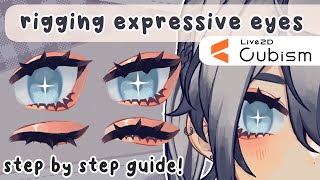
[00:22] i'll be thoroughly going over how i rig more *expressive* eyes
[00:26] but... this video got a lot longer than i expected so i cut a lot out
[00:30] and i put up little sticky notes on the screen for more information instead
[00:33] i tried to make it as beginner friendly as i could so i do use a lot more "simple" terminology
[00:39] so those that are new can understand a little better
[00:42] this guide is made more for you to follow along with me while you start rigging yourself
[00:45] because that's how i personally learn better, so hopefully it works for you too
[00:49] i'm also in no way a professional or know everything about live2d,
[00:53] so if you have any tips or tricks of your own, feel free to leave them in the comments!
[00:56] and if you have any questions, feel free to ask them and i'll try my best to answer!
[01:01] i do use the PRO version of live2d
[01:03] when you first get it you should have a free trial of the PRO version.
[01:06] after the free trial you use the FREE version.
[01:09] which is pretty limited, but you can still rig a good chunk of your model
[01:11] i'll have some tips throughout my videos of how you can use the free version more effectively, but...
[01:16] if you can rig your model within a month you can also just pay 14usd to use the pro version for a month.
[01:21] i pay around... 90 bucks a year... unfortunately...
[01:25] but it is worth it for me !!!
[01:26] i also mumble a lot. so i'm putting captions on this video.
[01:29] so without further ado, let's get right into it!
[01:33] okay, so here we are in live2d cubism editor (not the viewer, we use that after)
[01:38] your set up might look a little different from mine.
[01:41] so first we're gonna put in our psd!
[01:44] so you go up to "file", press "open", and then try to find your folder - wherever you put your .psd in,
[01:51] and then just import that into live2d.
[01:54] this is gonna ask what resolution you wanna view your art in. it usually recommends half. if your laptop or computer can't handle too much, half is good~
[02:05] i'm gonna do full scale so it's easier to see everything.
[02:07] okay, so, importing it in... we see everything load in... and it might look a mess... especially when you have a lot of clipping layers like me
[02:16] when you import something into live2d it doesn't automatically clip everything yet
[02:20] so we have to manually clip them, so lets do that first just to clean up everything so it looks bette
[02:26] so you can click ... on the face ...
[02:30] you might have something blocking your face. if you hover over something it'll tell you what you're selecting,
[02:34] for example - i wanna get this "hair 1" right here but if my "ahoge" was a little too big and i couldn't find a right place to find it under my cursor,
[02:44] you can right-click on it then go to "object at cursor" and it'll show you everything that's under where you just clicked!
[02:52] and then i can click my "face".
[02:54] and then under the "part" sections is where your .psd layers are, so it's formatted like your .psd.
[03:00] so, i'm gonna put all my face shadows on first so i'm selecting my face skin,
[03:05] and then i'm gonna collect the "ID" and i'm gonna ctrl copy (ctrl+c) it.
[03:09] and then my blush and everything that goes onto that i'm gonna select that all,
[03:14] go to "clipping ID", paste in the "ID" of my "face skin", press enter, and it will clip onto my face skin!
[03:21] now you just do that for everything else you have clipped, like the eyes and shadows and such.
[03:33] one you have everything clipped you're gonna wanna SAVE your file.
[03:37] so you can hit ctrl+s to save or just go to "file" and click "save" or "save as". i'm gonna click "save as".
[03:44] then i would suggest making a new folder that has your .psd and your .cmo3 file (that's the file that live2d uses to edit everything)
[03:53] just put that all into that one folder. i have one here already so i'm just gonna save over it.
[04:03] and that'll pop up and you can just close that.
[04:05] make sure you're pressing ctrl+s throughout your entire process. you don't want to lose any progress just in case something happens...
[04:14] next we're gonna organize our parameters so it's a lot easier to look through them all.
[04:20] your parameters are under your parameter tab. these are all the defaults that live2d has and they're already tied to the parameters connected to vtube studio so we don't need to change them too much!
[04:31] how i usually like to organize them is i make a folder and then i'll name them after the group of parameters i'm putting into it
[04:40] for example, this one is gonna be the angles... i'm gonna select angle x, and then shift+click put all of these in here...
[04:49] and then to make it easier when i'm searching through the parameters i make a new parameter...
[04:55] i will name this something... a little flashy, i put brackets, i put a bunch of dashes. then i'll do the same name i did for the folder.
[05:06] press ok and then it adds a new parameter. i'll put that at the top of these.
[05:11] it just makes it a lot easier for when you're viewing your parameters in a different format. you'll see later, but trust me, it's awesome lol
[05:21] so you can do that for all of these and then once you're done, i like to right-click on the folder, "set group color", and i like to make them all rainbow.
[05:31] pretend i put all of these into folders.
[05:35] however, you can skip this step if you already have a preset set of parameters made.
[05:42] this is something i'll go over near the end of the rigging,
[05:47] but usually once you're done rigging you'll have a ton of other parameters and other physics settings that you've already made
[05:54] and you can actually export them all to put them into other models, so you don't have to remake those parameters or physics settings again
[06:00] you can ignore this part right now if you don't have any.
[06:02] but you can go up to "modeling" here, and then hover over "bulk setting of model parameters"
[06:10] now you can export your current settings right now if you want, these will keep all of your folders and keep all of your labels and extra parameters
[06:18] and then later on, once you finish your model, you can re-export it and overwrite that export if you'd like.
[06:24] but i'm gonna import my presets that i've already made.
[06:29] gonna delete all of my existing ones. now here's my parameters preset!
[06:33] gonna open that, and then... voila !!!
[06:37] all of my parameter presets are now in!
[06:40] and i have a lot more, so don't feel overwhelmed about this right now. i'll go through it as we rig.
[06:46] now i'm just gonna quickly color everything because... it doesn't actually save the colors QAQ
[06:55] okay...
[06:57] i'll just do a quick view of mine...
[07:01] so this is how i have all my angles uhm organized.
[07:05] i actually have my angles and my body angles in here. you'll see why they're called inputs later, but... let's just close that.
[07:12] and then once we have all of our parameters organized we're gonna organize all of our layers in live2d.
[07:20] we're gonna go over to the "deformer" tab. now, it's laid out in the same order as everything's layered on your folders in parts... but there's no folders!
[07:31] this is where we put all of our warps and deformers that make everything move.
[07:35] usually i like to start by organizing all of these into their own sections so it's a lot easier and it's a lot more organized.
[07:41] you're gonna wanna be organized in live2d, trust me.
[07:44] however, this process will be really hard if you're using the free version because you have a limited amount of warps.
[07:50] so if you're using the free version you can ignore this for now. if you're not and you have unlimited warps, this is what we're gonna do.
[07:56] i go all the way to the top to my very first layer, scroll all the way down to the very bottom layer, hold down shift, select my very last layer,
[08:05] and then we're gonna go up to here, to the create a warp deformer,
[08:12] click it, you're gonna create a warp deformer. you can ignore all of this. we're just worried about the name.
[08:19] and i like to call this: entire body!
[08:22] because... it's... it's the entire body.
[08:24] now you just create that, and it'll put this into a "warp folder" basically.
[08:28] you can open that and close that.
[08:31] and everything in this warp folder, if you have it selected, you can move.
[08:36] so since everything is in this folder i can move it like this.
[08:39] and then if something wasn't in the folder, i wouldn't be able to move it. for example,
[08:44] if i took out like all of my hair,
[08:48] and then i grab that warp deformer,
[08:51] and move everything -- the hair does not move!
[08:55] so i'm just gonna do that for everything in this "entire body" deformer
[09:00] another easy way to do it is if you click and drag,
[09:04] and then grab everything on the face...
[09:07] like that, it will select everything that you just put over that box.
[09:13] however it does pick up things you wouldn't want!
[09:16] for example, it picks up the entire body warp.
[09:18] i'm going to hold down ctrl and select that to deselect it.
[09:23] and then it will also pick up parts that are not part of the head.
[09:27] for example the body, the neck, and the neck shadow.
[09:31] and now i have just the head!
[09:33] put a warp deformer on that and just call it "head".
[09:40] now i'm basically just gonna do the same thing i did for my layers here, i separated everything into their folders, like...
[09:46] my ears are in a different folder, my hair's in a different folder, my eyes are in a different folder.
[09:51] i'm just gonna copy those onto my warps here.
[09:54] i'm gonna speed up the process a little bit.
⚡ Saved you 0h 40m reading this? Transcribe any YouTube video for free — no signup needed.