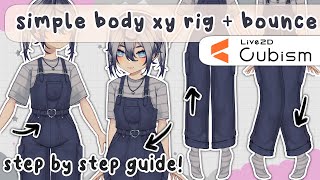

Simple Body XY Rig Setup in Live2D
44sEssential first step for creating dynamic body movements in Live2D, perfect for beginners.
▶ Play Clip"Title accurately describes the tutorial content: a step-by-step guide to rigging simple body angle X and Y in Live2D."
This tutorial covers the step-by-step process of rigging body X and Y physics in Live2D. The creator demonstrates how to make a vtuber model's torso tilt left and right (body X) and bounce up and down (body Y), including how to rig the arms and legs for coordinated movement. The video provides practical tips on using warps, keyframes, and physics settings to create natural, dynamic body motion.
Create new parameters for body XYZ physics and corresponding inputs (default body XYZ). Rig the angles onto the physics parameters to add bounce; otherwise, rig directly onto inputs if no bounce is desired.
Select the torso warp, apply standard deformation, and use auto-mesh (undo if layers go invisible). Create keyframes at +30 (right) and -30 (left), use 'smooth all' bezier edit type, and shift-click-drag the chest to the side. Add a separate layer (e.g., top plus) to create clothing movement illusion. Reflect the rig to the other side.
Separate arms into left and right warps. Add body XY warp to the arm, create keyframes at +30, and shift-click-drag the arm inward toward the shoulder for a natural look. Reflect the arm rig to the other side, adjusting for any asymmetrical accessories.
Group all upper body parts (head, torso, arms) into one warp. Add keyframes at +30 (up) and -30 (down). For legs, separate left and right, add path deformers at knee and ankle, straighten legs for up pose and bend for down pose. Reflect the leg rig to the other side.
Create a separate warp for body Y on the arms, placed at the shoulder. Rotate the warp box to make arms go up when body goes up (or vice versa). Add body Y keyframes to the original body XY warp to tweak the arm positions for a smoother look. Reflect the arm rig.
Group all torso parts (necklace, overalls, belt, shirt) into a body XY warp. Add keyframes at +30 and push the chest up; at -30, push it down. Add more bezier divisions and smooth the deformation. Merge the torso rig with the existing body XY warp for correct behavior.
Create two physics groups (body X and body Y). Set input to default body X/Y, type 'angle', effectiveness 100%. For body X: pendulum settings (copy from video), output to 'body X physics' parameter with scale ~52 to cover +-30 range. For body Y: input body Y, effectiveness 90%, pendulum settings (copy), output scale ~44. Ensure output value reaches ~100 for full range. Assign mouse buttons in preview settings to test.
The video is a practical, beginner-friendly guide to rigging body X and Y physics in Live2D. It emphasizes starting with simple techniques and refining later, and it prepares the model for more advanced features like body Z, arm physics, and tracking integration.
What is the recommended range for body XY physics parameters in this tutorial?
Negative 30 to positive 30.
2:52
What should you do if auto-meshing causes layers to go invisible?
Hit Ctrl+Z to undo and keep auto-meshing until it works, or manually mesh it.
3:45
How do you reflect a body X rig to the opposite side?
Right-click one keyform, click 'select' to select all keyforms on that parameter, then click 'reflect all'.
7:06
What technique does the creator use to make an arm rotate in body Y physics?
Creates a separate body XY warp on the arm at the shoulder, then rotates the warp box (makeshift rotation deform) to move the arm up/down.
21:14
When setting up body Y physics, what should the output parameter be?
The 'body Y physics' parameter created at the start.
29:55
Why might you need to increase the output scale in physics settings?
Because the parameter range is -30 to +30, and a default scale of 1 will only produce a small movement; the scale must be increased to cover the full range (output to ~100).
29:00
Torso Body X Technique
Core technique for creating a twisting motion in the upper body when looking left/right, using a single warp with keyframes.
3:02Body Y Using a Single Warp for Upper Body
Demonstrates a simple but effective method to make the entire upper body bounce up and down, adding significant dynamism.
16:00Leg Rigging with Path Deformers for Body Y
Shows how to make legs straighten (tip toe) and bend using path deformers, a key step for realistic body Y leg movement.
17:06Physics Settings Configuration
Provides specific numeric settings for pendulum and output scale, directly applicable for achieving smooth physics bounce.
28:01Arm Alignment in Body X
Explains moving the arm inward toward the shoulder when torso turns, addressing a common issue of the arm looking separate.
10:58[00:00] [Music]
[00:07] hello and welcome back to the channel
[00:10] and guess what we hit 11k this video is
[00:15] supposed to come out when I actually hit
[00:17] 10K but this took me a while to edit so
[00:19] I'm sorry guys but thank you so much
[00:22] last tutorial I went over hair physics
[00:25] and now that we're all done with our
[00:27] head I'm gonna move on to the body stuff
[00:30] which gets a little tricky especially
[00:32] depending on how complex your model is
[00:35] or what you want it to look like this
[00:37] will be a very simple body XY tutorial I
[00:41] will be making a separate tutorial for
[00:42] more advanced body XY techniques but I
[00:46] just want to keep it really simple for
[00:47] now and then using whatever you learned
[00:49] from me hopefully you could incorporate
[00:51] that into your own model as always draw
[00:54] out or look up a reference for how you
[00:56] want your angles to look this might be
[00:58] more important in the next tutorial
[01:00] video which will be the bodies z y z is
[01:03] when you lean your head left and right
[01:04] and your body will lean left and right
[01:06] some people like do stepping motions
[01:08] some people like to do like tilting
[01:10] motions or just sliding motions that
[01:13] one's a little more tricky that's saved
[01:15] for the next tutorial that I will suffer
[01:16] through today is by X and Y we'll be
[01:19] looking left and right with our body as
[01:21] I was going up and down with our body so
[01:24] without further Ado let's get into live
[01:26] 2D okay so first of all let's look at
[01:29] our parameters here is my body folder
[01:32] and if you watch my head angles X Y and
[01:35] Z I did the same thing for my body X Y
[01:37] and Z I made new parameters for body XYZ
[01:41] physics here and then in my inputs
[01:43] folder I have my body XYZ here so the
[01:46] body XYZ here are the defaults and the
[01:48] body physics here are the physics that
[01:50] our body XYZ will make move and we're
[01:53] adding physics here because we want that
[01:54] bounce if you don't want that balance
[01:56] you can rig your angles directly onto
[01:59] the inputs I have here but if you
[02:01] accidentally read the them on either or
[02:03] and you want to switch it over it is
[02:04] pretty easy to change those two so
[02:06] besides those I have a lot more
[02:09] parameters here that are not part of the
[02:11] default list obviously a lot of them I
[02:14] won't be going over today for example by
[02:16] stepping left and right this is going to
[02:18] be for body Z and then my arms I'll make
[02:21] a separate video for it's if you want to
[02:23] add more physics to your arms make them
[02:25] bounce up and down and make them more
[02:27] flowy and make your model a little more
[02:29] Dynamic and of course we have here are
[02:31] booba physics that I put into the body
[02:34] folder unfortunately I do not have a lot
[02:36] of booba so I will not be going over the
[02:39] booba in this video but I will be making
[02:41] a separate boopa physics video if you
[02:44] guys want that it's pretty
[02:46] self-explanatory but today we're just
[02:48] focusing on body X and Y physics here
[02:50] and I do have these set to positive 30
[02:53] and negative 30 and then our defaults at
[02:55] zero so once you have these made let's
[02:58] go ahead and start rigging our body so
[03:02] for my personal taste for body X when
[03:05] our torso moves to the left and right I
[03:07] like to keep it to the top torso area
[03:10] mostly I know some people like to make
[03:12] the entire body look left and right so
[03:14] they'll have their feet move as well and
[03:16] their legs if you're into that you can
[03:18] do that I'll be doing just my torso part
[03:21] because I like it's more like a Twist of
[03:23] the body so opening up my warps over
[03:26] here I'm gonna find my torso I will
[03:29] check if that is everything I need
[03:31] yes
[03:33] you'll notice that my sleeves and my
[03:34] arms are separate from my torso because
[03:37] our arms are a completely different
[03:38] beast but I'm gonna grab everything
[03:40] under my torso warp and give it a quick
[03:43] standard deformation now sometimes when
[03:45] you do the auto mesh it will mess up and
[03:49] cause some of your layers to go
[03:51] invisible if that happens just hit Ctrl
[03:53] Z to undo it and you can keep Auto
[03:56] meshing until it meshes it correctly or
[03:58] you can just go ahead and just manually
[04:00] mesh it if it doesn't work sometimes it
[04:02] takes a couple tries for it to mesh
[04:04] correctly so that the Art's not all
[04:06] glitched out but just a heads up I know
[04:08] some people have had issues with that
[04:10] and then everyone's clothes are going to
[04:12] be really different so rigging this will
[04:15] be really different for a lot of people
[04:16] but luckily since my clothes are pretty
[04:19] simple I hope that it'll be easy to
[04:21] apply when I teach you to your model
[04:23] let's just first take my overalls that
[04:25] are above my shirt I'm gonna put those
[04:27] into its own separate warp okay got that
[04:31] all in one more and then I'm gonna add a
[04:33] body
[04:34] and we're just gonna use most of the
[04:37] tools we use for the angle XYZ for our
[04:40] body except it'll be a little different
[04:42] since obviously it's the body I'm gonna
[04:44] change my bezier edit type to smooth all
[04:47] and increase all of my little gray dots
[04:50] and add more of the green dots and then
[04:53] I'm going to add three key forms onto my
[04:55] body X physics and all the way over to
[04:58] positive 30 which is of course us
[05:00] looking over to the right take my brush
[05:03] deform tool and take my chest and just
[05:06] shift click and drag it over to the
[05:08] right and then we'll sort of get that
[05:10] movement here now I'm just going to edit
[05:12] this until it looks right
[05:19] and then this is going to be a bit of a
[05:21] sketch warp layer so I will be editing
[05:24] my straps they look less weird like this
[05:27] later but you'll notice that here I have
[05:30] a gap here since I only have one layer
[05:33] here it's it's pretty two-dimensional
[05:35] and usually you know this would be out
[05:37] here more you could take this corner
[05:40] here and just push it out
[05:42] so that just stays there but I sort of
[05:45] don't like that look so that's why I
[05:47] actually prepared a layer here if you
[05:49] look on the warps I have a top plus so
[05:52] if I go to default here
[05:54] I take my top plus out of this warp and
[05:56] then I turn my body X or to the side
[05:59] you'll see that this stays right there
[06:01] and I actually made this top layer here
[06:03] kind of disappear on this side so when
[06:05] it turns it will be like the cloth is
[06:09] moving this way so I'm going to put a
[06:11] separate warp on my top plus layer it's
[06:15] still body XY add key form and then I'm
[06:18] going to move the top so that it matches
[06:19] up with my top layer here
[06:24] foreign
[06:27] awkward I should have made the top plus
[06:29] not have this top fit here honestly
[06:33] but I'm just gonna make this mesh a
[06:35] little more heavy and then go into the
[06:38] actual layer add key forms there and
[06:41] then fix this up a bit
[06:46] and I'm gonna go into my top layer I
[06:50] also do the same thing and touch up the
[06:53] actual mesh with key forms
[06:58] now it's looking a little more seamless
[07:01] honestly for my standards for my own
[07:03] model that's good enough for me
[07:06] yeah I'm gonna do that by right clicking
[07:09] one of my key forms clicking select and
[07:11] this will select everything that has a
[07:13] body x e form on it and then I'm just
[07:16] gonna reflect all those over and Bam
[07:19] now that I have the general sketch I'm
[07:21] just gonna go in and refine everything
[07:23] I'm gonna add warps to the strap
[07:25] specifically and tweak those and then
[07:27] tweak all my Corners here and I want
[07:29] this pocket to look so it's just going
[07:31] to be a lot of refining
[07:34] foreign
[07:44] I think this is something
[07:47] decent enough
[07:49] I also have my overall Shadow here
[07:51] separated so I'm going to grab that
[07:54] shadow here put it into my XY warp see
[07:57] how that looks okay I'm gonna quickly
[07:59] edit this so I can have the shadow here
[08:01] on the other side and everything
[08:03] [Music]
[08:09] all right that looks a little better
[08:11] obviously our shirt under is looking
[08:13] really flat so let's go ahead and rake
[08:16] that as well I'm gonna put my shirt bits
[08:18] into their own plan
[08:23] and I'm going to add a body XY
[08:27] and I'm basically going to do the same
[08:28] thing I did for the overalls but for the
[08:30] shirt it's going to be a little trickier
[08:32] because we do have these shoulders here
[08:35] but I'll speed through it and you guys
[08:37] just just watch just sit back and watch
[08:39] [Music]
[08:45] [Music]
[08:49] all right that's a little better it's
[08:51] gonna look a little awkward here with
[08:53] the arms since they aren't moving but
[08:55] we'll get to the arms soon obviously now
[08:58] my necklace is looking out of place so
[09:00] I'm gonna go ahead and rig that in
[09:03] foreign
[09:12] [Music]
[09:22] [Music]
[09:32] guides I remember looking at to help my
[09:36] jewelry look nice but I completely
[09:37] forgot them so this is all I got for now
[09:40] if you guys don't already Twitter Tick
[09:43] Tock YouTube there are so many awesome
[09:45] live today guides out there that teach
[09:47] you how to do really cool things with
[09:49] stuff like glue or just on it or just
[09:52] the mesh or there's like blending stuff
[09:54] there's also the new blend shapes I have
[09:57] still not looked into all of that yet so
[10:00] I don't want to teach any of it until I
[10:02] kind of know what I'm doing with them
[10:04] yet but look them up they're really good
[10:06] especially if you have something really
[10:07] specific you want to rig nicely try
[10:10] finding a tutorial or guide somewhere
[10:12] honestly I get a lot of live 2D
[10:15] tutorials on my Tick Tock and some of
[10:17] them are like mind-blowing things I've
[10:19] never thought I could do so yes if you
[10:22] guys have the time try looking up some
[10:24] cool things to learn or just play around
[10:26] with stuff in live TV with random stuff
[10:27] you won't regret it trust me anyway I
[10:31] have my necklace right in my torso
[10:34] looking left and right and I do like to
[10:36] move my belt a little bit since this is
[10:39] contorting a bit so I'm going to do that
[10:41] really quick
[10:44] [Music]
[10:46] all right let's look and get enough to
[10:50] me as always please make your rig look
[10:53] better than mine so let's move on to
[10:55] doing body X for the arm so it doesn't
[10:58] look so awkward going over to my arms
[11:02] warp deformer I'm going to first
[11:04] separate my arms into the left and right
[11:07] okay now I'm going to take my right arm
[11:09] here collect everything here and I'm
[11:11] going to put it into a body X Y one
[11:14] double check you have everything on your
[11:16] arm here including your sleeve and one
[11:18] of our bracelets or whatever you have in
[11:20] your arm I'm gonna add my keyframes and
[11:22] then move it over to right here and I'm
[11:25] gonna push this in
[11:27] and I'm pushing it in into my sleeve
[11:29] meets my shoulder here make that a bit a
[11:33] little more natural if you want to have
[11:35] more oomph into your rotation of body X
[11:39] you can put this in a lot more and then
[11:41] adjust some things for now I'm going to
[11:43] keep it simple I might change it in the
[11:45] future but for now because I want to
[11:48] make this a quick tutorial or quick ish
[11:50] so I can finish editing it and get it
[11:52] out because I've been very distracted
[11:54] this past week
[11:55] uh over to the left I'm going to push it
[11:57] outwards
[11:59] just a little more and
[12:01] you know what I'll do the same for the
[12:03] other side
[12:06] now looks like your arms are all in your
[12:10] body look a little better when we
[12:12] reflect the arm over
[12:14] I will quickly tweak my shoulder skin
[12:16] here selecting my body I'm gonna add
[12:19] body X Y onto that as well and then the
[12:23] key phrase it pops out I'm just gonna
[12:27] there you go okay now I'm gonna select
[12:31] my
[12:32] entire arm here that I just rigged I
[12:36] select all child objects copy paste and
[12:39] we're gonna flip that over reflecting
[12:41] body X horizontally we'll move the other
[12:44] way now I have a bracelet on this arm so
[12:46] it's not completely symmetrical to this
[12:48] arm I'm just going to drag my bracelet
[12:50] art into that folder I just and then
[12:53] delete everything in the original arm
[12:56] for that and then I have to move my
[12:58] layers around because not in the right
[13:00] order ears there we go and then it
[13:02] should be
[13:03] I did it and copied
[13:07] now honestly it looks a little Bland
[13:09] because I don't have a lot of things
[13:11] that help show the dimension of my
[13:14] clothes when I turn if you have booba
[13:17] it'll be really nice to make them look
[13:19] really nice when they turn because then
[13:20] it actually looks like you're turning
[13:22] but little Illusions like the clothes
[13:24] popping out this way and everything
[13:26] slightly turned to the side will really
[13:28] help and don't worry if your movement
[13:30] looks really subtle when you're rigging
[13:31] it because when you're actually using
[13:33] the model it will look a lot more
[13:35] impressive of course it varies from
[13:37] model model but just heads up now as a
[13:40] little additional movement to really
[13:42] bring in that I'm turning left and right
[13:44] for the body I'll be moving my next shot
[13:46] now now I'm all now I'm actually going
[13:48] to put my shadow to angle X so I'm going
[13:53] to add an angle X Y to form it to my
[13:55] next Shadow now if you're using standard
[13:58] tracking programs like YouTube Studio
[14:01] your body X will actually correspond
[14:04] with your angle X so when you look left
[14:06] and right at your body they will also
[14:08] look left and right so you could
[14:09] actually just rig all of your body X
[14:11] into angle X but it is a lot better to
[14:15] separate them especially for animation
[14:17] and inverting movement in YouTube Studio
[14:20] which I will explain much later when we
[14:23] actually have everything rigged but
[14:24] anyway I'll be breaking my neck Shadow
[14:26] angle X which I should have done in the
[14:30] angle X Y video but honestly there is a
[14:32] lot in that video so quickly do it over
[14:35] here if you don't have your next Shadow
[14:37] separated from your neck I really
[14:39] recommend that you do because it just
[14:41] adds so much more Dimension as you can
[14:43] see here it will also quickly do angle y
[14:47] and I'll quickly synthesize these
[14:49] corners and touch up the corners if
[14:51] needed
[14:54] all right and I'm just going to add
[14:55] extended interpolation and I'm done with
[14:58] that sorry for having a random angle X Y
[15:00] in my body X Y video but just if you
[15:04] guys forgot there it is because I forgot
[15:07] obviously now I'm basically done with my
[15:09] body X here as I said I usually only
[15:12] like the top part moving because usually
[15:14] that's all you see anyway I know some
[15:16] people like to make their bottom half
[15:18] move and maybe this leg will kick in
[15:20] when you're looking this way and the
[15:22] other leg will kick in when you're
[15:23] looking this way body is gonna vary very
[15:25] differently between all models so do
[15:28] what you want to next I'll be going to
[15:31] body Y which I think is always super fun
[15:34] because I love the Y physics as I said
[15:37] for the hair I love the Y physics so
[15:39] this will just make your model go down
[15:41] and go on their tippy toes up in my case
[15:43] even more on my tippy toes it just adds
[15:46] a Lot More Bounce to the model but if
[15:48] you're not into that or you're on the
[15:49] free version and you're conserving your
[15:51] warps you can just skip body y but if
[15:53] you want a really nice nice Dynamic
[15:55] model body y you gotta do okay trust me
[15:58] so first I would just like to take
[16:00] everything except my legs and put them
[16:03] into one warp so that would be my head
[16:04] my hips my torso my neck and my arms
[16:08] here I have separated on the side I'm
[16:10] gonna put that into body XY for me now
[16:13] I'm not gonna put body X on this orb
[16:16] deformer but I am still naming a body XY
[16:19] because it's a lot easier from when I
[16:20] try to search up my warps that you can
[16:22] do in the part section here honestly you
[16:24] guys should be naming it to whatever
[16:26] works for you guys I will be going into
[16:28] adding keyframes to my body y physics
[16:31] now positive body Y is when we go up I
[16:34] should be easy to remember because you
[16:36] know positive plus up I'm just going to
[16:38] shift click and drag this up a little
[16:40] bit it's a little too much and then
[16:42] negative 30 of course we're down a
[16:45] little bit and then you'll see a general
[16:46] look of how it will kind of be when you
[16:49] go up and down and then of course
[16:51] Miracle is up and down your head will
[16:53] also go up and down now that I'm looking
[16:54] at my ankles I'll fix that later if I
[16:56] ever get to it so here's our sketch at
[16:59] the moment now we're gonna go into the
[17:01] legs and as we did with the arms I'm
[17:03] going to separate them into left and
[17:04] right
[17:06] all right so since I always start my
[17:08] right side I'm going to take my right
[17:09] leg everything in here and we're just
[17:11] gonna quickly standard mesh them with
[17:13] the auto mesher now for how I do body Y
[17:16] for the legs this will warp them quite a
[17:19] bit so if you can try to make the warp
[17:21] really nice if you're copying me I'm
[17:23] just gonna Auto heavy deformation it and
[17:26] it looks like it might be a little no
[17:29] it's fine sometimes for these close-knit
[17:30] Auto meshes they will cut off some of
[17:33] the edges but I think it's fine I think
[17:38] so making everything again I'm gonna add
[17:41] up deformer and my body XY now if you
[17:44] were doing a body X rig for your legs as
[17:47] well I would actually rig the body X
[17:50] here first before we go into y but you
[17:52] can also do the other way too I just
[17:54] think it's easier to do X's before we do
[17:55] y's regardless I'm gonna add a lot of
[17:59] these little gray Dots here the
[18:00] conversion divisions like I said before
[18:02] if you have a not so great PC the conver
[18:06] divisions may or may not like you a lot
[18:08] I know in the past a lot of people have
[18:10] had issues with those so just a heads up
[18:12] it did happen to me so I kind of try to
[18:15] keep it low but anyway I'm also going to
[18:17] add more of a gray dots to the middle
[18:22] this is five it's fine of course make
[18:24] sure you're busy at a type is a better
[18:26] smoothing one now I'm gonna add
[18:27] keyframes to my body y we're gonna go to
[18:30] positive 30. and I'm going to add
[18:32] temporary path deformers I did this in
[18:35] my hair physics video if you don't know
[18:36] how to do this let me add two here one
[18:39] at the knee since the bends at the knee
[18:40] one at the ankle and then one at the
[18:42] bottom of the foot making sure the two
[18:44] ends here are outside of the war and
[18:46] then I'm going to straighten out my legs
[18:47] as if I was doing all my tippy toes
[18:52] making sure my legs line up to my hips
[18:55] here and then double checking if that
[18:57] looks okay it looks pretty wonky down
[18:59] here
[19:02] [Music]
[19:04] all right and once I have that done I'm
[19:07] gonna actually out
[19:11] all right and now I'm gonna go over to
[19:13] negative 30 add in my path to formers
[19:16] the same spots again
[19:18] [Music]
[19:19] and now I'm going to make the opposite
[19:20] and make it bend down a little this will
[19:23] especially look different for everyone
[19:24] depending on how your legs are drawn so
[19:26] just do the best with the dot on
[19:28] people's legs go straight forward and
[19:30] then do a squatting rig when they bend
[19:33] down like this
[19:35] foreign
[19:39] and then
[19:41] pitching it up with just little
[19:42] divisions here
[19:47] all right both looks pretty decent to me
[19:50] I'm just gonna grab that entire leg
[19:52] again and reflect it over like I did
[19:53] with the arms this time I'm not gonna
[19:56] reflect the body why because I want them
[19:57] to be the same and then deleting my old
[20:00] plague now you're up and they both go up
[20:03] so I go down they both go down now when
[20:05] you reflect them over you'll probably
[20:06] see how weird they look now they got two
[20:09] in like I see how weird it looks so you
[20:12] can just edit one side again and then
[20:14] re-reflect that over I will quickly do a
[20:17] little bit of editing before I go on to
[20:19] the next spot
[20:23] all right that's looking a little better
[20:25] for my taste but good enough for now
[20:28] okay so let's go over and Link our body
[20:30] X and Y physics and if we move this
[20:33] around we can see
[20:34] what our model is going to look like
[20:36] when we look around as well and honestly
[20:39] I think it looks pretty cute right now
[20:40] but let's add more body y to our upper
[20:44] body so I'm gonna first start with the
[20:47] arms I'm going to Arma usually something
[20:51] I like to do for my models is that when
[20:54] they look up their arms will go up or
[20:56] down and then when they look down their
[20:58] arms will go up or down for example if I
[21:00] go up and I want my arms to go up as
[21:03] well I would just
[21:05] like that it's a little longer right now
[21:07] I'm just demonstrating but it would be
[21:09] something like this or when you look up
[21:12] you can put your arms in like that I
[21:14] think both are cute I think it also
[21:16] depends just on your preference on
[21:18] whether or not you want your arms up
[21:19] when you look up or down when you look
[21:20] up but I'm actually going to put another
[21:23] warped her body XY here and for this
[21:28] body XY I'm I'm just gonna put body y
[21:30] physics on it but I'm going to control
[21:32] click and drag our warp box up to like
[21:37] shoulder here now when I take the red
[21:40] dots here and rotate them my arm will
[21:42] rotate from that area you can just put
[21:45] rotation deformance on it of course I
[21:48] just turned this warp deformer into a
[21:51] makeshift rotation deforming so adding
[21:54] keyframes to my body why when I go up
[21:57] arms to go out
[21:58] I go down my arms in of course you can
[22:02] just right click a key form here and
[22:04] then hit reflect this will do the
[22:06] opposite in case you want to test that
[22:07] out
[22:08] you can also do this in YouTube studio
[22:10] so you can test out which one you like
[22:12] better I do like both but for now I'll
[22:15] just do up and up and down and down but
[22:18] since we're rotating here of course the
[22:20] Art's gonna look a wonky so I'm gonna go
[22:23] back to my original body XY that has my
[22:26] body X physics here and add body y key
[22:30] forms to this so when I go to positive y
[22:32] I can tweak this
[22:36] and negative y
[22:39] like that of course I need to add more
[22:43] decisions everything
[22:44] [Music]
[22:48] also I did the art for my sleeves really
[22:50] weird and these are not overlapping
[22:52] perfectly so I'm actually just gonna
[22:54] super tweak that
[23:07] all right now I have to fix everything
[23:09] once again
[23:11] foreign
[23:14] to the right and do the same thing here
[23:19] turn to the other side and doing the
[23:21] same thing
[23:25] if you have weird warping like I do here
[23:27] see my line here is right at the top and
[23:32] then it goes deeper into the armpit here
[23:33] you can honestly use invert clipping
[23:36] mask here and just copy other things
[23:38] over I probably should have done that so
[23:41] do that instead and it'll be easier I'm
[23:44] gonna test this out and it looks pretty
[23:46] clean so far of course except the weird
[23:48] warping that I have to do because my
[23:50] stuff's sticking out but I'll change
[23:52] that
[23:54] all right so now that we have this side
[23:57] done I'm just gonna copy and paste the
[23:58] arm over and did what I did earlier
[24:03] all right now let's test this out
[24:06] it's looking a little more Dynamic
[24:09] probably move my hips here a little more
[24:12] too much
[24:13] out there that's an issue for later
[24:16] honestly this is good enough for me if
[24:19] you guys want to add more of course add
[24:20] more warps if you'd want and for those
[24:22] on the free version I have no idea how
[24:25] many warps you have left after
[24:26] everything we just did with the face and
[24:28] everything but if you do have some extra
[24:29] warps left use them sparingly in the
[24:32] body section because most cases everyone
[24:34] will just see this much of your model
[24:36] but it's always fun to do the body and
[24:38] everything
[24:39] especially for model showcases all right
[24:41] it is another new day of me recording so
[24:44] last time I'm pretty sure I just
[24:46] finished all the arm things for body XY
[24:50] yep
[24:52] so now we're gonna add body y to the
[24:56] Torso here so I'm gonna grab basically
[24:58] just everything on my torso my necklace
[25:01] my overalls my belt and my shirt and I'm
[25:03] just gonna test that see if I got
[25:05] everything hypothetically it would sort
[25:07] of look like this going up so I'm gonna
[25:09] group all those into a body X Y warp and
[25:13] then adding three key forms the body y
[25:15] I'm gonna go to positive y I'm just
[25:17] gonna take the chest a bit to push it up
[25:20] like this
[25:22] a stretch all the things here a little
[25:24] bit and then I'm going to do the same
[25:25] thing to Native body y I'm a good place
[25:29] to grab
[25:32] after I have a little sketch of that
[25:34] with my deform brush tool I am going to
[25:37] add more little gray Dots here make sure
[25:39] my bezier edit type is too smooth all
[25:42] and then I'm gonna add more bezier
[25:44] division numbers and then I'll edit this
[25:46] to be smoothed out to look a little less
[25:48] awkward
[25:52] [Music]
[25:54] all right that's looking a little better
[25:56] and obviously it's gonna look pretty
[25:58] wonky because I don't have my shoulders
[25:59] and everything to this warp so because
[26:01] of that I'm actually just gonna take my
[26:04] torso under here yours is probably
[26:05] separated differently but I have it
[26:07] under this body XY I'm gonna put this
[26:09] under the body XY I just rigged that it
[26:12] rigs the same now it doesn't hide as
[26:14] much and now it doesn't show as much
[26:17] obviously we have to edit everything
[26:18] else we did xy4 so all this looks right
[26:21] but generally after just a little sketch
[26:23] rig like this you're gonna go back into
[26:25] all the little parts that need editing
[26:27] and give them its own body XY warp tweak
[26:29] all the little details for each corner
[26:31] and everything so this will probably
[26:33] just be a big time lapse of me editing
[26:35] things adding warps to everything so sit
[26:38] back and enjoy I guess
[26:41] relax
[26:44] [Music]
[26:57] [Music]
[27:04] foreign
[27:07] [Music]
[27:18] I'd say I'm pretty finished with
[27:21] everything I wanted to rig in this video
[27:23] again I'm sorry I kind of threw some
[27:27] longer techniques they use simpler
[27:29] methods but they take longer but since
[27:32] this is the first video into doing the
[27:34] body I wanted to teach you know those
[27:36] ways first before we get into harder
[27:39] things like gluing a ton of stuff
[27:40] together and stuff like that which we
[27:42] will probably start doing soon and of
[27:44] course Everyone likes to use different
[27:46] techniques and using different
[27:48] techniques on certain things will make
[27:50] them look better so I think it's good to
[27:52] learn everything you can and then apply
[27:55] them as easy fit but anyway since we
[27:57] finished all of that we are just going
[27:59] to add physics now so everything can
[28:01] move once you open up your physics
[28:03] settings here I will show you my physics
[28:06] settings for my bodies so as always you
[28:09] just hit add name this whatever body y
[28:12] body X in this whatever you want you'll
[28:14] be making two new ones one for body X
[28:16] and one for body y and here are my
[28:18] settings for body X my input is the
[28:21] default body X that comes with live TD
[28:23] so that's just normal body X and then
[28:26] the type is angle just like we did for
[28:28] the angles XYZ video and the
[28:30] effectiveness is a hundred percent our
[28:32] pendulums here I have one pendulum here
[28:34] my numbers feel free to pause and copy
[28:37] those and then over to Output settings
[28:39] this is of course the new parameter you
[28:41] should have made at the very beginning
[28:42] of the video this is I need to buy X
[28:45] physics as you can see here and that's
[28:47] what I've been reading everything on so
[28:49] an issue a lot of people had with the
[28:50] angle XYZ is that their scale was not
[28:53] correct your scale will probably be at
[28:55] default one but of course if you copy me
[28:58] your range for your body X physics
[29:01] parameter is negative 30 to 0 to
[29:04] positive 30. so you're gonna need a
[29:06] bigger output scale to actually cover
[29:09] all those numbers because if you leave
[29:11] this at scale one it's gonna move a
[29:14] little tiny bit so you're going to want
[29:16] to increase the scale and if you play
[29:17] around with your model you see the
[29:19] output number change that is how much of
[29:22] the parameter is being output when you
[29:25] click and drag everything aka inputting
[29:28] the numbers into your model if your
[29:30] output is lower than 100 you can hit
[29:32] increase output and that should go to
[29:34] 100 sometimes it might go over 100 but
[29:37] you might like how it looks over 100
[29:39] um if you don't just decrease the output
[29:41] here and that should set it back to 100
[29:43] hopefully if not you can keep playing
[29:45] around with the scale number until you
[29:46] hit around 100 it's honestly up to you
[29:48] how much you want it to be like and then
[29:51] here are my body y physics settings and
[29:53] then here in my body y physics setting
[29:55] of course input body y the default
[29:58] remember that it's an input parameter
[30:00] when you go into vtube Studio you are
[30:02] going to be inputting this number when
[30:04] you turn your head angle Effectiveness I
[30:06] do have it at 90 but you can increase it
[30:09] if you want I do have it at 90. you know
[30:11] around 9 200 is fine so up to you you
[30:14] can play around with it see how it works
[30:16] and then my pendulum for body wise a
[30:19] little different here of course with
[30:21] this one as well you can play around
[30:22] with that to see what you like although
[30:24] whenever you're doing physics related
[30:25] things I would test it out in your
[30:27] tracking program before tweaking because
[30:29] it will look different from you
[30:31] controlling in live 2D just because
[30:32] tracking varies from people to people
[30:34] and depending on how good your tracking
[30:36] is you might not be able to cover all of
[30:39] your rigged parameters but that is an
[30:42] issue for another time output settings
[30:44] of course is the body y physics
[30:47] parameter that we made Effectiveness 100
[30:49] scale I have at 44 and my output is
[30:52] about 100 too my scale is just a little
[30:54] more because if you see here I have a
[30:56] random disorder number for my scale it's
[30:58] just because I auto outputted the number
[31:00] here so my scale will automatically go
[31:02] to whatever it is but you don't have to
[31:03] be exact just do whatever you think
[31:05] looks good so hopefully your model is
[31:07] moving when you click and drag if you
[31:09] can't click and drag remember that you
[31:11] need to have your preview here settings
[31:13] of the cursor tracking you want to set
[31:15] your bodies to your your mouse buttons
[31:19] of course my body X is to Mouse button X
[31:22] which is when I click and drag left and
[31:24] right my body Y is to left Mouse button
[31:26] Y which is when I click and drag up and
[31:28] down you have that remember to press ok
[31:30] so it gets set and then click and drag
[31:32] and it should work and we'll do random
[31:34] here and you'll see why it may be a
[31:36] little dramatic here but yeah we have
[31:39] very basic body movement done and we
[31:42] will be adding more body stuff soon as
[31:45] well as physics for clothes and stuff
[31:47] and I'll be doing arm physics if you
[31:50] have nice thick thighs you want to
[31:52] jiggle or you want booba jiggle doing
[31:54] physics for everything once you start
[31:56] learning how to do physics for different
[31:57] things it'll be easier to do physics for
[31:59] everything we will get to those
[32:00] eventually also please ignore how bad my
[32:04] angle X y's are
[32:06] um I'll redo them one day but yeah
[32:08] that's about it for this tutorial if you
[32:10] have any issues please let me know in
[32:12] the comments I will try to reply if
[32:14] anyone else can go through the comments
[32:16] and reply with your expertise too please
[32:18] do uh yeah that's the end for today I'm
[32:22] sorry this video took forever to get out
[32:25] um I know in my last video I said I was
[32:27] gonna try to make a video like every
[32:29] week but honestly the last couple of
[32:31] weeks I have been really busy with some
[32:33] outside things so
[32:35] all right guys but we're almost done
[32:38] with our base rig as you can see I'm
[32:41] going up and down you can't see my legs
[32:42] or anything but I am moving sort of
[32:45] um I will go over a couple more little
[32:47] bass rig stuff and then teach you guys
[32:49] how to export everything into YouTube
[32:52] studio and how to edit all of your
[32:53] settings and stuff and then after that I
[32:55] will be going over additional rigging
[32:57] things like iOS tracking and um
[33:00] expression toggles outfit toggles etc
[33:03] etc so if you guys have anything
[33:04] specific you want to see please let me
[33:06] know but besides that you have actually
[33:09] hit 12K today uh as I'm recording this
[33:11] and I'm gonna upload this today I swear
[33:14] thank you guys as always for all of the
[33:16] support I'm glad these tutorials are
[33:18] helpful and you guys see me doing a
[33:20] bunch of random other videos and you
[33:22] hate them I'm sorry but
[33:24] it's inevitable
[33:26] so yeah I'll see you guys in the next
[33:28] video Whatever that'll be
[33:31] um probably my next Studio Vlog since it
[33:33] is the end of the month coming up and
[33:35] then I do have a different type of video
[33:37] after that coming up uh but after that I
[33:41] will be doing the body Z stepping and
[33:42] stuff which hopefully won't take too
[33:44] long but you know it is kind of
[33:45] complicated so we'll see but yeah I'll
[33:48] see you guys next time good bye
⚡ Saved you 0h 33m reading this? Transcribe any YouTube video for free — no signup needed.