
AI Summary
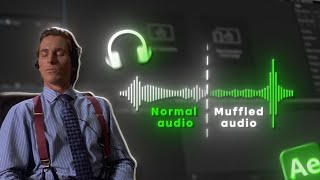
This tutorial demonstrates two simple methods to create a muffled audio effect in Adobe After Effects. It covers using the Bass and Treble effect and the High-Low Pass filter, along with keyframe animation for smooth transitions.
Chapters
The video aims to transform normal audio into a muffled sound effect using two methods.
Select audio layer, go to Effects and Presets, add Bass and Treble. Set Bass to 100 and Treble to -100.
Select audio again, add High-Low Pass effect. Set Cutoff Frequency to 500 and filter option to Low Pass.
Create keyframes for Cutoff and Dry Out. Set Cutoff to 0 and Dry Out to 100 to transition from normal to muffled.
Two methods demonstrated. The creator mentions their editing presets show and asks for tutorial suggestions.
These two methods provide a quick way to achieve a muffled audio effect in After Effects, with keyframe animation adding dynamic transitions for more polished edits.
Mentioned in this Video
Tutorial Checklist
Study Flashcards (5)
What are the two effects used to create muffled audio in After Effects?
easy
Click to reveal answer
What are the two effects used to create muffled audio in After Effects?
Bass and Treble effect, and High-Low Pass effect.
00:14
What settings are used for the Bass and Treble effect to create muffled audio?
easy
Click to reveal answer
What settings are used for the Bass and Treble effect to create muffled audio?
Bass set to 100, Treble set to -100.
00:27
What filter option is selected for the High-Low Pass effect?
easy
Click to reveal answer
What filter option is selected for the High-Low Pass effect?
Low Pass.
00:56
What is the cutoff frequency set to for the High-Low Pass effect?
medium
Click to reveal answer
What is the cutoff frequency set to for the High-Low Pass effect?
500 Hz.
00:56
How do you animate a smooth transition from normal to muffled audio?
medium
Click to reveal answer
How do you animate a smooth transition from normal to muffled audio?
Create keyframes for Cutoff and Dry Out. Set initial keyframe with normal settings, then set later keyframe with Cutoff to 0 and Dry Out to 100.
01:10
💡 Key Takeaways
Two Simple Methods
Provides two distinct and easy-to-follow techniques for achieving the muffled effect, catering to different user preferences.
00:14Keyframe Animation
Demonstrates how to animate the effect for smoother transitions, enhancing the professional quality of edits.
01:10Practical Application
Suggests using the effect in intros, outros, and other edits, showing real-world relevance.
02:00Full Transcript
[00:02] Want to transform your audio into a muffled sound?
[00:14] you turn a normal audio clip into a muffled sound effect. I will show you two simple [music] methods to do so. First, get your audio ready. I already >> [music] >> Select your audio layer and go to the
[00:27] effects and presets panel. Add the bass and treble effect [music] to your audio. Set the bass to a 100 and the treble to a negative 100. And that's it. [music] This is the first method for transforming your normal
[00:40] audio into a muffled audio. Now, let me show you the second [music] method. Select your audio again and go to the effects and presets panel. [music] Add the high-low pass effect. Set the cutoff frequency to 500 [music]
[00:56] and change the filter option to low pass.
[01:10] between the normal audio and the muffled audio. To make it sound even [music] better in your edits, you can animate the effect using key frames. Create key frames [music] for cutoff and dry out here and do not change their
[01:22] >> [music] >> set the cutoff to zero, and dry out to 100. >> [music]
[01:47] >> You can clearly hear the audio transition from normal to muffled. And that's it. These are the two simple methods to transform your normal audio into a muffled audio. You can use [music] this in your edits, intros, or
[02:00] outros. And by the way, my editing presets show is on right now. You can check that out, too, if you want. >> You can find everything there, like premium CC, premium text effects,
[02:12] [music] and much more. I'll leave the link to it down in the description. Let me know what tutorial you want next. I [music] need some suggestions, and I'll see you in the next video. Thanks for watching.