
AI Summary
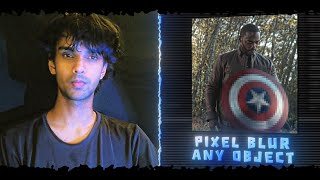
This tutorial demonstrates two methods to blur or pixelate any object in After Effects: using the Mosaic effect or Gaussian Blur. The process involves creating an adjustment layer, masking the object, tracking its motion, and applying the desired effect with feathering for a natural look.
Chapters
Shows how to blur any object in footage using After Effects, using either Mosaic or Gaussian Blur.
Create an adjustment layer and mask it around the object (e.g., a round Captain America shield).
Adjust mask position and rotation, then use the track forward button to follow the object throughout the clip.
Add the Mosaic effect to the adjustment layer; keep horizontal and vertical values the same for square pixels.
Increase mask feather to soften edges and avoid sharp boundaries.
Delete Mosaic, add Gaussian Blur (e.g., blurriness set to 95). Optionally combine with Hue/Saturation to desaturate the blurred area.
Creator offers premium editing assets; link in description.
By masking and tracking an object, you can apply either Mosaic or Gaussian Blur to pixelate or blur it seamlessly in After Effects.
Mentioned in this Video
Tutorial Checklist
Study Flashcards (4)
What is the first step to blur an object in After Effects?
easy
Click to reveal answer
What is the first step to blur an object in After Effects?
Create an adjustment layer above your footage.
00:30
How do you make the blurred area follow a moving object?
medium
Click to reveal answer
How do you make the blurred area follow a moving object?
Track the mask by adjusting position/rotation and using the track forward button.
01:16
What two effects are demonstrated for blurring?
easy
Click to reveal answer
What two effects are demonstrated for blurring?
Mosaic effect and Gaussian Blur.
01:48
Why should you increase mask feather when using Mosaic?
medium
Click to reveal answer
Why should you increase mask feather when using Mosaic?
To soften the edges and avoid a sharp boundary.
02:23
💡 Key Takeaways
Feathering for Natural Look
Crucial technique to avoid harsh edges when pixelating.
02:23Gaussian Blur Alternative
Provides a different aesthetic and can be combined with color adjustments.
02:35Full Transcript
[00:02] going to show you how you can blur any object in your footage using After object in your footage using After Effects.
[00:15] >> pixel blur and Gaussian blur. So, without wasting any time, let's get started. [music] Here, I have my footage ready and I'm going to blur a Captain America shield. Let's create an adjustment layer.
[00:30] Let's create an adjustment layer. >> [music] >> [music] >> For example, since the shield is round, >> [music] >> Now, mask the adjustment layer around
[00:46] the object. >> [music]
[01:01] >> Adjust it properly so it matches the [music] shape of the object.
[01:16] position [music] and rotation. Go to the beginning of the clip and click the track forward button. click the track forward button. >> [music]
[01:48] perfectly aligned with the object and follows it throughout the clip. Now, go to the effects and presets panel and search for the mosaic effect. and search for the mosaic effect. [music]
[02:06] >> [music] >> You can adjust these values according to your needs, but make sure both values are the same.
[02:23] look a little sharp. [music] To fix that, open the mask settings and increase the feather of it. >> [music]
[02:35] look at the second method. [music] Delete the mosaic effect Delete the mosaic effect and add Gaussian blur instead. [music]
[02:51] I'm setting the blurring as 95, [music] but you can adjust it however you like. but you can adjust it however you like. >> [music] want. For example, I'm adding hue or saturation and reducing the saturation
[03:05] to a negative 100. This is just an example. You can combine different And [music] that's it. This is how you can pixelate or blur any object in After Effects. And by the way,
[03:21] >> [music] >> You will find everything there to level up your edits with premium editing stuff. I'll leave the link to it down [music] in the description. Thanks for watching.