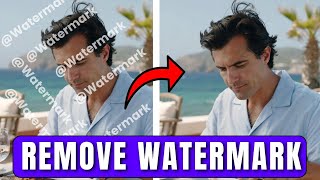

Remove Watermarks for FREE with Vmake AI
54sThis segment hooks viewers with a free tool promise and shows the simple sign-up process, making it easy for anyone to follow along.
▶ Play Clip"Delivers exactly what the title promises: a clear, step-by-step watermark removal tutorial with no filler."
This tutorial demonstrates how to remove watermarks and captions from videos using the Vmake.ai platform. It covers the web workflow, including account setup, automatic processing, and downloading, as well as the mobile app process. The video also highlights batch processing of up to eight files for efficiency.
Vmake.ai is a website that offers tools for adding captions and removing watermarks/captions from videos. A link is provided in the video description.
To use Vmake.ai, click 'Get Started', then the profile icon, and sign up using Gmail or an email address.
After logging in, click on 'Watermark and text remover' to land on the removal page.
Upload a file from your computer or import via social media links. Once uploaded, Vmake.ai starts processing the file automatically.
Vmake.ai locates watermarks and captions automatically, shows a before/after preview, and lets you download the cleaned video for free.
The desktop version supports importing and processing up to 8 files at once, removing watermarks from all videos in one go.
Download the Vmake app on your phone and use the 'AI remover' option to erase watermarks and subtitles from videos.
Import a video from your album or socials, choose 'remove all', and tap 'remove now'. After processing, preview and save the file.
Vmake.ai offers an easy and free way to eliminate watermarks and captions from videos, both on desktop and mobile. Its automatic detection and support for batch processing make it a practical tool for content creators.
Which website is demonstrated for removing watermarks from videos?
Vmake.ai
00:14
What is the maximum number of videos that can be batch-processed at once on the desktop version?
8 files
02:03
What option do you click on the Vmake mobile app to remove watermarks?
AI remover
02:45
What happens immediately after you upload a video to Vmake.ai?
It starts processing the file automatically and locates watermarks and captions.
01:23
What are the two ways to import a video into Vmake.ai on desktop?
From your computer or from social links.
01:08
What is the first step to use Vmake.ai on the web?
Go to vmake.ai and create an account using Gmail or email.
00:14
Automatic watermark detection
The tool processes files without manual selection, making removal effortless and fast.
01:47Batch processing capability
Up to 8 videos can be handled simultaneously, saving significant time for creators.
02:03Cross-platform mobile support
Watermark removal is available on mobile, extending the tool's convenience beyond desktop.
02:31One-tap save and export
The mobile app simplifies saving the final video, making the entire process beginner-friendly.
03:24[00:01] watermarks and captions from your videos. And we're going to be going over that sounds like what you want to see, below and let's get started. So, step number one is to come over to this
[00:14] website right here called vmake.ai. I'm also going to leave a link down in the description so you can follow along with this video. Okay, so this website actually does many things. Okay, you can use it to add captions on your video.
[00:26] creative and most importantly you can use it to remove watermarks and captions want to do is to go ahead and sign up for your account. To do that easily come the top. And once you click on get started you're going to be redirected
[00:41] here you just want to go ahead and click on this little profile here. And from account using your Gmail or your email log into your account. Now this is how a new account should look like. Once
[00:55] you're in, you want to go ahead and click on watermark and test remover down you're going to be redirected straight to this page. Now, just wait till I show you how powerful these two is. Okay? So, you can actually import the file from
[01:08] your computer or you can import from your social links right here. For the importing a demo file that I've created for this video from my computer. So, for click here. And once I click here, I want to go ahead and upload the file. So
[01:23] once I upload the file, it's going to actually start uploading to vmake.ai. And once it's uploaded, vmake is actually going to start processing the file immediately by itself. You don't have to do anything. VM will process the
[01:35] file and locate the watermarks and the caption. Okay. So I'm going to give it a couple of seconds here. So basically once it's done, it's going to actually give you a video. So this is how the video looks before
[01:47] video looks before and this is how it looks after. So, V-Make actually allows you to remove subtitle from your videos or watermarks go ahead and click over here to download the video for free. Okay, so that's
[02:03] your video. And if you want to patch remove watermarks, V-Make actually allows you to import up to eight files. So, you can easily come over here, click eight files. In this case, I'm just going to do two and click on open. And
[02:17] actually going to process all the videos. And once it's done, it's going to remove the watermarks from all the videos. And once the videos are done eight videos. Okay? And that's basically how you remove watermarks and captions
[02:31] this with your phone, you can actually download V-Make to your phone. And this going to show you exactly how you can do that right here. Okay. So once you open up the V-Make app like this, you want to go ahead and click over here where it
[02:45] says AI remover. And once you click on there again, you can import links from your socials or you can import from your device. So in this case, I'm going to go ahead and import from album. And I'm going to go ahead and import my file.
[02:57] Okay. Now once I import my file, immediately you will see that you can actually remove watermarks or subtitles. But in this case, I'm going to remove all and I'm going to go ahead and click on remove now. Okay. Now once I click on
[03:10] file and once it's done I can go ahead and preview the file. So basically this and preview the file. So basically this is exactly how it looks before. is exactly how it looks before. And this is how it looks after.
[03:24] over here and click on save. And once I click on save I want to go ahead and click on done. And the file is actually So, I'm going to wrap this up here cuz I've pretty much shown you exactly how
[03:37] to remove water marks and captions from your videos. Smash thumbs up button if subscribe to the channel. And with all that said, I'm going to talk to every single one of you all in the next video. Peace.




⚡ Saved you 0h 03m reading this? Transcribe any YouTube video for free — no signup needed.