
Hidden VTuber Gem: VDRAW Review
45sIntroduces an unknown but powerful VTuber tool, sparking curiosity among VTuber enthusiasts.
▶ Play Clip"Delivers a straightforward review with practical details, though the title is generic and the content is brief."
Monika reviews VDRAW, a lesser-known VTuber program available on Booth.pm, highlighting its free version's features such as screen sharing, drawing, and customizable backgrounds. She notes the current limitation of only supporting VRM files and discusses the watermark in the free version.
Monika introduces VDRAW, a VTuber program available on Booth.pm, with both paid and free versions. The free version allows showing the computer screen alongside the character.
VDRAW currently only supports VRM files, meaning users must use models from the old VROID version, as the new format is not yet supported.
The program allows typing text, displaying the avatar with keyboard, showing gameplay, and drawing. Monika finds the drawing feature particularly convenient.
The free version includes a watermark, which is removed in the paid version.
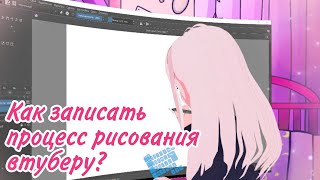
To share the screen, go to settings, select the fourth box (monitor), and choose the program to display, such as Krita for drawing.
Users can change backgrounds, including chromakey, panel backgrounds, PNG, cells, gray squares, honeycomb, and moon, or add custom images via 'Open folders with images'.
Camera settings are also available in the settings menu, allowing calibration for user comfort.
Monika praises VDRAW as a really good program, planning to keep it and use it frequently, recommending it to VTubers.
VDRAW is a valuable, feature-rich VTuber program, especially for drawing and screen sharing, despite the current VRM-only limitation and watermark in the free version.
What file format does VDRAW currently support for models?
VRM files (from the old VROID version).
00:29
How do you share your screen in VDRAW?
Go to settings, select the fourth box (monitor), and choose the program to display.
01:42
What is a limitation of the free version of VDRAW?
It includes a watermark.
01:29
What are some background options in VDRAW?
Chromakey, panel backgrounds, PNG, cells, gray squares, honeycomb, moon, and custom images.
02:10
VDRAW Introduction
Introduces a lesser-known VTuber tool, providing value to those seeking alternatives.
VRM Only Limitation
Highlights a key technical constraint that affects model compatibility.
00:29Screen Sharing Technique
Provides a clear step-by-step for a core feature, useful for tutorials.
01:42Strong Recommendation
Shows the creator's genuine endorsement, indicating high user satisfaction.
02:50[00:00] Hi everyone, I'm Monika. Today we're going to talk about a fairly unknown vtuber program, but no less good. The program is called VDRAW. This program can be downloaded from Booth.pm,
[00:14] The link will be in the description. There is a paid version and there is a free version. Today we'll see what we have in the free version. This program allows us to show our computer screen in parallel with our character. First, you have to upload a model of your character. Unfortunately, at the time the video was recorded,
[00:29] this program only works with vrm files, that is, you have to download models from the old VROID version, not the new one, as they haven't made the new one yet. Well, I found some model that
[00:42] we can use in principle, because I only have the new format, and there is no old one left. And this one is experimental, I was wondering if I should do it or not, because I'm very I don't like a lot of things. I was trying to imitate my style as a tuber. What we have here is that the model
[00:58] can only be used by the author... We agree in principle, yes. What can be done in this program at all? You can type some text, we have our avatar and keyboard, here's our character and the game. It seems to be something that's what Mana had? And drawing. Yes, we can show how our character draws. Basically, I think,
[01:17] that it's very convenient. I'll probably choose drawing after all. I should probably open up some kind of drawing program. I'll open it now. Unfortunately, I'm confused by this votemark, but it will be here because this is the free version of the program,
[01:29] in the paid version of the program in this watermark will not. By the way, I think, I have to move a little bit so you can see. There you go. I'm sure you're wondering how
[01:42] translate your screen through VDRAW? To do this we need to go into the settings, they appear right there on the side. Can you see it? I'm just afraid it will be like 2DVtuberCutiecats. To do this, go to
[01:54] into the settings and select the fourth box here. That's the monitor. And select the program we want to show. Here we have Krita. And this is how we can show our drawing process. Basically ou can also watch some YouTube together, and draw something, and play games,
[02:10] as you feel comfortable. You can change the background here, in these settings. We already have chromakey here, some panel backgrounds, png. What do we have here? Oops, cell, gray squares, honeycomb, moon.
[02:26] You can add your own background through this button "Open folders with images". From there you simply in the folder with the backgrounds fill your own, and already use. Camera settings are all also in these settings.
[02:38] You can calibrate if you are uncomfortable. Basically, this concludes the basic functions of this program. What can I say about it? This program is really good. I like it a lot.
[02:50] I'm going to keep it on my computer and use it a lot. Maybe for some videos or something. I hope you don't mind. And if you're a wtuber, this is a really valuable find for you.
[03:03] So I highly, truly, recommend this program. I hope my video was able to convince you to download it and start using it. In any case, I'm not forcing it. What do you think of this program? Write in the comments. You can also like, subscribe
[03:18] to my channel, and I'll see you next Wednesday at 5:00 p.m. Thank you all very much, and goodbye.
⚡ Saved you 0h 03m reading this? Transcribe any YouTube video for free — no signup needed.