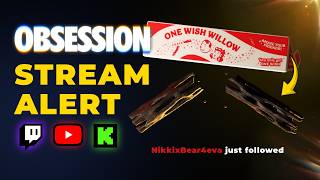

Free One Wish Willow Alert
45sOffers a free downloadable alert, a common search topic for streamers, with immediate value and visual appeal.
▶ Play Clip"Delivers exactly what the title promises: a free alert with setup instructions and a bonus behind-the-scenes, though some fluff in the middle."
This video presents a free stream alert inspired by the movie 'Wish', demonstrating where to download it, the files included, and how to set it up across various streaming platforms. The creator also shares a detailed breakdown of the 3D animation and sound design process using Blender and Adobe Premiere.
The alert is inspired by the movie 'Obsession' and is available for free download. The video will show where to get it, included files, and usage instructions.
The alert is available at gumroad.com/gal level (likely gumroad.com/getlevel). Users should read the description and can preview the alert with sound.
Three files are provided: a WebM with sound, a WebM without sound, and an MP3 audio file. These are compatible with any alert box system.
In Twitch, create an alert box, remove previous animation, upload the WebM file (with or without audio), disable alert sound, and preview.
Add an alert box widget, select follow alert, remove previous, upload the no-audio WebM, submit, and test with a follower event.
Ensure layout is 'image above text', remove previous, upload the WebM with sound, and select it.
Copy the browser URL from the alert service and paste it into OBS or other software as a browser source. Works with OBS, Streamlabs Desktop, Meld, TikTok LIVE Studio.
The alert can be used for various events like channel point redemptions, commands, or as a media source. Users can be creative with its application.
The creator used Blender 3D to model the box, add UV unwrapping, animate with guides, and create particles manually. The animation took over 2.5 hours.
Sound effects were sourced from freesound.org and mixed in Adobe Premiere. The cracking sound is from the movie's track 'Make a Wish' by Rock Barrow.
The Gumroad page has many free resources. Users are advised to watch tutorials before downloading paid versions.
The video provides a comprehensive guide to downloading and implementing a free stream alert, along with an insightful behind-the-scenes look at its creation, encouraging viewers to explore other free resources on the creator's Gumroad page.
Where can you download the One Wish Willow stream alert?
From gumroad.com/getlevel
00:14
What three files are included in the alert download?
A WebM with sound, a WebM without sound, and an MP3 audio file.
00:45
What is the first step to set up the alert on Twitch?
Create an alert box and remove the previous animation.
01:38
How do you add the alert to OBS?
Copy the browser URL from the alert service and paste it into OBS as a browser source.
03:10
What software was used to create the 3D animation?
Blender 3D
04:43
What is the source of the cracking sound in the alert?
The sound is from the movie's track 'Make a Wish' by Rock Barrow.
07:54
Free Alert Announcement
Immediately delivers on the title's promise of a free alert, setting clear expectations.
00:02Blender Animation Breakdown
Provides an in-depth look at the 3D modeling and animation process, valuable for creators.
04:43Sound Design Insights
Reveals the use of freesound.org and Adobe Premiere for sound mixing, a practical tip.
07:23Free Resources on Gumroad
Encourages viewers to explore other free resources, adding value beyond the alert.
08:20[00:02] alert inspired by the movie obsession and you can download and use it right now for absolutely free. In this video I'm going to show you where to get it, which files are included, and how to use it.
[00:14] >> Just like all of my other stream overlays, stream alerts, etc. This is available at gumroad.com/gal level and you'll find it right there. Click on it internet really, you want to make sure you read the description and there I
[00:30] need to know. Over at the banner, if you click here, you can actually see a full click here, you can actually see a full preview of it with sound.
[00:45] seconds. There's also an additional preview that shows you how it works within your services [music] like Twitch or something like Streamlabs or StreamElements or whatever service you use for your alerts if you plan on
[00:57] you use for your alerts if you plan on using it as alert. get three different files for this. In fact, I have them right here. The first one is just a typical alert with the sound and remember those are WebM files
[01:11] drag and drop them in anything that accepts that type of file. [music] The other one is another WebM file with the animation but this time without sound. own custom sound. That way you can use it with no problem whatsoever. And then
[01:26] finally we have an MP3 and this is just the sound. Stick around till the end of the video where I will explain exactly how I made it.
[01:38] else, I'd like to imagine that you're already familiar with alerts. If not, you you should go get familiar with alerts before downloading custom ones. That means that this will be supported by any typical alert box system. If you
[01:51] use Twitch as alert box system, for example, you can create an alert box and let's say you want this to be your follow alert, you can go to visuals and sound, click on the X to remove the previous animation, and then upload
[02:03] file. At this point, just select the one with audio or without audio. We'll pick with audio, and before we test it, what we will do is make sure that we turn off the alert sound here. And after a couple of seconds, this will be ready. Just
[02:16] click on preview alert. And there you have it. You can even with it. Do whatever you want. If you use StreamElements, you can add an alert box widget. We can select follow alert, and it's the exact same process. Remove
[02:31] the previous one, click change video, click upload, then drag and drop the one you want. I'll put the no audio one, wait a couple of seconds. There it is right there. Click submit, and I'll leave the default sound here. Let's
[02:45] emulate a follower event, and there you have it. Same thing if you're using Streamlabs as your alert system, you want to make sure your layout is image above text. You want to remove the previous one, go to the upload section,
[02:57] go find your files, and let's upload the one with sound. We will select it, and click select, and there it is. Now, to add them in your broadcasting software, it's the same process for each and every one of them.
[03:10] save your changes everywhere, and you want to copy the browser URL. On Twitch, You can see the copy button. In StreamElements, you save top right,
[03:22] and the copy overlay URL is right there. And on Streamlabs, you save at the bottom right, and the copy widget URL is right there. And copy. Then in your broadcasting software, I'm going to use OBS as an
[03:34] example, but this will work with Streamlabs desktop, with Meld, with with any broadcasting software that you're using, including TikTok LIVE Studio. I'm going to click to add a source, go to browser, give it a memorable name, click
[03:48] okay. I'm going to put this to the side, and where it says URL, you just want to paste the URL that you just copied. Then click okay, and you're good to go. Now, text and the colors and all that, but we're just going to test it like this.
[04:02] we're just going to test it like this. Look at the follow here. Streamlabs sound, so it plays both. You could just click on the X here and I showed you an example with the follow alert because that was like default, but
[04:18] you can use it for whatever. It's a one wish willow box and then the willow particular thing. You can make it so that people type a command and it pops up. People use a channel point in your channel. Maybe when people mention the
[04:31] word obsession. In fact, you can add it directly into OBS Studio or any other broadcasting software as a media source, as just as a video. You can have a channel point redemption where it ask the viewer to make a wish, and then that
[04:43] pops up. I just made the animation. You get to be creative with it. Speaking of get to be creative with it. Speaking of making the animation, how did I make it? process. Basically, I'm using Blender 3D here, and I found like a recreation of
[04:58] the label. From there, I had to model the box myself, and I modeled a little tab. Added some UV unwrapping. If you know 3D modeling, you know what that is. Just making sure the texture aligns with the box. The tab is a whole separate
[05:10] object, but that doesn't matter. I give it its own little arm so I can animate those guides that you see, like the circles around it so I can control it wish willow is a model that I found online, modified it a little bit, and
[05:23] then textured it so it looked more realistic. And then I had to split it in half. So, I just created those bounding boxes. You see, like I'm deforming this into a box. And this is basically going to cut off one part. Then I duplicated
[05:37] that, then created the box in the opposite way, just like that. Um to cut it basically the complete opposite way, and then both sides are kind of stitched together. I created those circles because I wanted to do the animation, so
[05:50] I'm parenting those objects to those circles so I can control the animation later. And then from there it was just manual animation. The beginning moving. I didn't want to move the box and all that. It it got really
[06:04] complicated really fast. So I just moved the camera around to make to make it look like, you know, the box was turning but it's just the camera. You can see more guides that I'm creating and then I'm doing a little camera shake here.
[06:16] You can see the noise in the in the key frames. This is before the willow breaks. I make it shake a little bit. That took Well, this whole time lapse this whole video is 2 hours and 38 minutes and it's not even half of the
[06:29] project. I then created little particles and instead of using like a simulation or an actual particle system in Blender, I just created four little blobs and I I manually animated each of them. Finally towards the end I didn't want
[06:44] broke, so I added a little bit of noise and I controlled that to make the camera move a little bit. Later on, I didn't record this, but later on I actually made the willow rotate just to give more camera movement. Here I'm adding an HDRI
[06:58] to do the lighting, which was really important. All right, probably could have been better, but you know, animation was done. Also, my PC was lagging like crazy by this point. I did not enjoy that. You can see I'm adding
[07:10] rotation to those little particles that you can see for two frames. So that's the Blender part. Oh, yeah, the first animation I had had the camera zooming in or just flying in. I ended up changing that later on because it didn't
[07:23] the sound design, which I don't usually include in my alerts. I let people this was important. So I'm using freesound.org and I'm basically mixing see me going through them. I used Adobe Premiere to do the sound design. I
[07:39] didn't need much really. Just a little reverb, some time stretch here and there. I had to find [music] cardboard noises, but also small cardboard noises. actually someone pulling out a box of pills, I think. And the actual cracking
[07:54] sticks being cracked. There is that And that's part of the movie. You probably heard it in the movie, and it's the exact sound that plays in the movie when Bear actually cracks the willow.
[08:06] And it's from the track called Make a Wish by Rock Barrow well. This one right there. I then slapped everything together, also in Blender. My first time using Blender as a video editor, and and it was done. So, yeah. One thing to note
[08:20] gumroad.com/getlevel, you will see that there's plenty of large majority is actually free. So, if your streams and your recordings, have a good look. If you don't know how
[08:32] something works, please do not download a paid version. I think mostly my you watch videos on my channel where I explain how it works, or just look at attached. This video you're watching right now is going to be in the
[08:45] alert. If you're new here, make sure you subscribe. I cover everything that has not new here, thank you so much for coming back. One thing I want to get better at is shouting out my members. So, shout out to Pixie Bluey, Classic J,
[08:59] Six Speed Steve, Nella Davis 4418, Dakota Miskis, DJ Rensburg, Charity's Dakota Miskis, DJ Rensburg, Charity's 411World, and Dogman Morgan 9660. Extra shout out for Pixie Bluey for being a member for 42 months. An extra shout out
[09:12] to Dogman Morgan for selecting the hero tier. I will do my best to have more being said, thank you so much for watching. Follow me on Twitch and on Twitter, and I'll see you next time. Bye-bye.


⚡ Saved you 0h 09m reading this? Transcribe any YouTube video for free — no signup needed.