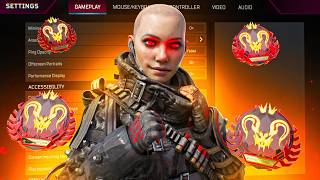

Keyboard Settings for Perfect Superglides
44sReveals a specific keyboard actuation trick that promises consistent superglides, a highly desired skill in Apex Legends.
▶ Play Clip"Delivers on the promise of settings that helped reach Masters, with detailed explanations and practical tips."
In this video, the creator shares their complete Apex Legends setup, covering peripherals, in-game settings, and techniques that helped them reach Masters rank. They detail their keyboard, mouse, monitor, and PC specifications, along with specific settings for movement, aim, and performance.
Uses Gravastar Mercury V60 Pro with 0.75mm actuation for WASD and 0.385mm release for feathering. Crouch bound to 0.5mm actuation, C key at 1.6mm for consistent superglides. 8000Hz polling rate.
Razer Viper V3 Pro with 8K polling and 1600 DPI, which is the new standard. Uses X-ray Pad Obsidian Ultra skates and Wall Hack SP5 mousepad.
Zowie 240Hz monitor with DyAc to reduce blur. Not good for content creation due to poor colors, but excellent for competitive play.
Damage feedback 3D crosshair damage X for hip fire tracking. Custom reticle color doesn't matter much. Enemy health bars enabled, highlights enabled. Weapon auto cycle off to avoid unwanted swaps.
Auto sprint on for easier movement tech. Auto run off. Jetpack control on hold for better control. Mantle boost off for M&K players who can superglide consistently.
Interact prompt style compact. Minimap rotation off for better map awareness. Obituaries (kill feed) on as a key tool. Ping opacity faded. Off-screen portraits off.
Plays 0.65 sensitivity as a happy medium. ADS sensitivity 1.0 for 1x, 1.2 for 2x, increasing by 0.1 per zoom level. Clamp mouse wheel off to save PC resources.
Move forward scroll up for tap strafing, W default. Jump space and scroll down for bunny hops. Cycle weapon on mouse side button for quick holster. Heals on 1-4, Phoenix on 5. Inspect weapon on left shift for spam combos.
Plays 16:10 stretched for wider view and more frames. 110 FOV, ability scaling disabled, shake minimal, UI full. All settings on lowest except Nvidia Reflex. Anti-aliasing off for sharper edges.
Sound effects 100%, dialogue 10%, music off, spectating audio 1%. Announcer dialogue off.
Image scaling off, ambient occlusion off, background app max frame rate 20 FPS to prioritize Apex. Low latency ultra, power management prefer maximum performance, texture filtering off, vertical sync off.
Uses color correction filter in OBS to increase contrast and saturation for recording. Monitor settings also adjust saturation, gamma, and sharpness for a crisper look.
Uses +fps_max 235 to cap FPS slightly below monitor refresh rate to avoid frame drops. Also uses -no_browser, -no_render_on_input_thread to reduce input delay, and -novid to skip intro.
Learn each gun's unique recoil pattern. Use aim smoothing by strafing sideways. Use counter-strafing to double control. Pull elbow into chest for full range of motion. Reset crosshair between sprays for better accuracy.
Pay attention to whether you're mirroring or countering opponent movement. Keep wrist and forearm loose to avoid shaky aim.
The video provides a comprehensive breakdown of the creator's settings and techniques for achieving Masters rank in Apex Legends, emphasizing the importance of fine-tuning peripherals, in-game settings, and recoil control methods.
What actuation point does the creator use for WASD keys?
0.75mm
00:55
What DPI does the creator recommend as the new standard?
1600 DPI
02:47
Why does the creator turn off weapon auto cycle?
To avoid unwanted weapon swaps when running out of ammo.
05:01
What is the purpose of setting background app max frame rate to 20 FPS?
To ensure Apex gets more resources and maintains high FPS.
14:49
What launch option does the creator use to cap FPS?
+fps_max 235
17:03
What is the technique of using aim smoothing?
Strafing sideways while shooting to reduce recoil.
19:29
Superglide Keybinds
Explains a specific keybinding technique for consistent superglides.
01:38Auto Sprint Benefits
Highlights how auto sprint simplifies movement tech.
05:28Kill Feed Importance
Emphasizes the kill feed as a crucial information tool.
07:27Recoil Pattern Mastery
Stresses learning each gun's unique recoil pattern for better control.
18:10Elbow Pull Technique
Shares a unique recoil control method learned from a pro player.
21:22[00:01] where I update you guys on my brand new settings in Apex [music] Legends. >> Sitting in building. I got to tell you. >> Nice. >> One knocked. >> Nice.
[00:15] >> Reload. >> Nice.
[00:30] in-game settings from gameplay to video, audio, and all that kind of stuff. Um settings for my PC. I'm going to cover all the different peripherals that I'm playing on, why I'm playing on them. So, let's hop on into it, gang. So, let's
[00:43] start with the gear that I use. I'm currently playing on the Mercury V60 Pro Deluxe Edition by Gravastar. Disclaimer, this was sent out to me for free. I do going to just put links to all the stuff that I use if you guys want to get a
[00:55] discount. Insane keyboard, really, really good. And my settings for this keyboard here are my W, A, S, and D keys activation is 0.75 mm. And then my activation is 0.75 mm. And then my release is 0.385 mm. Basically, what
[01:10] this lets me do is it lets me push my key down like a tiny little bit, and then it activates. And then by releasing my key a tiny little bit, it deactivates. So, I can basically like feather my key. It makes my movement a
[01:23] lot crisper for when I start doing superglides, stuff like that. It just responsive. responsiveness gives me a lot more potential and consistency. My crouch is bound to 0.5 mm, but it's got a key activation and release at 0.3. And
[01:38] bar, this is how I hit superglides so consistently. I bind my C key to have a consistently. I bind my C key to have a 1.6 actuation, and then I bind my space basically, what this means is my space bar presses twice as fast or twice as
[01:54] soon as my C key. And that lets me hit, like I said, these really consistent think about it. I literally just walk up and I just hit C and space at the same and I just hit C and space at the same time, and um I I just get perfect super
[02:07] glides every single time. My keyboard is also set to 8,000 polling rate, so it has insanely fast response time. For my mouse, I'm currently playing on the Razer Viper V3 Pro. I play with the white edition, and then I also put the
[02:19] little it's a tiny bit heavier than normal. I play 8K polling, so it's again if you play a higher polling rate, it's more strain on your CPU. So, if you don't have an insanely fast PC like the one that I have built from PowerGPU, uh
[02:34] hey, you know, your PC may not be able to handle the 16,000 polling rate that different peripherals. Um I also play 1,600 DPI, which is, by the way, like the new standard. Like, if you're not playing
[02:47] standard. Like, if you're not playing 1,600 DPI in Apex, you know, in in 2026, doesn't play 16 plus, you know, it's insane. By the way, I bought this mouse company at all. Um Razer has sent me stuff in the past, but I didn't like the
[03:01] them. But, I do love this mouse. The skates I'm currently using are the X-ray Pad Obsidian Ultra. These come in a pack of two, and they're full mouse skates. These are insanely soft. Like, I love these. They last a really long time,
[03:15] might burn through them a little bit quicker. My mouse pad, not that I'm currently playing on it right now, cuz I lent it to a friend, but I play on the SP5 from Wall Hack. Now, I am sponsored by them. Um I talk about them all the
[03:27] don't take on any sponsorships I don't use personally or I don't personally love. The monitor that I play on no longer is actually being made anymore. I play with a 240 Hz monitor from Zowie. This is not a
[03:42] good monitor if you guys want to make content, like editing on this monitor is horrible. I hate it so much. The colors are terrible, but insanely fast refresh rate. They have this thing called DyAc. And DyAc basically helps get rid of
[03:57] weird blur. This is a very expensive monitor. I play with a 27 260 or 240 Hz monitor. I'm looking to upgrade to one of their newer ones once
[04:09] I have the money. But low-key, I'm just not trying to spend like close to a thousand US dollars. So, my gameplay settings, we'll just go through this really really quick. Damage feedback 3D crosshair damage X. This is really good
[04:22] for hip firing up close with like really large weapons. I think the X icon makes it so useful for tracking people with your hip fire. Uh my custom reticle right now, I know I used to play a lot on yellow or black.
[04:35] Honestly, reticle color doesn't matter that much as long as you can see what that much as long as you can see what you're shooting. actually there's a lot of green. I take that back. But I can always see my
[04:48] Laser sight literally doesn't matter. Enemy health bars enabled, highlights obviously should be enabled. Weapon auto cycle on empty, I play with this on though I do like to have this turned off. I have a lot of moments where I
[05:01] know I'm about to run out of ammo, so I swap weapons, and then the auto swap have to swap. And basically what it ends up looking like, oh [ __ ] Oh [ __ ] And then I get completely cooked, and it
[05:15] pisses me off so much. Um taking damage closes death box or cracking, this has be able to armor swap in a gun fight. Healing chain, I turn this off. Healing syringe or a medkit, but you actually want to do the other thing. Auto sprint
[05:28] controller and mouse and keyboard players. It's just going to help you your movement. It makes it so that you never have to hit down on your sprint button. And by never having to hit sprint, anything that incorporates a
[05:42] sprinting mechanic is just going to be significantly easier, and trust me, you'll thank me later. Auto run turned off, totally different than auto sprint. Jetpack control on hold, and this is also the same thing for my crouch.
[05:54] Anything that is like toggler hold, I always put on hold because it gives you a lot more control over your movement. Like, I can hold my crouch, and I can to let me bunny hop really easy. If I were to play toggle crouch, if I try to
[06:08] jump, it literally just puts me in a stand. And if I go to slide jump, like run, crouch jump, crouch. That's a lot more work than just holding crouch. Uh mantle boost activation, I actually don't play with mantle boosting. My
[06:23] super glides are consistent enough to where I don't feel the pressure of having to perform and like actually hit it. I'm very confident in just hitting my super glide with like my keyboard settings. Because I can super glide, I
[06:35] can also tap straight out of it. So, there's a lot of moments where I tap straight on someone like that, or I hit a super glide sideways on them, and then I'll tap straight back into them like that. Or sometimes I'll super
[06:48] can get like really funky with this, too. Like, you can start doing like of your super glide. So, if you're on mouse and keyboard, and hey, if you're PowerGPU, link in description down below. But, if you're on a controller,
[07:02] you should probably have mantle boosting still turned on. UI HUD, so this is all my all my HUD settings. Interact prompt style, it's on compact. It just cleans system obviously turned off. Button
[07:14] That should be turned off. Health and ammo pop-ups, um should actually also be Probably cuz I was doing a coaching session. Uh hop-up pop-up is turned off. Obituaries is turned on. That's your kill feed. That should always be on.
[07:27] Never turn that off. It's one of the best tools that's on your screen. It lets you know if you can third-party fights. Lets you know who's dying on information, especially once you start getting into high ranks. It's like the
[07:40] a game-changing tool. Minimap rotation turned off. A lot of people have this turned on. I find it way harder to read the mini map when this is turned on. Um over here. When I'm moving and I'm like, "Oh, the arsenal. I need it to be behind
[07:53] me." and then I turn, right? I lose track of where all the other stuff is on the map. So, for me personally, having mini map rotation turned off makes it super easy for to just understand like where the arsenal is, where the light
[08:07] is, uh where where an enemy ping is. My The arsenal map and HUD icons, I've been change that to moderate. I've noticed that it's just low-key a little hard off or what it is. So, I'm actually going to change that. Ping opacity, I've been
[08:22] playing faded for like the last 7 years. Off-screen portraits, turn that off. to see if I'm lagging or what's causing the lag, maybe I can fix it. Um and then stuff in here. This is just all turned off. All right, mouse and keyboard
[08:36] changed a little bit recently. Um I know a lot of people play .6 or .69. I'm currently playing .65, a little happy medium. I was finding that the sensitivity for movement was just a little low um on .6. Whenever I had to
[08:51] do like a 180 tap strafe, like get out of a fight or I was trying to do angles, especially with like my super glides um or my mental jumps and stuff. Playing on point where it was making it a little bit hard. It's not that I couldn't do
[09:04] it, it was just a little bit harder [music] than it had to be. So, .65 makes And because I don't have to pull my mouse as much, um recoil control is also like way easier. My ADS mouse sensitivity, a lot of people bug me
[09:18] sensitivity, a lot of people bug me about this. I play ADS turned on. I play one for my one optics, 1.2, and then everything basically just goes up by .1 the eight times. These are a little bit
[09:31] this way [music] is so that if I ever have to use something like a 3x, it has that .2 two multiplier on it. And then whenever I fight up close, So like I can still take a fight
[09:47] at this range and it's still pretty manageable. But it's not too high to the point where I can't control my aim at really long range. Like I can control my aim here and then snap over and snap back. So it's low enough still to the
[09:59] it's fast enough to the point where I can use it up close. Clamp mouse wheel just makes it so that your mouse doesn't like leave if you ever open up your is going to save your PC a lot, believe me, trust me, turn this off. Going into
[10:14] my movement settings, everything is the same as before. I play move forward, scroll up is my bad, move forward is scroll up for tap strafing and then W is my default. My jump is space bar and scroll down. Scrolling down makes it so
[10:26] that you can do like bunny hops really easy. It makes wall jumps really easy. as well. Everything is pretty much default. The only thing that's different for me, I would say, is my cycle I don't play one and two or I don't play weapon
[10:41] one weapon two or primary secondary. I instead play cycle weapon like from controller and I bind that to the most [music] forward side button on my mouse of being four which is the default, I play my most further back side button.
[10:55] So basically what I'm doing is I'm going swap holster, swap holster, swap holster. So whenever I do something like insta slide, I can go swap holster by just sliding my thumb back. And it gives me this really
[11:09] snappy movement cuz I'm able to get into slides a lot faster by holstering. For my heals, I play one two three four. So one are my batteries, two are my shield cells, three are my med kits, [music] four is my heal wheel, and then five is
[11:23] Phoenix kit. And then other than that, everything is pretty much default. I inspect weapon with left shift. So a lot of people ask like how I do like my spam of people ask like how I do like my spam combos. The way that I do spam combo is
[11:36] while sprinting, you spam your left shift. And then to get the special shift. And then to get the special animations like this. aim button. So for me, it would be right mouse click. And while I hold right
[11:51] mouse click, it will give me those special animations. So what I do is I go spam spam special, spam spam special, special special spam spam special. And then my controller settings, I don't really play controller, so I'm not going
[12:03] that's what you wanted. But if you guys want a super solid controller, link in with aim controllers whenever I go play Fortnite, Call of Duty, um and other games as well that just aren't Apex. Cuz when I play Apex, I'm super competitive
[12:17] uh and I don't want to lose. My video settings are a little bit different than playing 16 by 10. What this does is it stretches everything out and it also lowers your resolution a little bit. So by removing some of the pixels on the
[12:32] actually looks more like this and then it stretches it back out to normal. So resolution and makes everything a little bit wider. So because everything's a little bit wider, it's a little bit easier to see in your 1v1s, a little bit
[12:46] then because I'm also lowering the resolution, my GPU doesn't have to work as hard at rendering as many pixels, which helps me get more frames. I play 110 FOV, ability scaling disabled, shake minimal, UI full, and then literally
[13:01] every single possible thing other than Nvidia Reflex. I don't know why that was disabled. Every single possible thing is just straight up disabled. I'm going to is what the screen looks like on the lowest
[13:15] possible settings. This is what the game looks like on absolute max settings. There's a little bit of a difference. Like you can see there's a lot but coming in. There's a little bit more shadow. But like in terms of detail,
[13:28] it's not making the picture that much clearer. So, it's really not worth it for me to drop my frames by like half just to get like the complete maximum resolution. Anti-aliasing turned off, what this basically does is if I turn
[13:42] this on, you'll see all the edges look really smooth. So, it takes the edges you play with this turned off, it doesn't blend any of the edges and they're just like super super sharp. I honestly find it a lot easier to see
[13:55] stuff when the edges are completely sharp because everything like moves a poppy. And then it's texture streaming budget, this is how like detailed everything is on your PC. Texture filtering, honestly everything else is
[14:08] just useless. Like don't even don't even use these. Audio, sound effects 100%, dialogue 10%, music completely off, and then spectating audio should be at 1%. only and I don't put on announcer dialogue cuz it's super super loud. I'm
[14:24] dialogue and everything else is just turned off. All right, while I was actually record all my GPU settings. So, let's run through all these really quick. Image scaling off, ambient occlusion off. Honestly, almost
[14:37] going to do is just going to make everything that you're playing on look a lot cleaner, more crisp, and it's going to kind of blur out all the rough edges. But by turning all this off, you're going to get a lot less input delay and
[14:49] you're going to have better performance out of your GPU. Background application max frame rate. Mine is set to 20 FPS and this basically just means that whenever I'm playing Apex, everything else that's running in the background is
[15:01] all going to run at a super low FPS. That way Apex can run a lot higher. That's how I maintain 240 FPS consistently. CUDA GPUs set to all, fallback on default, DSR factors turned
[15:14] off, low latency turned ultra, max frame rate is turned off. I just set the max frame rate to 240 FPS in my Steam settings. that will also cover. Multi-frame sampled off, OpenGL, whatever the [ __ ] this is, I prefer
[15:27] compatible. Power management, prefer maximum performance. This makes it so performance and it's it's sucking up as much of the power that's running through your PC as possible. Texture filtering off, texture quality high performance.
[15:40] Texture filtering trilinear off, threaded optimization on, triple buffer off, vertical sync off. You should only play with your Vsync turned on if you're tearing. So, if you don't have screen tearing, you don't need to have Vsync
[15:54] on, it's going to give you so much input delay for no reason. Pre-rendered frames one, and then virtual reality off, and then whatever that is set to auto. A lot settings are for Apex because my game looks a lot cleaner, more crisp, a
[16:09] game actually looks like if you were just playing with like all default settings. I don't actually use anything inside of my GPU settings. The way that I capture my game and get it looking extra crisp is inside of my OBS under my
[16:23] display capture, I have a filter setting, and then I add color correction the contrast a little bit, I turn up the saturation slightly, and that's pretty much it. That only affects my recording. I don't actually see that. What I also
[16:37] do is in my monitor settings, which I can't really screen share because it's monitor, I turn up the saturation a little bit as well. So, it's really easy through your PC, you literally just change the settings on your monitor.
[16:50] gamma a little bit, turn up the sharpness a little bit, and it'll also look extra crisp. Now, for my Steam settings, inside properties, I only play what this does is it goes into like your
[17:03] through your launch option. In my launch options, I have max FPS 235. The reason why I capped my FPS right under what my monitor is able to handle is because when you play at your monitor's refresh rate, sometimes what will happen is you
[17:17] get frame drops. And when your game is constantly trying to play at a really little bit more than if you were to just play slightly lower capped, and then you just have that constantly. So, I just
[17:29] play slightly capped under what I play. I have no browser turned on. I honestly forget what this does. No render on input thread. This lowers your input delay. And then no vid is a really good command if you want to skip the intro of
[17:41] game will load up. And then as you can see, there's there's no intro. It just faster getting into the game. So, if you ever get disconnected from your game, whole intro scene all over again with like the EA crap, um it just boots up
[17:56] in if you ever get disconnected. And then you also don't have to like just time that you start the game up when you want to go play. Now, I get comments all the time on like my Facebook, my Instagram reels, my TikToks, and like in
[18:10] YouTube, like you guys know I'm legit, but a lot of people on IG and Facebook, there, and a lot of people don't know me on those platforms, and they actually I'm going to kind of just walk you guys through like what I'm doing with my
[18:23] mouse that helps me just get really good recoil control. So, first off is understanding like what gun you're using. Every gun has its own pattern. So, the R-301 pulls up to the right, and then
[18:35] pull down to left and then really hard right, left right. Like you're just going to hit laser beams from across the map. Left right. And then if I throw a barrel on this also with a mag, too, like I'm sure I could just hit like a
[18:49] crazy number here. Left right. There we go. All right, like 409. Every gun has its own unique pattern. If I shoot the RE-45, you can see that that's totally different. So, now I have to go right left left right right right.
[19:04] Okay? Right left left right right right. Right left left right right right. If handful of guns and like you just stick to those guns until you've mastered them other weapons to like your skill set. Basically just stick to a couple guns,
[19:17] learn the patterns, and then practice, you know, just like just do those people. The next thing that you can do is like let's just say you're using a controlling the recoil with. So instead
[19:29] pattern that I just don't know is you can use aim smoothing. And basically aim sideways. So if I were to even get in front of someone with like an R3, sideways, it's going to get rid of my recoil. By adding counter strafing you
[19:44] can pull your crosshair even harder cuz I would pull my crosshair at like one direction I'm moving further away from my target. So now I have to pull my and I get two times the control. This works really good on SMGs and pistols or
[19:59] just in general like it just works really good in close range fights. people or another method that I used to like get really good recoil control is I about like how it bounces left and right because I'm going to track the person
[20:14] because I'm going to track the person with my body. I'm literally just going to pull down. You see how I'll do it on the target. I'm just going to pull down. You see how it like bounces left and
[20:27] that's moving. There you go, right? Like you just hit straight laser beams. Like that. Now when it comes to how I think a little bit differently than
[20:40] other people. So with my hand cam, what a lot of people will do is they control recoil by using their fingertips, right? So they'll do something like left, right, left and they pull it in with their mouse. They pull in like that and
[20:53] then they use their wrist to control like that sway. What I do is I actually pull my elbow in towards my chest. So I pull my elbow in and I don't use my fingertips that much. And now that I have full range of motion
[21:08] over my fingertips because my elbow is what's pulling in, um it gives me the corrections. So, when I'm shooting at range, I pull in with my chest where I range, I pull in with my chest where I pull my elbow into my chest,
[21:22] which controls the recoil. And then my fingertips do all the adjusting. Duty pro player. I learned this from OpTic Dashy. It's easier to control the
[21:34] your mag than it is to control the last mag. When you think of it like this, you get you get the most reps of the recoil pattern always shooting the beginning. But you're not always shooting the end. So,
[21:46] taking the time to letting your crosshair reset can give you really good recoil control. So, instead of trying to like spray this guy down at super long doing a lot more is getting a good
[21:59] doing a lot more is getting a good spray, and then this way I can kind of like transfer kind of hit sprays really accurately on different people. Especially in a game
[22:14] where the time to kill is like so insanely long. If you just try to mag open, people are going to start looking at you more and more and more. So, that you should like only jiggle peek cuz I know a lot of people think that
[22:26] always jiggle peek. Um but by giving yourself the chance to hit really good really good spray, manage your health, back to a really good spray, manage your landing my shots initially, people shoot at me less. And because I'm playing my
[22:40] health more, I can shoot more. I'm doing two things to make me healthier. And it Like it just makes it look like I'm like play the game. When it comes to like tracking and stuff, especially on
[22:52] mouse and keyboard, and this is also really important for controller, is paying a lot of attention to like my body. So, when I'm tracking, I'll do one or two different things. I'm either intentionally trying to counter, or I'm
[23:05] intentionally trying to mirror my opponent. And when you understand what easier to understand how much you're going to have to move your arm. So, when I know that I'm going to go mirror, I'll use this guy cuz he keeps getting stuck.
[23:18] I know that my right hand is going to have to go pull down, [music] pulling down, pulling off to the side. A lot of people, the reason why their aim looks like
[23:32] random strafe, so their hand is like always like trying to like keep up with their aim is all over the place. And then because you don't know how you're know if I'm going to use the pattern, or if I'm going to only pull down, or if
[23:44] I'm going to use aim smoothing. Um because you don't know how you're going to control the recoil, when you go from doing one thing to the next, and then off to the other, your aim just hasn't transitioned into that new method of
[23:57] mirror, counter, back into a mirror. I have a way more consistency over my aim. Another thing too is going to be This also works for M&K, and also works for controller. Uh it's going to be are you
[24:09] tense, or are you loose? So, [music] the looser that your wrist is, the smoother up my wrist, or if I tense up my forearm, my aim starts to get shaky because it's like tense, it's twitchy. But the looser you are, the looser that
[24:23] you can kind of just like smoothly move everything. So, this is also really have a really tense wrist, or if you have a really tense forearm, or posture, if you have really tense thumbs, it's going to make your aim way shakier. And
[24:37] really bad. Now, that's all for my settings. You guys learn anything, or if all, make sure to smash that like button. We can get a thousand likes, drop some brand new merch uh really, really soon if we can hit our like goal.
[24:51] keep learning, you want to keep getting better, make sure to punch that better, make sure to punch that subscribe button.
⚡ Saved you 0h 24m reading this? Transcribe any YouTube video for free — no signup needed.