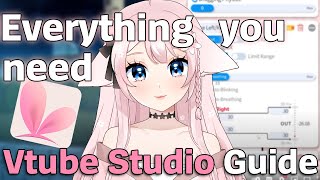

VTube Studio Setup in Under a Minute
46sQuick, beginner-friendly guide that hooks viewers with a promise of fast setup.
▶ Play Clip"Title accurately promises a beginner-friendly setup guide, and the video delivers step-by-step instructions."
This beginner-friendly guide explains how to set up a VTube Studio model for optimal tracking, covering model loading, camera/iPhone connection, and essential tracking settings.
Artist and life modeler presents a short guide on setting up a model in VTube Studio for best tracking results.
To avoid Steam opening every time, use the 'Start without Steam' option or create a shortcut for faster boot.
Drop the zip file from your rigger into the 'Live2D Models' folder accessible from VTube Studio, then unzip and reload.
Choose the first option (basic auto setup) when the popup appears; the second option copies settings from another model, which is not recommended for beginners.
For iPhone, connect via USB in the first tab; USB is more stable than Wi-Fi. Keep iTunes open for connection.
For webcam, go to the camera tab and connect. Camera placement and room lighting are crucial.
Sliders under tracking settings only work for phone; edit them on the phone, not PC.
The third tab contains key settings for fluid tracking: animations, physics, and parameters.
Set idle animation and a 'tracking lost' animation (e.g., sleeping). For tracking lost, go to tracking settings and set 'go back to default'.
Enable body movement if desired (often disabled due to awkwardness). Physics strength at 54 is a good balance. Wind and dragging physics can be adjusted.
Parameters like face rotation: adjust the left/right numbers to increase sensitivity. Lower the number to require less head turn. Smoothing slider controls movement smoothness.
Add new parameter tabs for tongue or mouth X if your model supports it; some options are device-specific.
Set hotkeys for expressions, adjust enable speed and auto-disable time. Edit or create new expressions in the expression editor.
Enable plugins like V Bridger or VTS POG; these require rigger commission. Link to plugin list in description.
VTube Studio offers many customization options, but this guide covers the basics for beginners. For more advanced features, viewers can request a part two.
How do you start VTube Studio without Steam?
Click 'Start without Steam' or create a shortcut of that file.
0:19
Where should you drop the model zip file?
Into the 'Live2D Models' folder accessible from VTube Studio.
0:37
What is the recommended connection method for iPhone tracking?
USB, as it is more stable than Wi-Fi.
1:22
What must be open to connect an iPhone via USB?
iTunes must be open.
1:27
How do you increase tracking sensitivity for face rotation?
Lower the number in the parameter settings (e.g., from 30 to 15).
4:16
What does the smoothing slider do in parameter settings?
It smooths out movement; 0 is sharp and fast, 10 is delayed.
4:33
How can you add extra tracking capabilities like tongue or mouth X?
Add a new parameter tab and select the appropriate inputs.
5:15
What is the recommended physics strength value?
54, as a good balance.
3:14
Start Without Steam
Saves time by avoiding Steam launch every time.
0:19USB vs Wi-Fi
USB is more stable for iPhone tracking.
1:22Third Tab Importance
Contains the most critical settings for fluid tracking.
2:25Sensitivity Adjustment
Lowering parameter numbers increases tracking sensitivity.
4:16Extra Tracking Capabilities
Some features require device-specific or rigger-commissioned additions.
5:12[00:00] hello everyone I'm a an artist and life
[00:02] today rer I will try to keep this video
[00:04] short today so I'll be showing you how
[00:07] to set up your model in vtube studio for
[00:09] the best tracking results this video is
[00:12] beginner friendly and I will also have
[00:14] time stamps in the description in case
[00:16] you want to skip right to the part
[00:17] you're interested in firstly if you
[00:19] don't want steam to force open every
[00:20] time you open V Studio you can go here
[00:23] and click Start without steam it's just
[00:27] way easier and faster to boot up your
[00:29] program like like this so I recommend
[00:31] you to have this file paint or create a
[00:34] shortcut of it in your desktop now you
[00:37] probably have received a zip file from
[00:39] your riger drop that zip into live Tod
[00:42] models file which you can access from
[00:44] this button in vtu
[00:46] studio and unzip the folder there now
[00:50] press un load to refresh the files and
[00:52] you can access your model this popup
[00:55] appears just choose the first option as
[00:58] it's the basic Auto setup that's perfect
[01:00] to begin with second option is for
[01:03] people who want to copy their settings
[01:04] from a different model file but keep in
[01:06] mind most likely your models have
[01:09] different in build settings so I
[01:10] wouldn't recommend this option as it
[01:12] will probably be liking especially for
[01:15] beginners if you're using an iPhone to
[01:17] track your model head to the first Tab
[01:19] and connect it in the USB settings I
[01:22] strongly recommend to use USB as it is
[01:25] more stable than wi-fi keep in mind you
[01:27] need to have iTunes open in order to
[01:29] connect if you're using a webcam go to
[01:32] the camera Tab and connect your camera
[01:34] there in both cases placement of your
[01:36] camera and room light matters a lot
[01:39] place it as close and facing to the
[01:41] center of your face below you'll find
[01:43] the first tracking settings if you're
[01:46] using a webcam those sliders are not for
[01:48] you and I find that these settings only
[01:50] work for phone and you need to edit them
[01:52] in your phone not on PC play around with
[01:55] the sliders and see what works best for
[01:57] you have you spent loads of money on
[02:00] your model expecting to get a decent
[02:02] tracking and then you load the files in
[02:04] vtube studio and your model is s not as
[02:07] expressive as the riger Showcase well
[02:09] that might be your fault it's really
[02:12] important to edit your vtube studio
[02:13] settings according to your own camera
[02:15] and facial expressions even if your
[02:17] riger sends you a file with preset up
[02:19] you still have to do your own
[02:20] adjustments well you don't know how
[02:22] don't worry I will explain everything in
[02:23] detail the third top has the most
[02:25] important settings for your model
[02:26] tracking to be fluid those settings are
[02:28] the ones that will make the big biggest
[02:30] difference the first segment you see is
[02:32] for animations you put your idle
[02:34] animation the first one if your Eiger
[02:37] has provided one and on the second one
[02:39] you put the animation that plays when
[02:40] your model L is tracking for me it's
[02:43] sleeping animation now keep in mind for
[02:45] the animation that plays when your model
[02:47] Lo is tracking you need to go to
[02:49] tracking settings model when tracking
[02:52] lost and click go back to default if you
[02:55] want your model's position to change
[02:57] when you move left or right up or down
[03:00] or zoom in and zoom out when you move
[03:04] you can enable this but most people have
[03:07] this disabled as the movement is a bit
[03:09] awkward at times physics strength will
[03:12] minimize or maximize your physics I like
[03:14] to keep mine at 54 I think it's a good
[03:18] balance wind strength will enable
[03:21] physics as if you had a fun in front of
[03:23] your
[03:26] model dragging physics enable the
[03:29] physics every time you manually drag
[03:31] your model in the
[03:36] program this segment has what we call
[03:39] parameters of your tracking it might be
[03:41] a little bit overwhelming because
[03:42] there're a lot but don't worry once you
[03:44] understand the very Basics you can apply
[03:46] this to each one for example we have the
[03:49] face left and right rotation parameter
[03:52] this ever changing number is what your
[03:54] camera is sending to vtube Studio
[03:56] rotating your face to the left is the
[03:58] bottom number rotating your face to the
[04:01] right is the top number now look
[04:03] straight ahead you see this number when
[04:06] rotating your face to the left you reach
[04:09] that number I don't want to break my
[04:10] neck and have to turn my face so much to
[04:13] the left to reach the limit so I'll set
[04:16] the number lower basically by lowering
[04:18] this number I am making the sensitivity
[04:20] of the tracking higher and now when I
[04:22] move to the left I reach the maximum
[04:24] potential we set faster those are the
[04:27] only numbers that you should edit the
[04:29] numbers on the the right are just not
[04:30] meant for you the slider here Smooths
[04:33] out the movement if I set to zero the
[04:35] movement is sharp and fast if I set it
[04:38] to 10 movement feels almost a little bit
[04:40] delayed in certain parameters I like to
[04:43] keep this off it's just personal
[04:45] preference those numbers you can also
[04:47] reverse them sometimes it can create a
[04:50] nice flow to have certain movement
[04:52] reversed all the things that I explain
[04:54] now is what you need to apply to every
[04:56] parameter it's the same Rule and just a
[04:58] reminder don't be afraid to push down
[05:00] those numbers especially for the eyes
[05:03] and mouth tracking if you're a person
[05:05] that speaks in low tone and doesn't open
[05:07] their mouth as much I definitely
[05:08] recommend
[05:12] this if your model has extra tracking
[05:15] capabilities like tongue or mouth XX you
[05:17] can add a new parameter Tab and select
[05:20] according
[05:22] inputs some of these options are only
[05:24] available for certain devices
[05:29] [Music]
[05:31] the last stop is for the expressions of
[05:33] the model you can select the hotkey
[05:35] action if you want to just add a model
[05:38] expression you click here and select the
[05:41] expression file you want to set and then
[05:44] set the shortcut key to enable
[05:47] it if you scroll a little bit down you
[05:50] can even set how fast the expression
[05:52] enables or after how long the expression
[05:55] will be disabled for some Expressions I
[05:57] like setting this to 0.1 so it's
[05:59] seamless in the expression editor you
[06:02] can edit or create new
[06:06] [Music]
[06:07] expressions and remember you have to
[06:09] request those extra things from your
[06:11] model artist and
[06:13] riger extra expressions are not included
[06:16] in the base file
[06:21] usually if you click on an existing
[06:23] expression file you can edit it this is
[06:26] useful for people who perhaps may want
[06:28] to combine all existing expressions or
[06:31] add something extra lastly in this tab
[06:34] you can enable plugins you have such as
[06:36] V Bridger tracking or plugins that work
[06:38] with tweets like VTS POG all of these
[06:41] are extra and you usually have to
[06:43] commission your Eiger to add such
[06:44] capabilities in your model I will leave
[06:46] a link in the description below with a
[06:48] list of all the btube studio plugins
[06:50] available btube Studio offers a lot of
[06:53] extra things that you can add to your
[06:54] model and do in the program you can even
[06:56] recolor parts of your model and set it
[06:59] as a to
[07:00] but I figured a lot of those options May
[07:02] confuse people who are unfamiliar with
[07:04] the program so I tried to keep this
[07:06] guide short and simple if you do want a
[07:08] more complex guide on all the extra
[07:10] things let me know in the comments below
[07:12] and I'll make a part two thank you
[07:14] everyone for watching and if you have
[07:16] any questions I'll try to actively reply
[07:18] in the comments thank you bye-bye
⚡ Saved you 0h 07m reading this? Transcribe any YouTube video for free — no signup needed.