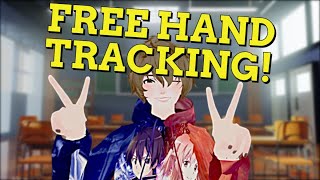
Free Hand Tracking for VTubers - No Expensive Hardware!
60sPainful and expensive motion tracking is a common problem, so offering a free alternative grabs attention immediately.
▶ Play Clip"A genuinely useful step-by-step setup guide, but 'best' is a claim never backed by comparison."
This video is a setup guide for Warudo, a free application that offers built-in hand tracking for VTubing, positioned as an alternative to Elite Motion. The creator walks through downloading the app from Steam, configuring character and tracking settings, calibrating face and hand tracking, and integrating the avatar into OBS for streaming.
Warudo is a free application with built-in hand tracking, solving issues like skin burns from Elite Motion controllers.
Head to Steam, download Warudo, and open the application to begin setup.
Click 'Basic Setup', open the characters folder, drag and drop a character, select the Avatar from the dropdown, and click OK.
In the popup, choose 'Yes recommended', then answer questions about full body tracking, upper body, Elite Motion, iPhone Face ID, and webcam availability.
MediaPipe is the default face/post tracking template; experienced users can choose iFacialMocap or OpenSeeFace. Leave everything as default for this example and import expressions.
Choose a transparent background for the character, which is handy for overlaying in OBS.
Warudo offers many camera, light, and sensitivity options. In the MediaPipe tracker, you can calibrate face tracking and hand tracking.
To calibrate hand tracking, hold your hand close to your ear with the palm facing the camera, then click 'Calibrate hand tracking'.
In OBS, add a Game Capture source, enable 'Allow transparency', capture the specific Warudo window, then position and scale the avatar. Add a background image or game capture below the avatar layer.
Warudo provides a completely free and accessible way to add hand-tracked 3D avatars to your streams, needing only a webcam and optionally an iPhone for Face ID. The setup is straightforward, and with the transparent background, OBS integration is simple.
What is the name of the free VTubing application shown in this video?
Warudo
00:03
Where do you download Warudo?
From Steam
00:20
Which iPhones support Face ID tracking for Warudo?
iPhone XS and up
01:03
What is the default face/post tracking template in Warudo?
MediaPipe
01:32
What background setting does the creator recommend for OBS?
Transparent background
02:00
How do you calibrate hand tracking in Warudo?
Hold your hand close to your ear with the palm facing the camera, then click 'Calibrate hand tracking'.
03:31
What type of source do you add in OBS to capture the Warudo avatar?
Game Capture
03:59
Free alternative to Elite Motion
Warudo offers built-in hand tracking without the cost or skin-burn issues of Elite Motion, making VTubing more accessible.
00:03iPhone Face ID support
The app can leverage iPhone XS or newer Face ID for facial tracking, eliminating the need for a dedicated face-tracking device.
01:03Extensive customization
Warudo provides more camera and sensitivity options than typical VTubing apps, allowing fine-tuned control.
02:26Hand calibration technique
The specific calibration pose (hand near ear, palm facing camera) is a practical tip to stabilize hand tracking.
03:31Seamless OBS integration
Using Game Capture with transparency mode makes it easy to overlay the avatar over games or backgrounds.
03:59[00:03] to have hand tracking but can't afford Elite motion or maybe you have Elite motion but it burns your skin or maybe even melts it well I got a solution for you is a free application that has built-in hand tracking and more and yes
[00:20] I could not pronounce that for the life of me so the first thing we got to do is head over to steam and download once we have the application downloaded we want to open it now that we have the application open first thing
[00:32] we want to do is click on basic setup we then want to click on open characters folder drag and drop our character into the folder close it and then click on the drop down and then select our Avatar once the Avatar is selected we just want
[00:47] to hit okay a pop-up message will appear on the screen and then all we want to do is click on yes recommend for me and then click okay on the configure motion questions do we need to track our full body if you wanted to we want to select
[01:03] yes upper body most definitely do you have a elite motion controller if you get burned today do you have an iPhone or iPad that supports face ID iPhone 10s and up will support this so if you have one yeah we could totally use it do you
[01:18] have a working webcam we're going to stick with webcam just for now for this then we're going to select our webcam down below and then click okay based on our answers we recommend the following face tracking and post tracking
[01:32] templates so as we see here it just says media pipe we can change it to icial map or open C face if you know what you're doing with those please definitely try to leave everything as default for this example and then we're going to click
[01:47] okay we're then going to get a popup saying that we can import our expressions and we definitely want to do that we should get a success message and our Avatar make sure you write those down or just take a screenshot now we
[02:00] get to select our configured background what we want to select is I want the background to be transparent this will be handy for OBS now we should get this done screen we have completed the basic setup we should be pretty much good to
[02:14] go now that we're set up all we should have to do is click on the tab behind the main one and there we are with our hand hand tracking but we're not done just yet
[02:26] there a crazy amount of settings let's go through those really quick if we assistant to camera we'll see that we have so so many camera options different
[02:39] outputs sensitivities and sensitivities and so so much more more options than I've ever seen in any other V tubing application so make sure you go through
[02:52] application so make sure you go through this and find tune it to your preference if we go from camera to directional light we could change things like color of the light if it affects the characters props and everything else so
[03:05] we are going to skip over character and go to Media pipe tracker over here we can select things like our different characters our webcams and if we want to scroll down a little bit though this is where we're going to calibrate our face
[03:19] tracking so if we need to reset our face tracking because our camera moved or anything like that we just hit calibrate calibrated successfully great main thing we want to go and really focus on it some of you might have problems with
[03:31] all over the place so we want to hold our hand close to our ear with the Palm facing towards the camera and click on calibrate hand tracking it'll tell us to do the exact same thing I just said and then click okay it will then calibrate
[03:44] the hand tracking and make sure that the hand tracking is in the correct position and you can also play with the settings to make it a little bit more fine-tuned okay so now let's set up on to OBS now that we have OBS open with a
[03:59] dedicated scene all we want to do is under sources click on the plus icon and go to game capture then what we want to do is create a new source and we're and maybe just add a one or two at the end and then click okay we want to click
[04:14] on allow transparency mode capture specific window window we want to find the application and then click okay then we want to move the character into the proper position and maybe change the size of it if we wish to do so but let's
[04:30] add a background to do that we were going to click on the plus icon and then want to add a game and basically the exact same thing that we did before with the Avatar but I'm just going to add an image then I'm going to click on ADD
[04:44] existing image if you need to add your own image basically the same setup as Main background and then I'm going to click okay I'm going to make sure that the main image whether that be our video game or an image itself is down one
[04:59] below the the Avatar itself and just like that we're good to go let me know in the comments down below if you use this application and what you think of it I'm your vtuber Senpai I upload here every Wednesday and I stream here on
[05:13] YouTube every Friday 5 p.m. Pacific Standard time so come on by say hi and Standard time so come on by say hi and well I'll catch you all on the next one
[05:36] this no no I'm just I'm just I'm just going to use Google Translate

⚡ Saved you 0h 05m reading this? Transcribe any YouTube video for free — no signup needed.