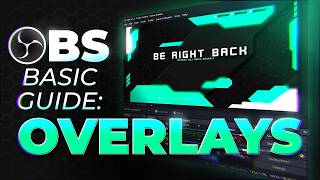

What Are OBS Overlays?
44sClear, beginner-friendly definition of overlays with visual examples, perfect for new streamers.
▶ Play Clip"Delivers a solid beginner guide to overlays, though it's padded with self-promotion and tangents."
This video is a beginner-friendly guide to creating and using overlays in OBS Studio. The creator explains what overlays are, how to create them using free tools like PhotoPea, and how to add them to your stream. They also cover customization options such as color correction and grouping elements, and mention where to find free and paid overlay packs.
Overlays are graphics shown on screen, such as images, GIFs, or video files. They can be used for starting soon screens, be right back screens, and more.
Websites like StreamElements and Streamlabs offer free overlays. The creator also promotes their own overlays on Gumroad, with many free options and paid packs ranging from $0.99 to $10.
PhotoPea is a free Photoshop alternative. You can search for templates by the creator's name (Gal Space Level) and customize them. Export as PNG and add to OBS as an image source.
In OBS, add an image source, select the downloaded PNG, and press Ctrl+F to fit the screen. This creates a be right back screen.
For animated overlays, use a media source and enable loop. This allows you to play video files (like WebM) as overlays.
In OBS, you can add a color correction filter and adjust hue shift to change the overlay's color dynamically. This is useful for changing color schemes.
Hold Shift to select multiple sources, then right-click and choose 'Group Selected Items' to group them. This allows you to move them together, like grouping a webcam with an overlay frame.
Widgets are interactive elements (like alerts) that connect to your Twitch account, while overlays are static graphics. You can place widgets on top of overlays to make them look integrated.
As of 2026, overlays are not as popular except for starting soon and be right back screens. The creator personally doesn't use many overlays on their stream.
Overlays are simple graphics that can be created with free tools like PhotoPea and added to OBS as image or media sources. Customization options like color correction and grouping make it easy to personalize your stream. While overlays are less common now, they remain useful for specific screens like starting soon and be right back.
What are overlays in OBS Studio?
Overlays are graphics shown on screen, such as images, GIFs, or video files, used for starting soon screens, be right back screens, etc.
00:46
What is PhotoPea?
PhotoPea is a free Photoshop alternative that can be used to create and customize overlay templates.
03:37
How do you add an image overlay in OBS?
Add an image source, select the downloaded PNG, and press Ctrl+F to fit the screen.
05:15
How do you change the color of an overlay in OBS?
Add a color correction filter and adjust the hue shift.
10:31
What is the difference between overlays and widgets?
Overlays are static graphics, while widgets are interactive elements that connect to your Twitch account, like alerts.
15:53
What file format is recommended for animated overlays?
WebM videos, because they support transparency and compress well.
14:41
PhotoPea as a Free Photoshop Alternative
Provides a free tool for creating custom overlays, making it accessible to beginners.
03:37Dynamic Color Changes in OBS
Shows how to change overlay colors without editing the image, useful for rebranding.
10:31Grouping Sources for Easy Management
Explains how to group elements so they move together, streamlining stream setup.
12:31Overlays vs Widgets Distinction
Clarifies the difference between static graphics and interactive elements, helping viewers understand stream design.
15:53Overlay Trends in 2026
Provides current context on overlay usage, showing that minimal overlays are now common.
17:14[00:00] And today we're going to be continuing our series of OBS Studio Basics And today I'd like to talk about overlays okay.
[00:13] We talked about how to set up OBS studios. So if there's anything that is still confusing to you, I suggest Today we're just going to be focusing on the basics of overlays
[00:29] Anyways, All right, so starting off exactly where we left off last time, we have this high, we have this with a game capture. So we already have a little semblance of what an overlay would be like
[00:46] in this case, this, you know, Miles Morales thing, which is just an image. And in our be right back screen, we have the Valorant image, I want you to understand that overlays are just graphics that you show on screen.
[01:01] In that case they can be a GIF which would still be like an image. So you can use like a tiny little video file to, you know, loop.
[01:14] It's just graphics. is that the overlay most likely was built for that purpose. will make something that says starting soon or be right back,
[01:31] but you can create it directly in OBS studio as you as you can see. Of course, this does not necessarily look like a streamer purposely made thing. So there's a bunch of websites and and today I kind of want to stay away
[01:43] like stream elements, Streamlabs owned. Those are all services that actually will give you some overlays for free. But today I really want to stick to the basics of creating an image
[01:59] And of course I get to promote my own overlays. So if you go to gumroad.com/gaellevel, I actually have a bunch of them, a bunch of packs that not only lets you add overlays to your broadcasts,
[02:13] Okay, so find the one that says zero plus. But if you want to tip, you can also tip. and you'll see like a preview of exactly what you're going to get.
[02:31] so you can have a screen that looks like this. going to have your offline, your stream ending, your break, blah, blah, blah. And yeah, I definitely, definitely advise you go with a free one.
[02:44] Majority of my stuff is free on this website anyways And then one day if you want to upgrade, maybe you want something that's animated, then you can like pay for one and the prices go from $0.99.
[02:57] And I think I have a couple of products that are like two to maybe ten bucks. you're going to pay on my website anyways for full packs like that, right? If you don't want something that is completely made, as in like
[03:13] and you kind of want to put a little bit of personality. to create templates for that specific purpose.
[03:25] you click on templates here, okay. Then you click on the search bar up top and you type my name gal space level.
[03:37] All of this There isn't I don't I don't even think there's a payment system on photo P. because photo P is basically Photoshop but free.
[03:55] I have like complete packs in there that you can customize. So let's say that you want a starting soon screen, right?
[04:10] What you can do is click on this for example. Well not yet but this is a graphic It's like a UI for your live stream.
[04:25] is double click here and type whatever you want. So this one template can be your starting soon screen. It can be anything you want right?
[04:41] And what you can do now is go to File Export as. If you've never used like or an editing website because there's a bunch of buttons everywhere.
[04:57] The thing is, we don't use most of the buttons, so look for the basic stuff. In Miss Paint, you go to a file save, right? pick what it is PNG right.
[05:15] I'm going to go with that one. And this is our bright back screen. I'm going to go to my bright back scene by clicking on it. Tap image and.
[05:30] Then find the file. because we've been through this on the first videos already. But also I feel like this part is kind of intuitive.
[05:45] Go find that image exactly where you downloaded it. And my case is my folder called pictures. And I also have a starting point here. But we're going to select the right back.
[05:58] This is me slowing down a little bit. Just And right there we can see it. It's bright back I can press Ctrl f to make it fit the screen
[06:12] because the original image is ten ADP and my screen is 4K And just like that, we have a be right back screen. For example, me personally I'd like to play
[06:28] You would have to use a different source right now. I have my clips downloaded on my computer, not on my laptop unfortunately.
[06:42] But if I were to add a clip, I would either use Still, where is it video capture device? Well anyways, I would probably use media.
[06:58] video files or things of the sort. a media source. I don't know if I have any videos, any clips or anything like that.
[07:12] Get level channel. So let's just put a random one. It's my video of the face cam
[07:24] a graphic or something like that, I would click on loop. I would make sure that loop is enabled. So basically it would play
[07:41] I will control F again, actually control R to reset. And I can manually scale this down because if it's a bare back screen then you would want it to be small somewhere right.
[07:54] that you want to play during your back, this is how you could add it. If you don't loop it, it will just turn off once it's done. I'm pretty sure OBS had something called VLC,
[08:09] and I'm actually kind of confused that it's not showing from a folder. So you would select the folder But I'm not seeing it on my laptop, which is weird because I have it on my PC.
[08:28] Yeah, just like that. You have a beer back screen and you could have customized it. I mostly tell you,
[08:40] but you can really play around, turn things off, turn things back on. For the blur effect that I'm turning on and off. You can also change the colors.
[08:56] I'm going to go at the bottom go to New Adjustment. And then under hue I can click and drag
[09:08] and give it whatever color I want. And I think this is going to be a good case study for OBS studio. What happens if I replace like instead of saving a different image?
[09:22] if I overwrite that file that I have into OBS studio? It's blue right now. I'm going to click yes.
[09:35] And now when I go back to OBS you can see it updated okay. Try not to do this like while you have OBS running.
[09:48] We basically you can say that you made your own overlays in a way to fit your own color scheme, for example.
[10:02] Right. also within OBS studio, if I want to change the color in OBS studio dynamically, let's say that I'm indecisive
[10:15] and I want to change my color scheme every month, right? But here's how you do it. I can click on filters right here, or I can right click and click on filters.
[10:31] I don't know if we've been through this already, Why is this in British? Why is my obs on my on my PC different?
[10:46] Click okay to add the color correction filter and then go to Hue Shift. And just like in photo op, a lot of those softwares a lot of like the verbiage is pretty much the same.
[11:02] If you're wondering how to change some things color in Photoshop, guess what? It's also an adjustment layer and it's also hue and saturation, right? Saturation also does the same thing saturates or desaturate an image.
[11:19] And and yeah, you can do that directly in OBS studio. if you go to photo op, this is something that I get a lot. example, and you see like an overlay pack
[11:35] Oh, my color scheme is red. I wish I had like, I wish this was red. I especially designed most of my overlays to be a single color
[11:50] so that it's super easy to make that happen, right? So yeah, I think I think that's part of the lesson.
[12:02] usually come with more than just, you know, a full starting soon screen. And then with the knowledge that you have from the from the first video, I believe
[12:16] So you put them on top of the camera, and then you can use alt and click and drag just to make them fit underneath them. You group stuff together by holding shift, selecting
[12:31] the second thing or the third thing, the the fourth thing, and then clicking on group selected items and it will put them in a group together. And now if I move this, you'll see that it moves with the camera too.
[12:45] Right now I just grouped up my game capture and my webcam. yeah, that's how you do it. So as you can see, OBS studio is actually pretty simple.
[12:59] They just happen to look super cool because they are made by professionals. and then you just slap them on if you see like a little,
[13:12] like a little bar that says recent follower, recent this and recent that, this is something that you can create. So you create the graphics and then you'll put a widget
[13:25] on top of it to make it look like it's part of the same thing. But the truth is there's just an image or an animation behind it. For example, you can see here I have like a little bar.
[13:40] This is for recent cheers, recent subs or whatever top tip are here. We have top tipper tips and then follows.
[13:55] And yeah. For example if you have like a. Oh this guy has a cool chat widget and it's actually just an image and that's the image with transparency.
[14:11] and then slap it on top of it, group them together. If you want your webcam to be large or if you want it to be a square,
[14:25] I don't know how I can explain it more. Let's give you an example of an animated overlay. And for an overlay like this, the only difference is that
[14:41] the animated overlay is just going to be a video that you play in the loop, right? So those are moving and those are WebM videos. It can be for as I showed you before, like you can put like a media source
[14:54] and that's your and that's going to be your animation. Because when supports transparency it compresses pretty well. But yeah they're just video files.
[15:08] So if you have an editing software that can make video files congrats. Look at that. That's my intermission screen. That's an actual stinger transition that you can add which is custom.
[15:25] And this is yeah, this is an overlay pack that is not free But you can get it right now over at gumroad you can have a stream ending, even though I told you
[15:39] What else? So yeah, I think, I think I did pretty well explaining everything. Maybe we'll touch on widgets
[15:53] later on, since overlays are like the more simple stuff widget is going to be more interactive stuff. Like an alert is something that is connected
[16:06] It's not connected to your Twitch account. Now you can have widgets that look like an overlay, but it's actually interactive. just to display things like starting soon and all that.
[16:21] You can get those absolutely easily All right. That being said, thank you guys so much for watching.
[16:35] The sun is absolutely going down and I refuse to use my big bright light today. And yeah, if you have any questions, I think I'm going to rename this series.
[16:47] to make it more coherent, because right now it doesn't look So I might change and put like, you know, big one, two, three in the title,
[17:00] and then put like a, a playlist so you can really understand how that all works. But big recap is add an image source, find an image. You can slap it in there if you want to,
[17:14] You'll know what streamers usually have and usually don't have nowadays. 2026 when I'm recording this, overlays are not a huge thing,
[17:26] except for things like starting soon, or at least to be right back But other than that, currently
[17:39] on my actual live stream, I don't really use any overlays. Starting soon I'll be right back screen. To be fair, I just stream and then when I'm done, I read out and then it's fine.
[17:52] Like, I don't see a big difference when it comes to my viewers. I stream on Twitch, Twitch.tv slash level, same name pretty much everywhere And I'll see you next time. Okay? Bye bye.
⚡ Saved you 0h 18m reading this? Transcribe any YouTube video for free — no signup needed.